Back Office › Payments › Credit Card Types lists the card brands a cashier can choose from when recording a card payment run on a stand-alone terminal. Integrated card terminals (such as DC Direct) read the brand from the card themselves and do not use this list.
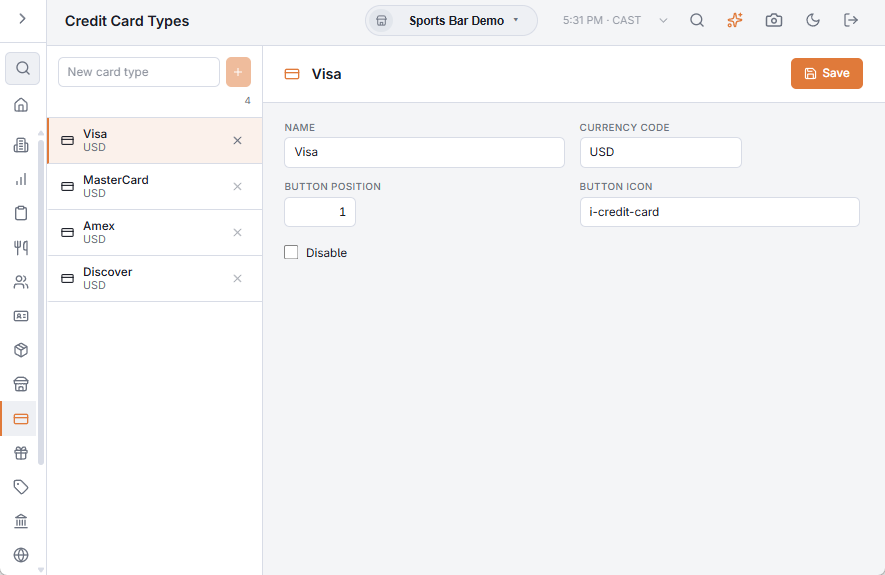
Managing the list
Visa, MasterCard, Amex and Discover are there to start with. To add a brand, type its name in New card type and press + or Enter; edit the fields on the right and press Save.
- Name — the brand as shown on the Manual Credit Card screen and in the daily sales report.
- Currency code — a new type starts as USD. Only terminals with the same currency are offered for this card type, so change it if your store charges in another currency. Leave it blank to allow every terminal.
- Button position — the order of the buttons; the first one is selected for the cashier.
- Button icon — an icon name, such as
i-credit-card. - Disable — hides the brand at the register without removing it from past payments.
The × on a row deletes the type after you confirm.
How the cashier uses it
A Card payment method whose processing method is Manual processing opens the Manual Credit Card screen. The cashier picks the card type, then the terminal it was run on, and enters the amount, tip, last 4 digits and auth code. The daily sales report groups these payments by card type.
Related: Payment terminals, Payment methods.