Back Office › Payments › Payment Methods defines every payment button the register offers — cash, cards, gift and loyalty cards, house accounts, transfers, vouchers and any local tender. Each method has a Kind that sets its basic behavior, and a set of switches you can adjust.
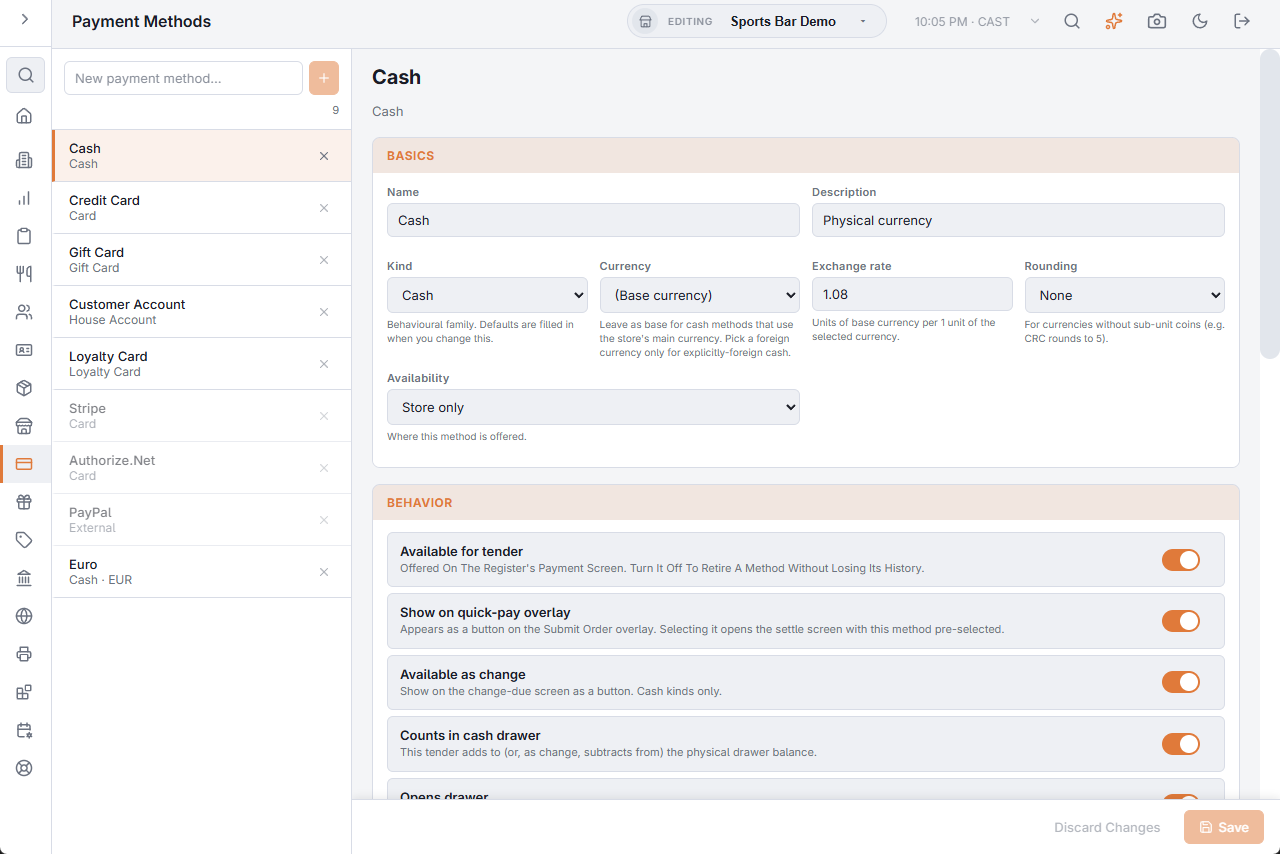
The list
- To add a method, type its name in New payment method… and press + or Enter. It is created at once with Kind Other; pick the right Kind next so its switches are filled in for you.
- Methods are listed by Button position, then by name — the same order as the buttons at the register. A method that is not available for tender is shown faded.
- The × on a row deletes the method after you confirm. Payments already taken with it keep their history. To stop using a method you may want back later, turn off Available for tender instead.
Saving
Changes in the editor are not saved until you press Save. While there are unsaved changes, an Unsaved Changes banner shows; Discard Changes puts everything back after asking you to confirm.
Basics
- Name — the button caption. Description — an internal note.
- Kind — Cash, Card, Gift Card, House Account, Loyalty Card, External, Bank Transfer, Voucher or Other. Changing the Kind fills in the switches below (see the table), and you can adjust them afterwards. Other changes nothing.
- Currency and Exchange rate — Cash methods only. Leave Currency on (Base currency) for the store’s own money; pick a foreign currency only for a method that takes foreign cash, and enter how many base units one foreign unit is worth. See Accepting Foreign Currency.
- Rounding — None, Nearest 5, Nearest 10, Nearest 50 or Nearest 100 whole units, for currencies without small coins.
- Availability — In-Store, Call Center & Web Orders, Store only, or Call Center & Web Orders Only.
| Kind | Switches it turns on |
|---|---|
| Cash | Available as change, Counts in cash drawer, Opens drawer, Allows change (Archives at End of Day off) |
| Card | Requires authorization, Settles via processor, Allows tips, Archives at End of Day; processing method set to Manual processing |
| Gift Card, Loyalty Card, External, Bank Transfer, Voucher | Requires reference |
| House Account | Allows tips |
Choosing a Kind other than Cash clears the currency and rate; choosing a Kind other than Card clears the card processing settings.
Credit card processing
Shown only for Kind Card. Processing method decides how the button takes the payment:
- Manual processing — the card is run on a stand-alone terminal and the cashier records it. See Credit card types and Payment terminals.
- Integrated — DC Direct — the register sends the sale to a Datacap terminal. See Setting up DC Direct in Back Office.
- Credomatic (Card Not Present) — for card payments taken by phone. See Credomatic (card not present).
Switching to another processing method clears the settings of the previous one.
Behavior
- Available for tender — the button is offered at the register. Turn it off to retire a method without losing its history.
- Show on quick-pay overlay — the method also appears on the Submit Order overlay; tapping it opens the settle screen with this method chosen.
- Available as change — offered as a button on the change-due screen. Cash only.
- Counts in cash drawer — the payment adds to the drawer balance (or, given as change, takes from it).
- Opens drawer — the cash drawer opens when this method is used. Usually matches Counts in cash drawer.
- Requires authorization and Settles via processor — for cards and anything approved and paid out by a processor.
- Requires reference — asks for a reference such as a cheque number or voucher code.
- Allows tips — a tip can be added to this payment. Allows change — the customer can pay more and receive change.
- Appears on sales reports — counts in gross sales. Turn it off for internal-use methods.
- Archives at End of Day — End of Day archives these payments. Normally off for cash, which the drawer reset handles.
Prompt, Display and Reporting
- Prompt type (None, Text or Currency) and Prompt label — a field shown when the method is chosen at the settle screen, such as “Voucher code”.
- Button position, Icon (an icon name such as
i-cashori-gift) and Icon only (hide label) — how the button looks and where it sits. - Id under Reporting — the method’s fixed identifier, used by exports and integrations.