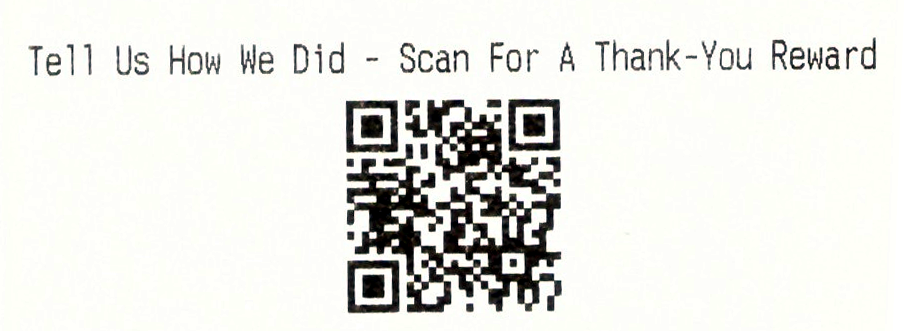
The guest survey, set up in Back Office › Discounts & Promotions › Guest Survey, puts a QR code on paid receipts. The guest scans it, answers a few short questions on their phone and, if you choose, gets a one-time coupon for a later visit. You see the answers in Back Office, and managers get an alert when a guest is unhappy.
How it works
- A check is paid and the receipt prints with a QR code. Each receipt gets its own link; a reprint shows the same link.
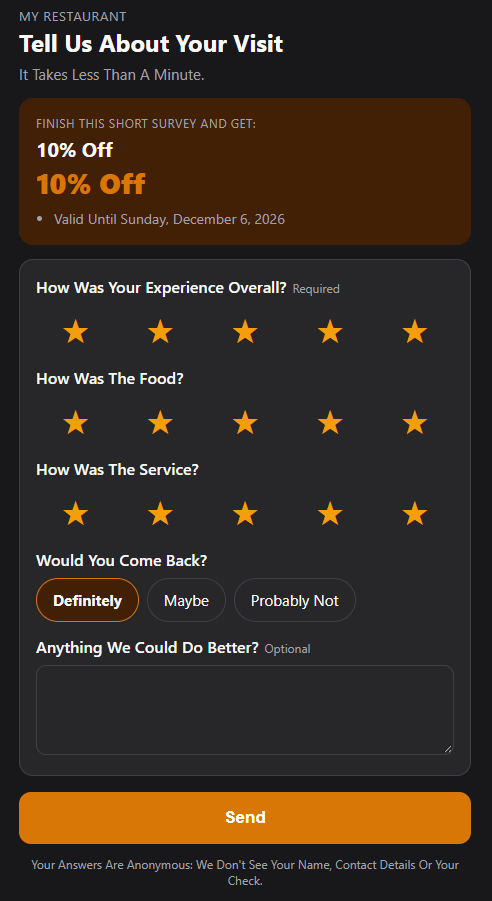
- The guest scans the code. The survey opens in their phone’s language (English, Spanish or Arabic) — no app and no sign-in.
- They answer. Only the overall rating is required; everything else is optional.
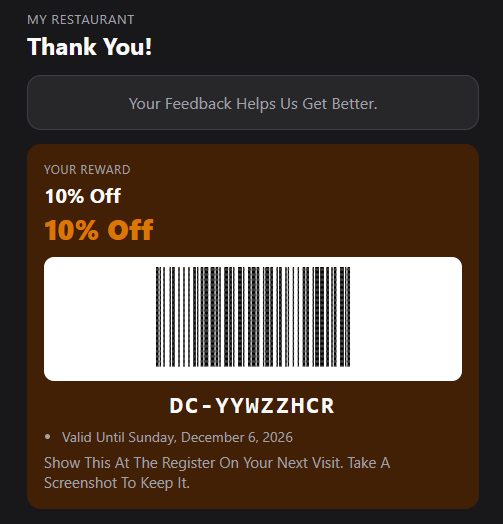
- When they press Send, the reward coupon appears on screen with a barcode. They show it at the register on their next visit.
Turning it on
Go to Back Office › Discounts & Promotions › Guest Survey and open the Settings tab.
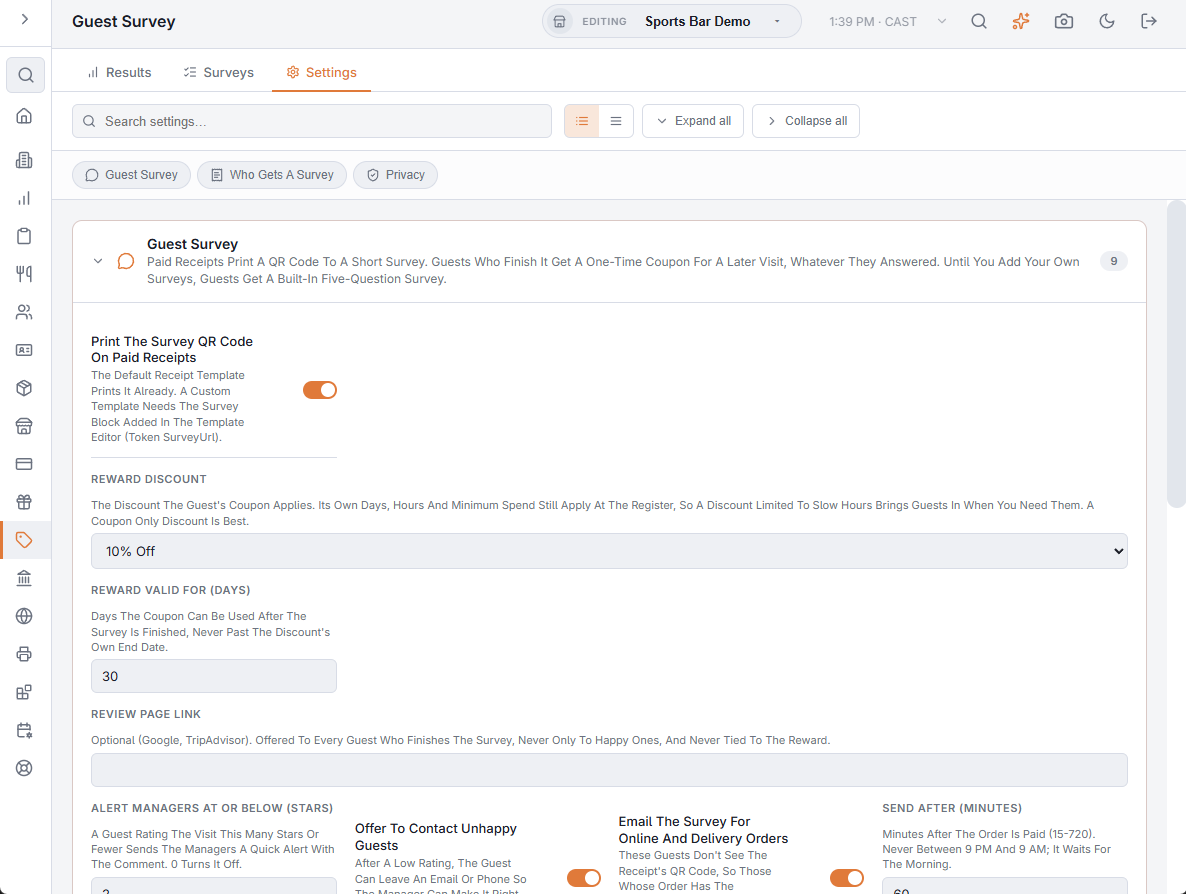
- Show The Survey QR Code On Paid Receipts And The Customer Display — the main switch, for the receipt, the survey slip and the customer display alike. It is off until you turn it on.
- Reward Discount — the discount the guest’s coupon applies. Choose No Reward (Thank You Only) to run the survey without one.
- Reward Valid For (Days) — how long the coupon can be used after the survey is finished (30 by default). It never runs past the discount’s own end date.
- Review Page Link — optional. A link to your Google or TripAdvisor page, offered to every guest who finishes.
- Alert Managers At Or Below (Stars) — see Low-rating alerts below.
- Offer To Contact Unhappy Guests — on by default. After a low rating the guest can leave an email or phone so a manager can make it right (Guest survey: making it right after a low rating).
- Email The Survey For Online And Delivery Orders and Send After (Minutes) — see Guest survey: by email for online and delivery orders.
- Print The Survey On The Check Before Payment — on by default; see On the check below.
Until you add your own surveys on the Surveys tab, guests get a built-in five-question survey (Survey library and Generate With AI).
Choosing the reward
Create the reward in Discounts first. A Coupon Only discount is best, so staff can’t apply it without a coupon. The discount’s own days, hours and minimum spend still apply at the register — so a discount valid only Monday to Thursday afternoons brings guests back at your quiet times.
Who gets a survey
- Survey One Check In Every — 1 surveys every paid check; 5 surveys about one in five.
- Minimum Check Total — checks under this total don’t get a survey (0 = any paid check).
- Survey Link Valid For (Days) — how long the QR code keeps working (3 days by default).
- Receipt Text — the line printed above the code. Leave it blank for the built-in line in the store’s language.
Only paid, non-void checks get a survey, and a reprint shows the same link.
On the check
With Print The Survey On The Check Before Payment on, the check printed before payment carries the same QR code as the receipt, for servers who bank their orders and hand over the check. A guest who answers before paying gets the reward once the check is paid, and never on a check that is voided. The reward is for a later visit, so it can’t be used on the check being paid.
Privacy
Answers never keep the guest’s name, phone or card. With both privacy options off, they are anonymous: only the business day, part of the day, order kind, party size and a check-size range are kept, and the survey tells guests their answers are anonymous.
- Keep The Order With Each Response — keeps the check number and table so a complaint can be traced. The survey then stops telling guests it is anonymous.
- Keep The Server With Each Response — keeps the server, for results by server.
Redeeming the reward
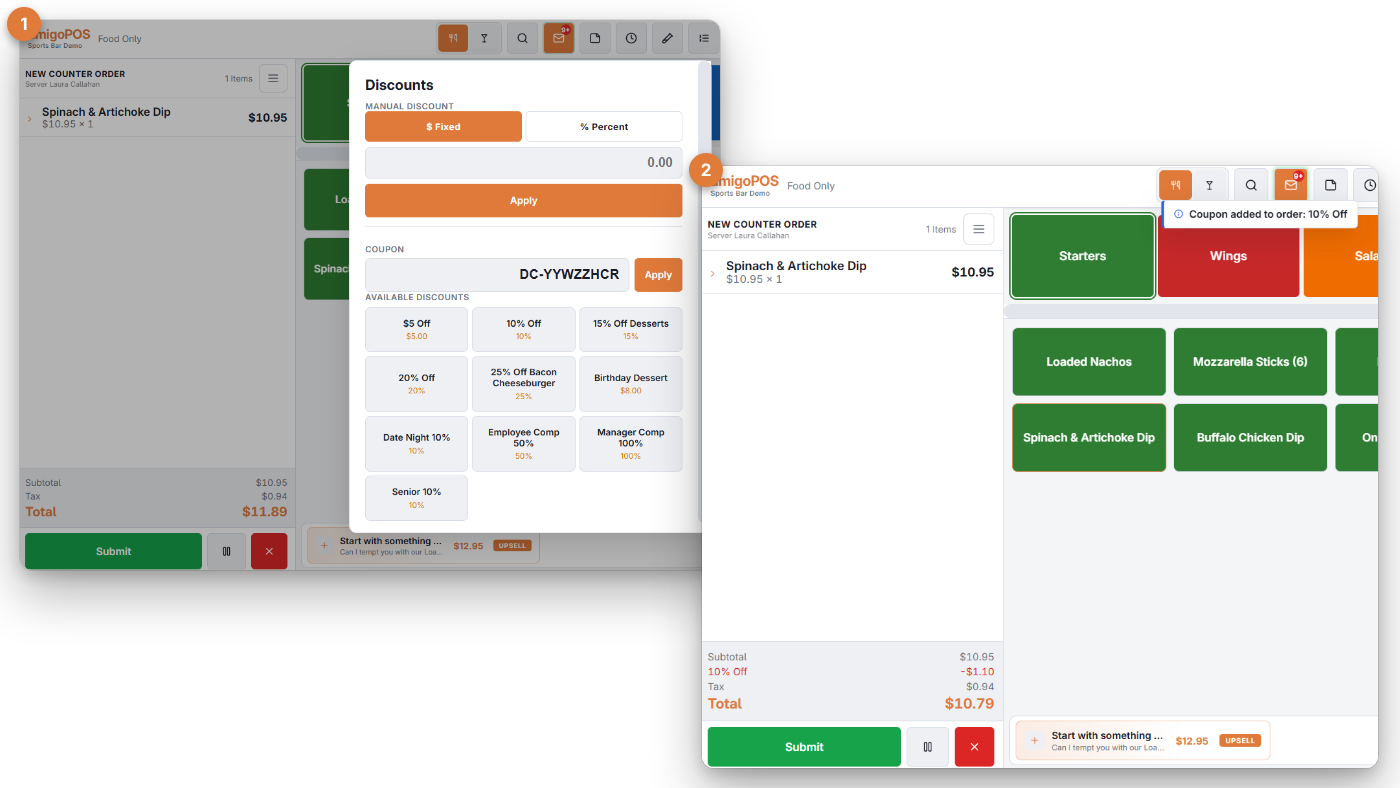
The coupon is a normal printed coupon (a DC- code). Scan the barcode on the guest’s phone or type the code into the coupon entry on the register, the same as any printed coupon. It works once.
Low-rating alerts
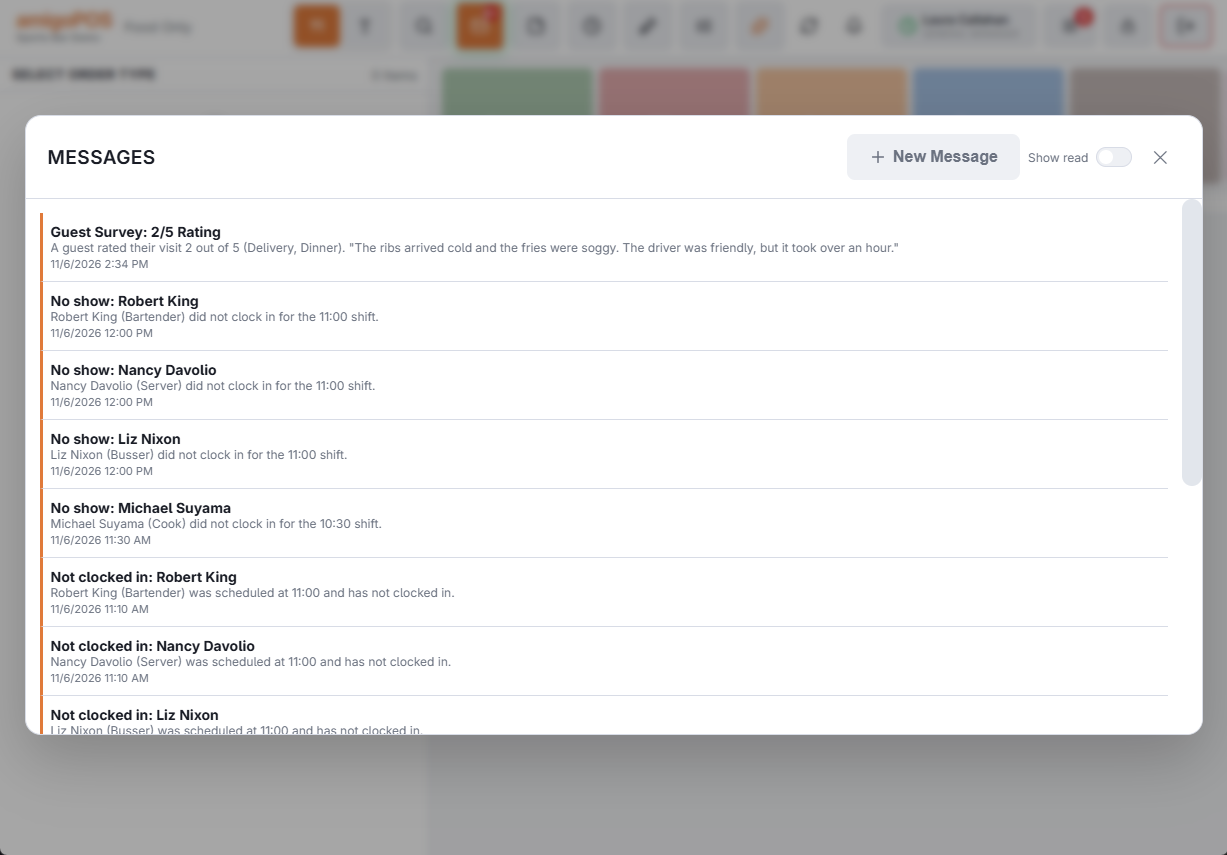
When a guest rates the visit at or below Alert Managers At Or Below (Stars) (2 by default), the managers get a quick alert in the register’s message inbox with the rating, order kind, part of the day and the guest’s comment. Set it to 0 to turn the alerts off.
Receipt templates
The default receipt template already prints the survey block. If your store uses its own receipt template, add this block in the template editor where you want the code:
{BlockIf=SurveyUrl}
{Space}
{Center}{SurveyText}
{Center}{QRCode=SurveyUrl}
{EndIf}
Emailed receipts built from the same template carry the link too. To print the code on its own slip instead, see Survey slip and customer display.
Related: Survey library and Generate With AI · Survey results and AI summary
Email sign-up on the thank-you page
The thank-you page can also offer guests your offers by email, kept apart from their answers. Turn it on in Discounts & Promotions › Guest Offers › Settings › Offer Email Sign-Up After The Survey. See Guest offers: building your email list.
Online and delivery orders
Guests who order online or for delivery get the survey link by email. See Guest survey: by email for online and delivery orders.