Back Office › Store Setup › Customer Information sets up the customer screen used by phone, delivery and call-center orders — where staff look up or enter the customer before the order — and the store’s delivery zones. It has three tabs.
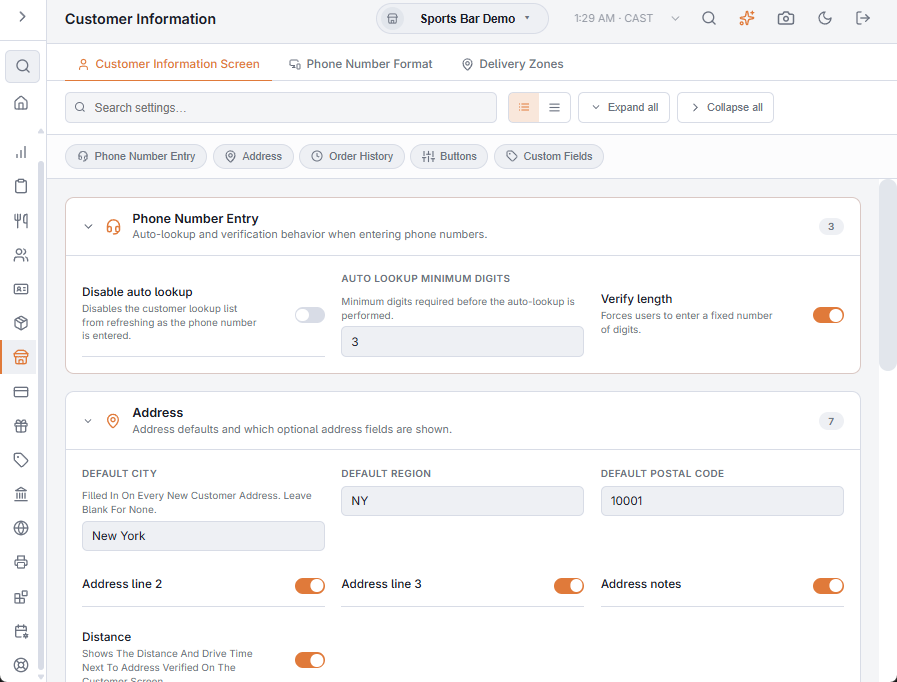
Customer Information Screen
Each setting saves as you change it, with a tick to confirm; there is no Save button.
- Phone Number Entry — Disable auto lookup stops the screen searching for customers as digits are typed; Auto lookup minimum digits sets how many digits start the search (3 if left blank); Verify length refuses a new customer whose number is shorter than the shortest pattern in Phone Number Format (7 digits when no pattern is set).
- Address — Default city, Default region and Default postal code are filled in on every new customer address, at the register and in Back Office; leave them blank for none. Address line 2, Address line 3 and Address notes show or hide those fields on the customer screen. Distance shows the distance and drive time beside Address Verified.
- Order History — Order count is how many past orders the customer screen lists (10 if left blank).
- Buttons — show or hide Block customer, Loyalty card, Map, Order History and Reorder on the customer screen. The customer account button is always shown.
- Custom Fields — up to three extra fields of your own. Switch each on with User-defined field 1–3 enabled and give it a label; without a label it shows as “Field 1”, “Field 2”, “Field 3”.
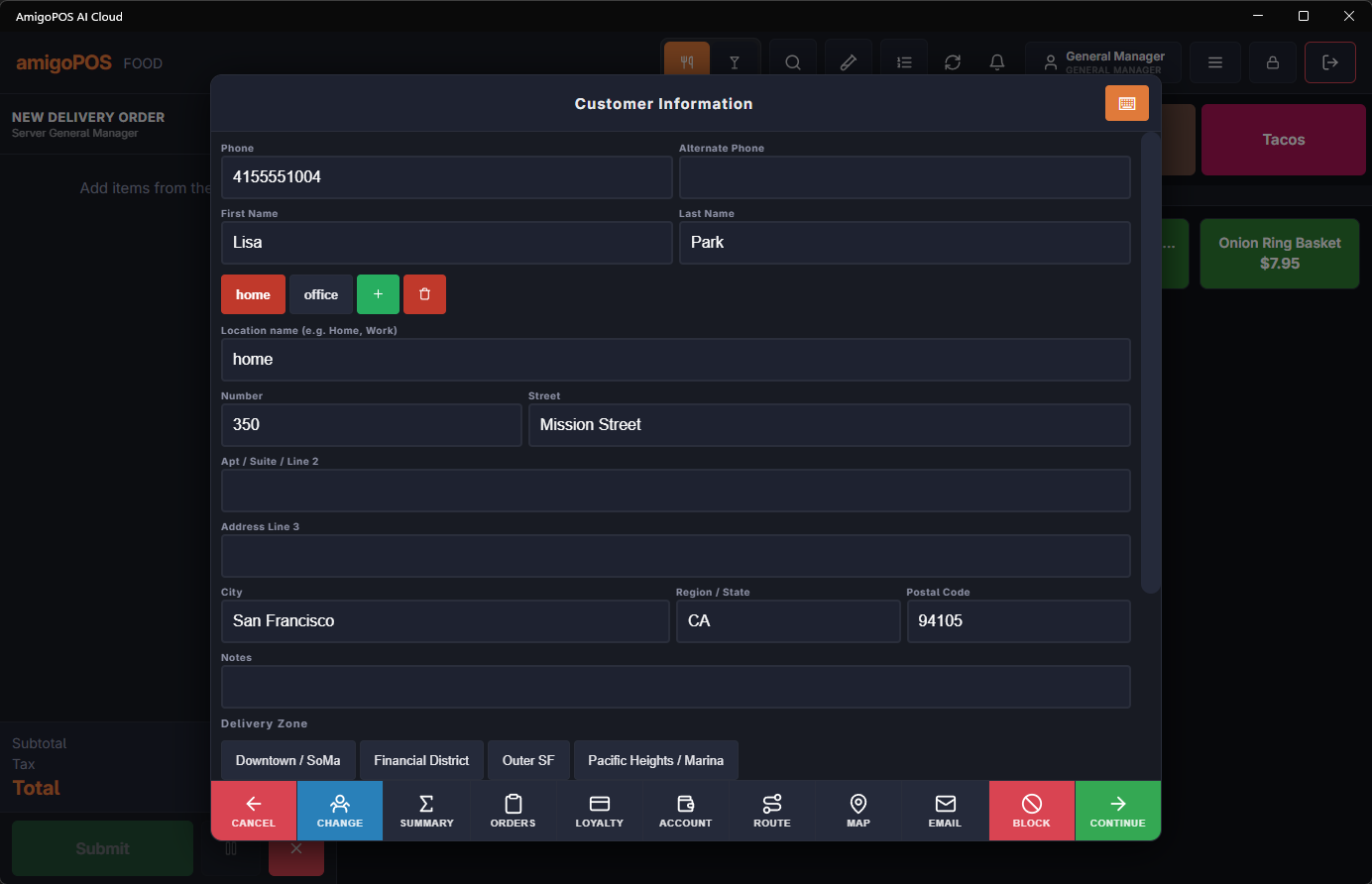
Name, phone and email are always on the customer screen, and no field can be made mandatory.
Phone Number Format
This tab holds one setting, Phone number format: the pattern of the local phone numbers. The field saves when you leave it.
Writing the pattern
- Each
#stands for one digit; anything else (a dash, a space, brackets) is shown as written. - Separate several patterns with commas. The pattern with as many digits as the number is used, so
###-###-####,###-####(the starting value) shows ten-digit and seven-digit numbers each their own way. - Left empty, numbers are shown as plain digits.
What it is used for
- Display — phone numbers show the same way on the customer screen, in lists, tickets and reports.
- Length check — with Verify length on (Customer Information Screen tab, Phone Number Entry), a new customer needs at least as many digits as the shortest pattern.
- Caller ID — incoming calls are matched to customers using the longest pattern. See How caller ID works.
Numbers are saved as digits only, so changing the pattern later changes only how they are shown; nothing has to be re-entered. The format is set per store, so each store uses its own numbering plan.
Delivery Zones
The zone list with each zone’s fees, and the map for drawing its boundary. See Delivery zones and the zone map.