Seating a party is two taps on the floor plan: pick the table, start the order.
The flow
- Open the seating chart (a table-service order type opens it as part of its pipeline, or via More › Tables).
- Tap an available table. The action panel shows the table’s status; tap New order.
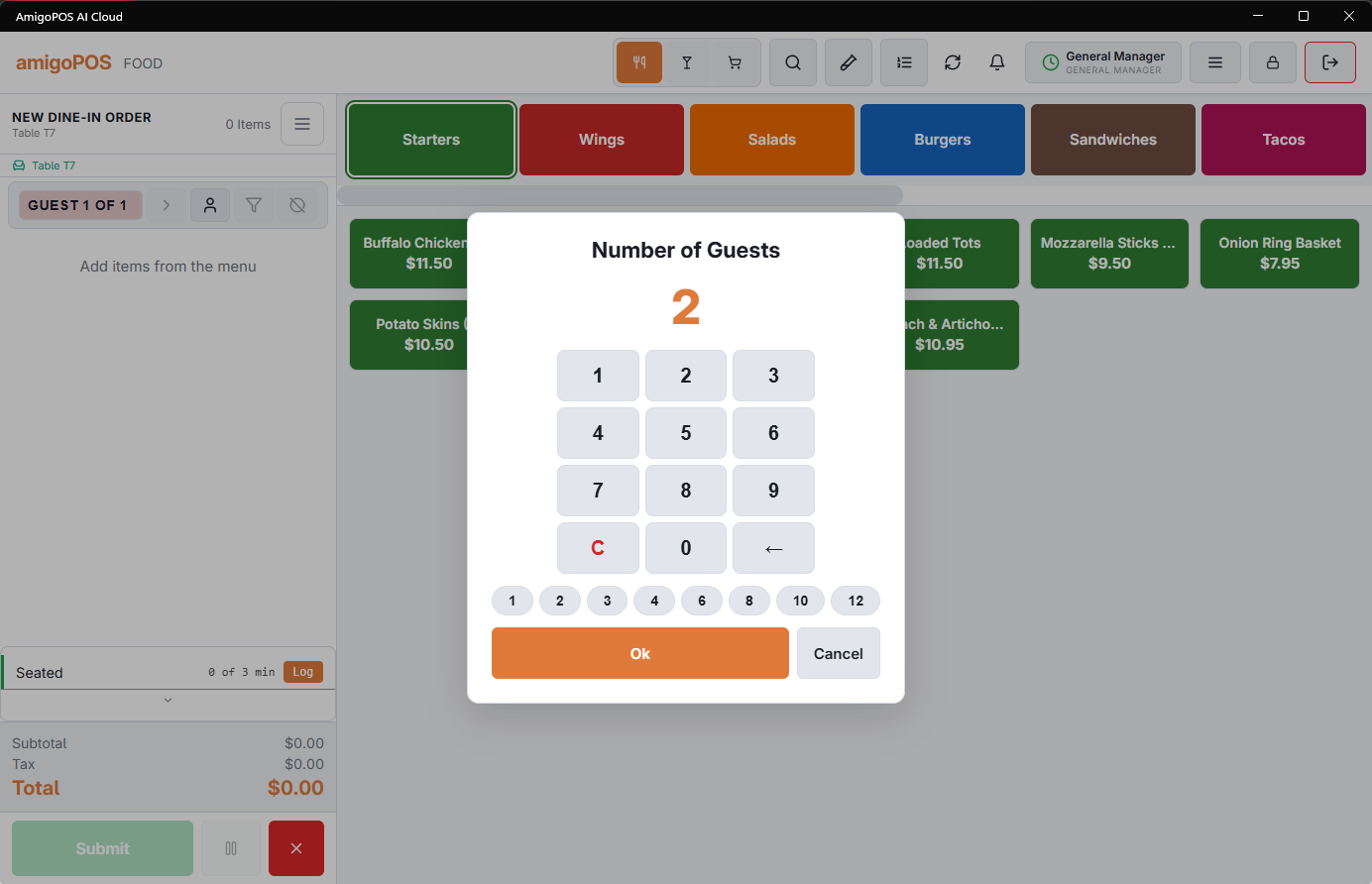
- The order opens with the table attached; set the guest count when prompted (it drives per-seat ordering, covers, and the pace math). The table tints to seated on every station, in the server’s color.
Variations
- Table already in use — the panel lists its active orders instead: recall one, settle, split, transfer, or add another order to the same table (two parties, one table — see Multiple orders on one table).
- Combining tables for a large party — tap Multiple Tables on the floor plan, pick the tables and start one order on all of them. A table can also be added later from the table panel. See Combining tables for a large party.
- Moving a seated party — handled from the table’s action panel; the order keeps everything, only the table changes.
The color language of the chart — what each tint and badge means — is Reading the floor plan and table states; the timing tints are Service-pace panel and color cues.
Seating at a pool table or lane
When the table is a timed one, the menu switches to the time-based view with only that table’s items as soon as the order is seated: tap the item to start the game. If the table has a light, it comes on when the timer starts. See Starting a game from the floor plan.