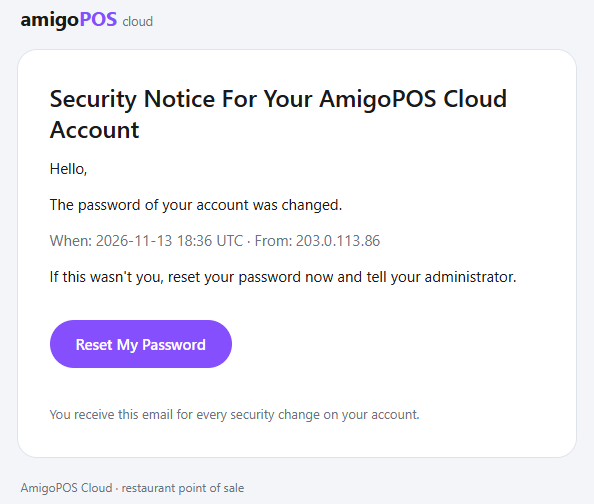
The account you use to sign in to the AmigoPOS website, the web Back Office and the apps gets an email for every security change: Security Notice For Your AmigoPOS Cloud Account. If someone else made the change, the email is how you find out.
When it is sent
- The password was changed, reset from an emailed link, or set by an administrator.
- The sign-in email was changed — sent to the old address, the one that was replaced.
- Two-factor sign-in was turned on or off.
- New recovery codes were made (the old ones stop working), or someone signed in with a recovery code.
Each email says what changed, when (in UTC) and from which internet address. It comes in the account’s language. A new account choosing its first password from an invitation does not get one.
If it was not you
- Press Reset My Password in the email and choose a new password.
- On the website, open Profile › Login Activity and press Sign Out Everywhere Else (Signing out everywhere).
- Turn on two-factor sign-in if it is off, or make new recovery codes if one was used.
- Tell your administrator. Managers can see what happened in the Security Log.
Employee PINs are not covered by these emails: PIN changes and lockouts show in the Security Log.