Inventory is counted at the shelves, phone in hand. The staff site’s Inventory Count screen lets several people count at the same time — each takes an aisle — and saves every item the moment it is typed, so nothing is lost if a phone drops its signal. A manager then reviews the differences and posts the count, on the phone or in Back Office.
Who can count
- Anyone whose job has Inventory Count ticked (Inventory group of the job’s permissions) — staff without Back Office access included. Jobs with Manager Screen can always count. See Jobs, roles, and permissions.
- Only managers (Manager Screen) can post or discard a count.
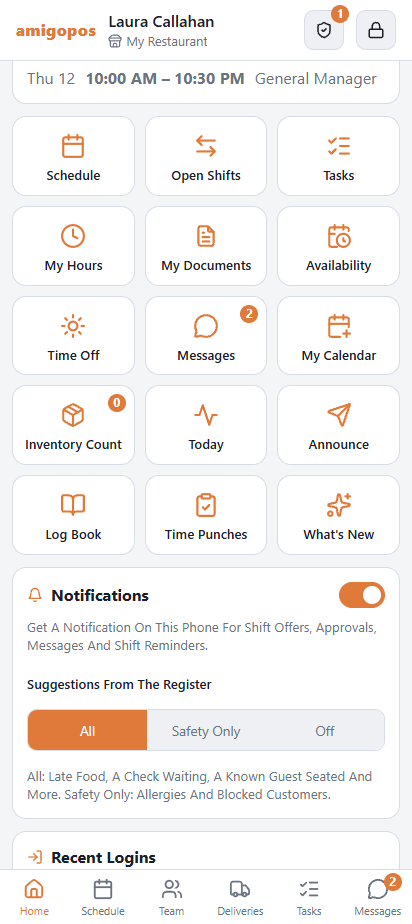
- Inventory Count is listed under More on the staff site only for these people. Setting up the staff site is in Using the staff site on your phone.
Starting or joining a count
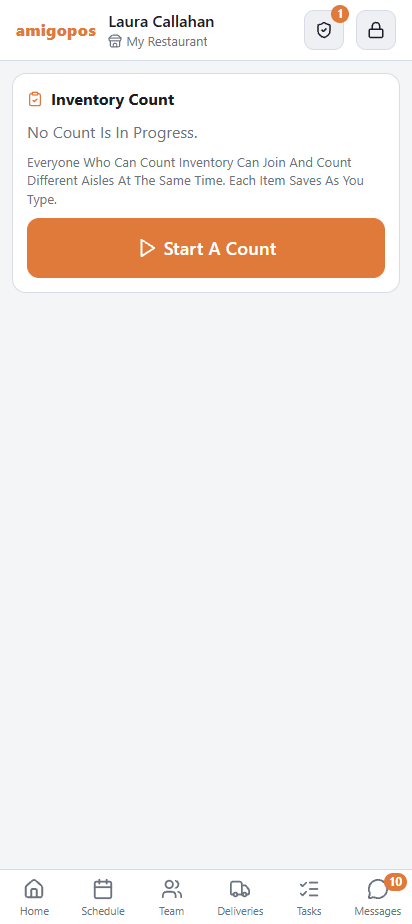
- On the staff site, open More › Inventory Count.
- If no count is in progress, tap Start A Count. A store has one count at a time: everyone who opens the screen while it is open joins the same count, and the number on its row under More shows how many items have been counted so far.
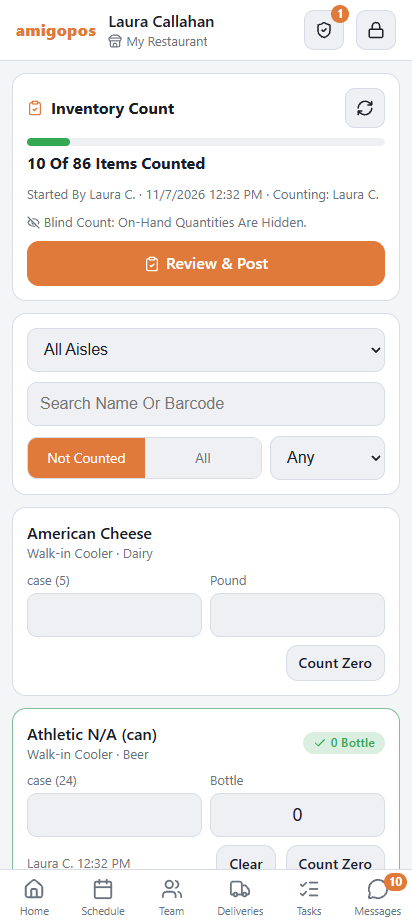
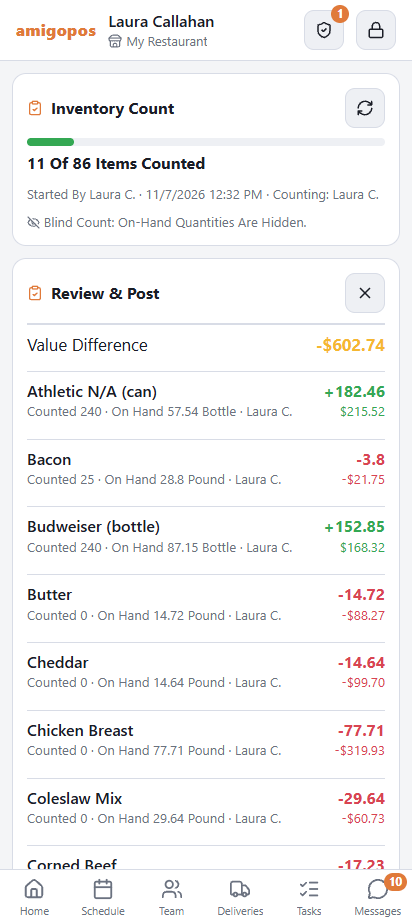
- The top card shows the progress (for example 214 Of 860 Items Counted), who started the count and who is counting.
Finding the items
- Aisle — pick an aisle and its items are listed in shelf order (aisles in their sort order, then item name). All Aisles lists everything; No Aisle lists items without one. Split the aisles between the people counting.
- Not Counted (the default) hides the items someone has already counted, so the list is what is left to do. All shows every item. An item you are typing stays on the list until you leave the screen.
- The frequency picker narrows the list to the items counted Daily, Weekly, Bi-weekly or Monthly, as set on each item.
- Search Name Or Barcode looks through the whole store, whatever aisle is picked, by item name or by the item’s unit, pack or case SKU.
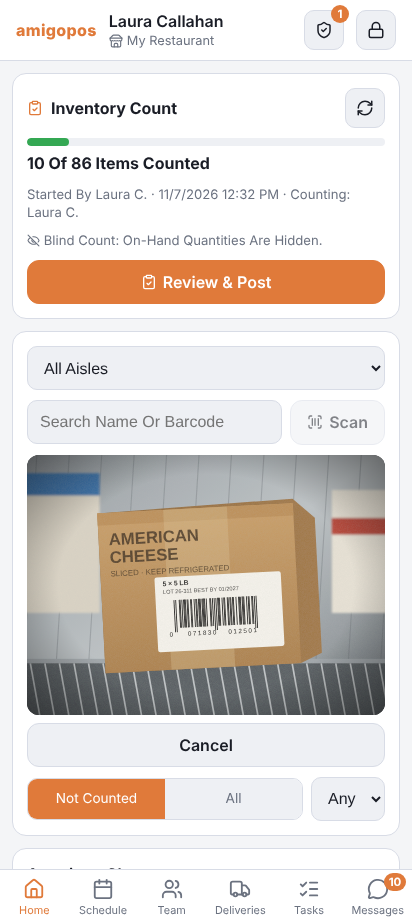
- Scan opens the phone’s back camera and finds the item by its barcode. It needs a browser that can read barcodes (Chrome on Android); where it can’t, such as Safari on iPhone, the button is not shown — type the SKU into the search box instead.
- Long lists show 60 items at a time, with Show More at the bottom.
Typing a count
- Type what is on the shelf. Every item has a box for its count unit; items with packs or cases also get Pack and Case boxes (the size is in brackets), which add up into units.
- Each item saves when you leave the box — there is no save button. A green chip then shows the total in units, and the line shows who counted it and when.
- Count Zero records an item as out (0 on hand). Clear removes the count, so the item is not counted again. As on the Back Office sheet, a blank item is not counted and 0 means none on hand.
- If two people count the same item, the last one saved is the count, and the line shows who saved it.
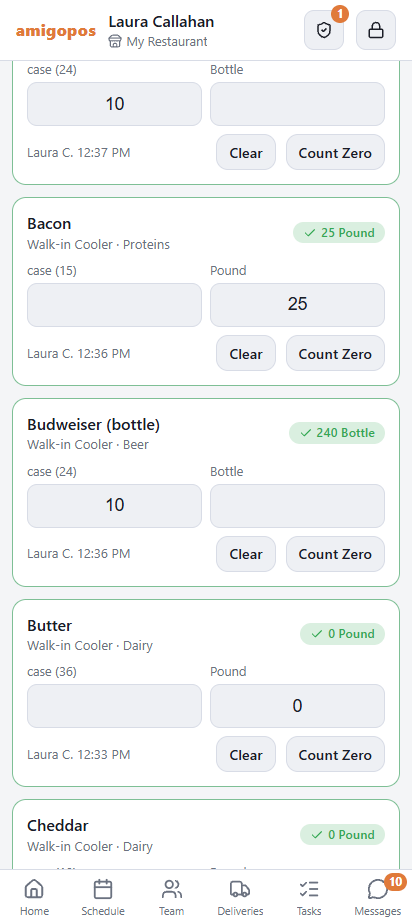
Blind count. By default the count screen does not show how much the system thinks is on hand, so people count what is really there instead of confirming a number. Managers still see on-hand and the differences when they review. The setting is Blind Count on the Team Count card of the Stock Rules tab — see Stock rules.
Reviewing and posting (managers)
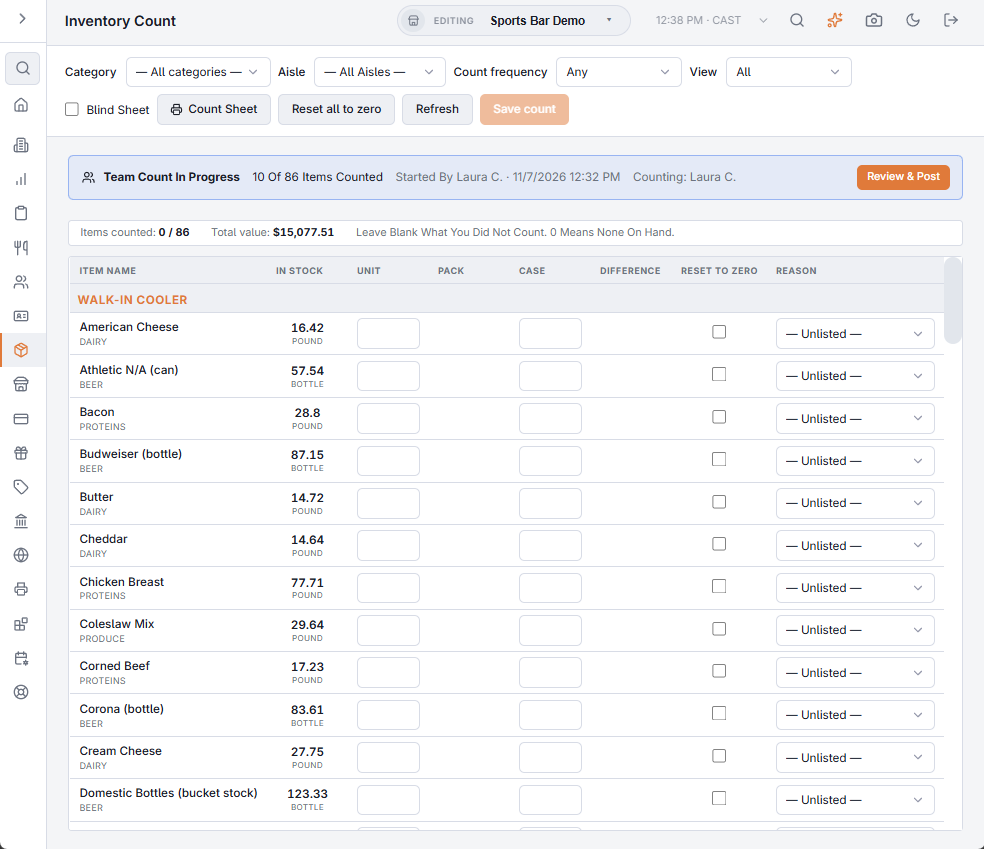
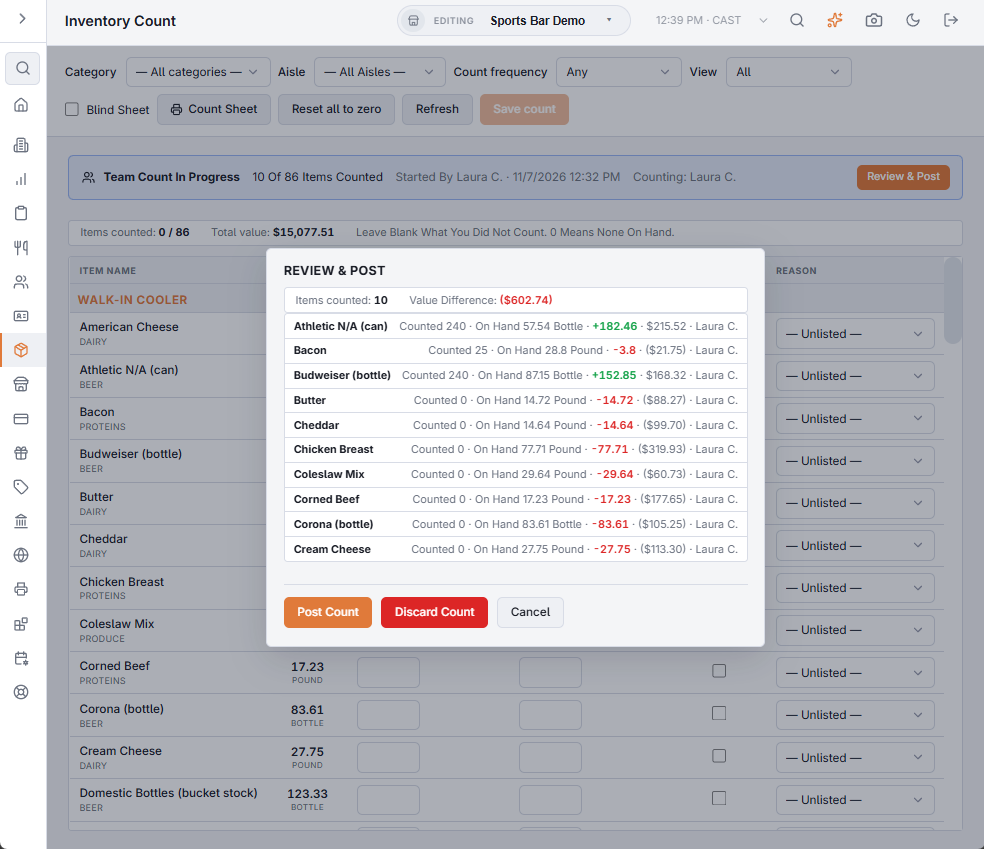
On the phone, a manager taps Review & Post on the top card. In Back Office, Inventory › Operations › Inventory Count shows a Team Count In Progress bar while a count is open, with the same Review & Post.
- The review lists every counted item: what was counted against what was on hand when it was counted, the difference (short in red, over in green), its value at the item’s cost, and who counted it. The Value Difference at the top is the total.
- Post Count applies the count to stock. Both places ask before posting.
- Discard Count closes the count without changing anything in stock. It asks first.
What posting does
- Each item is compared with what was on hand at the moment it was counted, after the sales waiting to come off stock were applied. Sales made after an item was counted stay on the books, so a count spread over a morning is still fair.
- Posting works like saving a count on the Back Office page: found less comes off oldest first at its real cost and is logged as a shortage; found more is added back at the last purchase cost. Each item’s last count date is updated. See Inventory counts.
- If an item can’t be posted, the others still are; the ones that failed stay on the open count, and the review says how many. Post again to finish them.
- Once every item is posted the count closes, and the next Start A Count begins a new one.
A team count is separate from the grid on the Back Office Inventory Count page: counts typed on phones do not appear in the grid, and the grid’s Save count does not post them. Use one or the other for a given count.
Give each person an aisle, start with the walk-in before service, and use the Daily filter for the nightly count of proteins and liquor.