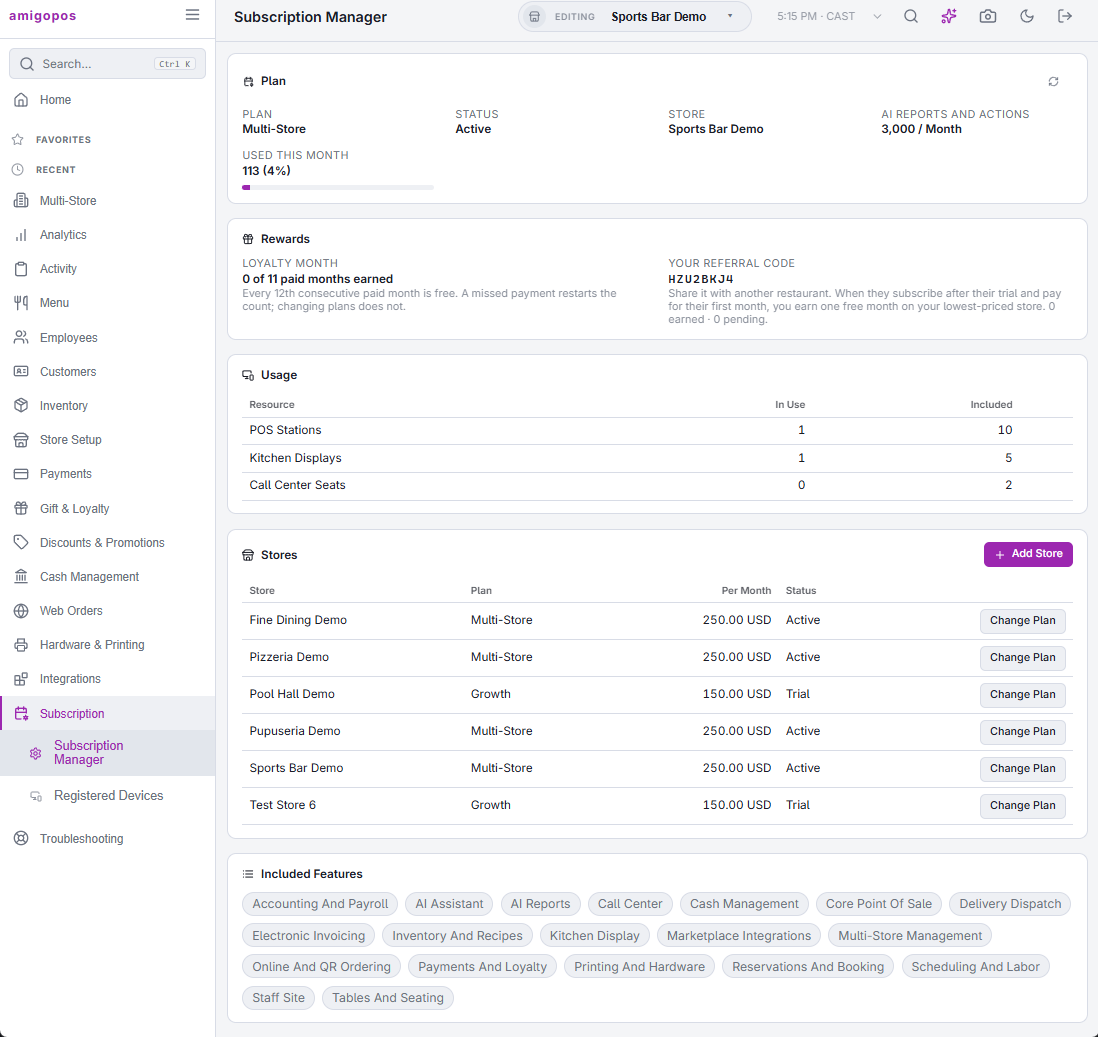
Back Office › Subscription › Subscription Manager shows the store’s plan, what it includes and how much of it is in use, and is where a store is added to the account or moved to another plan. It shows the store Back Office is pointed at in the store picker.
Who sees it
- The page is in the menu only for jobs with Manage Subscription (Jobs & Permissions, Admin group).
- Adding a store, changing a plan and the pending requests need Change Subscription as well. Without it the Stores card says Adding A Store Changes Your Bill And Needs The Change Subscription Permission.
Registered Devices, the other page in this section, lists every device on the account; see Registered Devices: every device on your account.
Notices at the top
- No subscription on file — the store predates subscription billing and keeps running on its existing limits. Nothing needs to change.
- Subscription information is unavailable right now. — the page could not reach the server. Try Refresh again later.
- Your subscription is managed by … — a reseller manages the account, with their email and phone. Plan changes and new stores go through them, so the Stores card is not shown.
- Trial — how many days are left and which plan you have full access to, or that the trial has ended and the chosen plan is in effect.
- Over the plan — the store uses more devices than its plan includes. Everything keeps running; new devices cannot be activated until the count is reduced or the plan is changed.
Plan
- Plan, Status (Trial, Active, Past Due, Suspended or Closed) and Store.
- AI Reports And Actions — the monthly allowance, and Used This Month with a bar that turns amber at 80% and red at 100%. Past the allowance it shows how many over, and the price of each extra one with its currency code (for example 0.05 USD) unless a reseller bills the account. See AI usage, limits and your monthly allowance.
The refresh button in the card header recalculates the store’s usage and reloads the page.
Rewards
Shown when there is something to show:
- Loyalty Month — paid months counted towards the next free one. Every 12th consecutive paid month is free; a missed payment restarts the count, changing plans does not.
- Credit Available — free months earned, applied to the base plan on the next statement.
- Your Referral Code — share it with another restaurant. When they subscribe after their trial and pay their first month, you earn a free month on your lowest-priced store. The line below counts earned and pending referrals.
Usage
One row each for POS Stations, Kitchen Displays and Call Center Seats: In Use against Included. A dash under Included means no limit. A row over its limit is marked with a warning sign. Devices are counted from Registered Devices: every device on your account.
Stores
The account’s stores, with each one’s plan, price Per Month and status (the same status names as above). Training stores are not listed. When a store can’t be added, a line under the table says why, for example No active subscription on this store. or No account email on file.
Adding a store
- Select Add Store.
- Pick the Plan. The line below gives the monthly price, billed from the day the store is created, or free until your trial ends.
- Type the Store Name (required), and the Address and Phone if you have them.
- To start from one of your stores, choose it in Copy From Store and pick What To Copy; otherwise leave Start With An Empty Menu. What each choice copies is in What Multi-Store adds.
- Select Send Confirmation. A link goes to the account’s email address, shown on the form. The store is created when the link is opened; the link works for 48 hours.
Changing a store’s plan
- Select Change Plan on the store’s row and pick the plan in New Plan For.
- Read the line under it. An upgrade takes effect at once and this month is prorated by days. A downgrade takes effect on the 1st of next month and can be withdrawn until then; features above the new plan turn off that day, and your data stays. On a trial, the choice is the plan the store moves to when the trial ends.
- On a smaller plan, What Changes On The … Plan lists the devices over the new allowance with their extra monthly cost, devices of a kind the plan does not include, and the features that turn off. Select Deactivate Devices First to go to Registered Devices, or Downgrade Anyway to send the confirmation.
- Otherwise select Send Confirmation. The change is made when the emailed link is opened.
A scheduled change shows under the plan as Changes To … On …, with Keep Current Plan to withdraw it.
Pending requests
Requests not yet completed are listed under Pending Requests with Awaiting Confirmation, Link Expired or Setup Failed, the time and the email address. Resend sends the link again; Cancel withdraws a request still awaiting confirmation.
Included Features
The last card lists the features the store’s plan includes. Back Office hides the pages of features the plan does not include.