Back Office › Hardware & Printing › Registered Devices lists every device that has joined your account: registers, call center seats, kitchen displays, print agents and customer displays, for all of your stores. It is also where a new device gets its activation code, and where a device is renamed, switched, replaced or removed. The same page is listed under Subscription too.
Reading the list
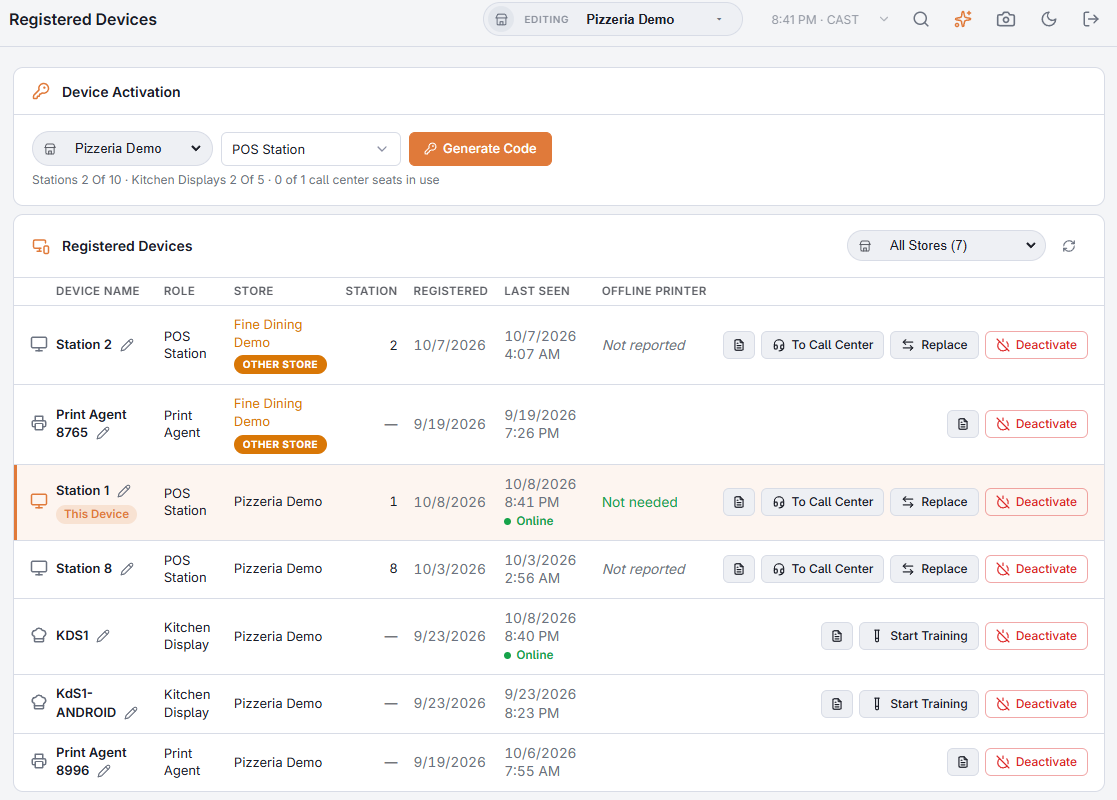
- The icon on the left is the kind of device: a monitor for a POS station, a headset for a call center seat, a chef’s hat for a kitchen display, a printer for a print agent, and a monitor with a phone for a customer display.
- Device Name — the name it was given when it was activated. The device you are working on is tinted and tagged This Device.
- Role — what it is. A kitchen display in training also carries a Training Mode tag.
- Store — where it is. A device of a store other than the one Back Office is editing is tagged Other Store.
- Station — the station number of a register, or of the register a customer display is paired to. Kitchen displays and print agents show a dash.
- Registered and Last Seen — when it joined, and when the server last heard from it.
- Offline Printer — for POS stations only: the backup printer the register uses while it cannot reach the server.
| Offline Printer shows | Meaning |
|---|---|
| Not reported | The register has not reported its offline printer yet, for example because it has not been online since it was updated. It does not mean that nothing is set up. |
| Not needed | The register is set up not to print while offline. |
| Not set up | No offline printer is set. Receipts will not print during an outage. |
| address — tested date | A printer is set and a test print reached it on that date. |
| address — never tested | A printer is set but has never been tested. Test it before you rely on it. |
See Preparing a station for offline mode.
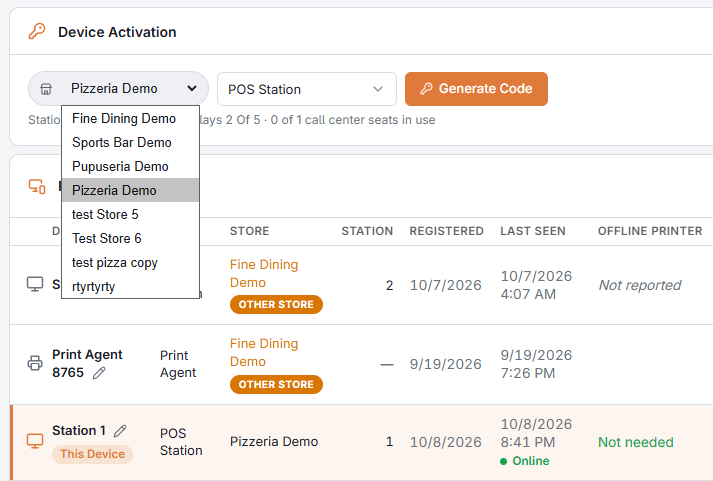
Rows are sorted by store name, then by kind of device, then by station number. When your devices are in more than one store, a store picker appears in the header of the list. All Stores shows every device; each entry shows how many devices it has. The refresh button next to it reloads the list.
Online, and not seen for a long time
Under Last Seen, Online means the device was in touch within the last five minutes. Not Seen In 30 Days marks a device that has been silent for a month — usually one that was retired without being removed. It keeps its place in your plan until you deactivate it; see Deactivating a device.
Renaming a device
Press the pencil next to the name, type the new one and press Save (or Enter; Escape cancels). Names are unique within a store: if another device there already has the name, the page says so and leaves the box open for you to correct it.
The buttons on a row
- The document icon (Logs) opens the log bundles the device has uploaded; see Analyzing station logs with AI.
- Start Training or End Training, on a kitchen display, sends the screen to the store’s training store or back to the live store. Restart the screen afterwards. See Training mode: a practice register.
- To Call Center or To POS Station switches a register between the two; see POS station or call center seat.
- Replace, on a POS station or call center seat, hands its place to a new device; see Replacing a register.
- Deactivate removes the device; see Deactivating a device.
- Unlock appears when sign-in on that device is paused after too many wrong attempts.
Paused sign-in
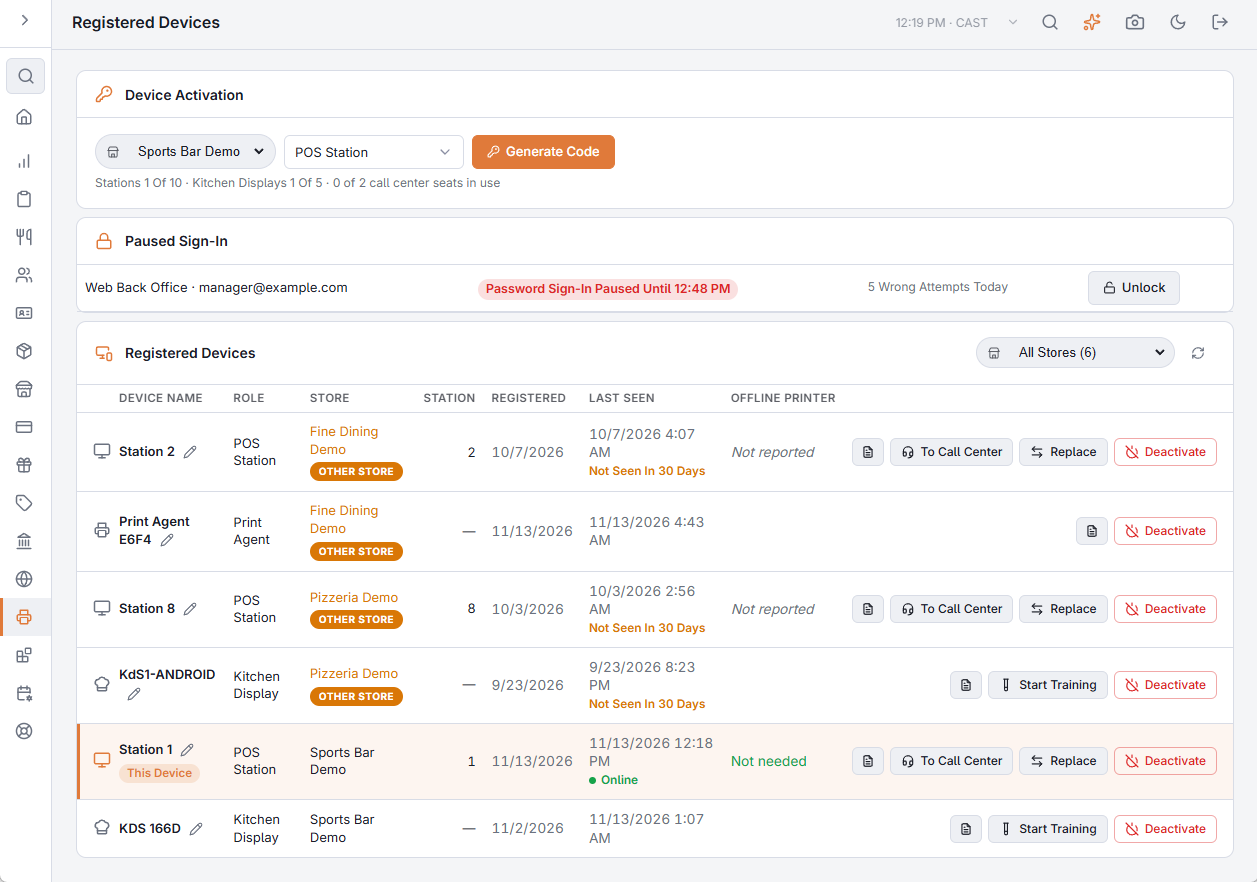
When sign-in on a register has been paused, its row shows PIN Sign-In Paused Until time (or Password Sign-In Paused Until time) under the name, with an Unlock button. Pauses that do not belong to a device in the list — a web Back Office sign-in, or a register of another store — are listed in a Paused Sign-In card above the list, with who it is, until when, how many wrong attempts there were today, and Unlock. See Sign-in lockout (too many wrong PINs).
Adding a device
The Device Activation card at the top makes the one-time code a new device joins with. See Activation codes and device limits.
Who can do what
| Action | Who |
|---|---|
| See the list and open a device’s logs | Anyone who can open the page. |
| Rename, Deactivate, Unlock | A job with the Register Devices or Manager Screen permission, or an administrator. |
| Device Activation, To Call Center / To POS Station, Replace | A job with the Register Devices permission, or an administrator. |
| Start Training / End Training | A job with the Training Mode permission. |
Buttons you may not use are not shown.