Back Office › Multi-Store is the section for working across all the stores of one business: dashboards that put every store side by side, and a store picker in the Back Office header that changes which store you are editing.
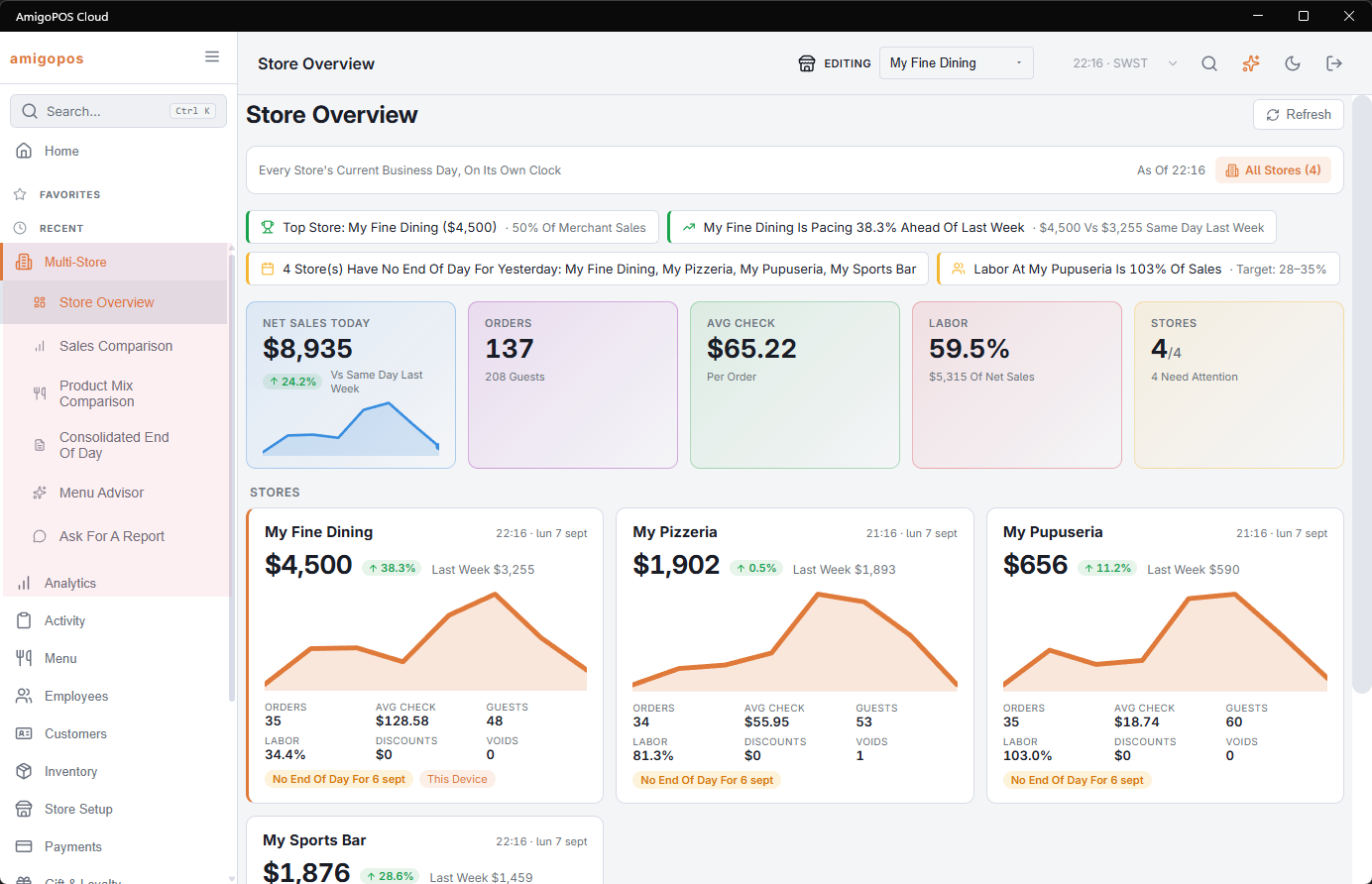
When the section appears
All four of these must be true:
- The store’s plan includes Multi-Store.
- The account has more than one active store.
- Your job has Allow All Stores. See Giving a manager all-store access.
- Your job has the Back Office Reports permission.
The store picker in the header needs the first three. A single-store account never sees either.
How stores relate to each other
Every store owns its own menu, prices, settings, devices and drawers. There is no master menu pushed down from above: a change made in one store stays in that store. Staff are the exception — employees, jobs and permissions belong to the account, so one person works at any store with one PIN.
The register is not affected
A station belongs to the store it was registered to. Pointing Back Office at another store does not change what the register rings up, what prints in the kitchen, or which store the day closes for. When you leave Back Office the station goes back to its own store.
What is in the section
- Store Overview — each store’s current business day on a card. See Store Overview.
- Sales Comparison — one date range, store against store, and the all-stores sales tax return. See Sales Comparison.
- Product Mix Comparison — what each item sold in each store. See Product Mix Comparison.
- Consolidated End Of Day — one column per store for a business day, with a total. See Consolidated End Of Day.
- Menu Advisor — menu suggestions written by AI from your own sales. See Menu Advisor.
- Ask For A Report — a question in your own words, answered across every store. See Reports across all stores.
Two other pages that only exist for accounts with more than one store sit in their own sections: Employees › People › Merge Duplicates (Merging duplicate employees and jobs) and Inventory › Operations › Transfers (Moving stock between stores).
Starting a new store from an existing one
When you add a store (Add Store on the Stores card of the Subscription Manager; see Subscription Manager: plan, usage and stores), choose the store to copy from in Copy From Store and how much of it in What To Copy:
- Menu Only — the menu, with the order types its items use.
- Menu And Setup — the menu plus settings, taxes, order types, payment methods, discounts, price rules, suggestive selling, the floor plan, reservation setup, task templates, delivery zones, print and receipt templates, button layouts, customer display, reason lists, word filters, service pace rules, end-of-day and custom reports.
- Menu, Setup And Inventory Catalog — all of that plus the inventory items and recipes, with stock at zero.
The copy is made when the confirmation link is opened, into the new, empty store; the standard defaults then fill only what the source never had.
Nothing that identifies a place, a person or a processor is copied: addresses, phones, emails, coordinates, card processors, payment keys and the accounting, scheduling, delivery and messaging connections start empty, and payment methods arrive without their processor. Printers, devices, cash drawers and customers are not copied. Every copied menu item stays linked to the item it came from, so the product mix comparison lines the two up.
A Training mode: a practice register is made with the same copy.
Keeping stores the same
A change made in one store stays in that store unless you choose otherwise. Three tools work across stores when you want them to:
- Store Mapping — records which item, discount or other record is the same thing in each store. See Store Mapping.
- Also Save To and Create In — in an editor, save a change to the linked record of other stores, or create the record where it is missing. See Also Save To and Create In.
- Order Types And Discounts — sales by order type and discounts given, store against store. See Order Types And Discounts.