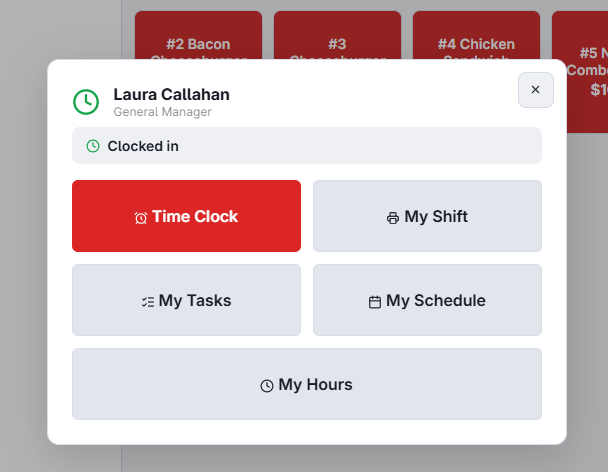
My Hours shows an employee their own punches for a week, right at the register. Tap your name to open My Status, then My Hours.
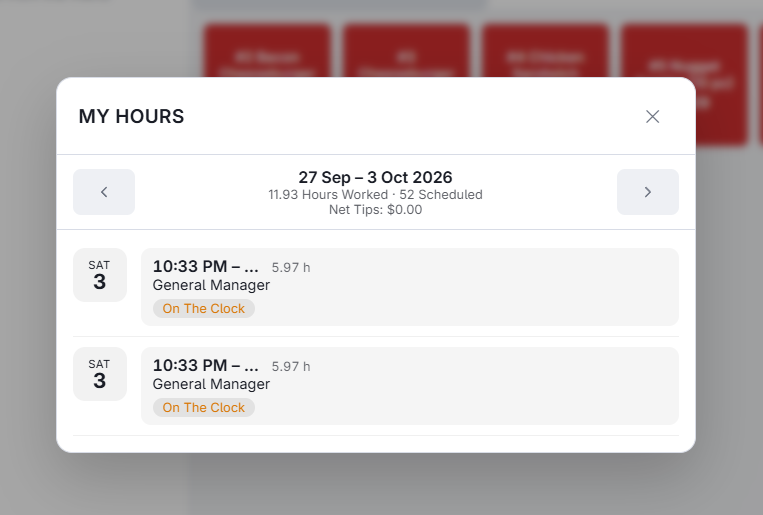
The top shows the week, the hours worked against the hours scheduled, and your Net Tips. Use the arrows to step back through earlier weeks.
Your punches
Each punch shows the day, the clock-in and clock-out times, the hours, the job, breaks and any tips you declared, and a status:
- On The Clock — still running.
- Needs Your Review — finished, not approved by you yet.
- Approved By You / Approved By Manager.
- Disputed — Waiting For A Manager — you disputed it.
Approving
Approve My Hours confirms every finished punch in the week on screen, except one you disputed.
Disputing a punch
- Tap Dispute on the punch that is wrong.
- Write what is wrong — I left at 10:30, not 11:15.
- Tap Send.
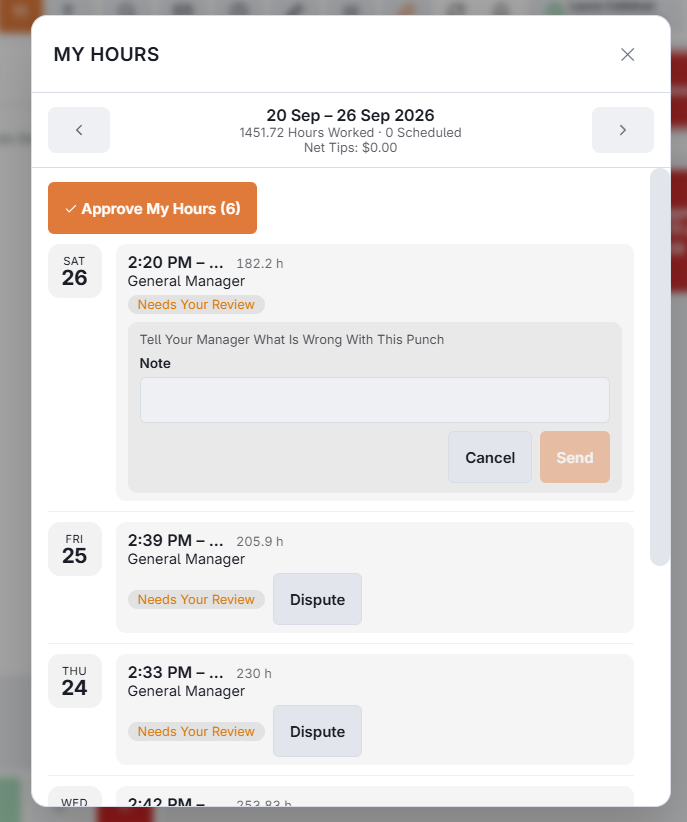
Every manager gets a message, and the punch goes back to review until a manager approves it as it is or corrects it. A shift still running, or one in a closed pay period, can’t be disputed — ask a manager.
When tips wait for your manager
If the store hides tips until a manager approves, Tips Show Once A Manager Approves This Week appears instead of your net tips until every punch in the week is approved by a manager. The cash tips you declared still show on each punch.
The staff site has the same screen on your phone: My Hours & Tips. Managers handle disputes in Reviewing and approving punches.