More › My Profile on the staff site is where you keep your own details up to date, without asking a manager. See Using the staff site on your phone for the rest of the site.
Contact details and language
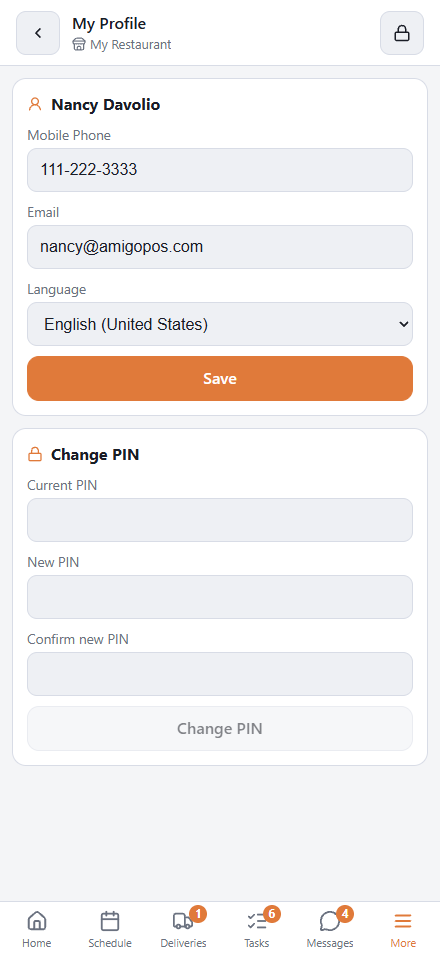
- Mobile Phone and Email — where the store reaches you: texted and emailed invites, and emailed messages. They are the same fields your manager sees on your employee profile in Back Office.
- Language — the language of the staff site and of the register when you sign in. Same As This Phone follows the phone’s own language.
Tap Save. A new language takes effect at once: the site reloads in it.
- “That Phone Number Is Not Valid (15 Characters At Most).” — use digits, with +, spaces or dashes if you like, and no more than 15 characters.
- “That Email Address Is Not Valid.” — check for a missing @ or a space.
Change PIN
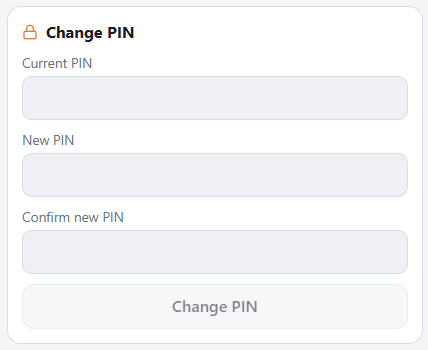
- Enter your Current PIN.
- Enter the New PIN, and again under Confirm new PIN.
- Tap Change PIN.
The new PIN works at once, on this phone and at the register — it is one PIN. Advice on choosing one is in Changing your PIN.
- “Current PIN is incorrect.” — wrong guesses count like wrong PINs on the PIN pad: five lock the phone for 15 minutes.
- “That PIN is already in use.” — someone else at the business has it. Pick another.
- “PINs do not match.” — the two new entries differ.
- “New PIN must be different.” — it is the same as the current one.
Forgot your PIN? You cannot change it here without the current one. A manager resets it; see Locked out, or a forgotten PIN.
Face ID or fingerprint unlock keeps working after a PIN change. Your name, jobs and pay are not here: those are changed by a manager in Back Office.