A table on the floor plan starts a timer only if CloudPos knows which time-based item belongs to it. There are two ways, and you can mix them.
1. By type (automatic)
Every time-based item has a Time-based item type — Pool Table, Bowling Lane, Karaoke Room, Arcade, Darts and so on. Every shape in the designer’s Games & Rentals and Beach & Pool groups has a type too. A table drawn as a Pool Table offers every menu item whose type is Pool Table.
- In Back Office › Menu › Menu Setup › Menu Items, open the item, go to the Time-Based tab and set Time-based item type — for example Pool Table. Save.
- In the seating designer, draw the table with the matching shape from Games & Rentals and save the room.
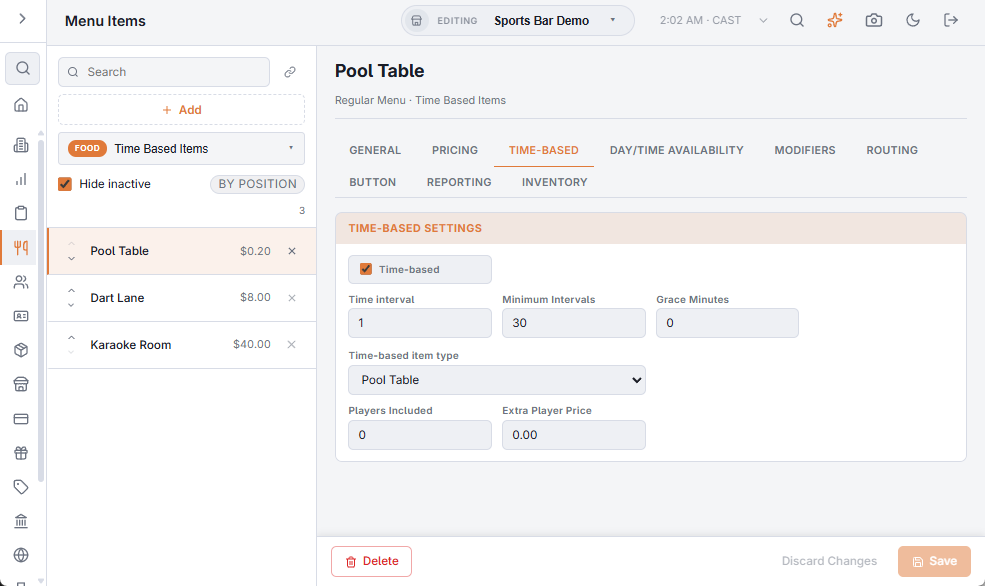
Add a Pool Table — Premium item later and every pool table offers both, with no change to the floor plan.
2. A specific item (Timer Item)
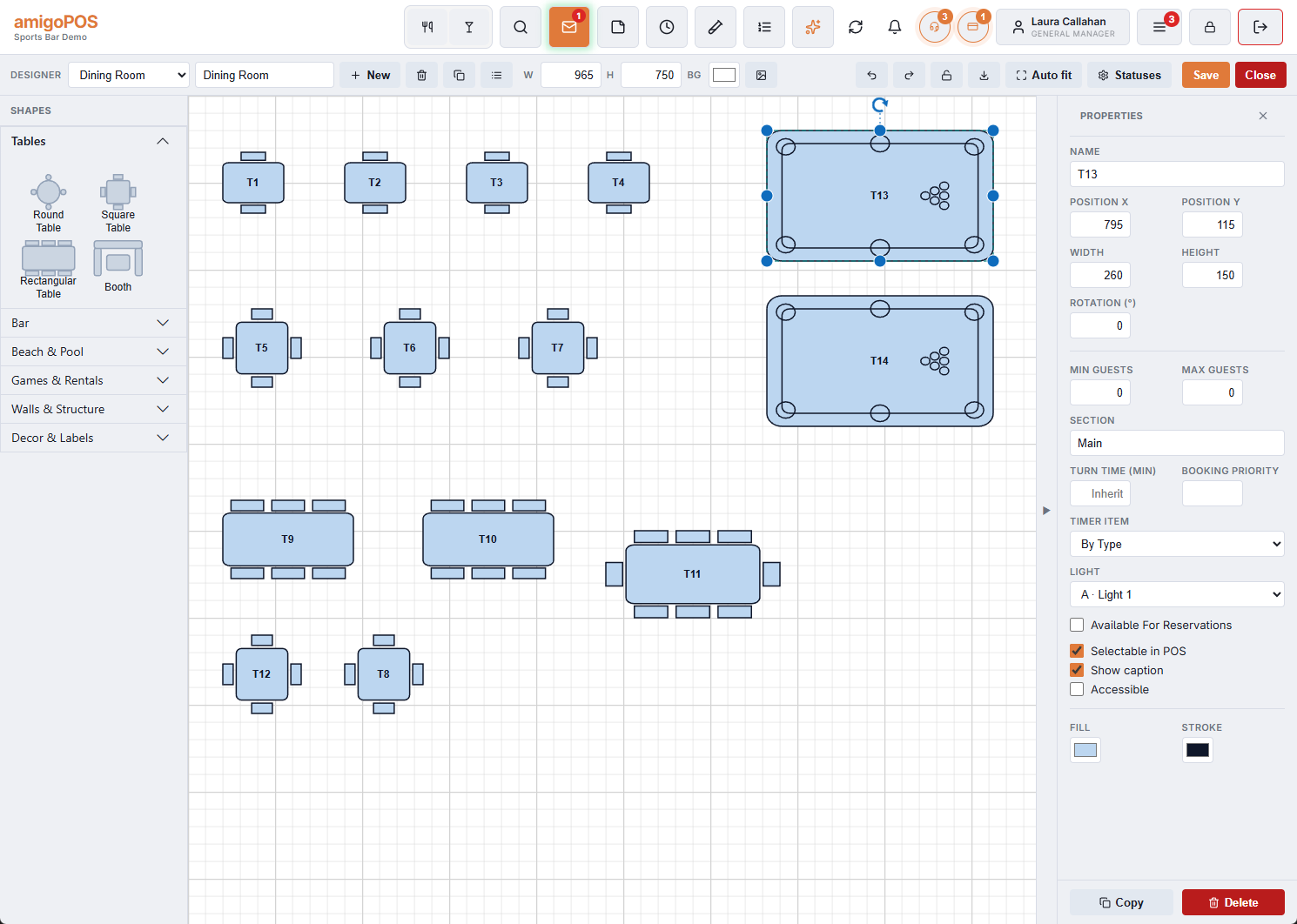
Select a timed table in the designer. Its properties include Timer Item:
- By Type — the default: follow the shape’s type, as above.
- None — this table never starts a timer, even though it is drawn as a pool table. Use it when a pool table is really used as a dining table.
- A named item — only that item, whatever the type. Use it for the one premium table, or for a room drawn as a Meeting Room that you sell as Party Room.
Which shapes are timed
Everything in Games & Rentals (Pool Table, Bowling Lane, Karaoke Room, Arcade, VR Booth, Meeting Room, Hookah, Parking, Rental, Kids Area, Batting Cage, Ping Pong, Darts, Simulator, Cowork Desk, Internet PC) and the Beach Chair in Beach & Pool. Tables imported from the older AmigoPOS as billiards tables count too.
What the link is used for
- Start Timer on the table’s panel — see Starting a game from the floor plan.
- The POS offering the table’s items when an order is seated there.
- The Light over the table — see Table lights that follow the timer.
- The Table Time report, which lists every timed table even when it had no games.