Back Office › Troubleshooting › About shows which version this device is running, who it thinks it is, its clocks, and a diagnostics block for support. The register shows the same screen in More › About.
At the top
The version, the release and the platform this device is running, on one line.
Updates
On an installed app that updates itself, the Updates card handles new versions. Updates download in the background and install when the app closes.
- Check now asks whether a newer version is available. While it works it shows Checking…, then Downloading… with a percentage, or You are on the latest version.
- When a version has downloaded, the card says so and offers Restart to update. The restart is what installs it, so a station left running for weeks may be holding an update it never installed.
What’s New
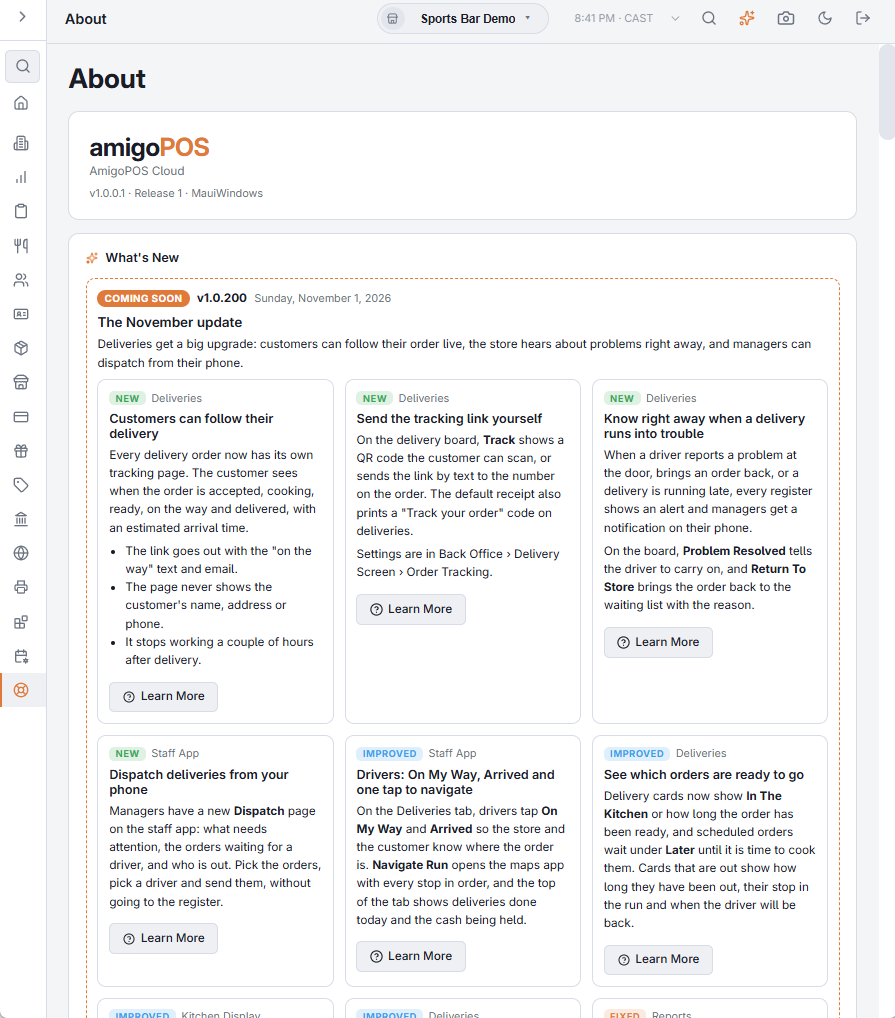
When release notes are available, What’s New shows the next version (Ready To Install once it has downloaded, otherwise Coming Soon), what came In This Version, and Earlier Updates by title. All Release Notes opens the full list.
This device
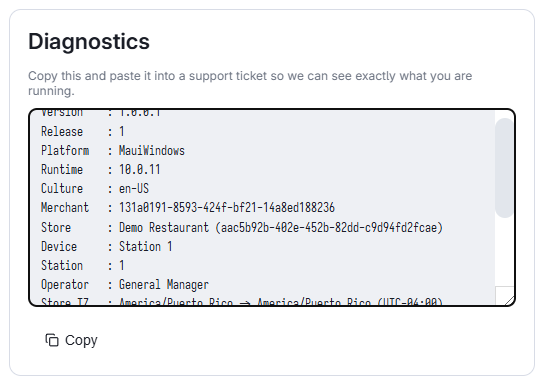
- Version, Release, Platform and Runtime — the build this device is running.
- Culture — the interface language, which explains a station displaying in an unexpected language.
- Device and Station — who this terminal thinks it is. A station number that is not what you expect explains printing and drawer surprises on its own.
Clock
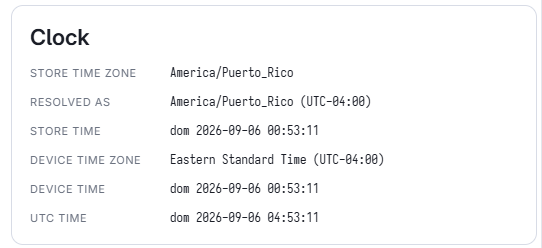
The Clock card is the first thing to read when anything time-based misbehaves — a happy hour that starts early, a report that seems a day out, a reminder that went at the wrong hour. Rows, top to bottom:
- Store Time Zone — the zone configured for the store, and Resolved As, the zone this device actually found for it, with its UTC offset. Not Resolved (UTC Fallback) means this device does not know that zone and uses UTC instead.
- Store Time — what the register believes the store’s wall clock says now. This is the clock price rules, service periods and reminders run on.
- Device Time Zone and Device Time — the operating system’s own zone and clock. In a web browser these rows are Server Time Zone and Server Time, and a Browser Time row shows the browser’s clock.
- UTC Time — the reference both derive from.
Account
Merchant, Store, Store id and Signed in: the account and store this device belongs to, and who is signed in.
Diagnostics
All of the above as plain text. Copy puts it on the clipboard to paste into an email or a message to support. A ticket sent from Submitting a support ticket carries these details by itself.
Legal
Privacy policy and Terms of service open those pages.
For a station’s logs, see Analyzing station logs with AI.