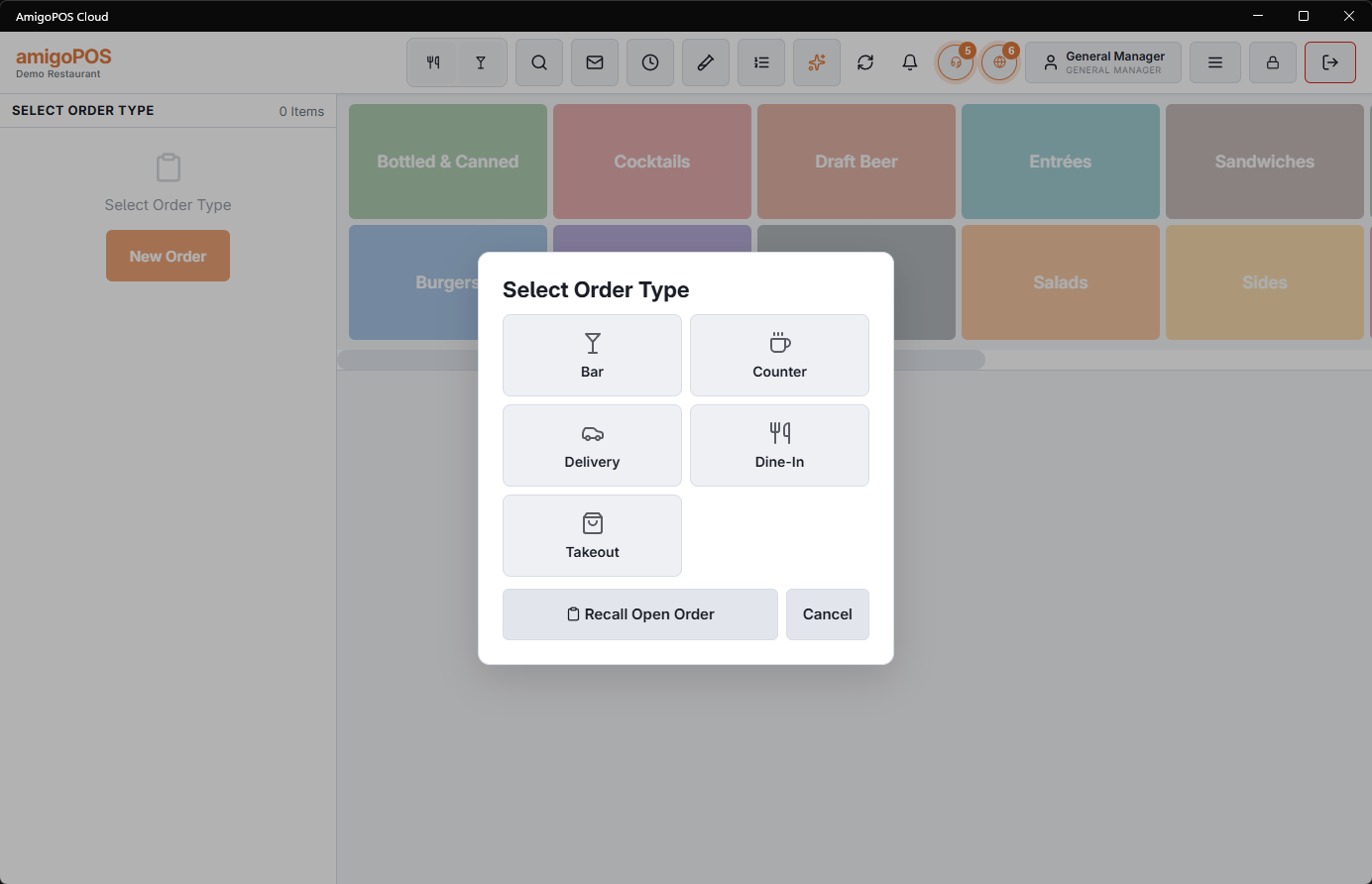
Every order starts with an order type — dine in, take out, delivery, bar, whatever your store uses. It is the first tap, and it is not cosmetic.
What the order type decides
- What the POS asks you next — a table, a guest count, a customer and address, or nothing at all.
- Tax treatment — take-out exemptions and non-taxable types apply from here.
- Surcharges, gratuity and cover charges, where the type is configured to add them.
- Which menu opens, and which prices apply where price rules are set by order type.
- How it reports — order type is one of the main breakdowns on the end-of-day report.
Then build it
Add items, and send when the kitchen should have them. Sending is what fires prep tickets; until then the check exists only on the till and can be changed freely.
What the register asks, and in what order
The questions after the order-type tap — table, guests, customer, loyalty card, a name or pager number — open one after another, in the order the type’s workflow lists them. Cancelling one doesn’t cancel the order; the next one opens. See Start prompts and their order.
When the order type picker opens by itself
After sign-in and after each order the register opens the order type picker by itself, with Recall Open Order for an order already started. A store that prefers to start each order with a tap switches that off: Back Office › Store Setup › Order Entry Screen, the Settings tab, Select Order Type › Ask For The Order Type Automatically. The register then waits for New Order, a tap on the menu or Recall. See Order-entry screen layout.