Back Office › Store Setup › Order Entry Screen gathers what shapes order taking at the register, across eight tabs. The store needs the Back Office Configuration permission to open it.
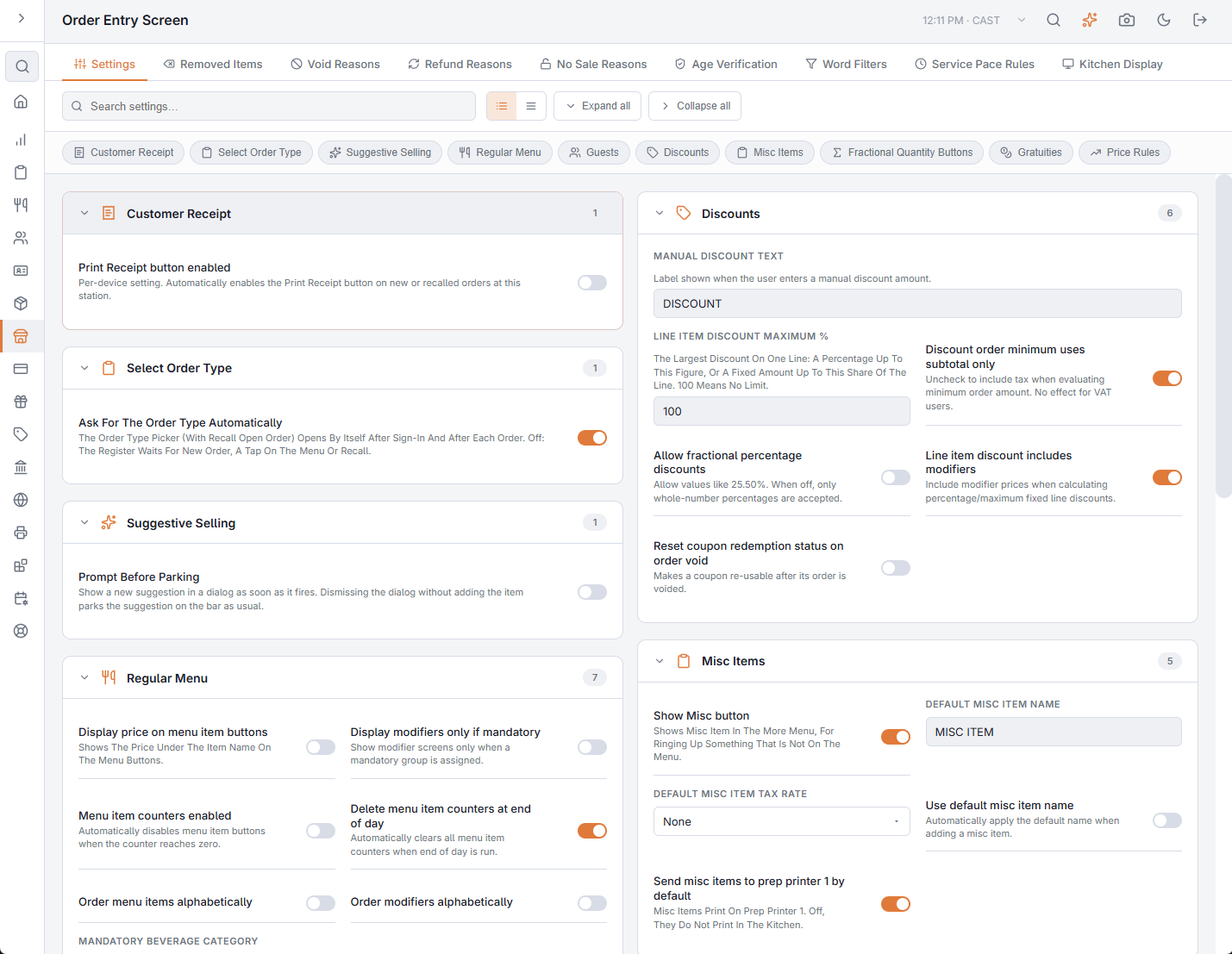
The tabs
- Settings — the order-entry settings described below.
- Removed Items, Void Reasons, Refund Reasons and Word Filters — see Reason lists and word filters.
- Age Verification — see Age verification and ID-required items.
- Service Pace Rules — see Service-pace rules.
- Kitchen Display — ticket timers, timer colours and scheduled-order lead times: see Aging and late thresholds and Scheduled orders on the KDS.
How the Settings tab saves
There is no Save button. A switch saves the moment you flip it; a box saves when you leave it, with a tick (✓) to confirm or a cross (✗) if it failed. Numbers outside the allowed range are brought back into range, and nothing can be changed while the station is offline. Search settings at the top finds a setting on this tab; the chips jump to a section.
The Settings tab
Customer Receipt
Print Receipt button enabled — a setting for this station only: on it, the Receipt option in the Send screen starts switched on for every order, whatever the order type’s workflow says.
Select Order Type
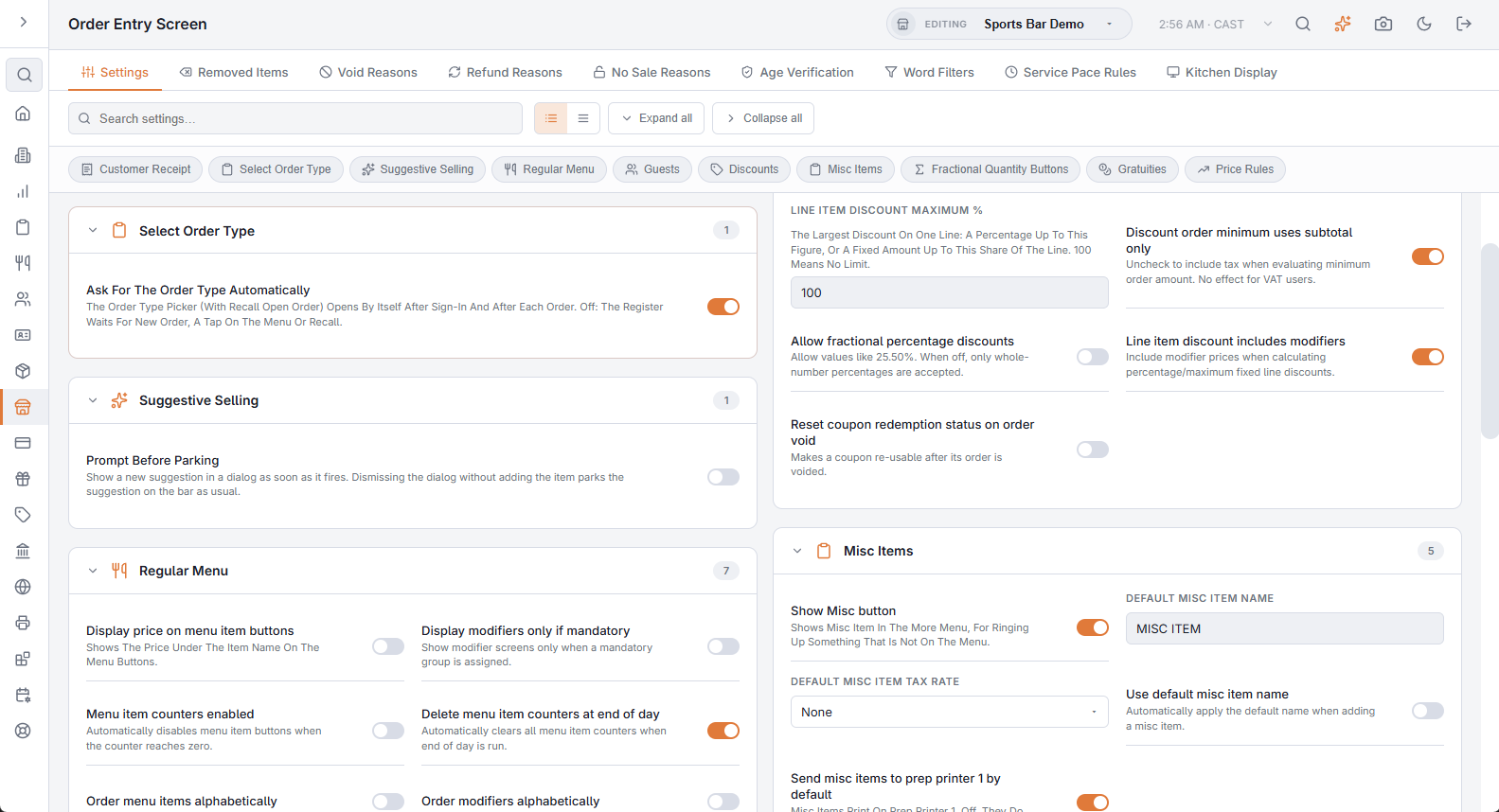
Ask For The Order Type Automatically — on to start with: after sign-in and after each order, the register opens the order type picker, with Recall Open Order, by itself. Off, the register waits: the picker opens when the server presses New Order or taps the menu, and Recall finds an open order. Phones never open it by themselves.
Suggestive Selling
Prompt Before Parking — a new suggestion opens in a dialog as soon as it fires; closing the dialog parks it on the suggestion bar as usual.
Regular Menu
- Display price on menu item buttons — shows the price under the item name on the menu buttons.
- Display modifiers only if mandatory — an item whose modifier groups are all optional is added at once, with its default modifiers, instead of opening the modifier screen. Items with a required group still open it.
- Menu item counters enabled and Delete menu item counters at end of day — see Menu item counters overlay (86 from the register).
- Order menu items alphabetically — the item buttons are in name order instead of their button positions. It is the same switch as on the Menu Items page.
- Order modifiers alphabetically — the same for modifiers.
- Mandatory Beverage Category — the category the beverage steps of an order type’s workflow use when the step has none of its own. See Workflow steps, stage by stage.
Discounts
- Manual discount text — the name a manual discount gets on the check.
- Line item discount maximum % — the largest discount on one line: a percentage up to this figure, or a fixed amount up to this share of the line. 100 means no limit.
- Discount order minimum uses subtotal only — off, tax counts toward a discount’s order minimum. No effect under VAT.
- Allow fractional percentage discounts — allows percentages like 12.5%; off, only whole percentages are accepted.
- Line item discount includes modifiers — modifier prices count in a line discount.
- Reset coupon redemption status on order void — a printed coupon used on an order that is then voided can be used again.
Misc Items
- Show Misc button — offers Misc Item in the More menu, for ringing up something that is not on the menu.
- Default misc item name and Use default misc item name — with the second on, the misc item screen opens with this name filled in.
- Default Misc Item Tax Rate — the tax rate misc items get. None uses rate 1.
- Send misc items to prep printer 1 by default — misc items print on prep printer 1; off, they do not print in the kitchen.
See Miscellaneous and open-price items.
Fractional Quantity Buttons
Enable fractional quantity buttons shows the partial-quantity buttons on the item screen at the register, and the four switches below it choose which: ½, ⅓, ¼ and ⅕. Each one multiplies the line’s quantity.
Gratuities
Fixed gratuity 1–4 are the percentage buttons on the gratuity screen, for example 18. A box left at 0 hides its button. See Gratuity and cover charges.
Price Rules
Display price rule message — when a price rule changes an item’s price, the rule’s name and the regular price show under the item on the guest check.