Drivers see their run on their own phone, in the staff site. A Deliveries tab appears in the bar at the bottom for anyone who holds a driver job, with a badge counting the stops still out.
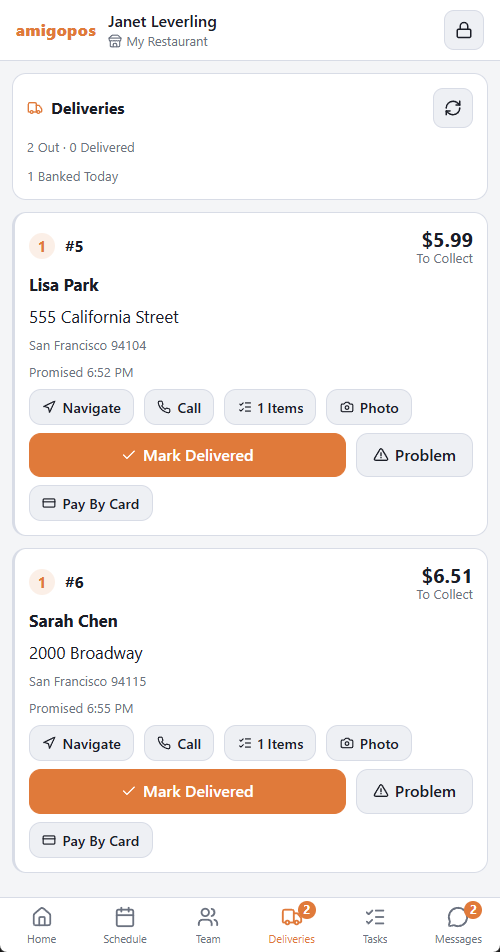
Your run
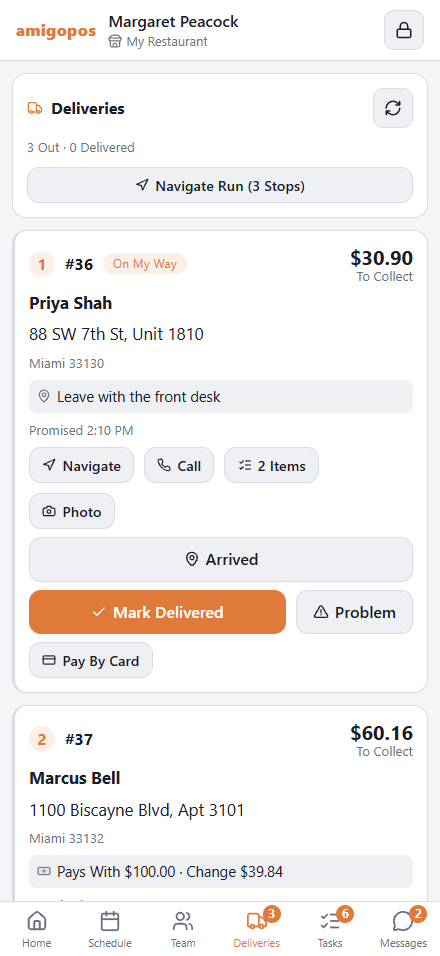
Each stop is a card, in the order the run was built:
- the stop number and the order number, and what there is To Collect — or Paid;
- the customer’s name, the address with its apartment or unit line, the address note and the order note;
- Pays With … · Change … when the customer said what they would pay with, so you leave with the right change;
- the promised time, and Late once it has passed.
Navigate opens the phone’s maps with directions to the stop. Call dials the customer. Items lists what should be in the bag. Photo is described in Photo at the door.
The list keeps itself current: a stop added, taken back or paid online shows up without touching the phone, and each one raises a notification — see Phone notifications and schedule alerts.
At the door
- Mark Delivered. If money is due, the phone first asks whether you collected it. The stop turns green and stays on your list until you are back at the store.
- Not Delivered Yet undoes a tap made by mistake.
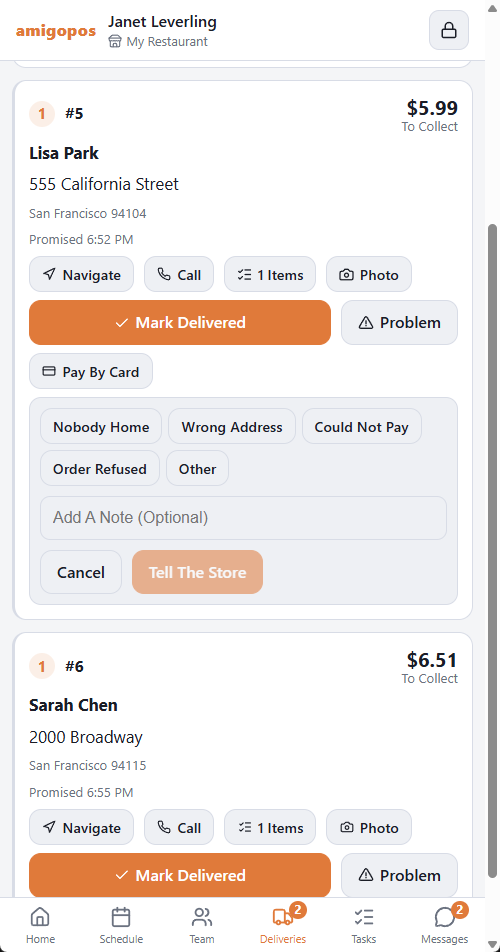
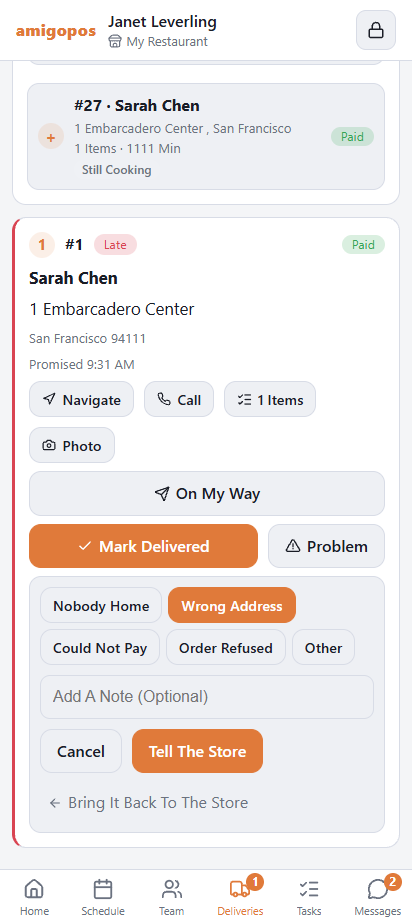
- Problem. Choose Nobody Home, Wrong Address, Could Not Pay, Order Refused or Other, add a note if it helps, and tap Tell The Store. The store and the call center see it at once. The stop stays yours: deliver it later, or bring it back and the store takes it off your run.
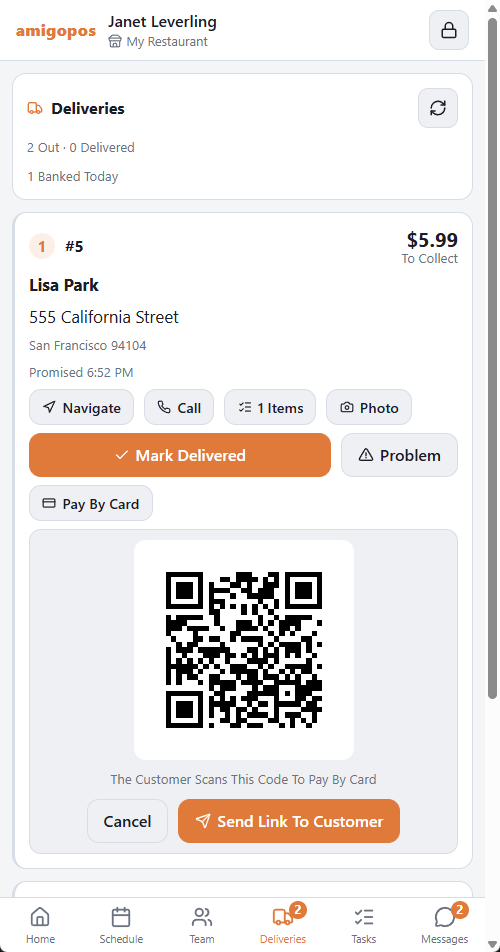
When the customer wants to pay by card
On an unpaid stop, tap Pay By Card. A QR code appears on your phone: the customer scans it and pays on their own phone, on the store’s secure payment page. Send Link To Customer messages the same link to the number on the order instead. The stop changes to Paid by itself when the payment arrives.
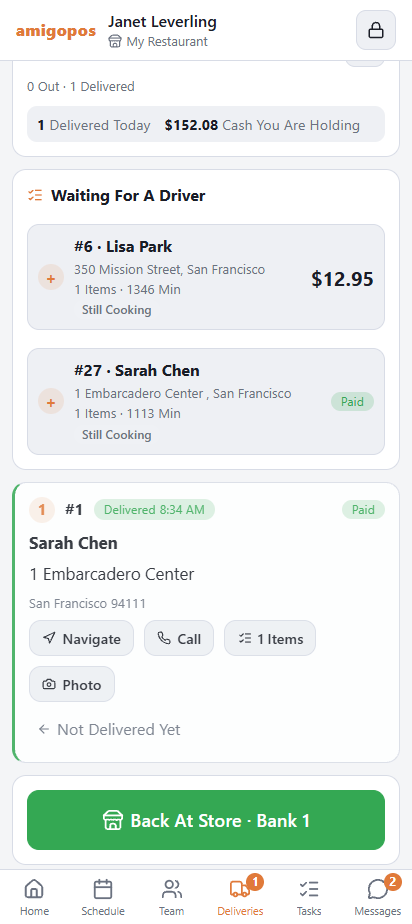
Back at the store
Once at least one stop is delivered, a Back At Store button appears at the bottom, with the cash you are holding for those stops. Tap it when you are back: the delivered stops are banked, exactly as Bank does at the register. Stops still out stay on your list.
If the Deliveries tab is missing
- Your job must be marked as a driver job. Ask a manager — see Jobs, roles, and permissions.
- The phone must be set up for the staff site and unlocked with your PIN.
On the road
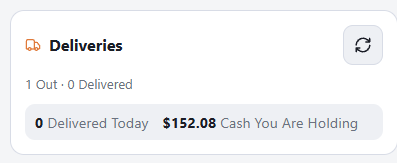
- Delivered Today and Cash You Are Holding sit at the top of the tab for the shift so far.
- Navigate Run (3 Stops) opens the phone’s maps app with every stop of the run, in order.
- On My Way when leaving for a stop, and Arrived at the door. The store’s board shows it, and the customer sees it on the tracking page — nothing is texted.
Bringing it back
When an order cannot be delivered, open Problem, pick the reason and tap Bring It Back To The Store instead of Tell The Store. The stop leaves your run and goes back to the store’s waiting list with your reason. See when a delivery runs into trouble.
The store can answer a problem you reported: you are notified when it is resolved (carry on) or when the store wants the order brought back.