Most report pages under Back Office › Analytics › Performance have a Schedule button that emails the report as a PDF on a schedule, so it arrives without anyone opening the page.
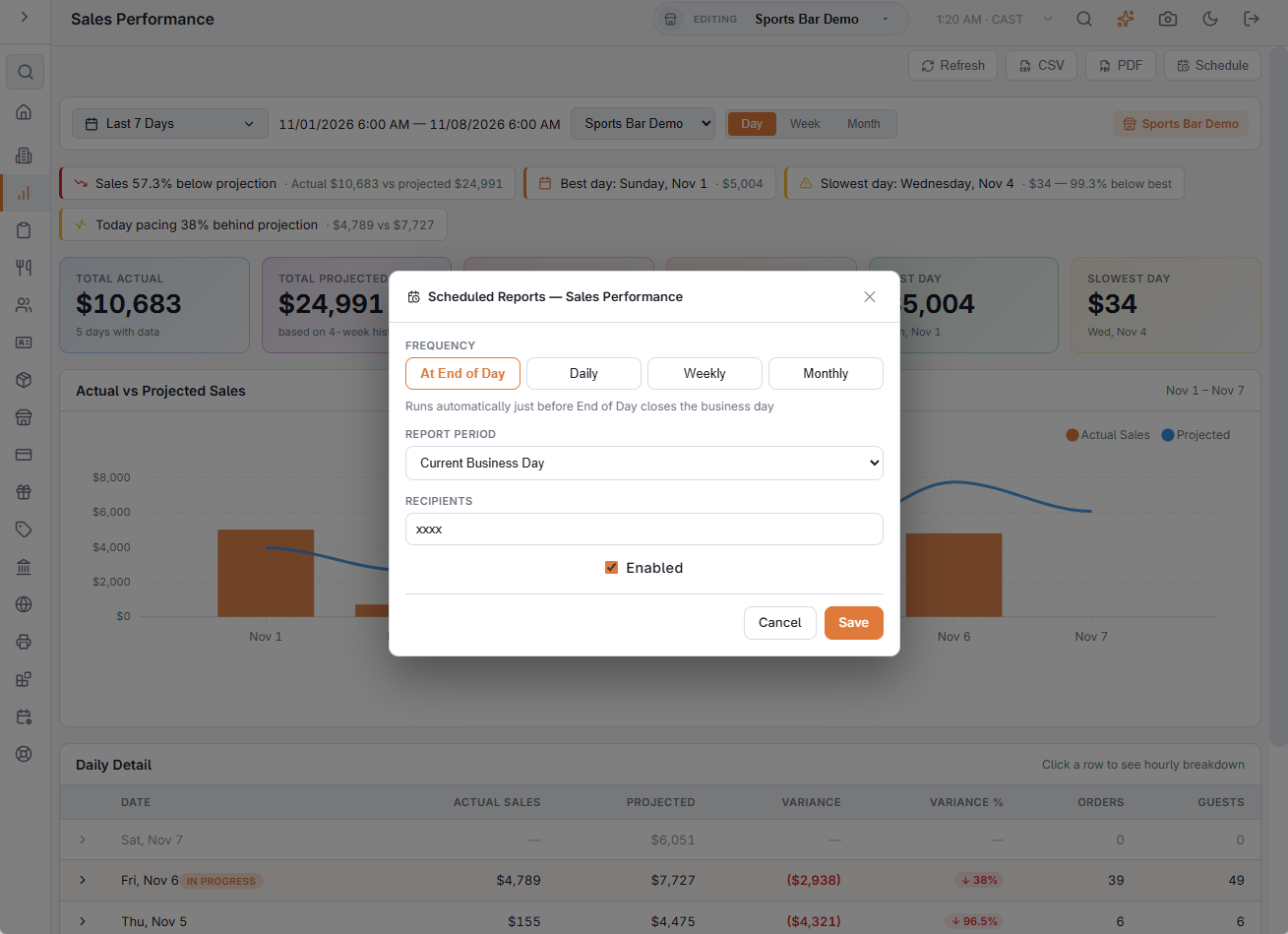
Which pages have it
| Pages | Where the button is | A new schedule starts as |
|---|---|---|
| Sales Performance, Labor Performance, Inventory Performance, Product Mix, Demand Forecast | In the page header, next to PDF | At End of Day, over the Current Business Day |
| RevPASH, Table Performance, Table Fit, Turn Times, Staffing vs Demand, Daypart Prime Cost, Channel Profitability, Check Builder, Guest Retention, Reservation Analytics, Loss Prevention: exceptions by employee | In the page toolbar | Weekly, on Monday, over Last week |
| Price Change Impact: what a price change did to sales | In the page toolbar | Monthly, on day 1, over Last month, so the changes have time to show |
Delivery Performance, Kitchen Performance, Call Center and the Server Pace Report have no Schedule button.
Setting one up
- Open the report and set it up the way you want it. On the toolbar pages, the page’s own filter — the room, the job, Table Checks Only and so on — is saved with the schedule. On the header pages, the Day / Week / Month choice is saved. The dates are not saved: each run works out its own period.
- Tap Schedule. If the report has no schedules yet, a new one opens at once. Otherwise you see the report’s schedules; tap Add Schedule for another.
- Choose the Frequency, the Run at time (6:00 to start), the Day of Week or Day of month (1 to 28), and the Report period. At End of Day has no time: it runs just before End of Day closes the business day.
- Check the Recipients. They start with the store’s default report recipient. Leave Enabled ticked, then tap Save.
| Frequency | Report period choices |
|---|---|
| At End of Day | Current Business Day, Last 7 days, Last 30 days, Month to date |
| Daily | Yesterday, Last 7 days, Last 30 days, Month to date |
| Weekly | Last week, Last 7 days, Last 30 days |
| Monthly | Last month, Last 30 days, Month to date |
Managing schedules
Each schedule in the list shows its frequency and time, its recipients, and when it was Last sent or its Last error. Its buttons are Send now (to check that it arrives), Edit and Delete. Untick Enabled to pause a schedule without deleting it.
The Schedule button shows how many schedules the report has. It works like the schedules for custom reports (see PDF and scheduled email).
Only users with the Manager Screen permission can see, create, send or delete schedules for Loss Prevention. Everyone on the recipient list receives it, so send it to managers only. Inventory Performance, Reservation Analytics and Demand Forecast are only sent on plans that include inventory, reservations and AI reports.