Back Office › Analytics › Performance › Loss Prevention lines up voids, comps, refunds and the other exceptions employee by employee, so a pattern that one employee shows and the rest of the team doesn’t stands out. Most give-aways and most theft leave a trail: a void here, a comp there, the drawer opened without a sale. One event means nothing; a pattern is worth a conversation. Only employees whose job has the Manager Screen permission see the page (see Jobs, roles, and permissions). It is read-only.
The toolbar
- From and To — the business days to count. The page opens on the 28 days up to yesterday.
- 28d, 13w and 26w — the last 28 days, 13 weeks or 26 weeks, ending yesterday.
- Schedule — emails the report as a PDF on a recurrence; send it to managers only. See Emailing the performance reports on a schedule.
- PDF (preview, download, email) and CSV — the same report as a file. The CSV has the summary, the employees (for each measure, its amount or count and then its rate, with the rate’s unit in the heading), the events, and the void reasons and the removed-item reasons as two separate sections. See Exporting and PDF preview. The file’s section titles, column headings, day names and Yes/No values are in the language the Back Office is shown in; numbers use a dot for decimals with no thousands separator, and dates are written year-month-day, so a spreadsheet reads them the same in any language.
- The refresh button loads the figures again.
The cards at the top
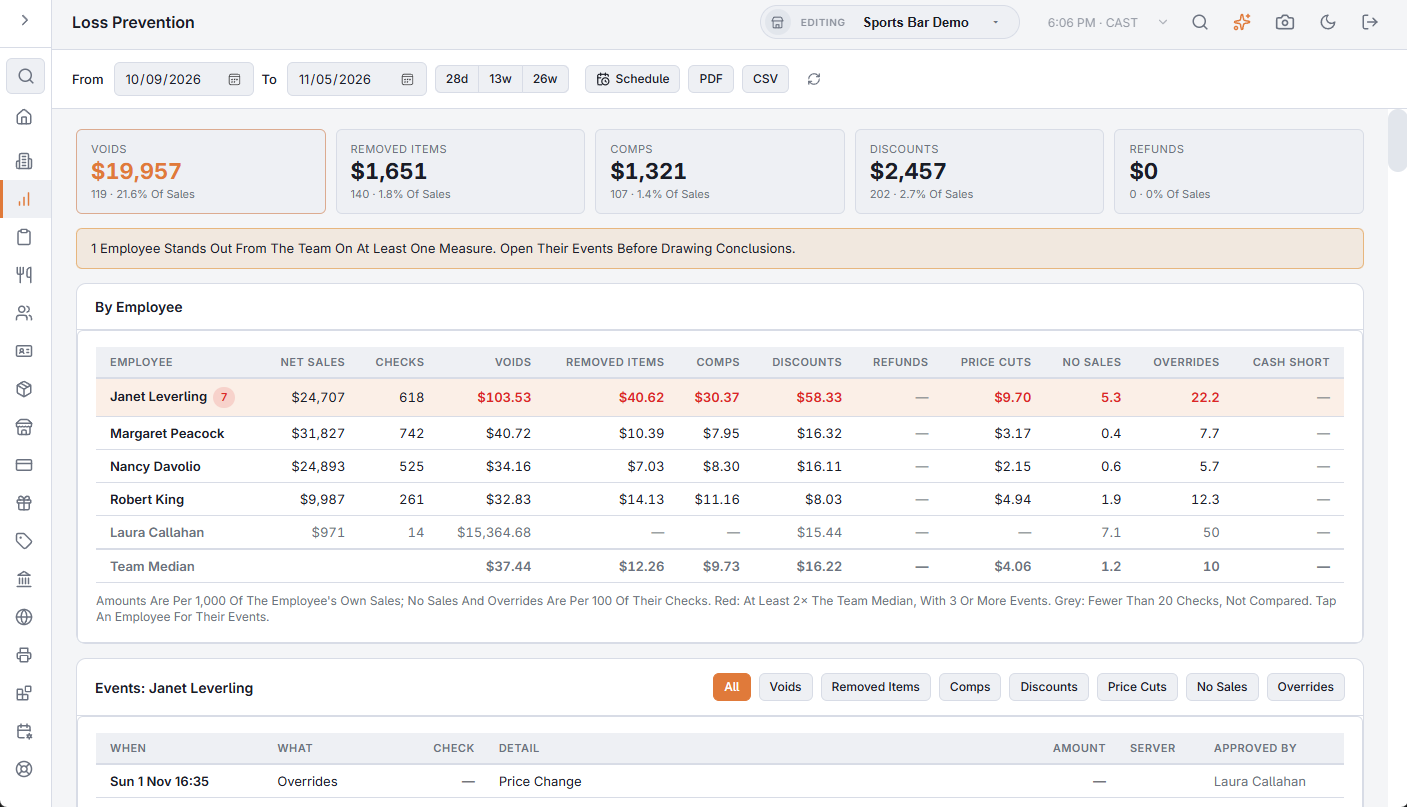
Voids, Removed Items, Comps, Discounts and Refunds for the whole team: the amount, the number of events and the share of net sales. The note under them says how many employees stand out from the team on at least one measure, or that nobody does.
What is counted, and against whom
- Voids — whole checks voided, at the check’s subtotal, against who voided them (see Voids and the void reason prompt). Voids made by splitting or combining checks are left out.
- Removed Items — saved items taken off a settled check, with their modifiers, against who removed them; After Sending marks items the kitchen had already been sent.
- Comps and Discounts — against who applied them; a discount on the whole check counts against the check’s owner (see Comps, line discounts and order discounts).
- Refunds — against who rang them, with the manager who approved. Price Cuts — prices set by hand below the original.
- No Sales and Overrides — drawer opens without a sale, and manager approvals granted to the employee (see Permission overrides and override log).
- Cash Short — what each cashier’s counts found short. Every count of a drawer — clock-out, hand-off, spot count and drawer reset — gives its own difference to the cashier who had the drawer, so a shortage on a drawer several people used is split between them.
Reading the table
By Employee lists each employee’s net sales and checks, then one column per measure. To compare a busy server with a quiet one, each number is a rate: money per 1,000 of the employee’s own sales, and no sales and overrides per 100 of their checks. The Team Median row at the bottom is the middle of the team. A cell turns red when it is at least twice the median and has at least three events behind it; the badge next to a name counts the red cells. Employees with fewer than 20 checks are greyed and not compared. Hover a cell for the number of events, the amount and the rate with its unit, for example 3 Events; Rate 2.5 Per 100 Of Their Checks. Employees with red cells are listed first.
The events behind a number
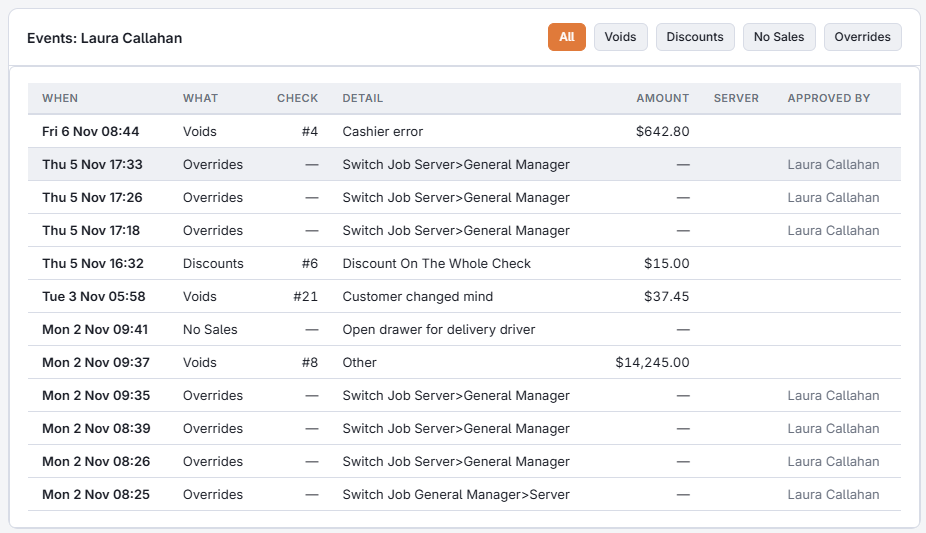
The page opens with the events of the first flagged employee. Tap another employee to list theirs, or tap the same one again to close the list. Each event shows when, what, the check number, the item or reason, the amount, the check’s server and who approved it, newest first. For an override, the detail is the approved permission’s name as the job editor shows it or, for an approval that is not a permission, its name split into words (for example Time Clock · Early Clock In), here and in the CSV; the PDF shows the name as it was stored. The page shows the latest 200, and the CSV has more. Use the buttons above the list (All, then one per kind of event) to see one kind only. The two cards at the bottom, Why Checks Were Voided and Why Items Were Removed, give the count and amount per reason for the whole team.
Before you act on a red cell
- A flag is a question, not proof. The manager who handles every void, or the bartender who rings the owner’s comps, will stand out for good reasons.
- Look at the events: the same table, the same guest, the end of the shift, items removed after the kitchen made them, refunds approved by the same person who rang them.
- Compare with the The end-of-day report and the Audit trail for the same days.
- Tighten the permission where it is abused: require a manager for voids or comps on that job, and give each employee their own login so nothing is rung under someone else’s name.
The AI assistant can answer the same questions: “Who voids the most?”
From an event to the order’s history
In the events list, an underlined order number opens that order’s history: who submitted it, what was removed and why, each payment and refund. Events with no order, such as a No Sale or an override, have no link. See Order history: everything that happened to a check.