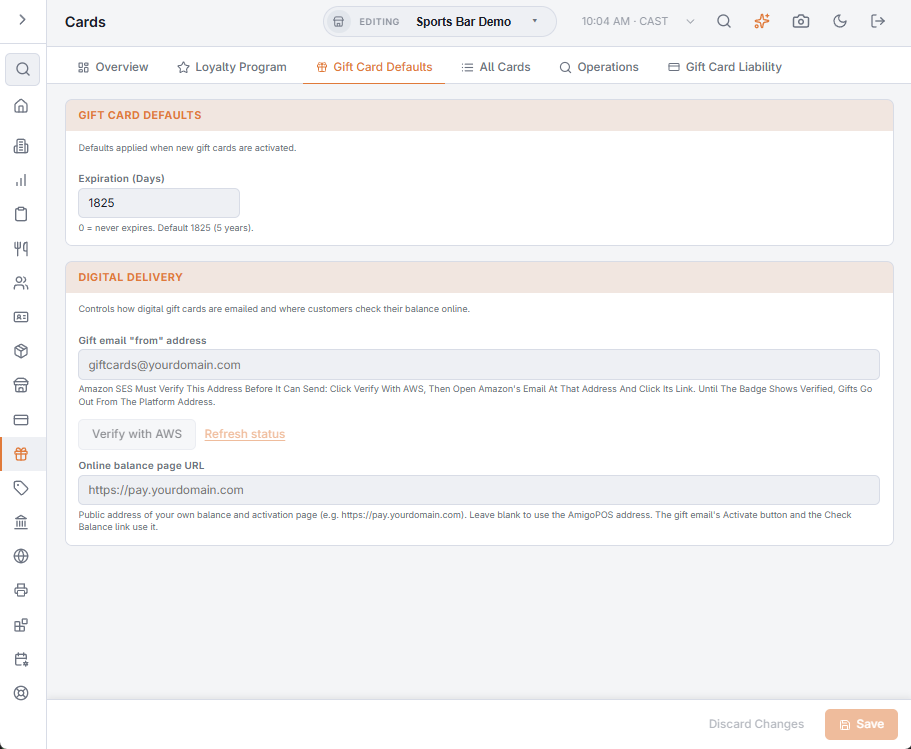
Digital gift cards need two things: an address to email them from, and the public gift page the recipient opens to activate the card, check the balance and add value. Both are set on the Gift Card Defaults tab of Back Office › Gift & Loyalty › Cards, under Digital delivery; press Save after changing them.
1. The sending address
Gift email “from” address is the address gift emails come from, for example giftcards@yourdomain.com. Gift emails are sent through Amazon SES, which must verify the address before it can send from it: press Verify with AWS and click the link in Amazon’s email (Verify your gift email sender address).
Until the address shows Verified, or when the box is blank, gifts go out from the platform’s standard sender address, so e-gifts work from the first day.
2. The gift page
Online balance page URL is the public web address of your gift page, for example https://pay.yourdomain.com. Leave it blank to use the platform’s own public address. The gift email’s Activate button, the activation confirmation and the balance reminders all link to this page. On it, the recipient activates the card, sees the balance, and can add value.
The gift email and its subject are written in the store’s language (English, Spanish or Arabic). The activation confirmation and the email sent when the card is used are in English.
The page header shows the store’s business name, address and telephone, and amounts use its base currency, all from General settings.
3. Adding value online (optional)
Adding value on the gift page is a card payment, so it uses the store’s Stripe setup. If pay-at-table already works for the store, adding value works too. See What online reload needs.
4. Text messages (optional)
To send gifts by text message, turn on Send Text Messages and Digital Gift Cards in SMS settings.
5. Selling gift cards online (optional)
To let guests buy e-gifts in your online store, switch on Sell Gift Cards Online in Back Office › Gift & Loyalty › Cards, Store Settings tab, Online Sales. It needs the store’s Stripe setup. See Selling gift cards in your online store.