Back Office › Store Setup › General Settings holds the store’s basics: its name and address, language, time zone and currency, the business day, the idle sign-out timers, a handful of register behaviors, the time clock slips and the guest Wi-Fi details.
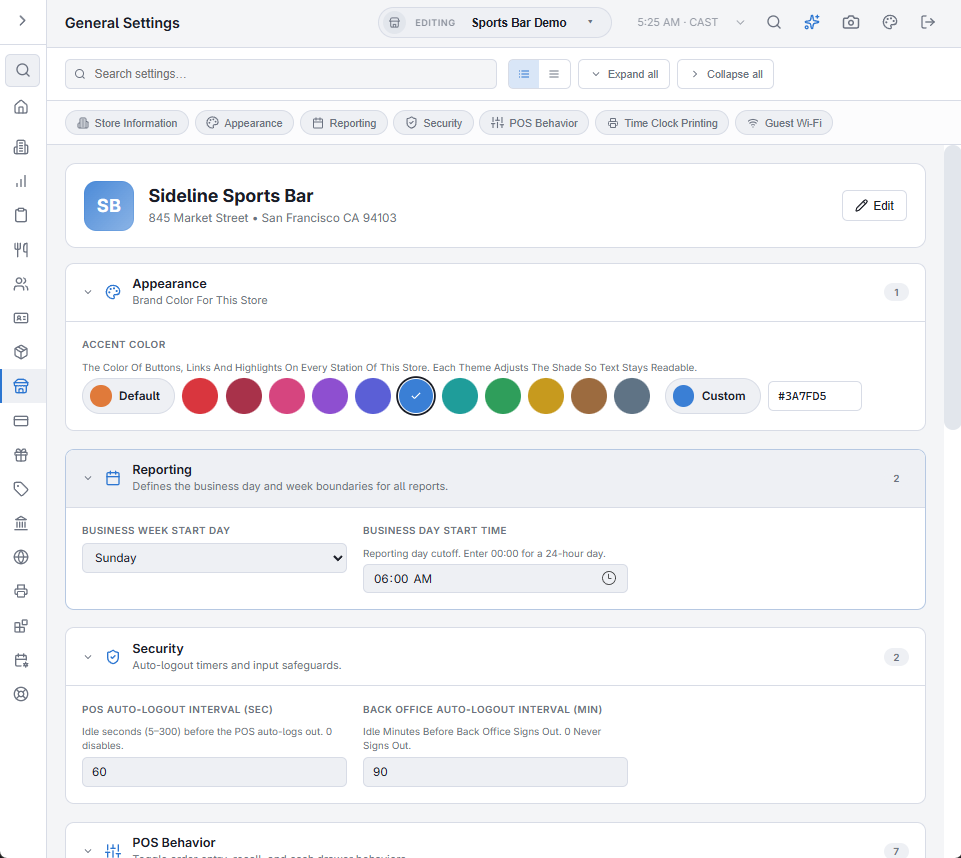
There is no Save button. A switch or drop-down saves the moment you change it; a box saves when you leave it, with a tick to confirm. Registers pick most changes up the next time they load their settings.
Store Information
- Business name, street address, address line 2, city, region, postal code and phone — the store as it appears at the top of receipts, reports and the slips the register prints.
- Reply-To Email — when a guest replies to an email the store sends them (receipts, online orders, reservations, gift cards, statements, guest offers, surveys and delivery updates), the reply goes to this address. Leave it blank and replies go to the sending address.
- Language And Region — how money, numbers and dates are shown on this store’s registers, receipts and reports; the currency symbol comes from it. A register applies a change when it leaves Back Office or at its next sign-in.
- Time Zone — the store’s local time for business days, reports and schedules.
- Base Currency — the currency prices and cash drawers are kept in. See Accepting Foreign Currency.
Appearance
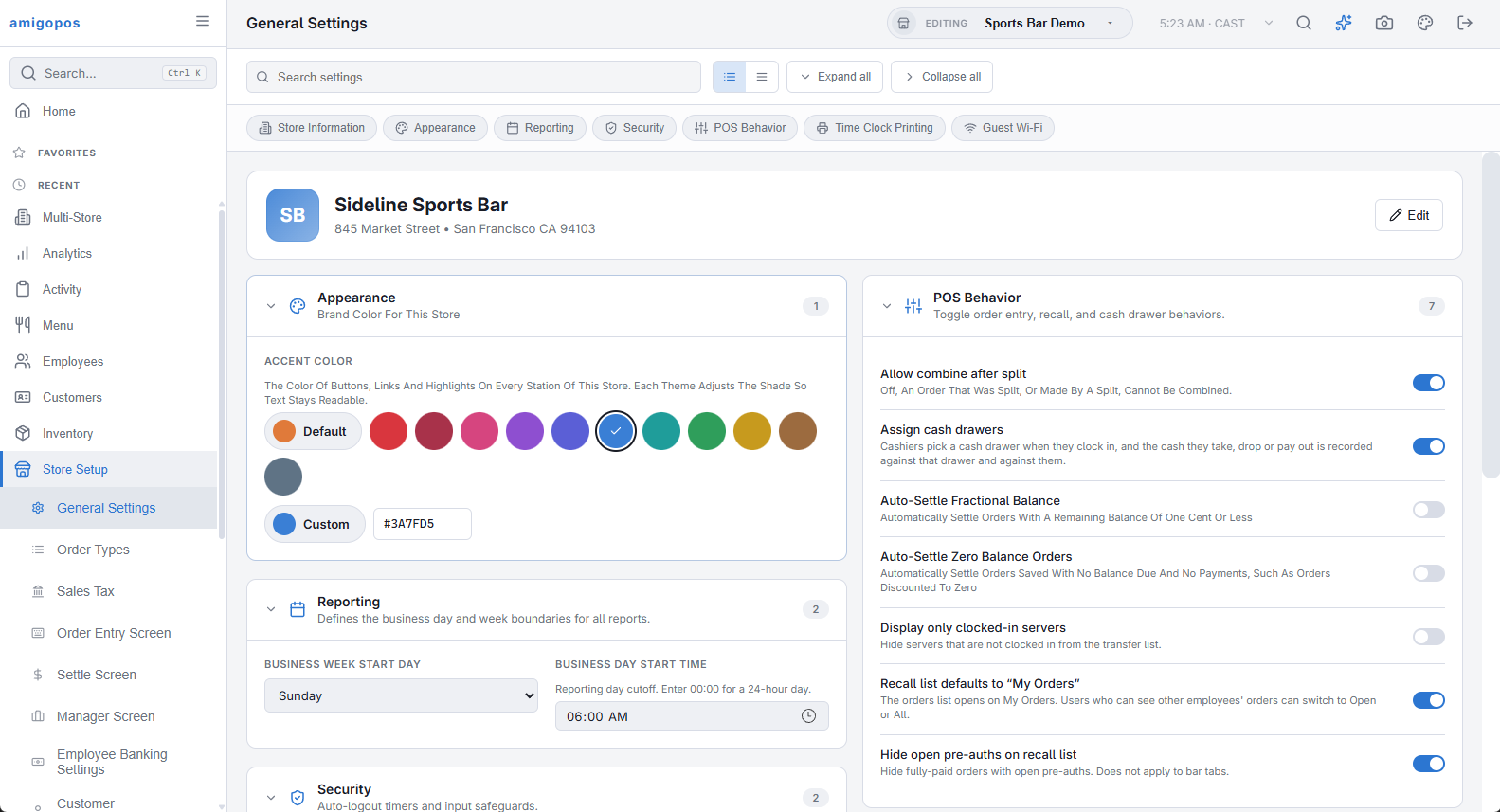
Accent Color is the color of main buttons, links and highlights on every station of the store, at the register and in Back Office.
- Default is the standard orange.
- Tap a swatch to use one of the preset colors.
- Custom opens the color dialog. You can also type the color’s code, such as #1F6FEB, in the box beside it. Clear the box to go back to Default.
A pick saves at once and this station repaints, so the page itself is the preview. Other stations pick it up the next time they load their settings.
Why the color on screen can differ from the one you chose
One color cannot stay readable on a dark screen, on a light one and in sunlight. Each theme keeps the hue you chose and makes it a little lighter or darker when it has to, so text and buttons stay legible. A color that is already readable is used exactly as chosen.
Reporting
- Business Week Start Day — the first day of the week in weekly reports.
- Business Day Start Time — when one business day ends and the next begins, so a bar open past midnight keeps the night on one day. 00:00 makes it a calendar day. See The business day and when it rolls over.
Security
- POS Auto-Logout Interval (sec) — seconds without a touch before the register counts down and signs the user out. 0 never signs out.
- Back Office Auto-Logout Interval (Min) — the same while Back Office is on screen, in minutes. 0 never signs out.
POS Behavior
| Setting | On |
|---|---|
| Allow combine after split | An order that was split, or made by a split, can be combined like any other. Off, Combine refuses such an order and does not offer it as a source. See Combining orders. |
| Assign cash drawers | Cashiers claim a cash drawer when they clock in, and their cash is kept on that drawer. See Assigning drawers to users at clock-in. |
| Auto-Settle Fractional Balance | An order left owing one cent or less is closed automatically. |
| Auto-Settle Zero Balance Orders | An order saved with nothing to pay and no payments, such as one discounted to zero, is closed automatically. |
| Display only clocked-in servers | The transfer list shows only servers who are clocked in. |
| Recall list defaults to “My Orders” | The orders list opens on the user’s own orders. Anyone allowed to see other employees’ orders can switch to Open or All. |
| Hide open pre-auths on recall list | An order that is paid in full but still has a card pre-authorization waiting to be captured is left out of the orders list. Bar tabs always show. |
Time Clock Printing
Print clock-in confirmation and Print clock-out confirmation print a slip on the station’s receipt printer at each punch: the store’s name and address, Clock In or Clock Out, the employee, the job and the time. See Clocking in and out.
Guest Wi-Fi
The network name, password, security type and whether the network is hidden. The guest Wi-Fi slip, the join code on receipts and the QR table cards all read these, so a new password is entered once. See Printing guest Wi-Fi details.