Your web ordering site can sell gift cards. A guest picks an amount, says who it is for and pays by card; the gift is then e-mailed to the recipient exactly like an e-gift sent from Back Office › Gift & Loyalty › Digital Gifts, and spent the same way, at the register or online.
Switching it on
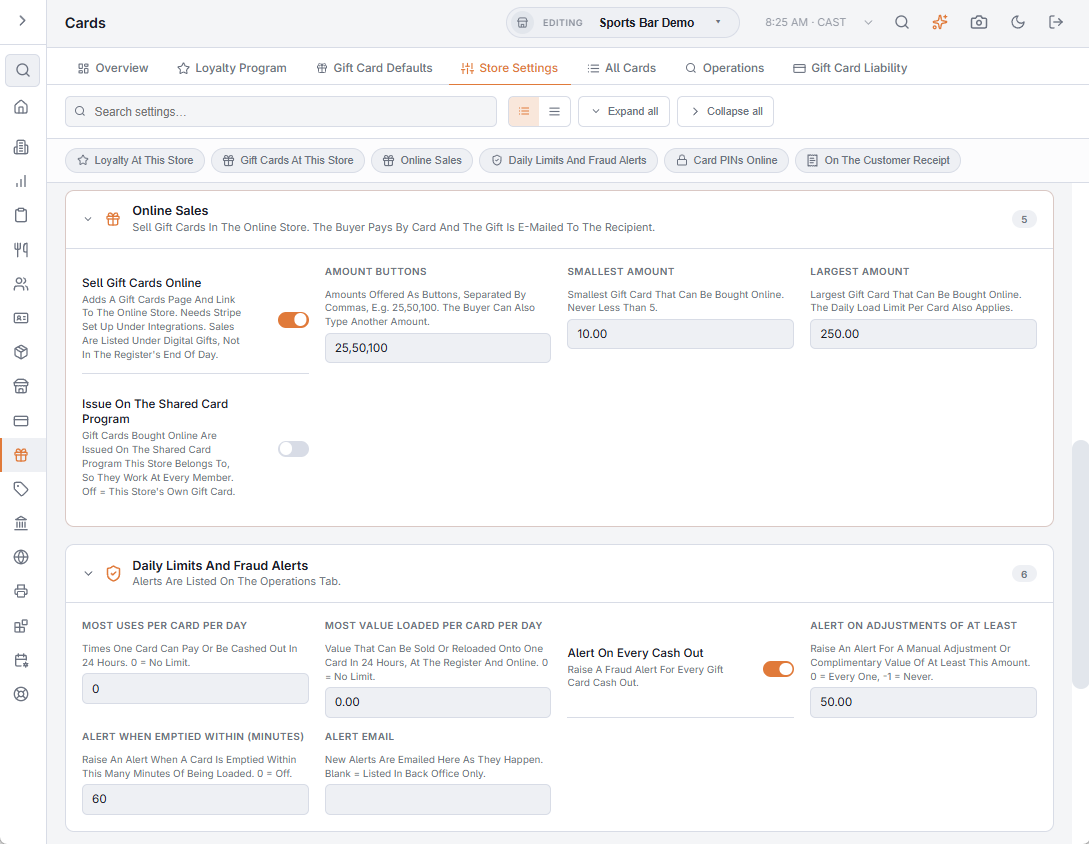
Open Back Office › Gift & Loyalty › Cards, the Store Settings tab, section Online Sales. Each setting saves as soon as you change it and belongs to the store you are editing, so a business with several stores switches it on for each one.
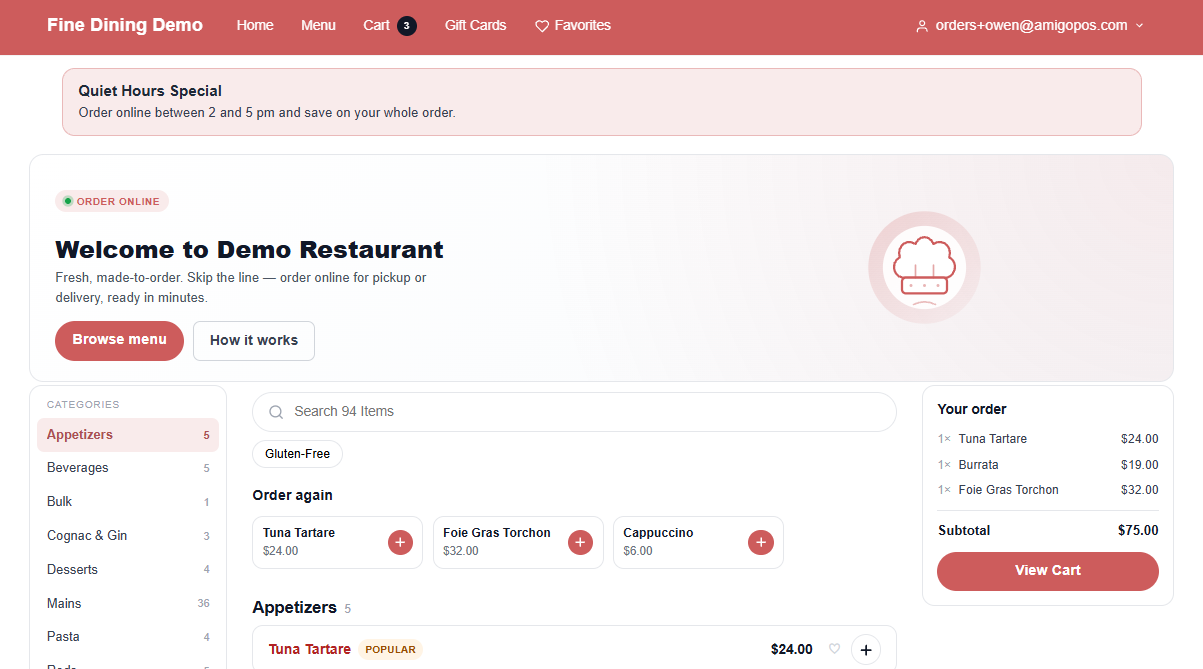
- Sell Gift Cards Online — off to start with. On, the store’s site gets a Gift Cards link in its menu bar and the gift card page.
- Amount Buttons — the amounts offered as buttons, separated by commas: 25,50,100 to start with. Up to six are shown, and any outside the smallest and largest amount are left out. The guest can always type another amount.
- Smallest Amount — 10 to start with, never less than 5.
- Largest Amount — 250 to start with. When the store’s Gift Card Max Load Per Day is lower, that is the largest instead.
- Issue On The Shared Card Program — off to start with; see Shared card program below.
The site looks at the setting again every couple of minutes, so the link can take up to two minutes to appear or to go.
What the guest does
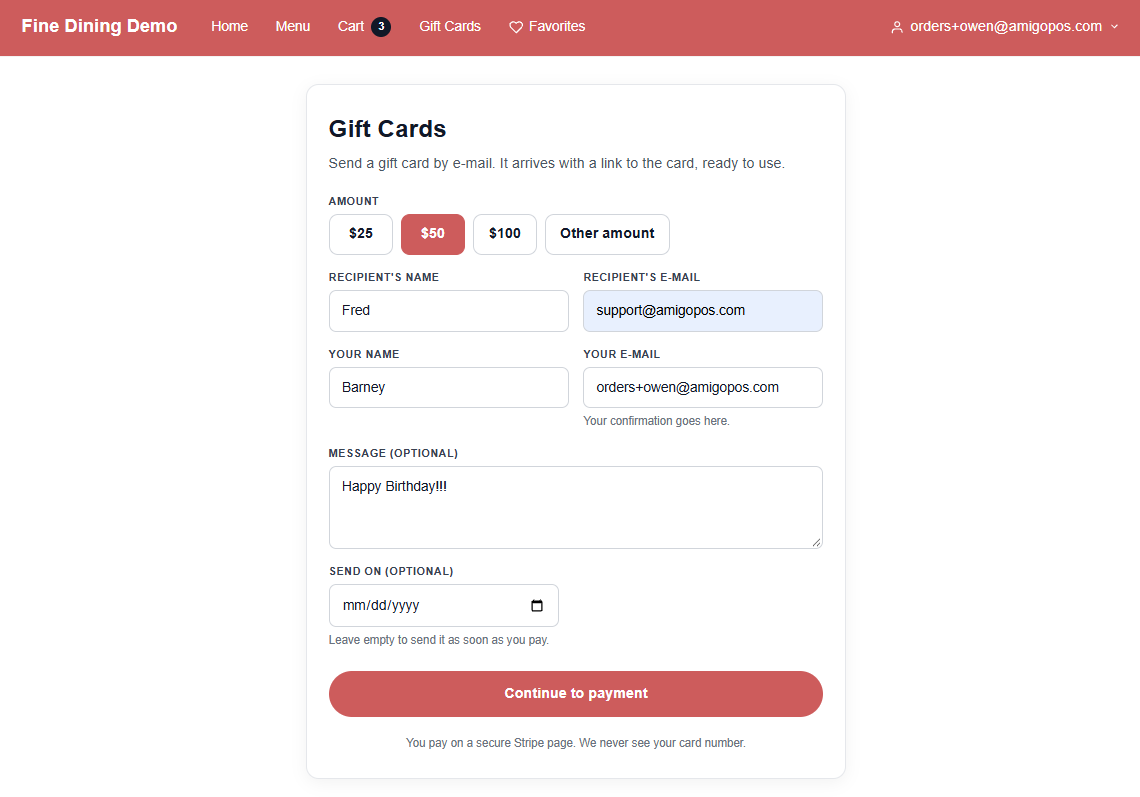
- Taps Gift Cards in the site’s menu bar.
- Picks an amount, or Other amount and types one.
- Fills in the recipient’s name and e-mail, their own name and e-mail, and a message if they want one. A signed-in guest finds their own e-mail filled in.
- Optionally picks a Send on date, for a birthday for example. The gift then goes out at 9:00 in the morning, store time, on that day. Left empty, it goes as soon as the payment is in.
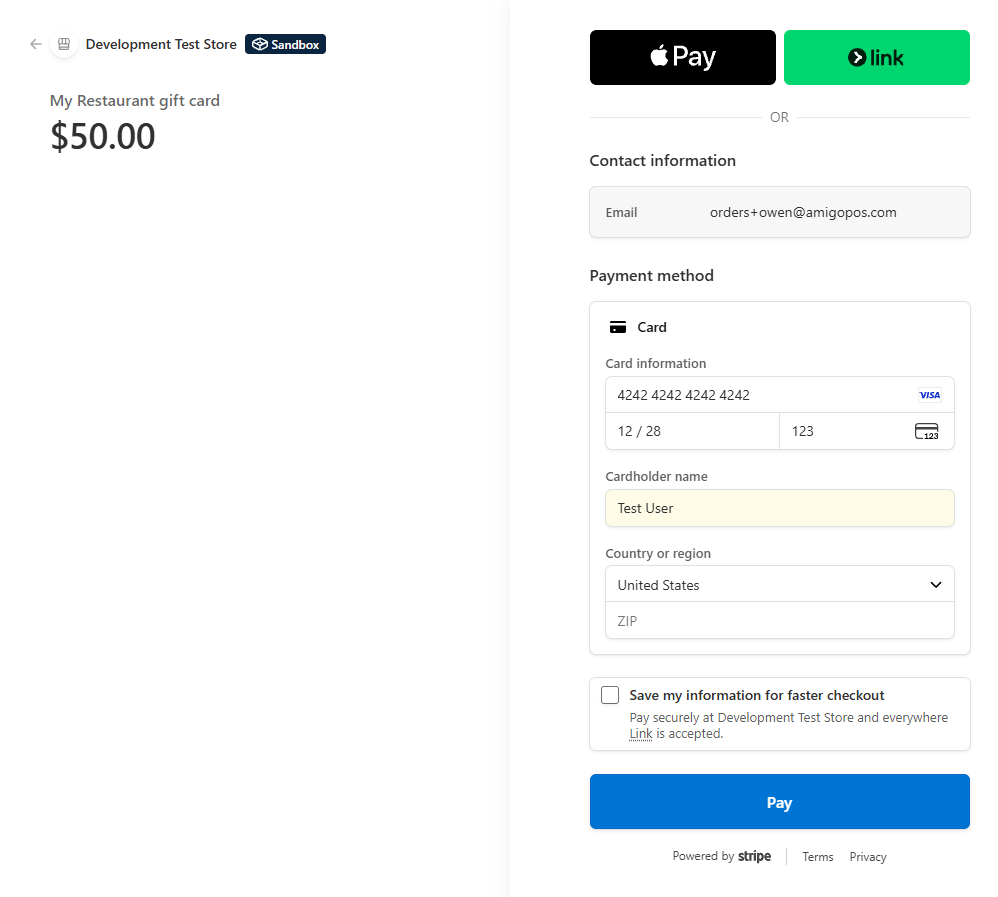
- Presses Continue to payment and pays on Stripe’s own page — by card, or with Apple Pay or Google Pay where the store’s Stripe account offers them. Your site never sees the card number.
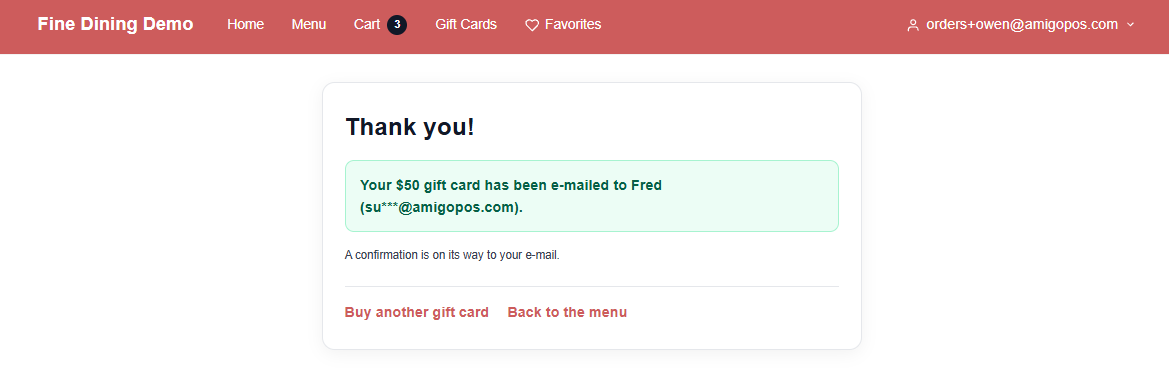
- Comes back to a thank-you page that says the gift has been e-mailed to the recipient, with the address partly hidden, or the day it will be sent.
A guest ordering at a table by QR code does not see the link: the table page keeps to the order.
What happens next
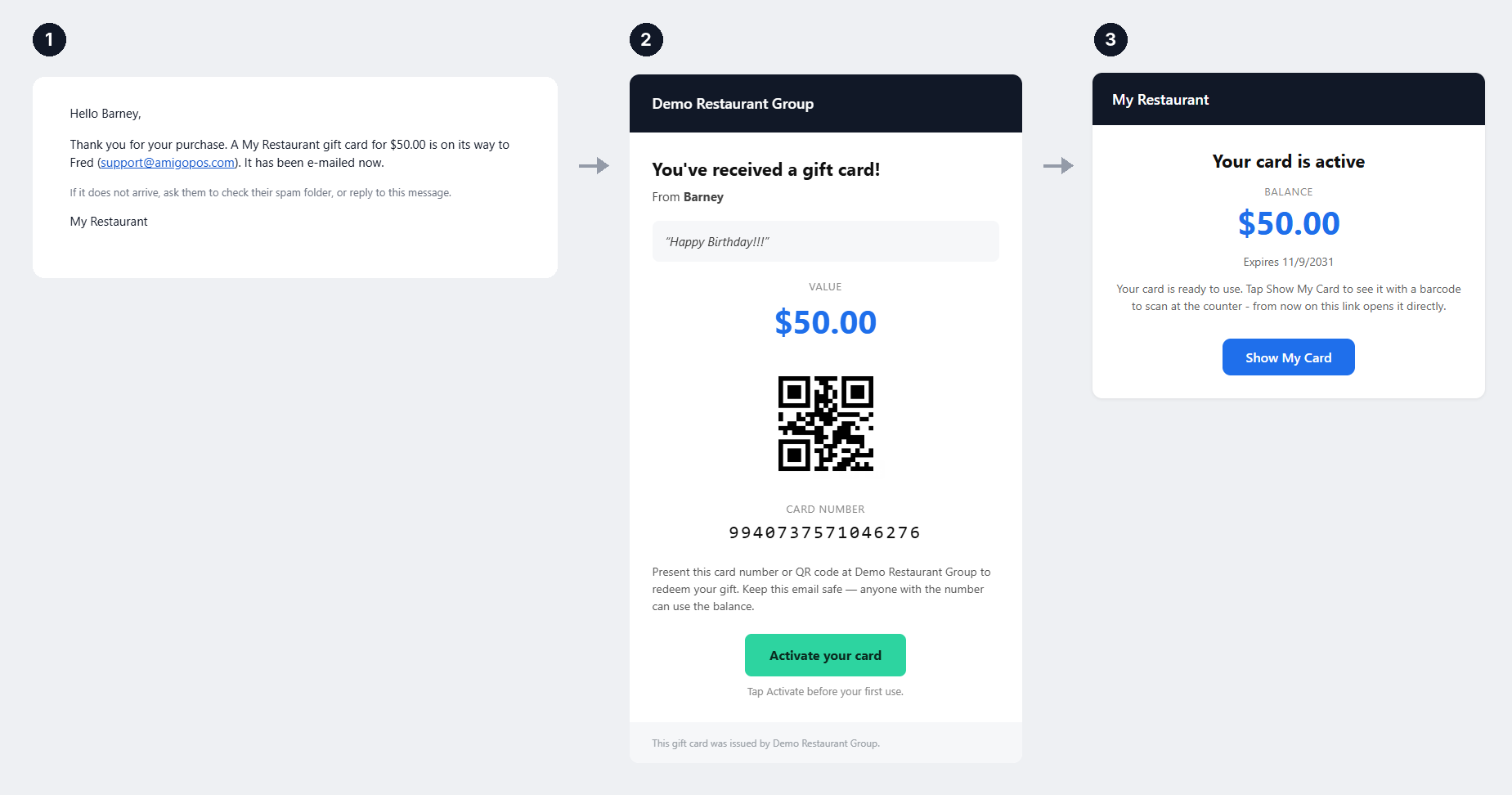
- When Stripe confirms the payment, the card is issued and the gift e-mail goes to the recipient with the card number and the Activate button (The gift card email).
- The buyer gets a short confirmation: the amount, who it is for, when it goes out and the message. It is in Spanish when they used the site in Spanish, otherwise in English.
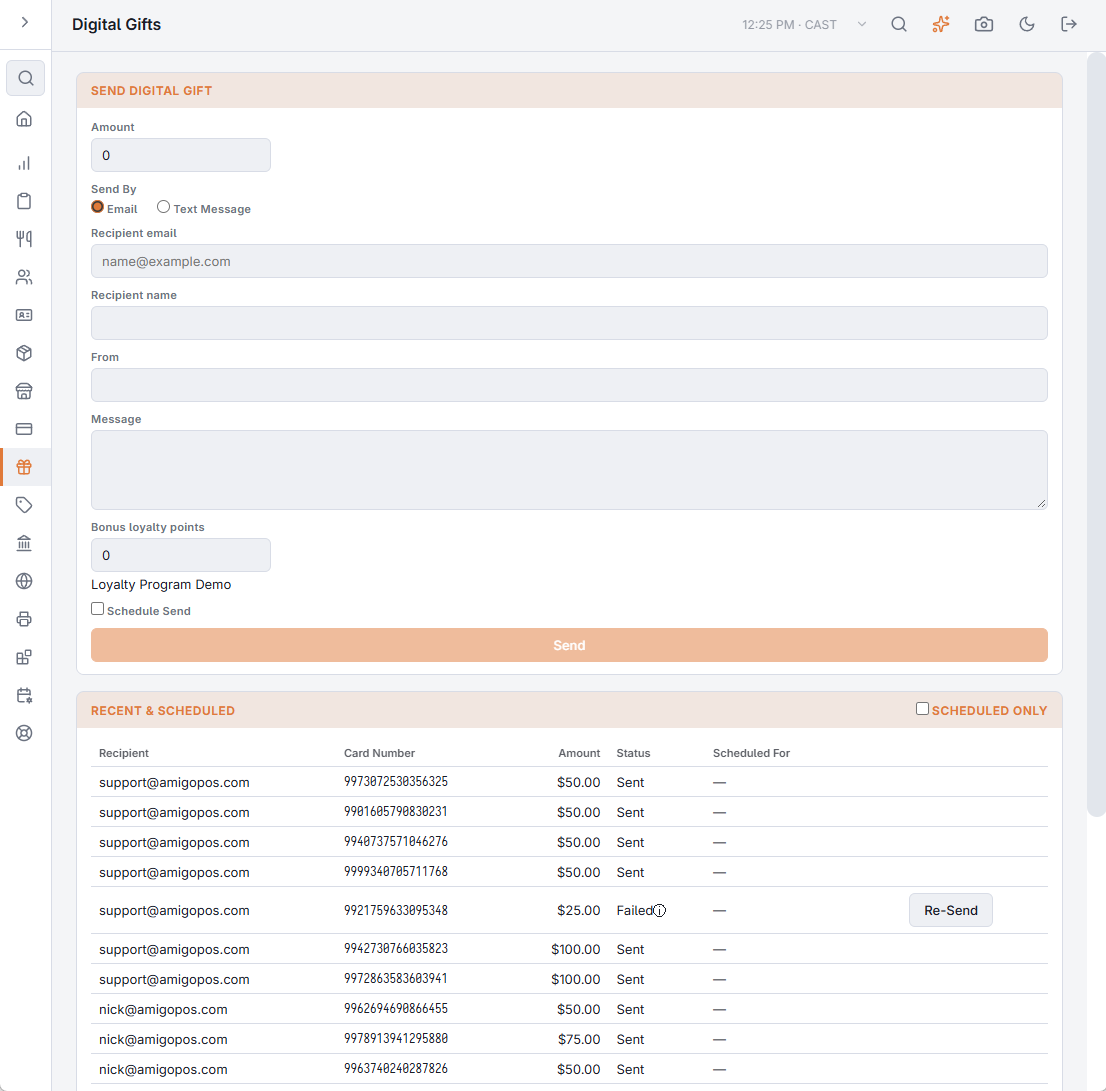
- The gift is listed in Digital Gifts like any other, so a failed e-mail can be sent again and a scheduled one cancelled there (Manage digital gifts in the back office).
- The card is in All Cards and counts in the gift card liability from the moment it is issued (Finding a card: All Cards).
Money and reports
- The guest pays into the store’s Stripe account; the money arrives with the Stripe payout.
- The purchase is not an order. It is not in the day’s sales or payments and not in any drawer. The end-of-day gift card section counts it with the cards loaded outside orders, like an online reload (The end-of-day report).
Shared card program
A store that is an active member of a shared card program can issue the cards it sells online on the program, so they are spent at every member: switch on Issue On The Shared Card Program. The program has to allow e-gifts, and its largest load also caps the amount. Off, an online card is the store’s own card. Agree it with the other members first: a program card can be spent anywhere in the program and is settled on the program’s statement (What the shared card program is).
When something is not right
- No Gift Cards link — the setting is on for another store (it is set per store: check which store Back Office is editing), the store has no Stripe secret key for its current mode, or the site has not looked again yet.
- The guest paid, the recipient has no e-mail — find the gift in Digital Gifts. Pending: it is scheduled, or going out now. Failed: correct the address and press Re-Send. Not in the list twenty minutes after the payment: contact support with the time of the purchase and the buyer’s e-mail.
- Choose an amount between … — the amount typed is outside the smallest and largest amount.