Back Office › Menu › Menu Setup › Bar Settings sets up the bar menu screen at the register: the speed bar buttons, how bar items are sorted, and bar tabs.
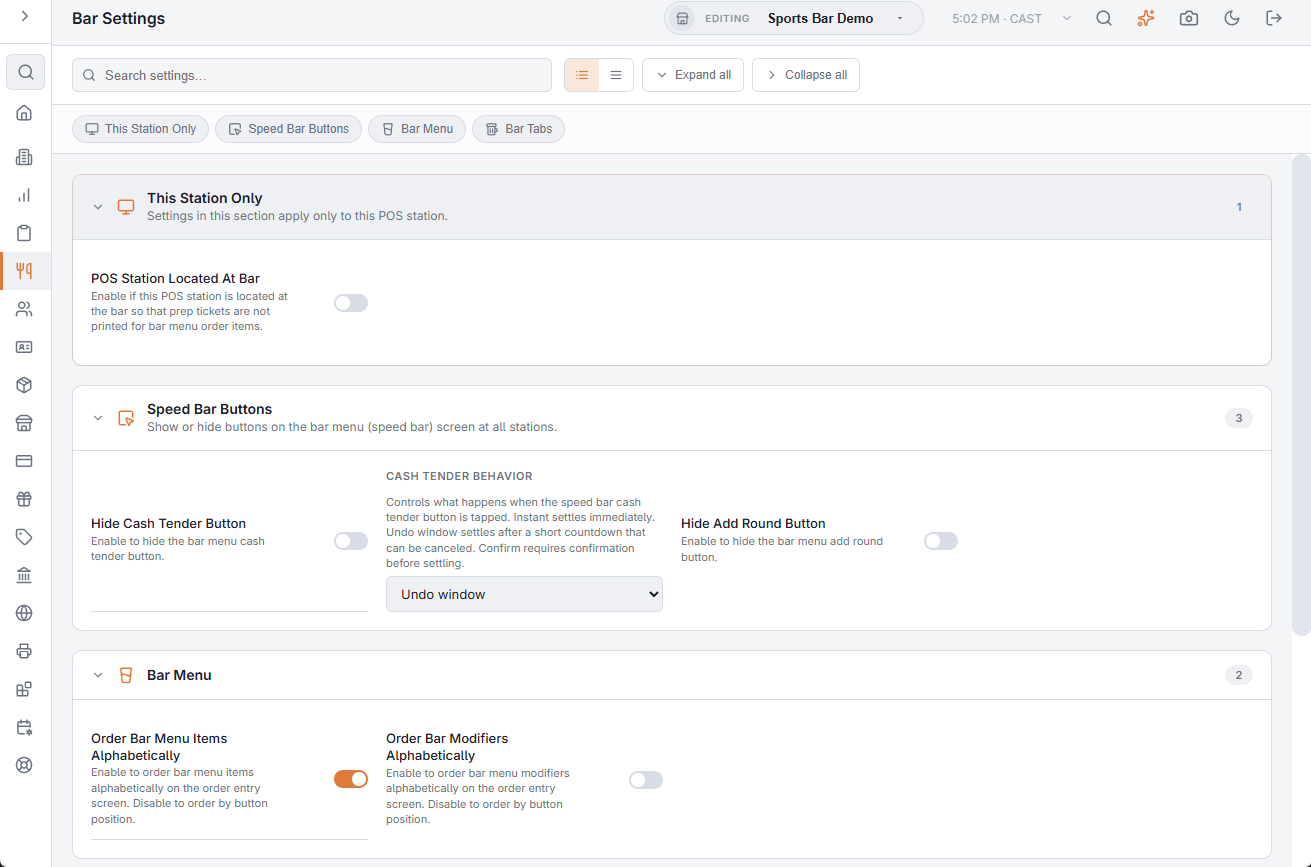
There is no Save button. A switch or drop-down saves the moment you change it; a box saves when you leave it, with a tick to confirm.
This Station Only
- POS Station Located At Bar — on this register, bar menu items do not print on the prep printers, because the bartender makes them. The switch is kept on the station itself, so turn it on in Back Office on each bar register.
Speed Bar Buttons
The buttons on the bar menu toolbar, on every station.
- Hide Cash Tender Button — removes the cash button, which pays the order in cash without opening the payment screen.
- Cash Tender Behavior — what that button does: Instant pays at once, Undo window pays after a short countdown that can be cancelled, Confirm asks first.
- Hide Add Round Button — removes Add Round, which rings the last round again for the same guests.
Bar Menu
- Order Bar Menu Items Alphabetically and Order Bar Modifiers Alphabetically — sort by name instead of by button position.
Bar Tabs
| Setting | What it does |
|---|---|
| Show Bar Tab Button | The Start Tab (+) and Tabs buttons on the bar menu toolbar. Off, tabs are not started from the bar menu; Settle Tab still shows on an order that already has a tab. |
| Default Bar Tab Amount | The limit already filled in on Start Tab, 100 when blank. A tab with a limit of 0 has no limit. |
| Bar Tab Limit Preset 1–4 | One-tap limit buttons under the limit box on Start Tab. 0 hides a button. |
| Show Bar Tab Preauth Button | Start Tab offers Open Tab With Card, which pre-authorizes the guest’s card for the tab limit on a DC Direct terminal. See Bar tabs on a card. |
Related: Starting and naming a tab, Opening, re-opening and settling a tab, Bar menu upcharges (Double, Tall, Premium, Virgin).