Back Office › Discounts & Promotions › Discounts defines every discount the register can apply, and the discounts behind coupons and offers: how much it takes off, on what, and when it can be used.
The list
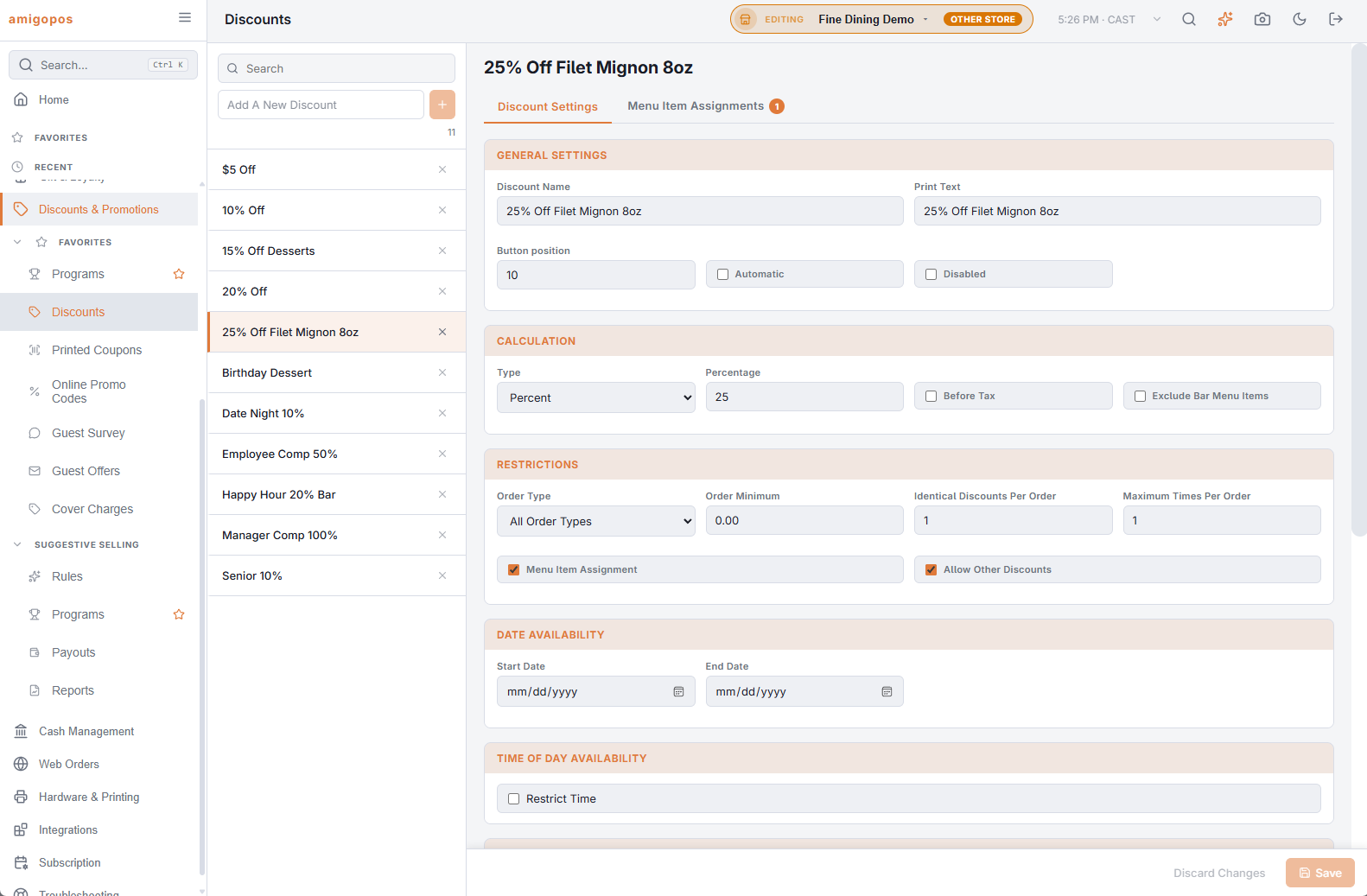
Search by name or SKU. A barcode badge marks discounts with a SKU or set to Coupon Only, and disabled discounts are greyed out. To add one, type its name in Add A New Discount and press + or Enter: it starts as a fixed discount of 0, valid every day from today for five years. The × on a row deletes the discount after you confirm.
The Discount Settings tab is saved with Save; Discard Changes puts it back. If you pick another discount with unsaved changes, you are asked whether to discard them.
General Settings
- Discount Name — the name on the register’s discount list and in reports.
- Print Text — the text printed on checks and receipts.
- Button position — the order of the discount on the register’s list; ties are sorted by name.
- Automatic — the discount is put on the order by itself whenever its conditions match, without anyone choosing it.
- Disabled — the discount can’t be used and is hidden from the register.
Calculation
- Type — Fixed (an Amount off) or Percent (a Percentage off).
- Before Tax — on: the discount comes off the items, so tax is charged on the lower prices. Off: it is taken off the order as a whole, and tax stays on the full prices.
- Exclude Bar Menu Items — bar menu items are not discounted.
Restrictions
- Order Type — one order type, or All Order Types.
- Order Minimum — the order must reach this amount. Tax counts toward it unless Discount order minimum uses subtotal only is on in the store’s order entry settings (or the store uses VAT).
- Identical Discounts Per Order — how many times the same discount can be on one order.
- Maximum Times Per Order — for a menu item assignment discount, how many sets of items it covers on one order.
- Menu Item Assignment — limits the discount to the items on the Menu Item Assignments tab (see below).
- Allow Other Discounts — off: the discount can’t be combined with other discounts on the order, and none can be added while it is on. Loyalty rewards are not counted.
When it can be used
- Date Availability — Start Date and End Date. The same date in both means no date limit.
- Time of Day Availability — tick Restrict Time and set Start Time and End Time. An end before the start runs past midnight, so 22:00 to 02:00 is a late-night discount.
- Day of Week Availability — the days it can be used.
Outside these limits the register refuses the discount and says why, for example that it isn’t valid on that day or has expired.
Coupon
- SKU (Barcode) — a barcode that applies the discount when it is scanned at the register, for example one printed on a flyer. It doesn’t work for a Coupon Only discount.
- Max Coupons Per Order — how many printed coupons for this discount one order can produce; 0 means no limit. See Printed and scannable coupons.
- Coupon Only — the discount is hidden from the register’s discount list and can only be applied with a one-time coupon code: a printed coupon, an offer email or a guest survey reward. Use it for every discount behind a coupon, so staff can’t give it without one.
Reporting shows the discount’s Id, read-only, for support and exports.
Menu Item Assignments
With Menu Item Assignment on, the second tab lists the parts the discount applies to. Add New adds a part; each part saves as soon as you change it, and the bin icon removes it.
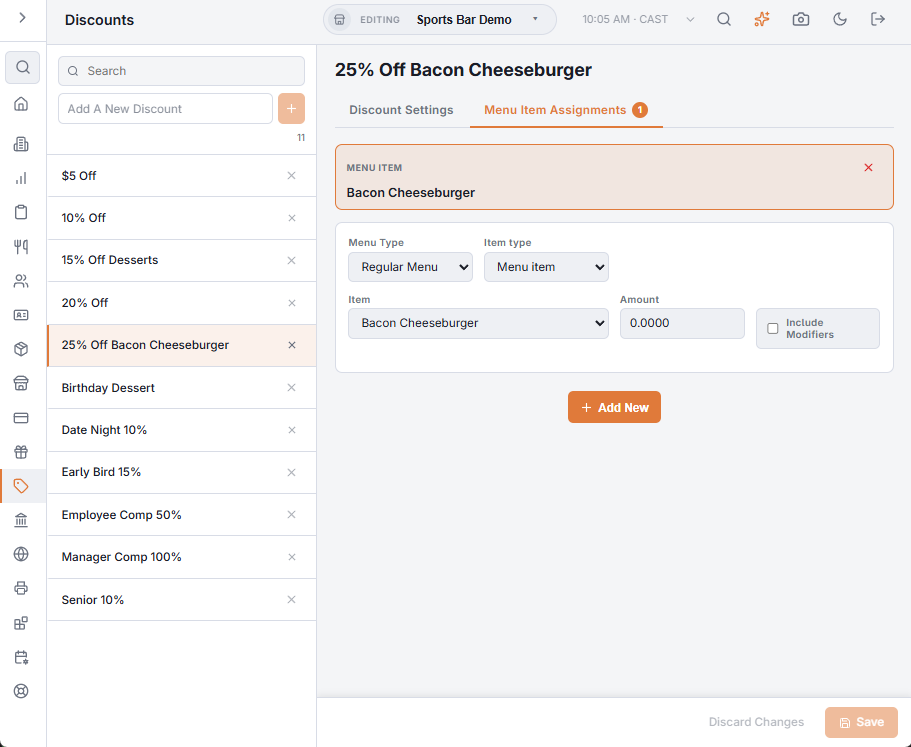
- Menu Type — Regular Menu or Bar Menu.
- Item type — a whole Category or one Menu item; Item picks which.
- Amount — for a fixed discount, the amount off each item (never more than its price); for a percent discount, this part’s own percentage, or 0 to use the discount’s.
- Include Modifiers — the item’s paid modifiers are discounted with it.
With several parts, the order needs one of each to make a set — a burger and a drink, for example — and Maximum Times Per Order caps the sets. The cheapest matching items are discounted first. Items marked to be left out of discounts never are.