Back Office › Discounts & Promotions › Printed Coupons turns receipts into a promotion: when a qualifying order is paid, the register prints a one-time coupon after the receipt, and the guest brings it back on a later visit. Each row on the page is a trigger — the conditions for printing, and the discount the coupon gives. The page is in the menu unless the job has Manage Coupons switched off.
How a coupon is issued
When an order is paid, the enabled triggers are checked in Priority order, lowest number first. Each trigger whose conditions the order meets issues a coupon with its own code (starting DC-) and barcode, printed on the station’s receipt printer after the receipt. The coupon carries the trigger’s discount, so set the discount up first in Discounts (types and rules) — usually as Coupon Only, so it can’t be given without a coupon.
Adding a trigger
Type a description in New trigger… above the list and press + or Enter. The trigger starts enabled, with priority 100 and the first discount in the list; change them and press Save. The × on a row deletes a trigger after you confirm.
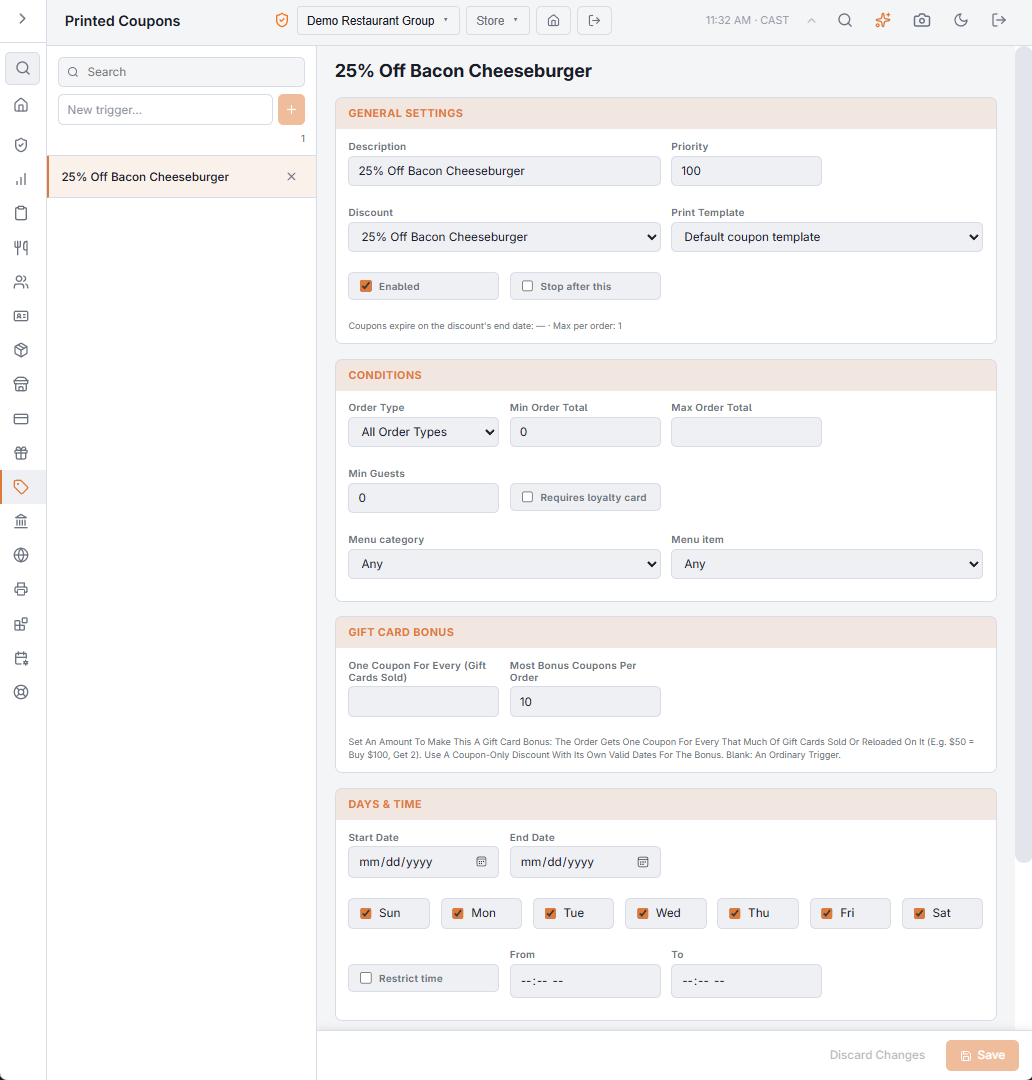
General Settings
- Description — the name in the list.
- Priority — the order triggers are checked in; lower first.
- Discount — what the coupon gives. The line under the section shows when its coupons expire — the discount’s End Date — and the discount’s Max Coupons Per Order.
- Print Template — Default coupon template, or a coupon template from the template editor (Receipt and prep-ticket templates).
- Enabled — off, the trigger issues nothing.
- Stop after this — when this trigger issues a coupon, the triggers after it are not checked for that order.
Conditions
The order must meet every condition that is filled in:
- Order Type — one order type, or All Order Types.
- Min Order Total and Max Order Total — the order total must fall between them; leave the maximum blank for no maximum.
- Min Guests — the guest count must reach it.
- Requires loyalty card — only orders with a loyalty card.
- Menu category and Menu item — the order must have an item from that category, or that item; Any for no limit.
Days & Time
- Start Date and End Date — the store days the trigger works; blank for no limit.
- The weekday boxes — all ticked means every day. At least one day must be ticked: with none, Save is refused with a message.
- Restrict time with From and To — the time of day; a window that ends before it starts runs past midnight.
Limits
- Max Total Issued — the most coupons this trigger issues in all, for example the first 500.
- Max Per Customer / Day — for orders with a customer on them.
The Gift Card Bonus section makes a trigger give coupons for gift cards sold; see Gift card bonus coupons.
Redeeming a coupon
On a later order, scan the coupon’s barcode or type its code (Applying a coupon). Each coupon works once. An expired or used coupon is refused, and the discount’s own days, hours, minimum and limits still apply.
Tracking
Every print and redemption is logged: the Coupons log shows the activity, redeemed coupons count under their discount in Discounts analytics, and the Printed Receipt Coupons row on the Guest Offers Results tab compares them with your other promotions (Guest offers results: every promotion side by side).