A QR order is an ordinary order on an ordinary check. Servers can add to it, discount it, split it, transfer it, and settle it exactly as they would anything they rang in themselves. How QR orders arrive is set at Back Office › Web Orders › QR Table Ordering; see Setting up QR table ordering.
Where a QR order lands
With Pay At The Table (POS), a table ends the meal with one check. Rounds are added to the check the guest already has rather than piling up as separate orders.
- Send to kitchen immediately — items are added to the table’s open check, or a new check is started if there is none, and go to the kitchen right away.
- Hold for server approval — items are added to the same check but marked pending. They do not print, do not reach the kitchen display, and do not count toward the check total until a server accepts them.
With Pay Online Before Sending To Kitchen, each order is its own check, already paid. It reaches the kitchen once the guest’s card payment succeeds, with no approval step; an order the guest never pays for is cancelled after the set time and never reaches the kitchen.
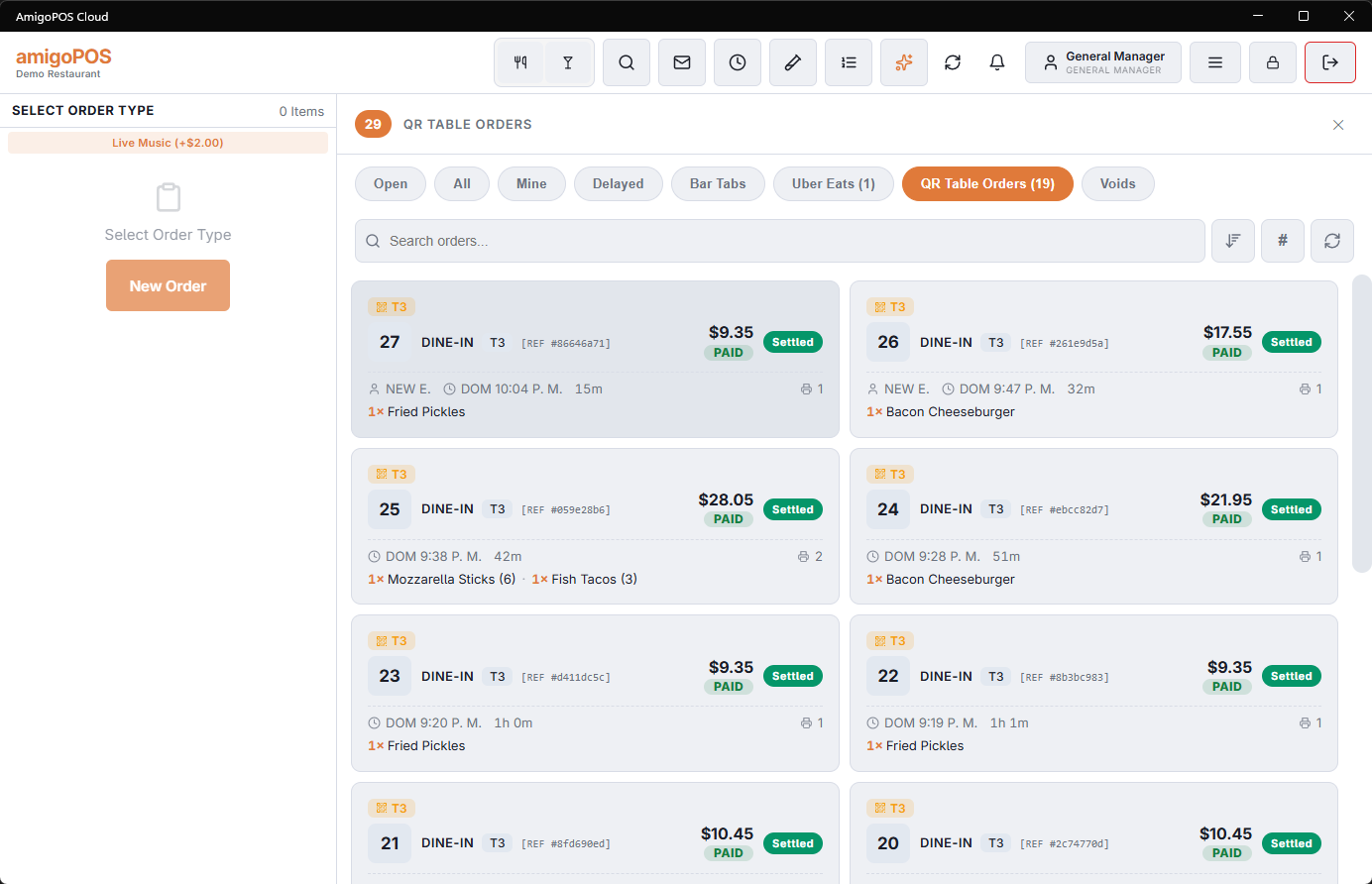
QR orders are easy to spot in the orders list: the card carries an amber badge showing the table name rather than the usual web-order globe.
What prints
Prep tickets and labels print for the new items only. Each round is stamped as it is sent, so a second round never reprints the first. Your existing prep-station routing, label rules, and receipt settings all apply unchanged — there is nothing extra to configure for QR orders.
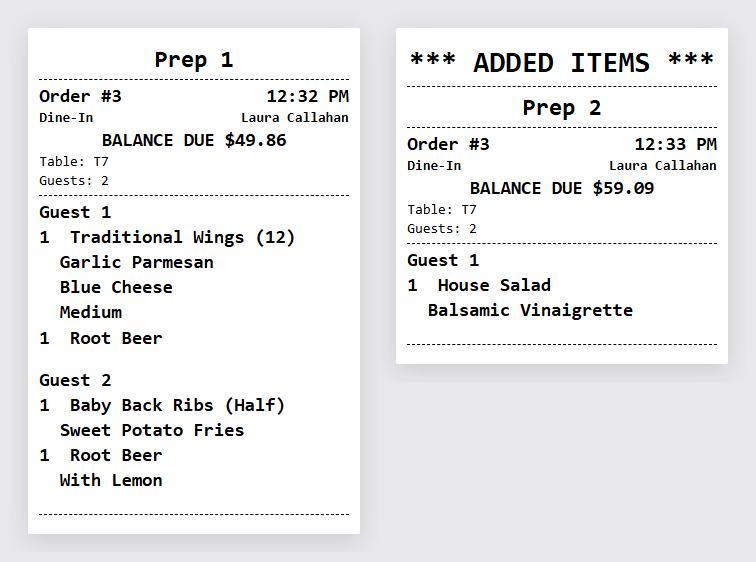
The guest’s name rides along with the items so the line and the server can tell whose food is whose at a shared table.
Approval mode — approving and declining
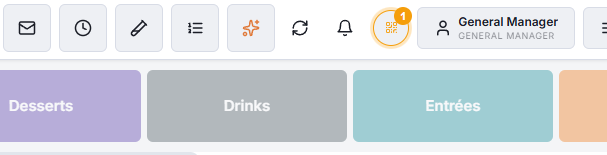
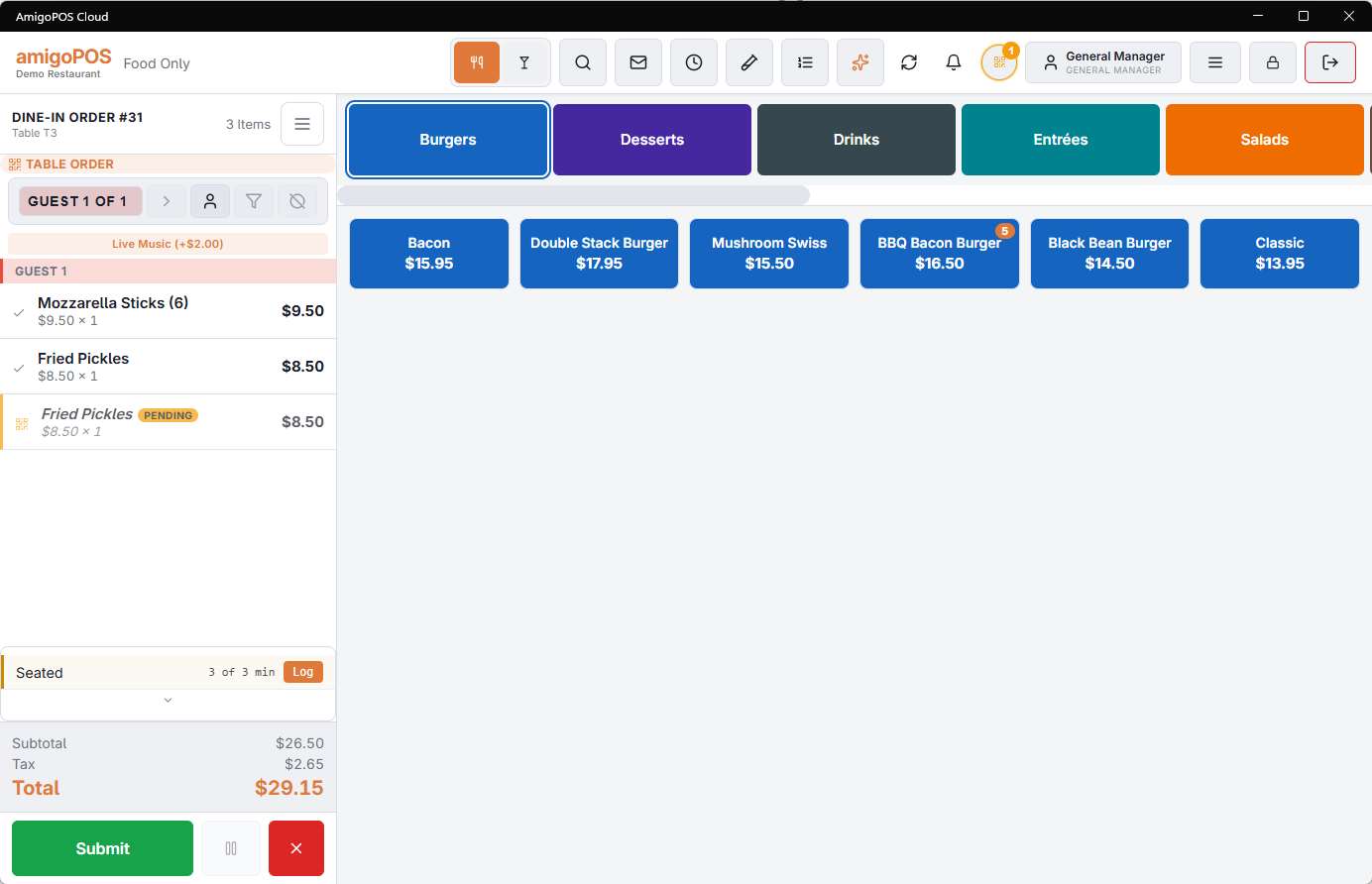
When a round is waiting, an amber QR button appears in the POS top bar with the number of tables waiting. It only appears when there is something to deal with.
Tapping it opens the approval list. Each entry shows the table, the order number, how long the guest has been waiting, the name they gave, and every item they ordered with its modifiers — because the decision being made is whether to cook this, and a count and a total are not enough to decide on.
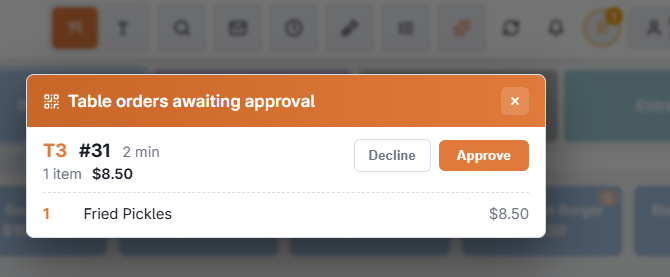
- Approve — the round is released. Prep tickets print, the kitchen display picks it up, and the items join the check total. Only the newly approved items are sent.
- Decline — the round is removed. The rest of the check is untouched, and nothing was ever sent to the kitchen or added to the total, so there is nothing to reverse.
Declining asks for a reason from a short list, plus an optional private note. The reason you pick appears on the guest’s phone, which is why it is a list of guest-appropriate wording rather than a free-text box — staff shorthand belongs in the private note, which the guest never sees.
Everything updates on every station at once. A round approved on the bar terminal disappears from the server station’s list immediately, so two people cannot approve the same round twice.
Pending items on the check
Recall a check with a pending round and those items are shown in amber italics with a Pending tag. They are on the check but not part of it yet: not printed, not on the kitchen display, not in the total. If a server voids a pending item before approving, it simply stops being pending and never reaches the kitchen or the bill.
Review pending rounds quickly. A guest who tapped send and then waits several minutes with nothing happening will usually flag down a server anyway — which undoes the point of the feature. Agree a target with your team, something like “inside a minute”.
Good reasons to decline
- Alcohol ordered by a guest whose age you have not verified.
- An item that is 86’d and has not been marked unavailable yet.
- An obvious mis-tap — twelve of the same dessert on a two-top.
- The guest changed their mind before the round was approved.
The guest’s phone shows the reason you chose, but a word at the table is still worth it — especially for anything age-related.
Taxes and totals
Every round is taxed with the same rules as anything else on that order type, and the check total is recalculated as each round is accepted. The estimate the guest sees on their phone is exactly that — an estimate. The check at the POS is the authority, and it is what the guest pays.
Settling
With Pay At The Table (POS) nothing changes. The server prints the check and settles it at the POS with cash, card, gift card, or any other method you accept. If you want the guest to pay from their phone, print a check carrying the QR pay at table code. With Pay Online Before Sending To Kitchen the checks arrive paid, and there is nothing to settle.
Staff briefing checklist
- Guests order from their own phone; rounds land on the table’s existing check automatically.
- You can still ring items in yourself for the same table at the same time.
- In approval mode, watch for the amber QR badge in the top bar and clear it promptly.
- Read the items before approving — that is what the list is for.
- Verify age before approving any round containing alcohol.
- The decline reason you choose is shown to the guest; the private note is not.
- Amber italic items on a check are pending and have not been cooked.
- With pay at the table, the guest still settles with you; with pay online, QR checks arrive already paid.
Combined tables
When one party holds several tables, a guest who scans the code at any of them orders onto the party’s check, not a new one. Where a server has to open the check first, guests at the added tables can order as soon as the party has its check. See Combining tables for a large party.