All QR table ordering settings live on one page: Back Office › Web Orders › QR Table Ordering. Guests scan a printed code at their table to browse the menu and order from their phone; this page decides how those orders arrive.
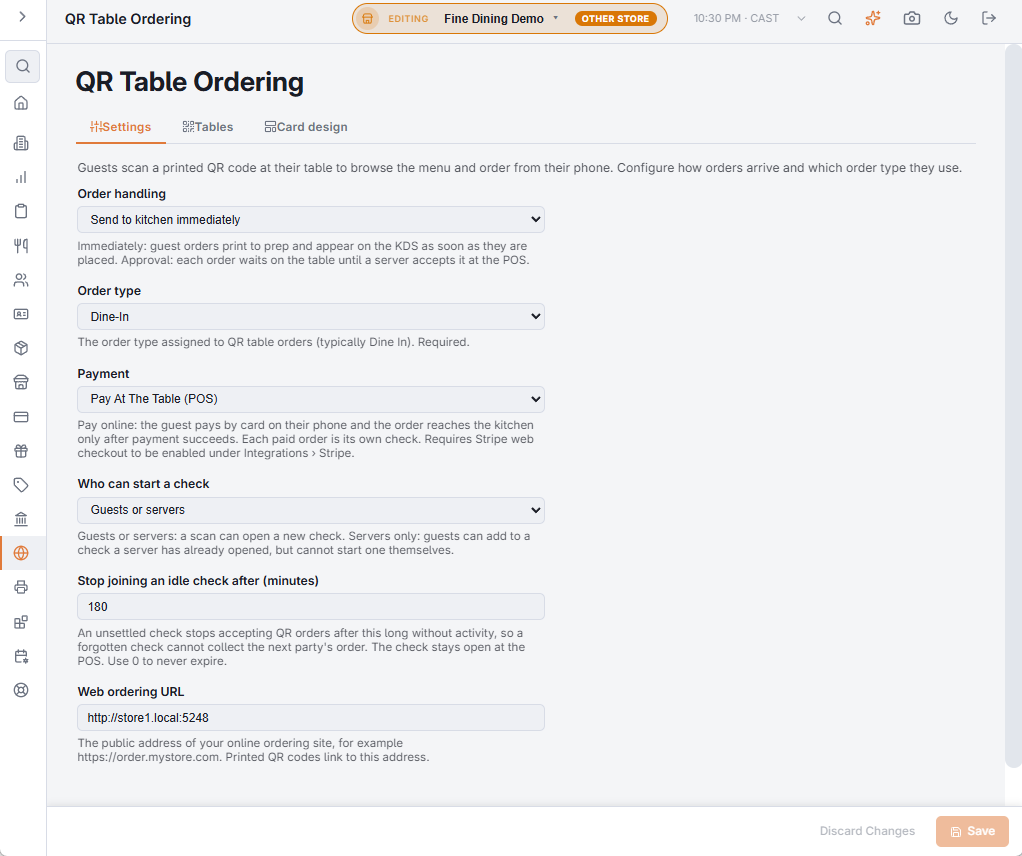
The page has three tabs. Settings holds the store-wide options covered here. Tables is where the codes are made and printed, and Card design lays out the printed card — see Generating and printing table QR codes and Designing the printable table card.
Before you start
1. A reachable online ordering site
QR ordering serves the guest your online ordering menu. If the site is not set up yet, start with Web Orders › Basic Info, Business Hours and Theme & Design. Check that it opens from a phone on mobile data, not only from a computer inside the restaurant.
The site must be served over https://. On a plain http:// address the guest’s browser does not keep the table, so every order arrives as an ordinary web order.
2. A seating chart with the tables to code
Codes are made from a seating chart, one per table. Make sure every table that should get a code exists in the floor plan and has a clear, guest-friendly name: the name shows on the guest’s phone and on the printed card, so Patio 4 reads better than T-P04. Decorations get no code. See The seating designer.
3. A dine-in order type
Every QR order carries one order type. At Back Office › Store Setup › Order Types, check the dine-in type is set up the way you want QR orders treated: tax, kitchen tickets, receipts, gratuity and reports all follow it. See Order types and workflow.
Do not use a delivery or pickup order type. Delivery charges, address prompts and takeout tax rules would then apply to guests sitting in your dining room.
The Settings tab
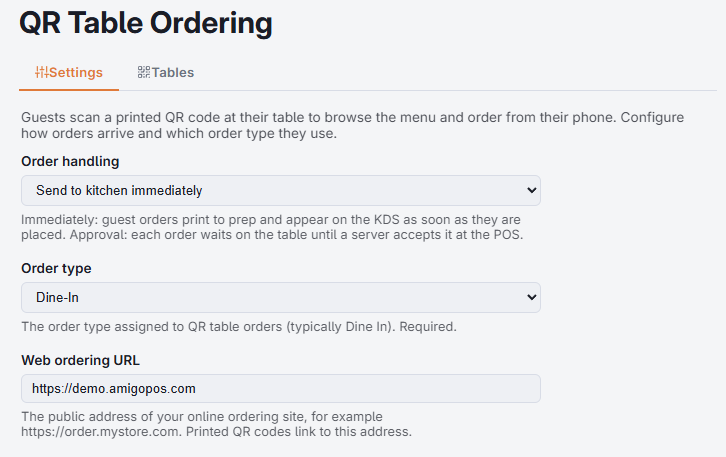
Changes stay on screen until you select Save; Unsaved changes shows meanwhile, and the discard button puts back what was saved. While the order type or the web ordering URL is missing, a banner says QR ordering is inactive: choose an order type and enter the web ordering URL below.
Order handling
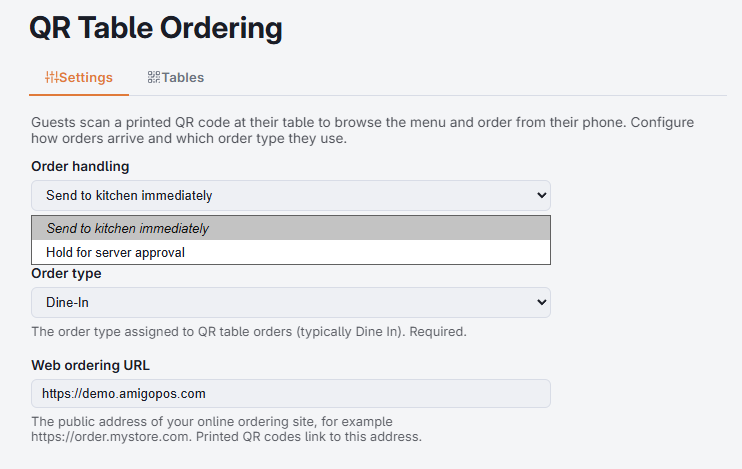
- Send to kitchen immediately — the guest’s order prints to the kitchen and shows on the kitchen display as soon as it is placed.
- Hold for server approval — each order waits on the table’s check until a server accepts it at the POS. Until then it does not print, does not reach the kitchen display and does not count in the check total.
Starting on Hold for server approval for the first week lets the team see what guests send before anything reaches the line. With payment set to pay online, orders reach the kitchen once paid, whichever is chosen here.
Order type
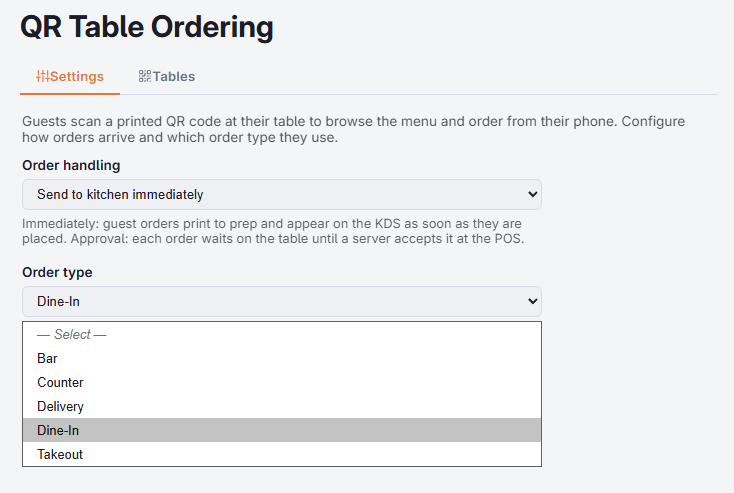
The order type every QR order carries — the dine-in type from the checklist above. Required.
Payment
- Pay At The Table (POS) — the guest orders from the phone and pays the server at the end, as usual. Orders are added to the table’s check.
- Pay Online Before Sending To Kitchen — the guest pays by card on the phone, and the order reaches the kitchen only after the payment succeeds. Each paid order is its own check. Card payments must be set up with Stripe at Back Office › Integrations › Stripe; see Payment integrations for web orders.
With Pay Online Before Sending To Kitchen, Cancel Unpaid Orders After (Minutes) appears: an order not paid within that time is cancelled and any item counters it used are given back. The default is 20; 0 never cancels. The same time applies to every online order paid by card, and the same setting is also on Back Office › Web Orders › Checkout, in the Online Payment section (Checkout settings).
Who can start a check
Shown with Pay At The Table (POS).
- Guests or servers — a guest scanning a table with no open check starts one. The default, and the right choice for bars, taprooms and counters.
- Servers only — a guest can add to a check a server has already opened, but cannot start one. Until a server opens the check, the guest can browse but not send, and is told to ask their server. For table service where someone greets the table first.
Stop joining an idle check after (minutes)
Shown with Pay At The Table (POS). Defaults to 180. An unsettled check stops accepting QR orders after this long with no activity, so a check nobody closed cannot collect the next party’s order. The check stays open at the POS; only QR ordering lets go of it, and the next guest to scan starts fresh. 0 never expires.
Match it roughly to your longest table turn. Too short and a slow table is split across two checks; too long and an uncleared table can take the next party’s first round.
Web ordering URL
The public address of your online ordering site, for example https://order.mystore.com. Each printed code is this address followed by /t/ and the table’s own key. Printing is refused until it is set.
Get it right before you print. The address is inside every printed code, so changing it later means reprinting every card. Use the address guests reach from the internet, with https://.
Test it on a phone with Wi-Fi off. If the menu loads, guests will be fine; if it times out or shows a certificate warning, fix that first.
Checking the setup
- The Settings tab is filled in, saved, and the banner is gone.
- The Tables tab lists your tables when you pick a seating chart.
- Make a code for one test table, open its link on a phone and check that the menu loads with the table name at the top.
- Send a small test order and check that it lands on the POS at the right table.