Back Office › Inventory › Setup › Main Settings, Vendors tab, is the list of suppliers you buy stock from. Receiving, purchase orders and each item’s preferred and backup supplier all pick from it.
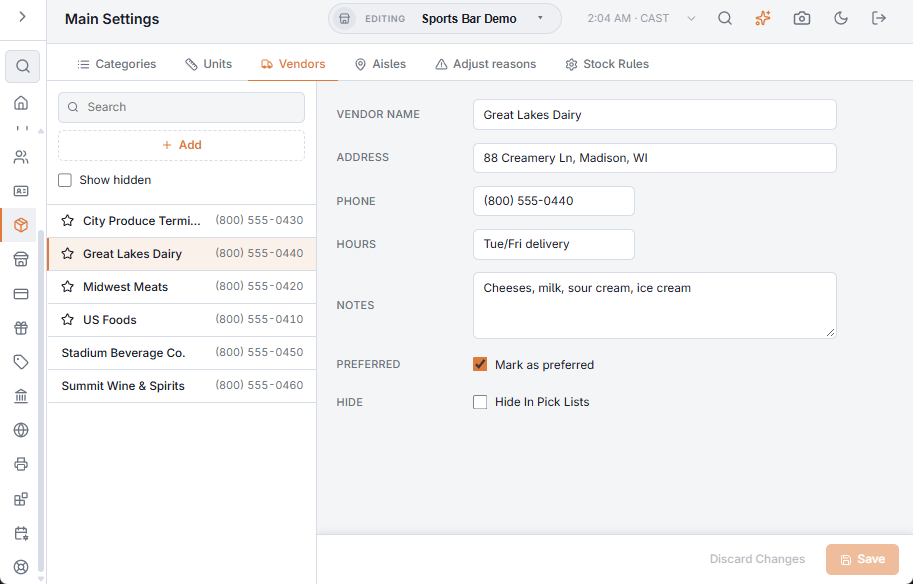
A vendor’s details
- Vendor name — required.
- Address, Phone and Hours — for your reference. The phone also shows beside the name in the list.
- Notes — a short note, up to 50 characters, such as an account number or the delivery days.
- Preferred (Mark as preferred) — preferred vendors get a star in the list and come first in the vendor list on Receive Inventory, where the first preferred vendor is also the starting choice.
- Hide (Hide In Pick Lists) — for a vendor you no longer use. Past deliveries keep the vendor’s name, but it is no longer offered when you pick a vendor. Tick Show hidden to find it again.
Choose Save to keep your changes or Discard to undo them. Vendors can’t be deleted; hide them instead.
Where vendors are used
- Items — each item has a Preferred supplier and a Backup supplier (Items, units, aisles, categories). When you pick an item on Receive Inventory, its preferred supplier is selected for you.
- Receiving — every delivery records its vendor, and a delivery can’t be saved without one. The vendor shows in the Received tab of Inventory logs and on the Price Changes view of Purchase Orders.
- Purchase orders — each order is for one supplier. With a supplier picked, Suggest From Par Levels and Suggest From Usage only add items whose preferred supplier it is, and Draft From Forecast makes one draft per preferred supplier — see Purchase orders.
Set the preferred supplier on every item you reorder. Items with no supplier are left out of the drafts that Draft From Forecast makes.