Back Office › Inventory › Setup › Items List is where you create and edit inventory items — the physical stock, such as the flour, the vodka or the to-go cups. The list is on the left and the selected item opens on the right.
The list
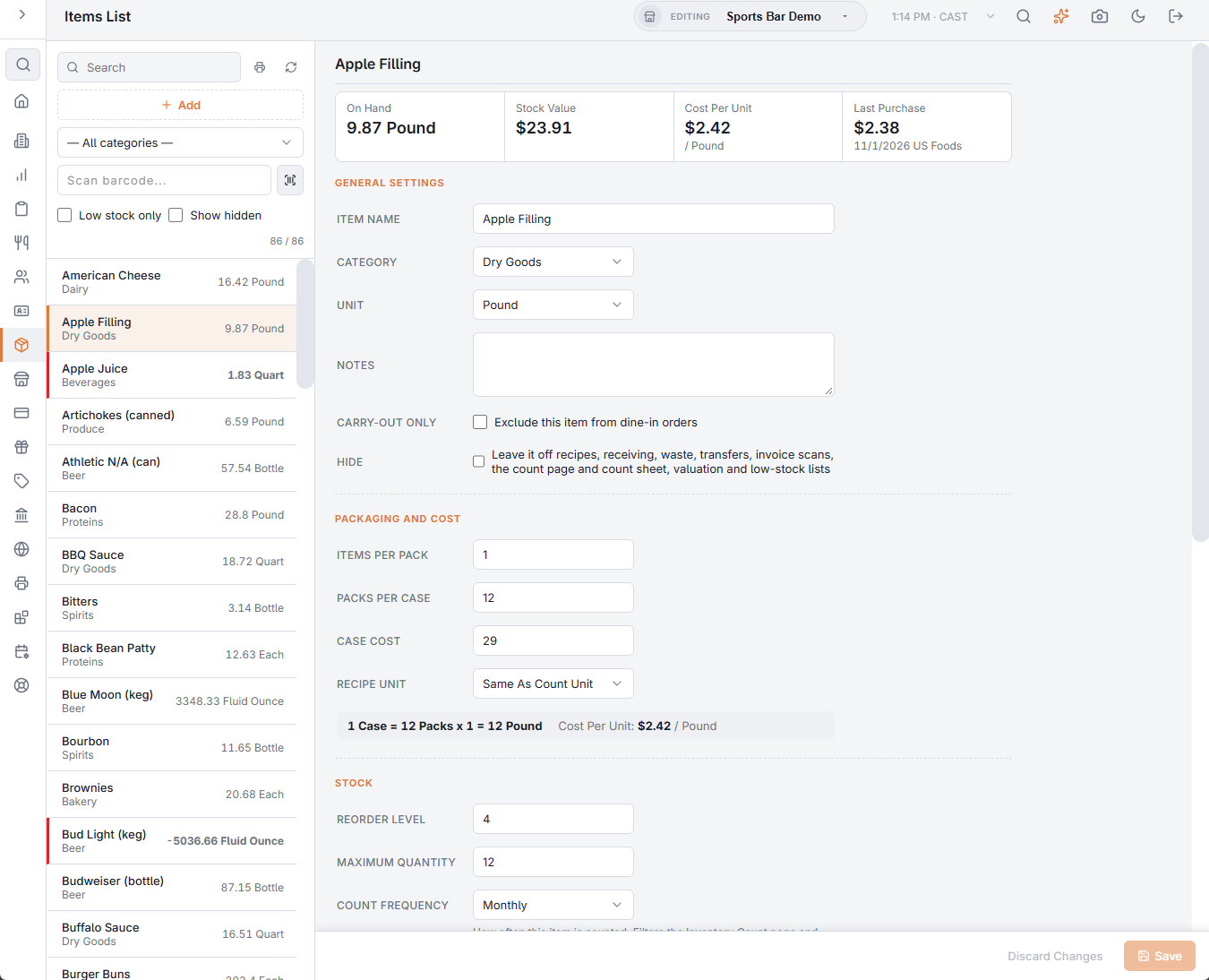
- Search finds an item by name or by any of its SKUs. The category list narrows it to one category.
- Scan barcode — scan or type a barcode and press Enter. The item whose unit, pack or case SKU matches opens; if none does, the code goes into the search box.
- Low stock only shows items at or below their reorder level, including those at zero or below. Show hidden adds hidden items, greyed. The counter shows how many items are listed out of the total.
- Each row shows the item’s category and what is on hand in its unit; low items are marked.
- The printer button prints the Inventory Valuation: what your stock is worth for the category picked (or all). Refresh reloads the list. + adds an item; it is available once there is at least one category, unit, vendor and aisle in Inventory settings.
The facts at the top
An existing item shows where it stands now: On Hand, Stock Value, Cost Per Unit and Last Purchase (the cost, date and vendor of the last delivery). An item below zero is tagged Oversold and one at or below its reorder level Low stock. Not Received Yet means no delivery is on record, and No Cost Yet means there is no cost from stock, deliveries or the case cost. How inventory works explains how these are worked out.
The item editor
Changes are kept until you choose Save; Discard reloads the item. Items are not deleted; hide them instead.
- General Settings — Item name, Category, Unit (what the item is counted, received and valued in; required) and Notes.
- Carry-out only — the item is taken from stock only on to-go orders, for example a to-go container in a recipe. Stock rules don’t check it.
- Hide — takes the item out of use. It leaves recipes, receiving, waste, transfers, invoice scans, the count page and count sheet, the Inventory Valuation and the low-stock lists, and the list shows it only with Show hidden.
- Packaging And Cost — Items per pack, Packs per case and the Case Cost. Sizes can be fractional: a 0.75 L bottle when you count in liters, a 22.68 kg sack. A line under the fields confirms the result, for example 1 Case = 4 Packs x 6 = 24 each, with the cost per unit that follows from the case cost.
- Recipe Unit — an optional smaller unit for recipes, such as ounces of an item counted in pounds — see Recipe units: count in one unit, use in another.
- Stock — Reorder level (the low-stock mark, Suggest From Par Levels on purchase orders and Below Par on transfers), Maximum quantity (the par level those suggestions order up to), Count frequency (Daily, Weekly, Bi-weekly or Monthly, which the count page and count sheet filter by) and Stock aisle (the walk order on the count page).
- Supplier — Preferred supplier (selected for you when receiving the item; decides which supplier’s purchase orders suggest it) and Backup supplier.
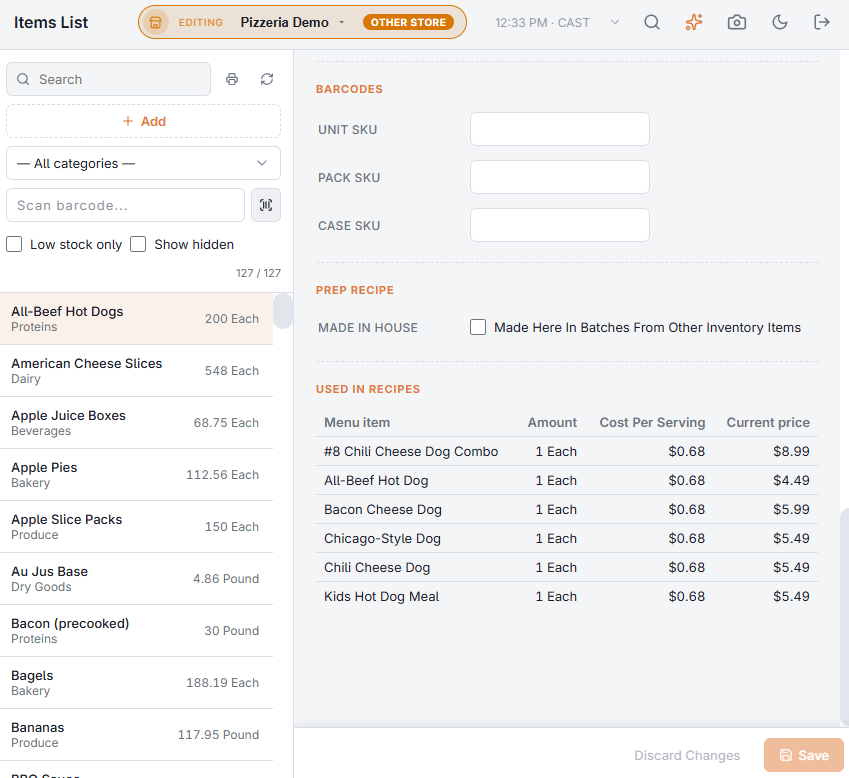
- Barcodes — Unit SKU, Pack SKU and Case SKU, so each scan reads as the right amount.
- Prep Recipe — for items made in house from other items — see Prep items made in house.
Used In Recipes
The bottom of the editor lists every menu item and modifier whose recipe uses the item, with the amount, the cost per serving and the current price. Check it before changing an item’s unit or hiding it; Not Used In Any Recipe means nothing depends on it.