Back Office › Web Orders › Business Hours sets when the online ordering site is open: the weekly hours, and dates with holiday or special hours that replace them. The site shows whether the store is open now and lists the hours; with Allow checkout during store hours only on (Web Orders › Checkout), it also refuses orders outside them. See Checkout settings.
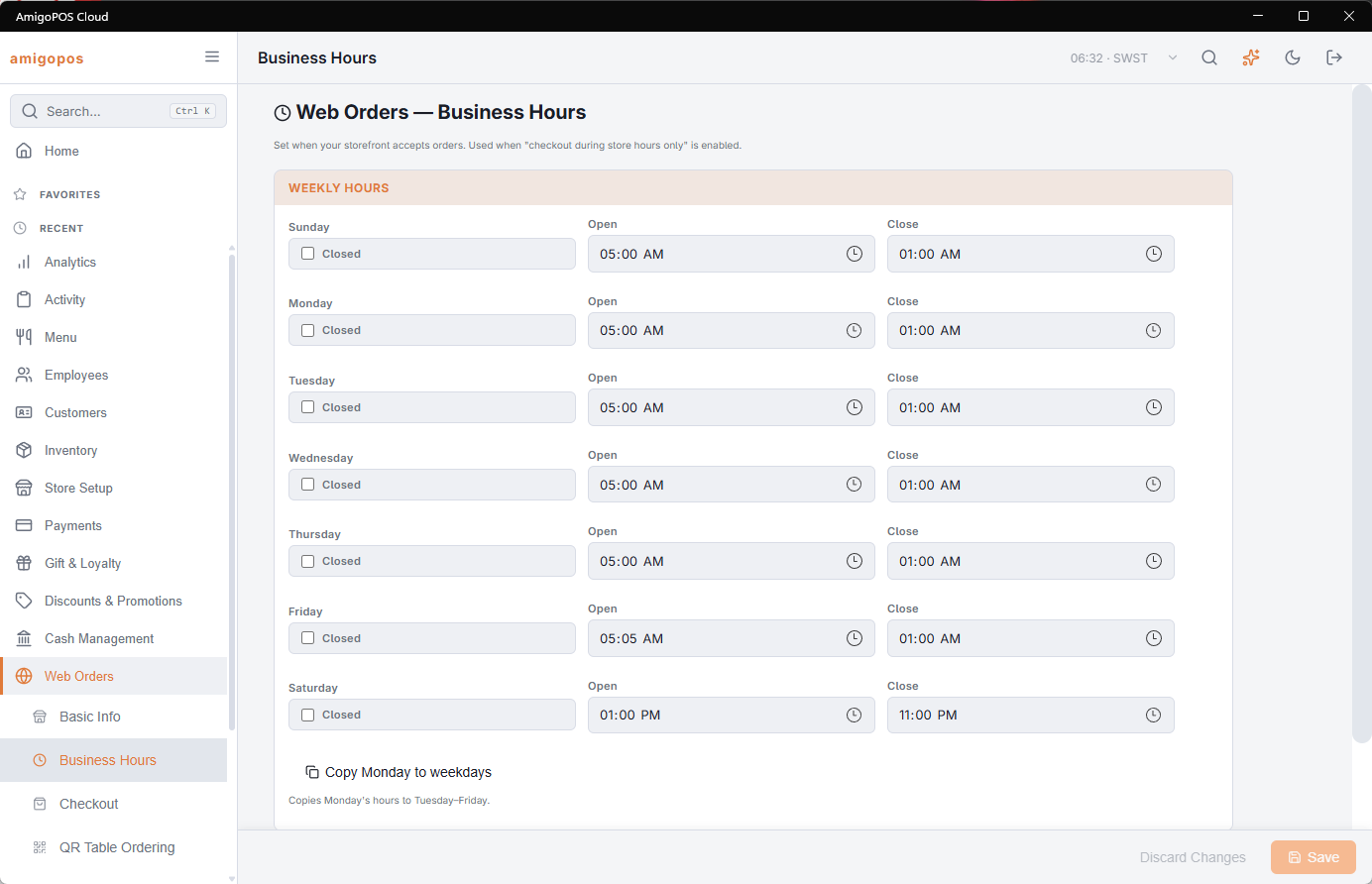
Weekly hours
For each day, set Open and Close, or tick Closed. A close time earlier than the open time runs past midnight: open 17:00, close 01:00 is open until one in the morning. Copy Monday to weekdays copies Monday’s hours to Tuesday–Friday.
The hours are read in the store’s time zone, set on Basic info and storefront identity.
Holiday & Special Hours
A date listed here replaces the weekly hours for that day on the site and, when the store is linked to Uber Eats, on Uber Eats.
- Select Add Date. A new row starts on the day after the last date listed (or today), set to Closed All Day.
- Set the Date and a Description, for example Christmas Day.
- To open with reduced hours instead, clear Closed All Day and set the times under Open Hours. Add Hours adds another window for the same day.
- With Uber Eats linked, Send To Uber Eats decides whether the date goes to Uber Eats too.
The remove button on a row takes the date out. Dates already past drop off the list.
The page will not save a date in the past, a date listed twice, an open day with no hours, or a window that closes before it opens; the message names the date.
Push To Uber Eats Now, shown when the store is linked, sends every date to Uber Eats at once. Saving sends them on its own within about a minute, so this is only needed when you want it now; save your changes first. See Hours, holidays and pausing the store.
Saving
Both sections save with Save. If the save fails, Save failed is shown and your changes stay on the page, unsaved. The site picks up the new hours straight away.