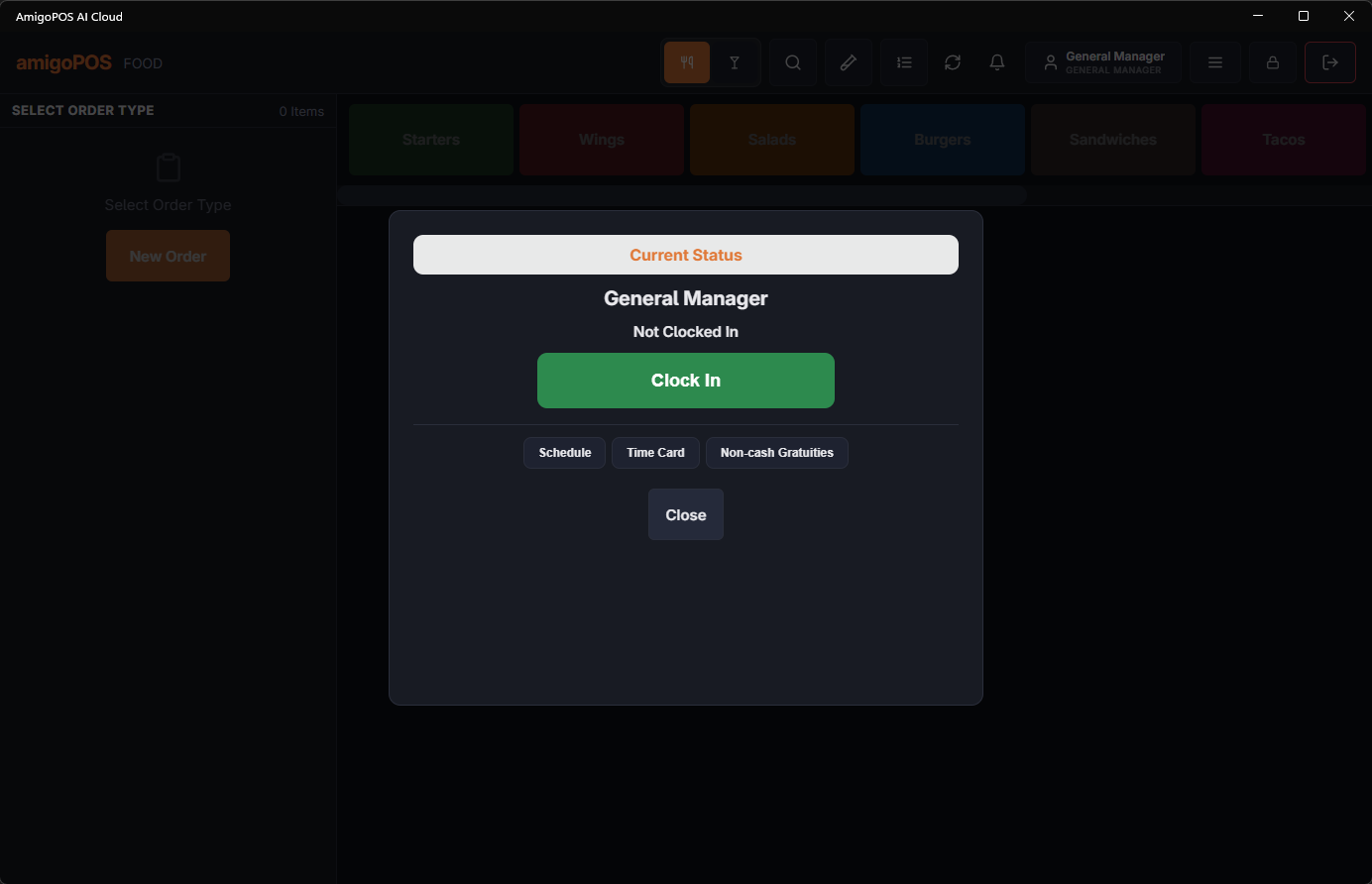
The time clock runs right on the register. Punches drive timesheets, labor reports, and — if enabled — who is allowed to take orders.
Clocking in
- Enter your PIN. If you are not clocked in, the Time Clock overlay opens automatically (or open it from the More menu).
- Pick your job if you have more than one.
- If your job handles cash, you may be prompted to claim a cash drawer — see Claiming a cash drawer at clock-in.
- Confirm. The overlay shows Clocked in at… with the time.
Breaks
Start and end breaks from the same overlay. An open break must be ended before you can clock out.
What can block a clock-out
- Open orders or liabilities — servers and drivers must settle, void, or transfer their open orders first. The overlay lists the blocking items. Orders the employee has banked do not block: they stay in their bank and are closed when End Shift is run (Employee banking and deposits).
- Open break — end the break, then clock out.
- Unreconciled drawer — if a count is required at shift end, the drawer count opens before the punch is accepted.
- Gratuity declaration — where enabled, you are prompted to declare cash tips at clock-out.
Schedule enforcement (when turned on) can prevent early or unscheduled punches without a manager override. See Time Clock settings.
A printed slip
Where the store has turned on Print clock-in confirmation or Print clock-out confirmation (General Settings › Time Clock Printing), the station’s receipt printer prints a slip at the punch with your name, your job and the time. See General settings.