Back Office › Analytics: the Overview and insights strip and the Sales, Transaction Trends, Employees, Discounts and Taxes pages share one header and toolbar. The toolbar sets the dates and the store; the header buttons reload the figures, export them to CSV, open the report as a PDF and schedule it by email.
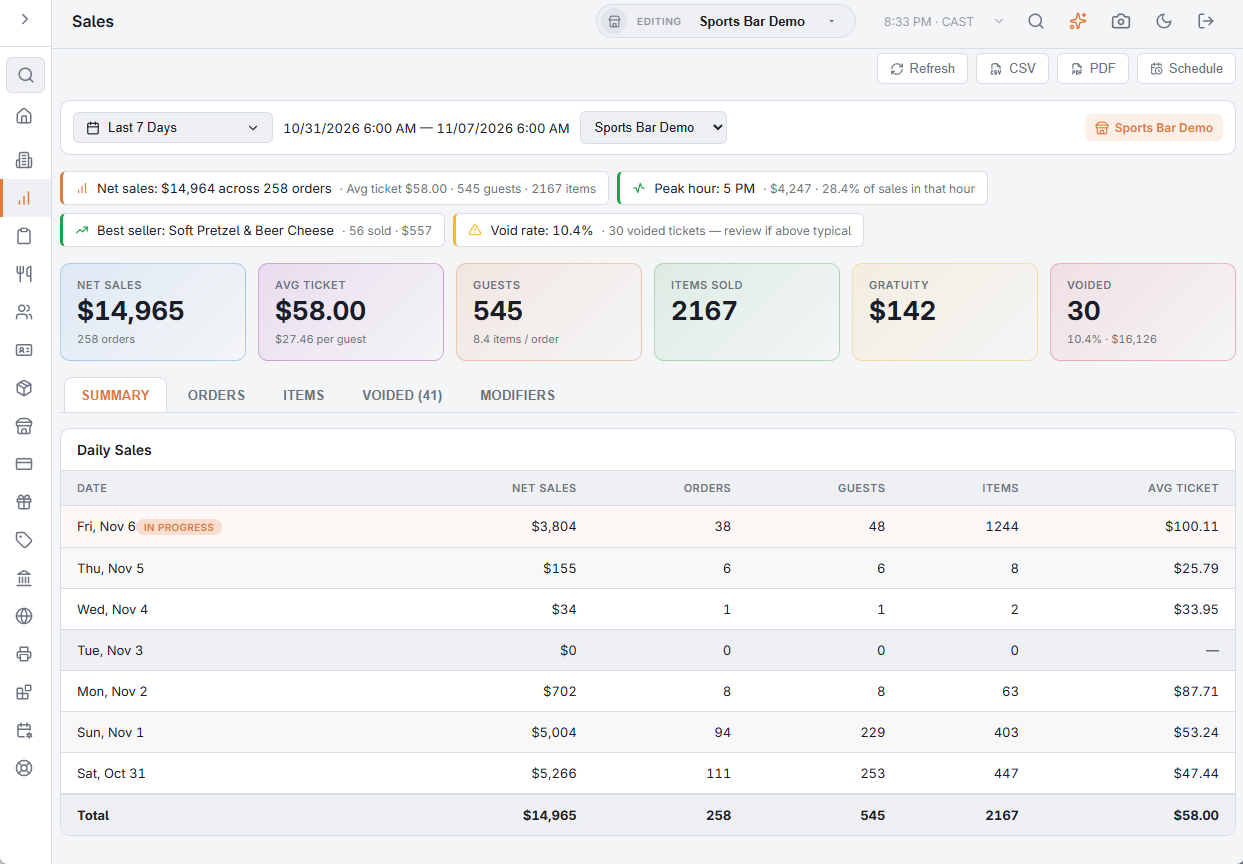
Dates and store
- Date menu — opens on Last 7 Days. Pick Today, Yesterday, This Week, Last Week, Last 7 Days, Last 30 Days, Month to Date, Last Month or Year to Date, or type dates in Start and End. This Week and Last Week start on the store’s Business Week Start Day (Back Office › Store Setup › General Settings, Reporting); when it is not set, weeks start on Sunday. See General settings. The page reloads as soon as you choose.
- Time range — beside the menu, the exact window the figures cover, for example 10/01/2026 4:00 AM — 10/08/2026 4:00 AM. Each date is a business day that starts at the store’s business day start time, not at midnight. See The business day and when it rolls over.
- Store — starts on the store this device is signed in to. All Stores covers every store you can open; the store in use also shows at the right end of the toolbar.
With All Stores selected, every page adds up all the stores. Each page’s topic says how rows from different stores are combined.
Refresh
A page keeps the figures it loaded for one store for five minutes, so going back to the same page, dates and store is instant. Refresh (or Ctrl+R) fetches them again, and the next PDF is built again with the new figures.
CSV
CSV (or Ctrl+E) downloads the page’s tables as one CSV file for the dates and store on the toolbar. Each table starts with its title on a row of its own, then a heading row and the data rows.
- Every row the page loaded is in the file, including rows a tab cuts off on screen, such as house accounts past the first 100.
- Amounts have no currency symbol, dates read yyyy-MM-dd HH:mm, and yes/no columns read Yes or No in your language.
- Section titles and column headings are in your language. Internal ID columns are left out, and insights are written out as their text.
- The file is named after the report, the store (allstores for All Stores) and the dates.
Ctrl+R and Ctrl+E do nothing while the cursor is in a box or drop-down.
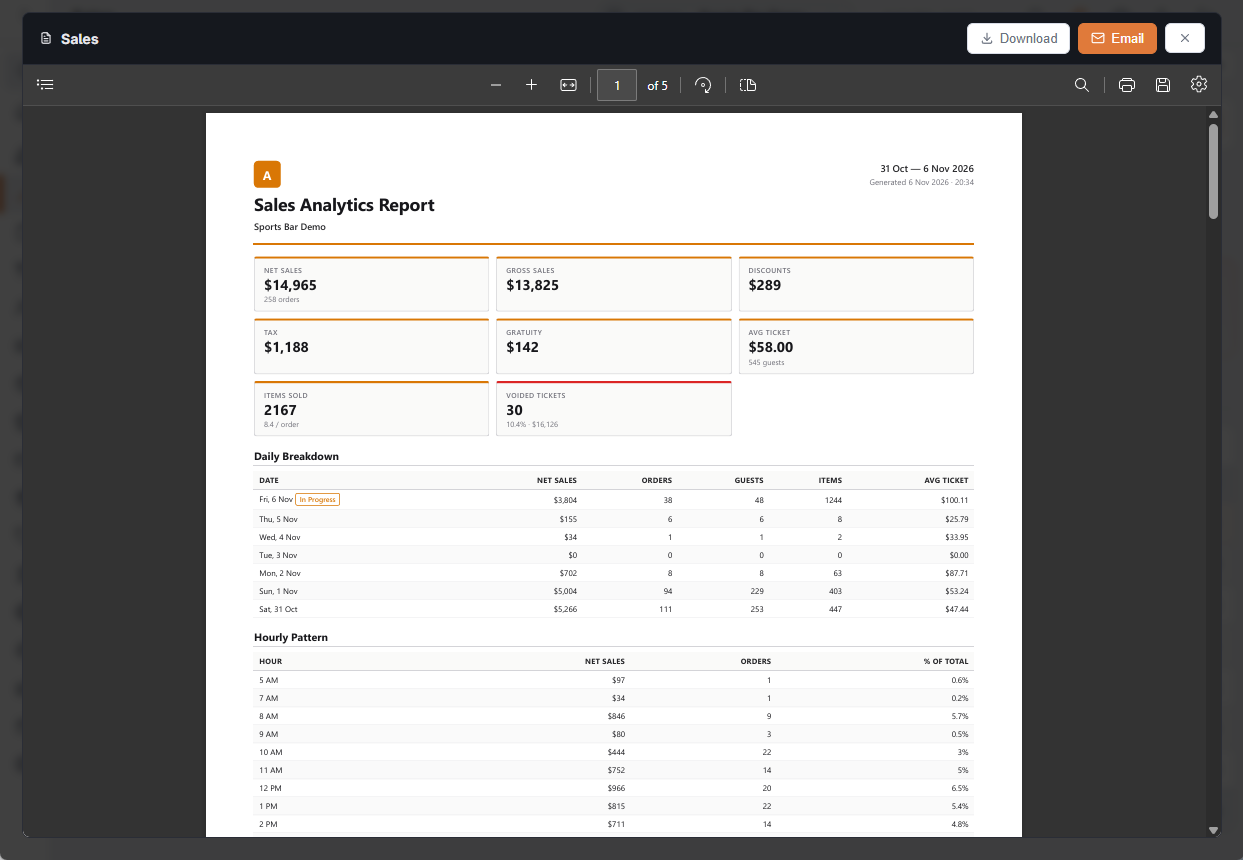
PDF opens a preview of the report laid out as a document: the report title, the store, the period, the KPI figures and the page’s tables. Generating PDF… shows while it is built, which can take a few seconds for a long period.
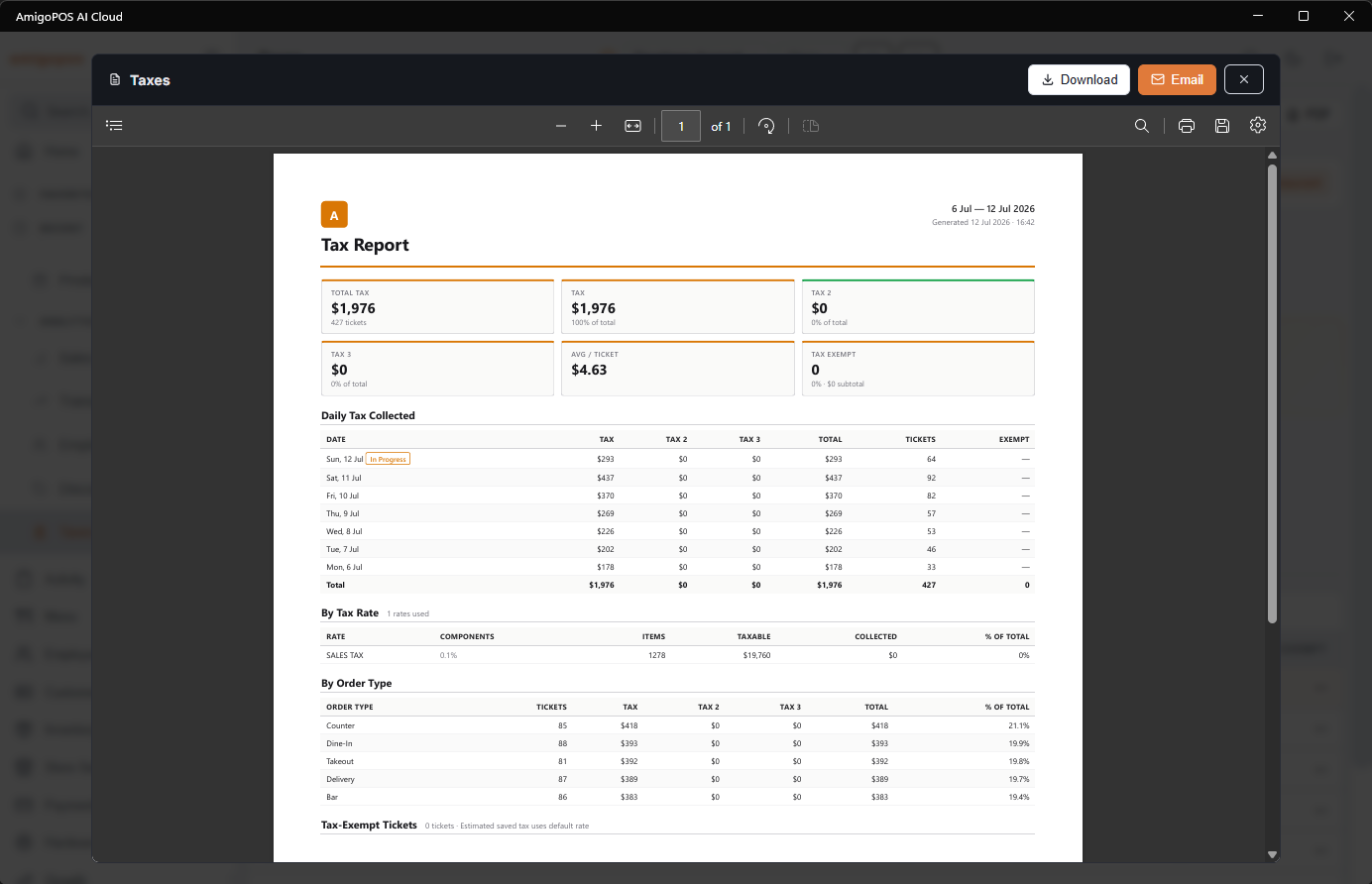
- Download — saves the PDF.
- Email — opens the email form above the preview.
- × — closes the preview. Tapping outside it also closes it.
The PDF and its email cover the store chosen on the toolbar. A PDF covers one store: with All Stores selected and more than one store, the PDF button is greyed out, and pointing at it shows A PDF Covers One Store — Pick A Store First. If the preview cannot be built, it shows The Server Returned No PDF. Check That The Server Can Be Reached.
Emailing the PDF
- Recipients — filled in with the store’s Report email recipients (Back Office › Store Setup › Manager Screen, End Of Day tab). Separate several addresses with commas.
- Subject — filled in with the report title, the business name and the dates.
- Message (Optional) — a note that goes in the body of the email.
- Send Me A Copy (BCC To …) — sends a blind copy to the report email recipients. The box shows only when the store has report email recipients.
Send mails the PDF as an attachment. Email Sent. appears and the form closes; if sending fails, the form stays open with Failed: and the reason.
Schedule
Schedule opens Scheduled Reports for the page’s report. A number on the button shows how many schedules the report has. Each saved schedule lists when it runs, its recipients and Last sent or Last error, with Send now, Edit and Delete. + Add Schedule starts a new one.
A new schedule starts as At End of Day over Current Business Day, addressed to the report email recipients. Change Frequency, Run at, Day of Week (Weekly) or Day of month (Monthly, 1–28), Report period, Recipients and Enabled, then Save. Each run picks its own dates from the report period.
| Frequency | Report period choices |
|---|---|
| At End of Day — runs just before End of Day closes the business day | Current Business Day, Last 7 days, Last 30 days, Month to date |
| Daily | Yesterday, Last 7 days, Last 30 days, Month to date |
| Weekly | Last week, Last 7 days, Last 30 days |
| Monthly | Last month, Last 30 days, Month to date |
Scheduling works the same way on the Performance reports; see Emailing the performance reports on a schedule.