The seating designer is where the floor plan is drawn: every room, table, bar, wall and label that staff see on the POS floor plan, and the settings behind each table. Open it from the floor plan’s designer button. It opens on the room the floor plan was showing.
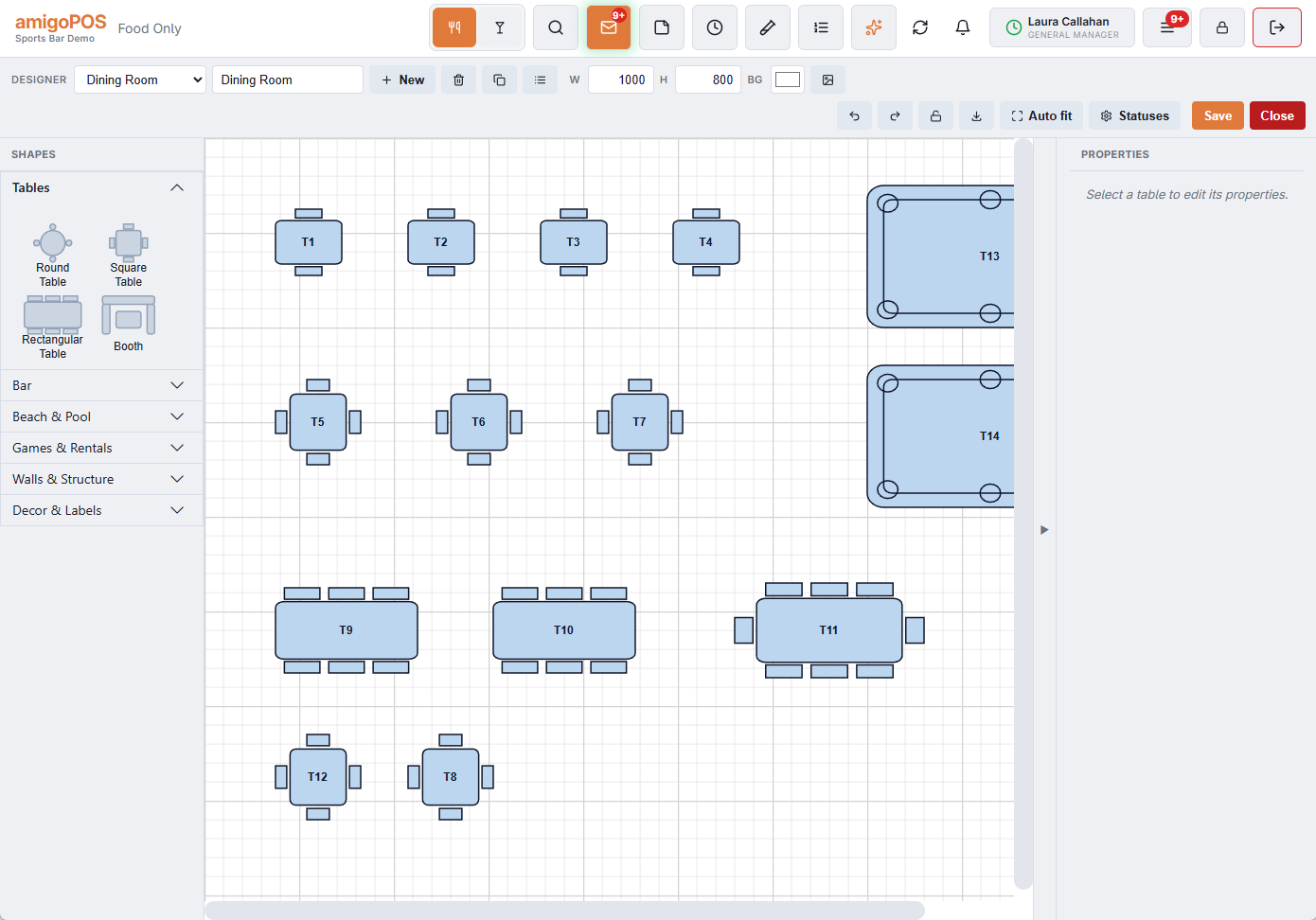
The toolbar
| Control | What it does |
|---|---|
| Room list and name | Pick the room to edit, and rename it. Rooms that are switched off are listed too, marked (Off). |
| New | Start a new, empty room. |
| Delete (bin) | Delete the room shown. For a room you only stop using for a season, switch it off instead (see Rooms below). |
| Duplicate Room | Start a new room as a copy of this one. See The Rooms panel. |
| Rooms (list) | Open the Rooms panel: the order of the room buttons on the POS, and which rooms are switched off. See The Rooms panel. |
| W / H | The room’s drawing size. |
| BG and Floor Image | The room’s background colour, and a photo or drawing to put behind the tables. See Floor plan images and background colour. |
| Undo / Redo | Step back and forward through changes. See Undo, redo, lock and export. |
| Lock Layout | Freeze every shape in place so nothing can be dragged by accident. Tap again to unlock. |
| Export Image | Save the room as a picture (PNG). |
| Auto fit | Zoom so the whole room fits the screen. |
| Statuses | Edit the table statuses (Available, Seated, Ordered…) and their colours, used on every floor plan. |
| Save | Save the room. A dot on it means there are unsaved changes. |
| Close | Leave the designer. The floor plan reopens on the room you were editing. |
On a narrow screen the toolbar wraps onto more lines instead of hiding controls.
The Shapes palette
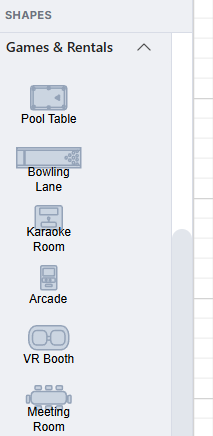
Shapes are grouped: Tables (open when the designer opens), Bar, Beach & Pool, Games & Rentals, Walls & Structure and Decor & Labels. Tap a group to open or close it. Each shape shows its name underneath. Drag a shape onto the room to add it.
What each shape is for, and which ones guests can book: Designer shapes.
Working with tables
- Select a table to show its settings in the Properties panel. Drag it to move it; use the handles to resize and the round arrow to rotate.
- A new table takes the next free name in the room’s own style: after T9 comes T10, after P-12 comes P-13, after Bar 3 comes Bar 4. The same goes for Copy (at the bottom of the Properties panel), which duplicates the selected table.
- Delete removes it. A table with history keeps its history; think twice before deleting tables that are only closed for the season.
- The × at the top of the Properties panel deselects, and the panel can be folded away with the arrow on its edge to give the room more space.
Every setting on the panel is explained in Table properties explained.
Saving
- Save publishes the room to every register at once: their Tables screens redraw within seconds, without anyone signing out. Design in a quiet hour all the same; the floor does not need the map moving mid-rush.
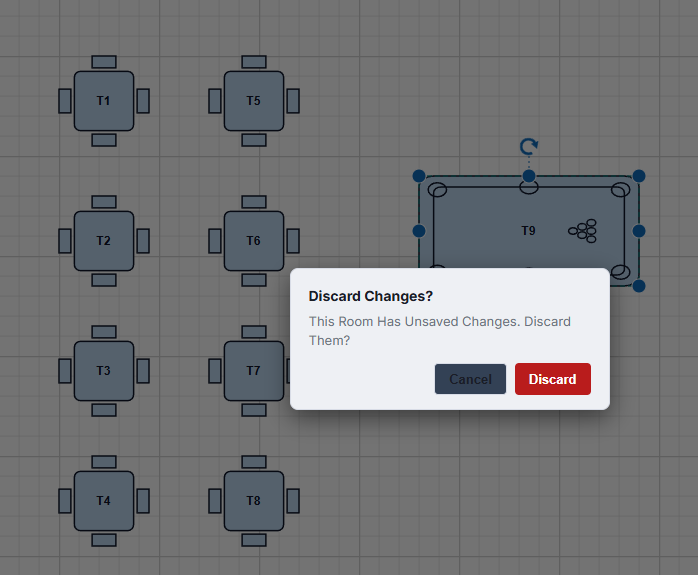
- Switching room, starting a New one or Close with unsaved changes asks before throwing them away.
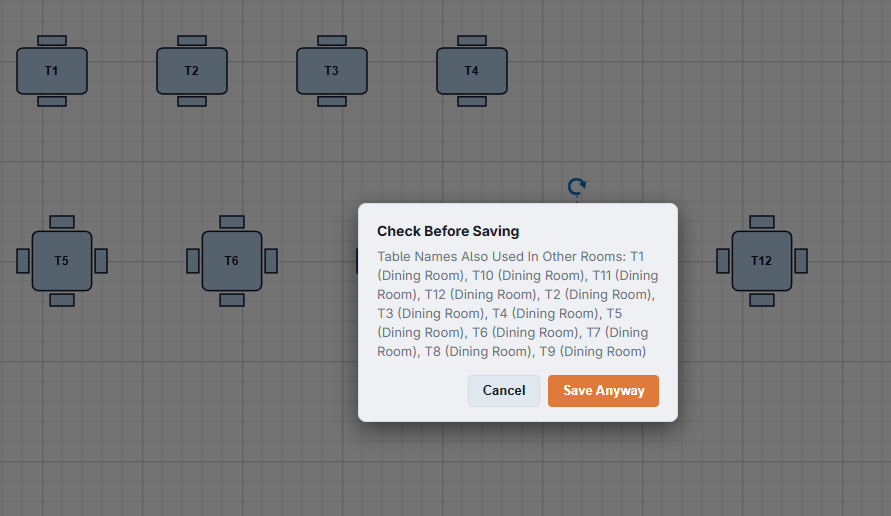
- The designer warns when two tables share a name, in this room or in another room of the store; give each table its own, or the POS and reports cannot tell them apart.
- Before saving, the designer checks whether a table you removed or renamed still has an open check on it. It lists them and offers Save Anyway; the safer answer is to close those checks first, so no bill is left without its table.
Good habits
- Number tables the way staff already speak (“the 40s are the patio”).
- Keep a seasonal area as its own room and switch it off in the Rooms panel, rather than deleting its tables.
- Draw walls, the bar and a few labels, or put a photo of the room behind the tables: servers find their tables faster in a room that looks like the real one.
- Lock Layout while you review a room on a touch screen, so a stray finger cannot move a table.