A No Sale opens the cash drawer without ringing anything up — to make change for a guest, fix a miscount or reach something in the till. Every No Sale is recorded with a reason. It is at the register under More › No Sale.
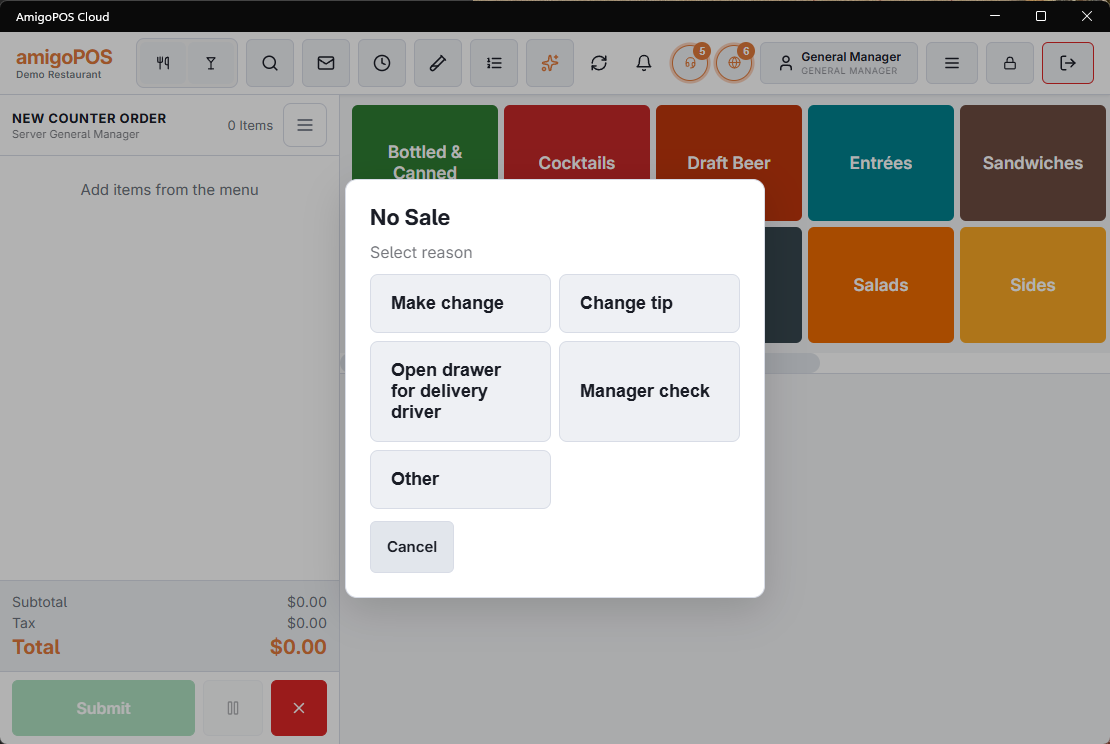
Opening the drawer
- Open More › No Sale.
- Under Select reason, tap the reason. Without the No Sale permission, a manager approves at this point. The drawer opens and Drawer Open confirms it. Cancel closes without opening anything.
Each No Sale is recorded with its reason, who did it, the station, the drawer and the time. If it can’t be recorded, or the approval is refused, No Sale could not be completed. is shown and the drawer stays shut.
The reason list
The reasons are kept at Back Office › Store Setup › Order Entry Screen, No Sale Reasons tab. Click To Add A No Sale Reason adds a row; each row has the No Sale Reason (up to 50 characters) and a Button position, the order the reasons are listed in at the register. The delete button removes a reason after you confirm. With no reasons in the list there is nothing to pick, so No Sale can’t be used; add at least one before the store opens.
What can stop it
- Permission — a job without No Sale needs a manager’s approval, asked after the reason is picked and checked again when the No Sale is recorded. A refused approval leaves the drawer shut. See Cash-drawer permissions.
- No drawer — the station needs a drawer in use. If nobody has picked one, the register says so instead. See Assigning drawers to users at clock-in.
- No connection — the record is kept on the server, so No Sale shows Not Available While Offline until the station is back online.
Where No Sales show
- More › Audit Trail at the register.
- The End of Day report, as no sales by employee, and the No Sales count on the consolidated end of day. See The end-of-day report.
- Analytics › Performance › Loss Prevention, as no sales per 100 checks for each employee. See Loss Prevention: exceptions by employee.