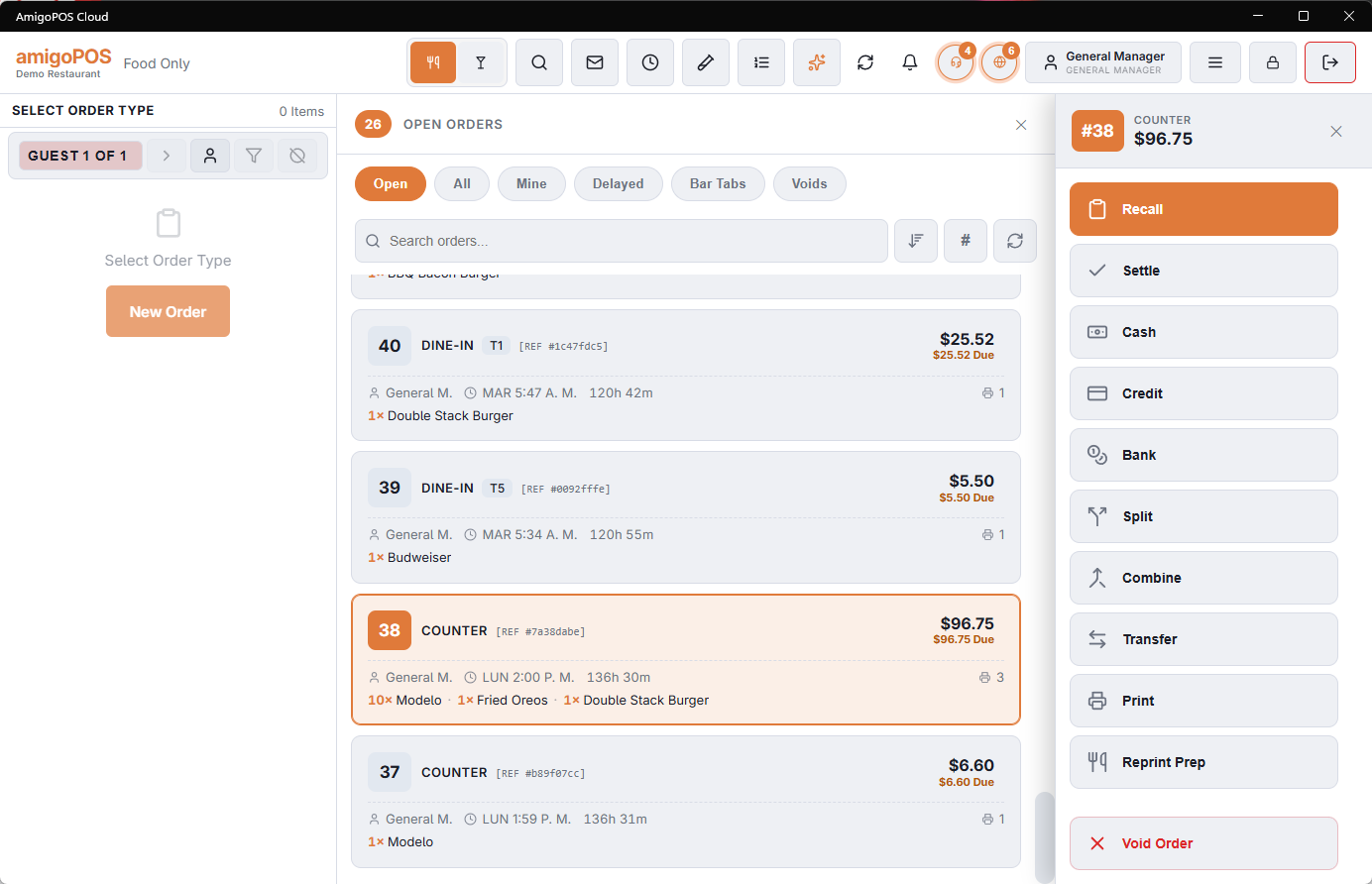
The orders list is the register’s order hub: every order for the business day, filterable and searchable, with an action rail for whatever needs doing to the selected order. The header shows how current the list is (“as of 14:32”).
Filters and search
Filter tabs across the top: Open, All, Mine (your orders), and — when the store uses them — Delayed (with a count of scheduled orders), Bar tabs, Web, Deliveries, Held, and Voids. Beside the filters: free-text search (name, phone, item), a sort toggle, a # button for direct lookup by order number, and refresh.
Order cards
Each card shows the order number, type, server, total, and a preview of its items, plus badges where relevant: card-payment indicator, split marker, and the scheduled time on delayed orders.
Recalling an order
Select the order and tap Recall. The order opens in order entry exactly as it was — add items, change guests, apply discounts, then send or settle as usual. Only orders in a recallable state show the button (settled and voided orders don’t).
In offline mode, orders served from the device’s local cache ask for confirmation before recalling, because another station may have changed them since the connection dropped — see Offline Mode.
The action rail
Selecting an order shows the actions that apply to that order — the rail changes with the order’s type and state:
- Settle — plus quick Cash and Credit buttons for one-tap settlement.
- Bank / Driver bank — server- and driver-banking settlement where those modes are in use.
- Split / Combine / Undo split — see the splitting-and-combining topics; combine mode lets you pick multiple source orders and shows the running new total before you submit.
- Transfer — hand the order to another server (see Transferring an order).
- Print — receipt/record copy. Email Receipt — email the guest check (see Emailing a receipt below).
- Add gratuity — on bar tabs.
- Web status — on web orders, view/advance the storefront status.
- Refund — on settled orders; shows amounts already refunded and remaining, with the refund-reason prompt. Refund history for the order is listed right on the rail.
- Void order — the two-step void: pick a void reason, answer the return-to-inventory question, confirm.
Common questions
- An order isn’t in the list. Check the filter — Open hides settled orders; use All, or the # lookup with the receipt’s order number.
- Recall is missing on an order. The order is settled or voided — use Refund or the reports instead.
- The list looks out of date. Tap refresh; the “as of” time in the header updates. Persistent staleness is a connectivity symptom — see Data looks stale.
Orders with running timers
- Settle, Quick Cash and Quick Card on an order with running timers ask Stop And Settle? first. The POS opens the order, stops each timer to the second, saves it and then opens payment.
- Split and Combine are refused while an order involved has a running or paused timer.
The Timers filter
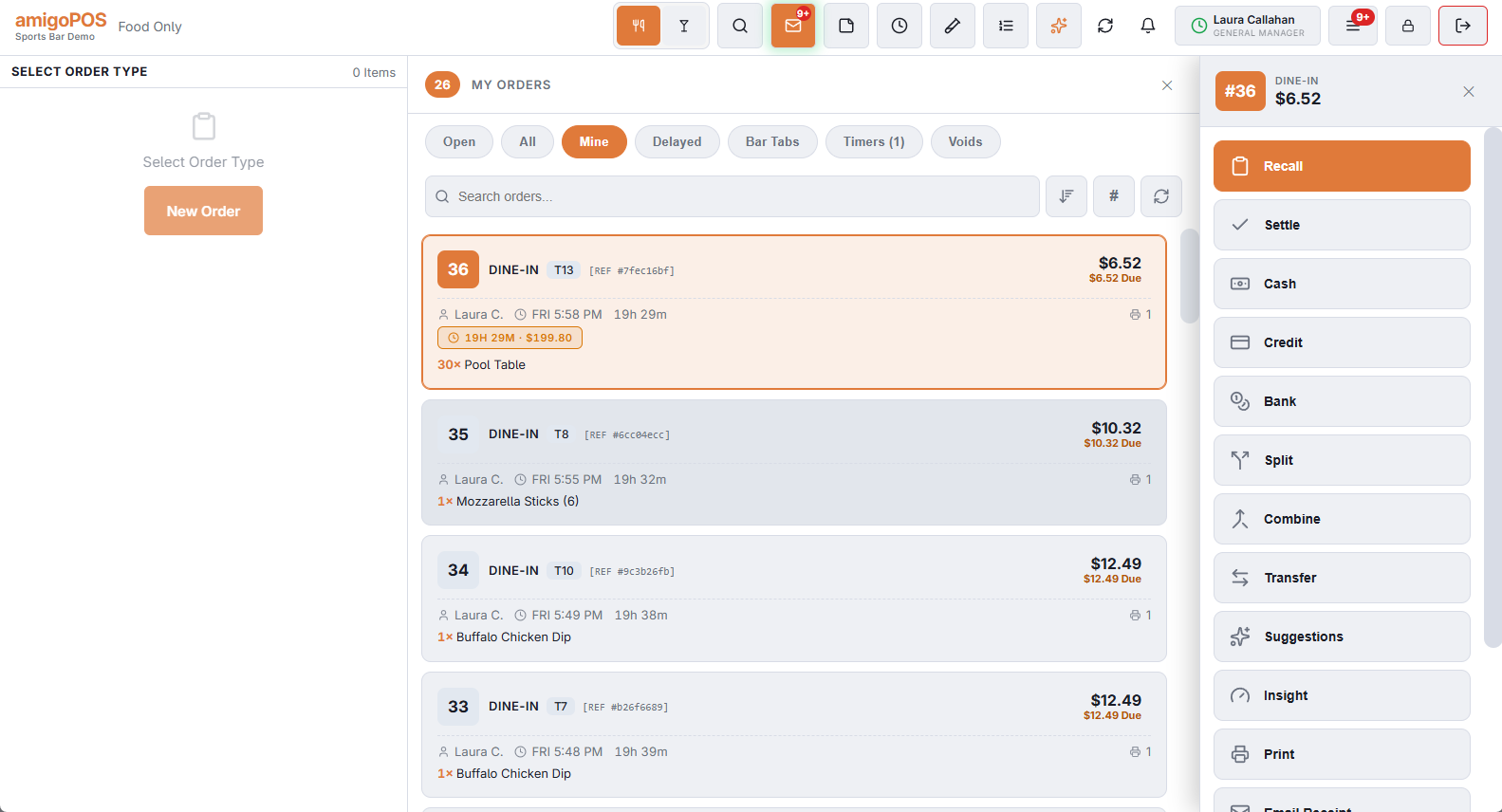
When an open order has a timed item running or paused — a pool table, a lane, a room — a Timers filter appears with the count, for example Timers (3). It lists just those orders under the header Running Timers.
- Each card shows an amber pill with the time played and the charge so far, such as 1h 05m · $12.00, billed the same way as the pill on the floor plan. A pill starting with ⏸ means every timer on that order is paused.
- The pills move on each time the list refreshes; refresh for the latest figure.
- The filter disappears when no order has a timer going. Call-center screens never show it.
Emailing a receipt
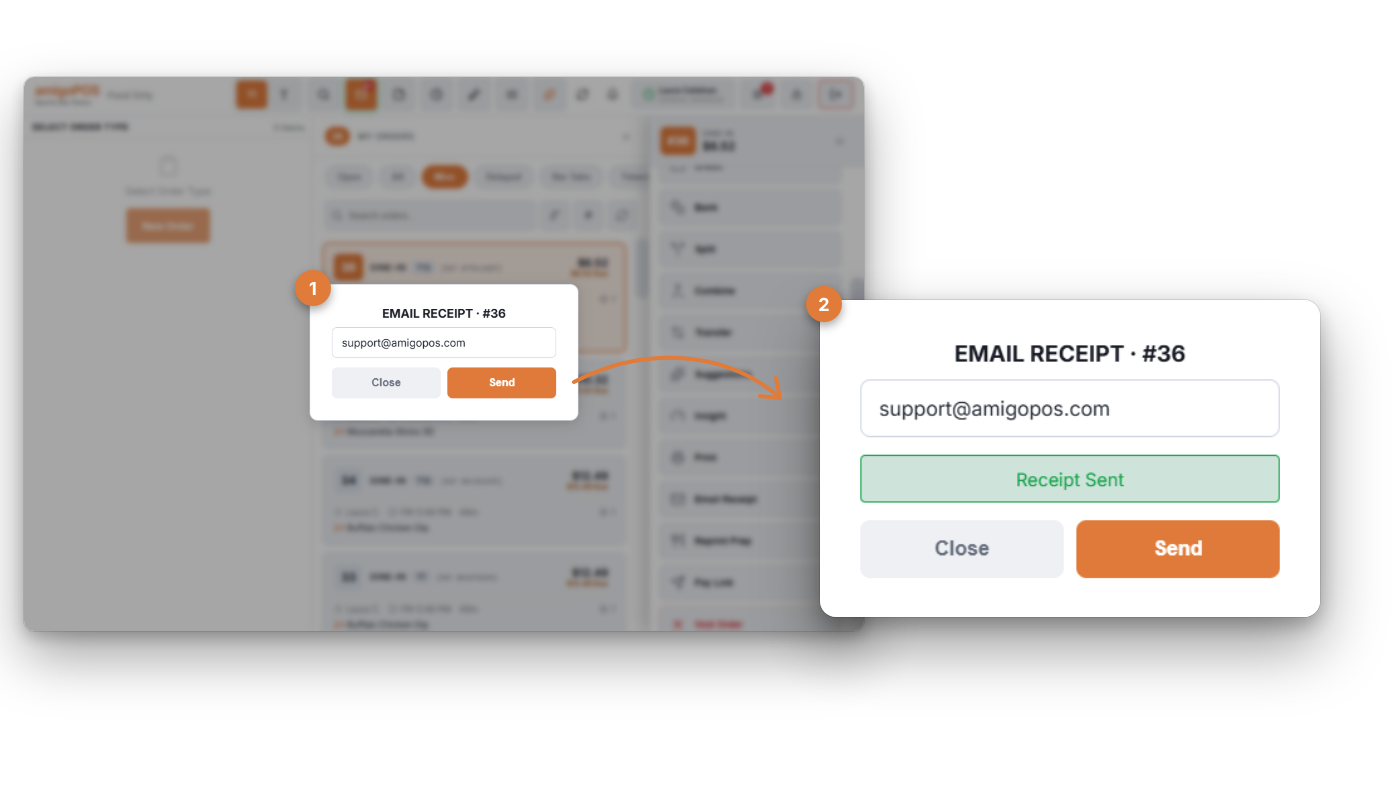
- Select the order and tap Email Receipt, next to Print. It is there for any order the list loaded from the server — open, settled or voided — but not while working offline.
- The address is filled in when the order’s customer has an email on file; otherwise type it.
- Tap Send. Receipt Sent confirms it; if it fails, check the address and send again — the window stays open.
- The email shows the business name, order number, date, table and server, the items with modifiers and discounts, the totals, the payments (foreign-currency ones with their rate) and change, any balance still due, and gift card and loyalty balances.
- It has its own simple layout: it does not use the receipt template, so there is no logo, address or footer text, and no QR codes.
- For a voided order the email has a red VOID banner under the order details, and the subject starts with VOID -.
- It is in Spanish when the store’s language is Spanish, otherwise in English, and comes from the business name.
- An address typed here is used for this receipt only; it is not saved to the customer.
Paid orders with an open pre-authorization
With Hide open pre-auths on recall list on (Back Office › Store Setup › General Settings), an order that is paid in full but still has a card pre-authorization waiting to be captured does not appear in the list. Bar tabs always appear. See General settings.
History
History on the action rail lists everything that happened to the selected order, newest first: each submit with the items added or removed, payments with the balance due, refunds, discounts and the service steps. It needs the Manager Screen permission, or a manager’s approval. See Order history: everything that happened to a check.