Back Office › Menu › Pricing › Price Rules sets prices that replace an item’s normal price whenever all of a rule’s conditions match the order: happy hour, a lower dine-in price, a members’ price, a better price for six or more. When no rule matches, the item’s own price is used.
Choosing what a rule covers
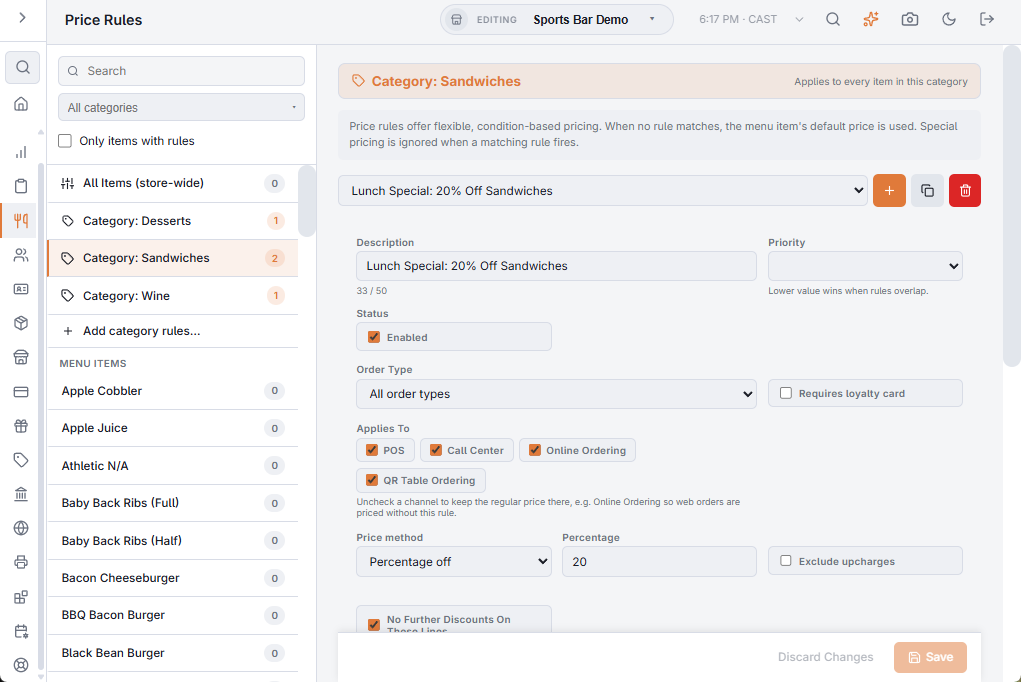
The list on the left picks the target. The badge on each entry counts the rules already on it.
- All Items (store-wide) — rules for every item in the store.
- Categories that have rules are listed under it. To add the first rules to a category, pick the category in the filter at the top, then choose Add category rules….
- Menu Items — every item, narrowed by the category filter and the search. Only items with rules shows just the items that have some.
The editor on the right shows the target and, for a category or the whole store, says what the rules apply to. The list at the top picks one of the target’s rules; the buttons beside it add a new rule, copy the selected one and delete it. A rule’s changes are kept until you choose Save.
What a rule can test
- Order Type — one order type, or All order types.
- Requires loyalty card — a loyalty card must be on the order.
- Applies To — the channels the rule prices on: POS, Call Center, Online Ordering and QR Table Ordering. Untick one to keep the regular price there.
- Minimum order total — the order must have reached this amount.
- Quantity pricing — item rules only. With Enable quantity-based pricing, the rule applies when the line’s quantity is between Quantity from and Quantity to; 0 in Quantity to means no upper limit.
- Date range — with Set date range, between a Start date and an End date.
- Time of day — with Set time range, between a Start time and an End time. A window that ends before it starts crosses midnight: a Friday 21:00–02:00 rule still runs at 01:00 on Saturday, and counts as Friday for the days and dates.
- Day of week — the day boxes. New rules start with all seven ticked.
- Customer type — one customer type, or All customer types. A rule for one type does not apply when the order has no customer. See Customers list, types, and merge.
What a rule does
- Description — the rule’s name, up to 50 characters. The register can show it under the line the rule prices.
- Price method — Fixed price charges the amount entered; Percentage off takes that percentage off the item’s normal price. New item rules start as a fixed price, and new category and store-wide rules as a percentage.
- Exclude upcharges — for bar items, and on category and store-wide rules. Ticked, a drink rung with an upcharge, such as a Double, keeps its upcharge price and the rule does not apply to it. Unticked, the rule prices the upcharge too: a fixed price replaces it, a percentage comes off it.
- No Further Discounts On These Lines — on by default. A line sold at the rule’s price is left out of order and coupon discounts. Untick it to let discounts stack.
- Priority — 0 (highest) to 9. When more than one rule matches, the lowest number wins.
- Enabled — clear it to park a rule without deleting it, so a seasonal rule can stay set up all year.
Which rule wins
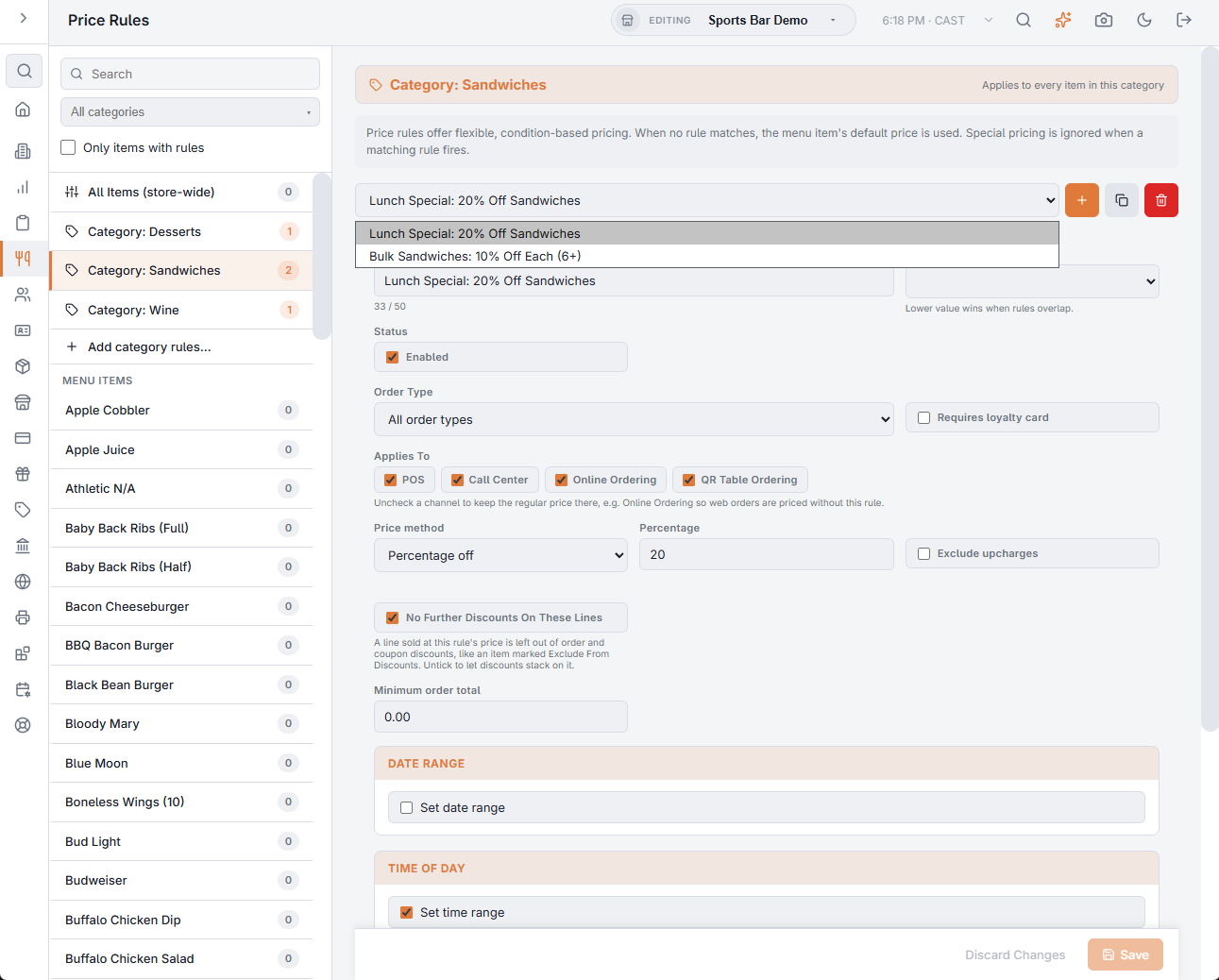
- Rules on the item itself are checked first. A matching item rule always wins, even when the item is marked Exclude from automatic price rules.
- Then the item’s category’s rules, unless the item is marked Exclude from automatic price rules.
- Then the store-wide rules, unless the item or its category is marked Exclude from automatic price rules.
Within one level, a quantity rule whose range fits the line wins over the others; after that, the lowest priority number wins.
Other price changes
- Event pricing adds its amount on top of the rule’s price; see Special and event pricing.
- Price rules also apply to time-based items, one interval at a time; see Happy hour and rate changes during a game.
- A category’s Inventory markup is not a price rule: it suggests prices from recipe cost. See Menu Costing: cost, margin and a recommended price for every item.
Modifiers with a charge
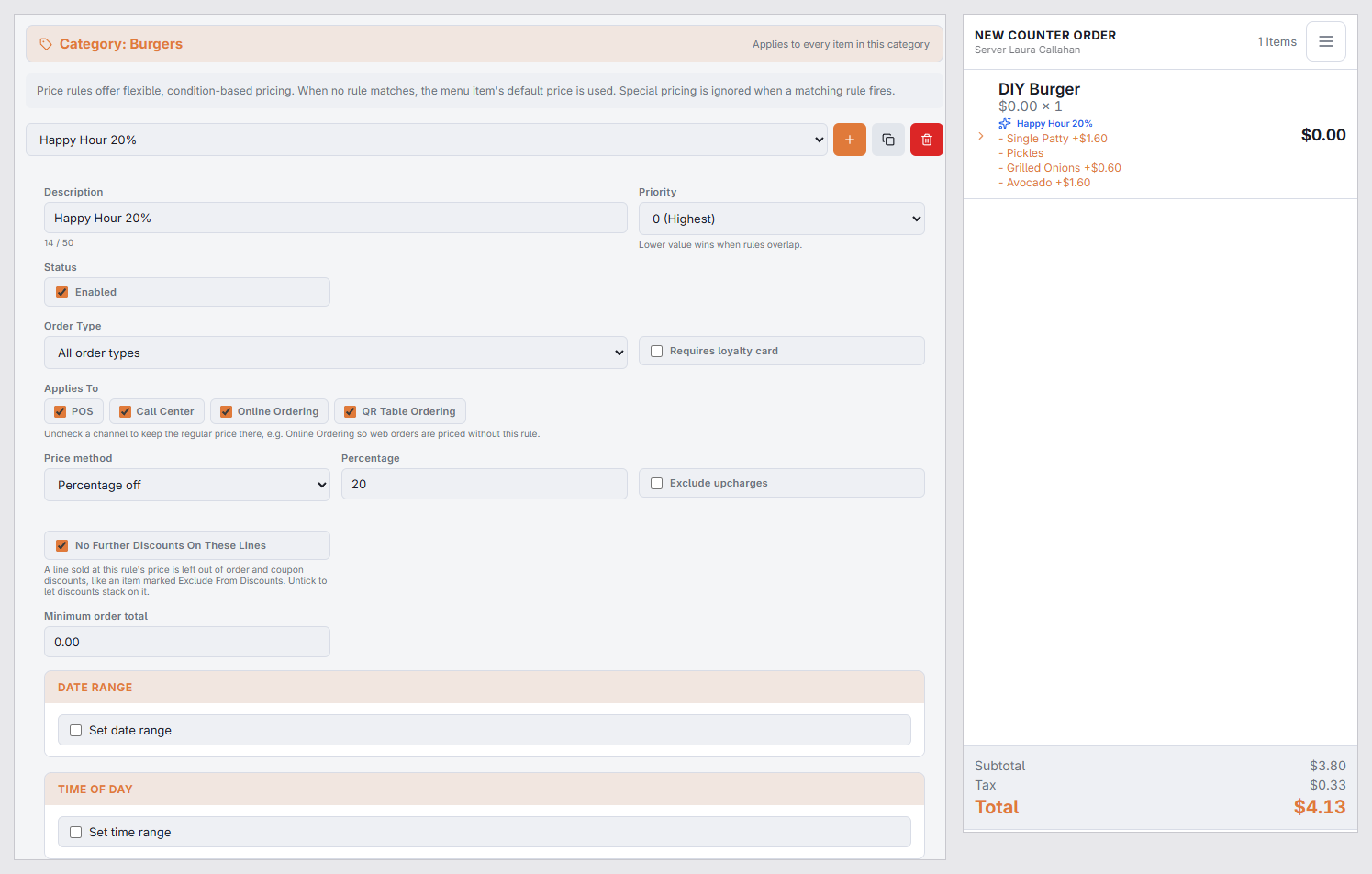
A percentage rule on a food item also takes its percentage off the item’s charged modifiers. That matters most for an item whose price comes from its choices, such as a $0.00 Catch of the day priced by the fish chosen: under a 20% happy hour the fish is 20% off too.
- To keep the modifiers at full price, tick Exclude upcharges on the rule. The box is on category and store-wide rules; a rule set on a single food item does not show it, so that rule always includes the item’s charged modifiers.
- A fixed-price rule sets the item’s price only; its modifiers keep their prices.
- Modifiers included at no charge, and modifier prices changed by hand on the order, are left alone.
- Bar items work as before: Exclude upcharges decides whether an upcharge such as a Double is priced by the rule.
- This is applied to orders taken at the register. Online and QR orders price their modifiers at the regular price.