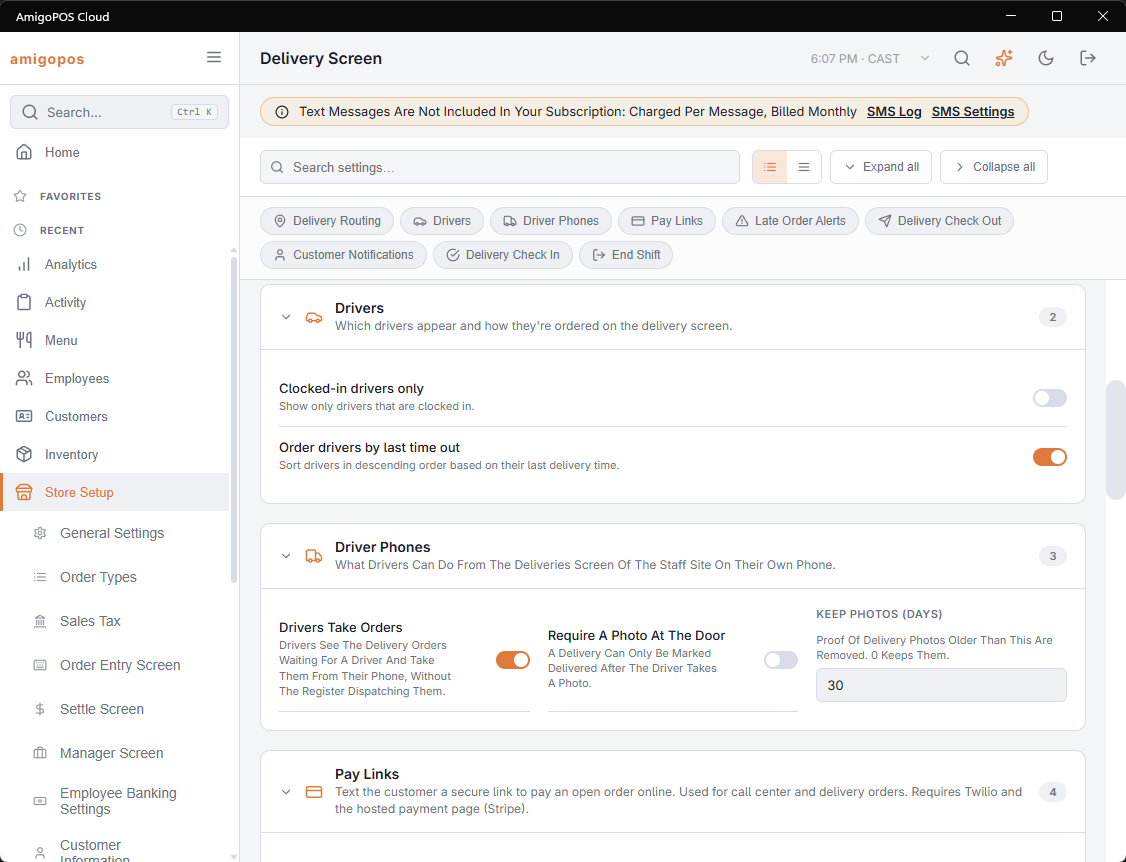
Back Office › Store Setup › Delivery Screen holds the store’s delivery settings: how the delivery board and driver rail behave, what drivers can do from their phone, pay links, late alerts, customer messages and order tracking. The page appears only when the store’s plan includes delivery.
How the page saves
There is no Save button. A switch or drop-down saves the moment you change it; a number saves when you leave the box. A tick (✓) next to the setting confirms the save, a cross (✗) means it failed. Numbers outside the allowed range are brought back into range. Use Search settings at the top to find a setting, or the chips to jump to a section.
The banner at the top is a reminder that text messages are charged per message; SMS Log and SMS Settings open the text-message pages.
Delivery Routing
- Verify delivery addresses — finds each customer address on the map and picks the delivery zone automatically. Off, the zone is chosen by hand. This one setting applies to every store of the business. Starts off.
- Store Location (lat,lng) — shown for reference only; it is set with the store’s address by support.
- Travel Mode — Car, Scooter / Moped, Walking or Truck: how routes and drive times are worked out.
- Optimize route by default — where the Optimize route switch starts when the dispatch screen opens. On, the selected stops are put in the shortest driving order; moving a stop by hand turns it off. Starts off.
Maps and addresses are covered in Maps, geocoding, and address verification.
Drivers
| Setting | On | Off |
|---|---|---|
| Clocked-in drivers only (starts on) | The driver rail lists only drivers clocked in at this store on a driver job. The same rule decides who can take orders from the phone. | Drivers of this store who are not clocked in are listed too. |
| Order drivers by last time out (starts off) | Drivers who are in come first, the one who has waited longest at the top; drivers who are out come after them. | The rail is in name order. |
Driver Phones
| Setting | What it does | Starts as |
|---|---|---|
| Drivers Take Orders | Drivers see the orders waiting for a driver and take them from their phone. See Drivers taking orders from their phone. | On |
| Require A Photo At The Door | A stop cannot be marked delivered until the driver has taken a photo. See Photo at the door. | Off |
| Keep Photos (Days) | Photos older than this are removed; 0 keeps them. 0–365. | 30 |
Pay Links
Five switches decide how pay links are sent and whether call center orders wait for payment, and WhatsApp Templates opens the message templates. See Setting up pay links.
Late Order Alerts
With Enabled on (it starts on), the board marks an order late:
- a scheduled order, once its scheduled time has passed;
- an order with a promised time, once that time has passed;
- any other order, once the minutes since it was placed reach Late minutes (1–240, starts at 30).
Delivered and banked orders are never marked late. With Enabled off, nothing is marked late.
Delivery Check Out
What happens when orders are dispatched to a driver:
- Print trip ticket — prints a trip ticket when the delivery is sent out.
- Print turn-by-turn directions — adds driving directions to the trip ticket.
- Reprint customer receipts — prints a customer receipt for each order when the delivery is sent out.
- Transfer order to driver — the orders move to the driver when they are sent out, so the money is the driver’s in employee banking.
All four start off.
Customer Notifications
- Email customer on dispatch — when the order leaves, the customer gets an email with the expected arrival time and the tracking link. Starts off.
- Text customer on dispatch — the same message by text. Starts off. Texts are charged per message.
- Default promise time (minutes) — the delivery time promised when nothing else sets one. 5–240, starts at 45.
- Quote: base prep time (minutes) and Quote: minutes per open order — the time quoted to a customer is the base prep time plus these minutes for every order already open. They start at 15 and 2, and are used for pickup quotes too.
Order Tracking
The customer’s tracking page: on or off, a text with the link when the order arrives, the driver’s first name, and how long the link works. See Setting up order tracking.
Delivery Check In
| Setting | On | Off |
|---|---|---|
| Settle button (starts on) | Unpaid orders in the Out for Delivery tab have a Settle button, which opens the payment screen. | The button is not shown. |
| Settle cash button (starts on) | Unpaid orders in the Out for Delivery tab have Settle Cash, which pays the order in cash in one tap. | The button is not shown. |