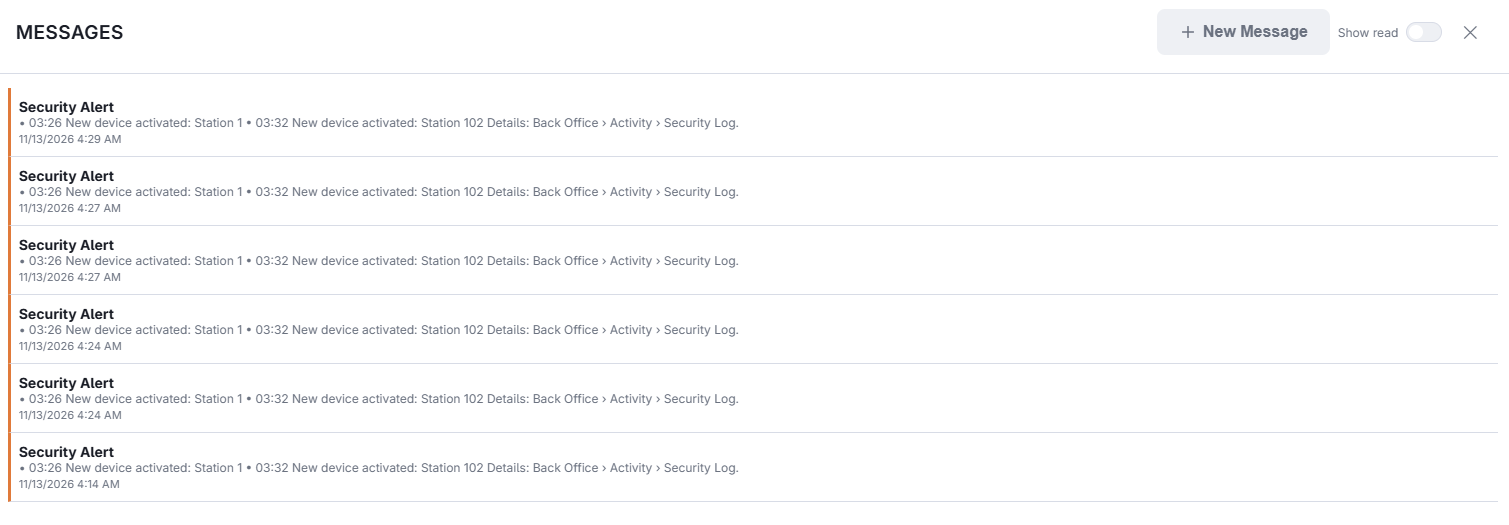
The Security Log records everything; a security alert tells the managers about the events that need a look, without anyone opening the page. The alert arrives as a quick alert in the register inbox, marked important, and stays for 24 hours.
What raises an alert
- An account locked after failed sign-ins on the website, the apps, online ordering or a staff phone. (Registers and Back Office PIN pauses already alert managers on their own.)
- A sign-in with a recovery code, two-factor sign-in turned off, a sign-in email changed, account access changed, or a password set by an administrator.
- A new device activated for the store (optional), or a device asking for something its role does not allow.
- A gift card locked after wrong PINs, or a refused online payment confirmation.
- Guessing — many failed sign-ins, or gift card and promo code tries, from one address in 15 minutes.
- Many declined online card payments at the store in 15 minutes — the usual sign of someone testing stolen cards.
The log is checked every 5 minutes. Everything found in one check arrives as one message per store, in the store’s language, with the time of each event. A burst of guessing from the same address is reported once an hour, not every 5 minutes.
Settings
In Back Office › Activity › Audit › Security Log, open the Alerts tab. The settings are per store and all start on.
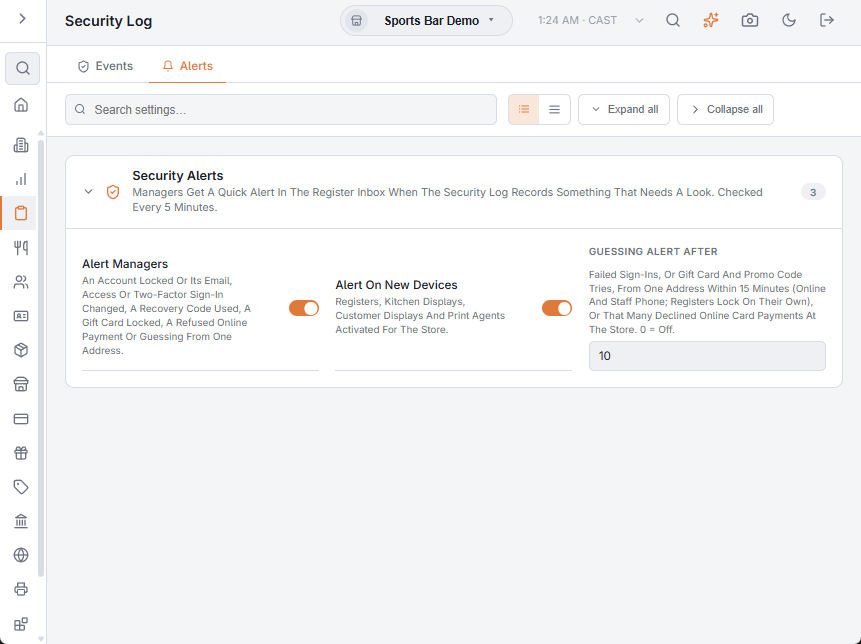
- Alert Managers — security alerts on or off for the store. The Security Log keeps recording either way.
- Alert On New Devices — an alert each time a register, kitchen display, customer display or Print Agent is activated for the store. Turn it off while setting up many devices.
- Guessing Alert After — how many tries in 15 minutes count as guessing (10 to start). It also sets how many declined online card payments raise the card-testing alert. 0 turns both off.
When an alert arrives
- Open the Security Log and search for the name or address in the alert.
- If an account change was not made by its owner, change the password and sign the account out everywhere: Signing out everywhere.
- If a device is not yours, deactivate it in Registered Devices.
- For guessing or declined payments, the protections already slow it down; keep an eye on the log, and call AmigoPOS support if it keeps going.
Security alerts are separate from Manager alerts (sales, labor and loss prevention on the staff site).