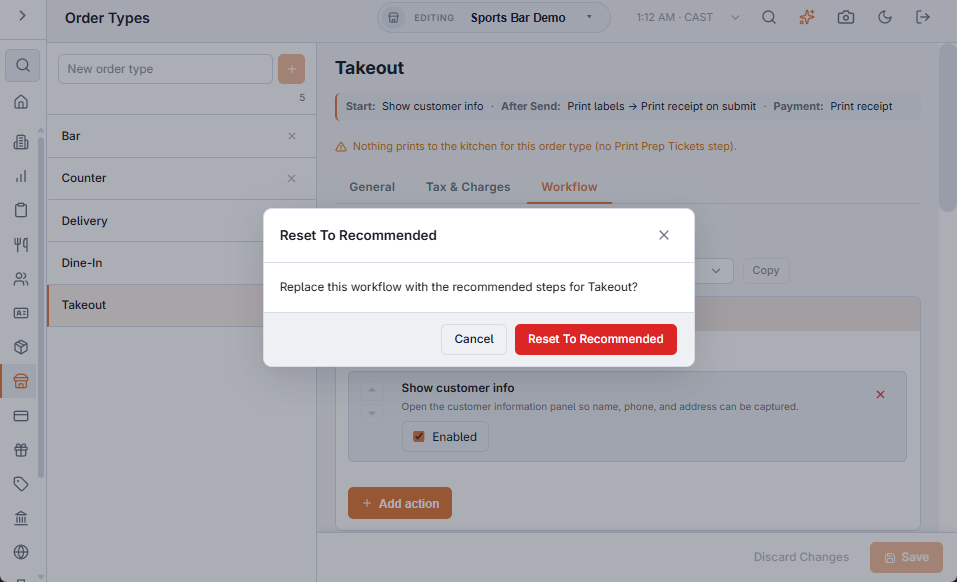
Each order type’s Workflow tab (Back Office › Store Setup › Order Types) lists its steps stage by stage. Within a stage the steps run from top to bottom; the arrows on the left move a step up or down. Changes on this tab are saved as you make them — if one can’t be saved the screen says so and shows what is actually stored.
Working with steps
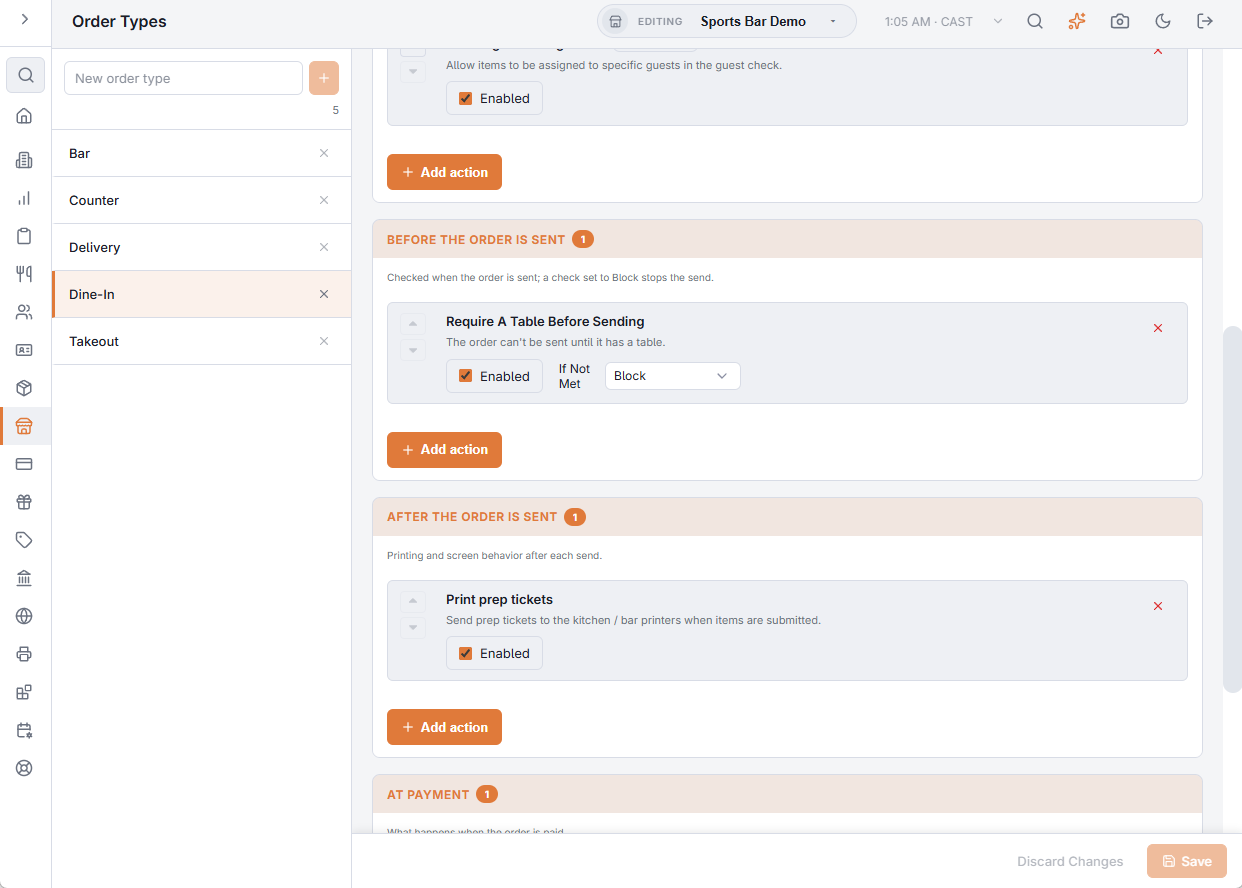
- Add action under a stage opens the steps that stage can take and that the type doesn’t have yet, each with a one-line description. A stage with nothing left to add hides the button.
- Enabled switches a step off without removing it — handy to try a type without a prompt for a shift.
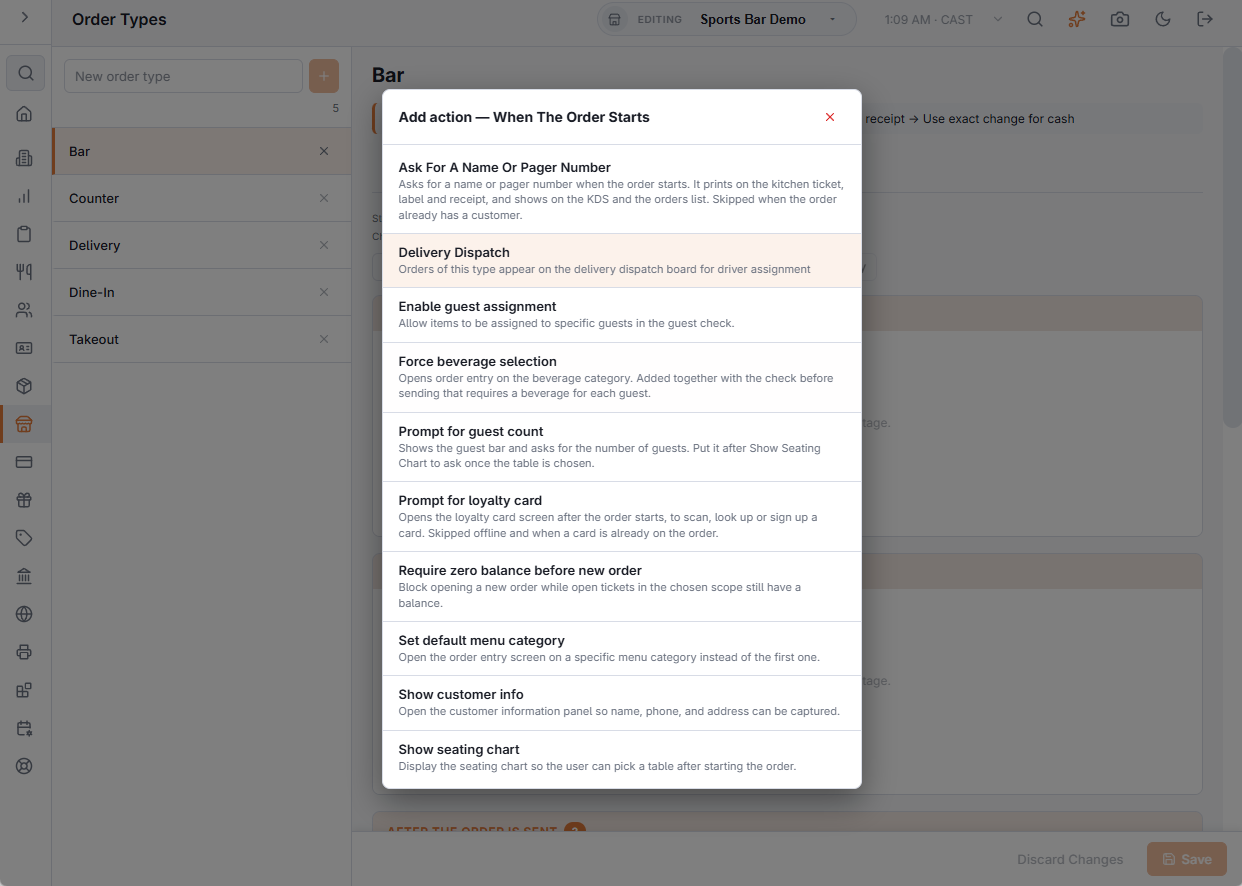
- × removes the step after you confirm.
- A step you add goes to the bottom of its stage, switched on and set to Block; the list of steps to add is alphabetical.
- Steps marked Also On Recall are applied again when an existing order of the type is recalled (the guest bar, guest assignment, the opening category). Prompts never reopen on recall.
Block or Warn Only
Only the steps that can stop an order have an If Not Met choice:
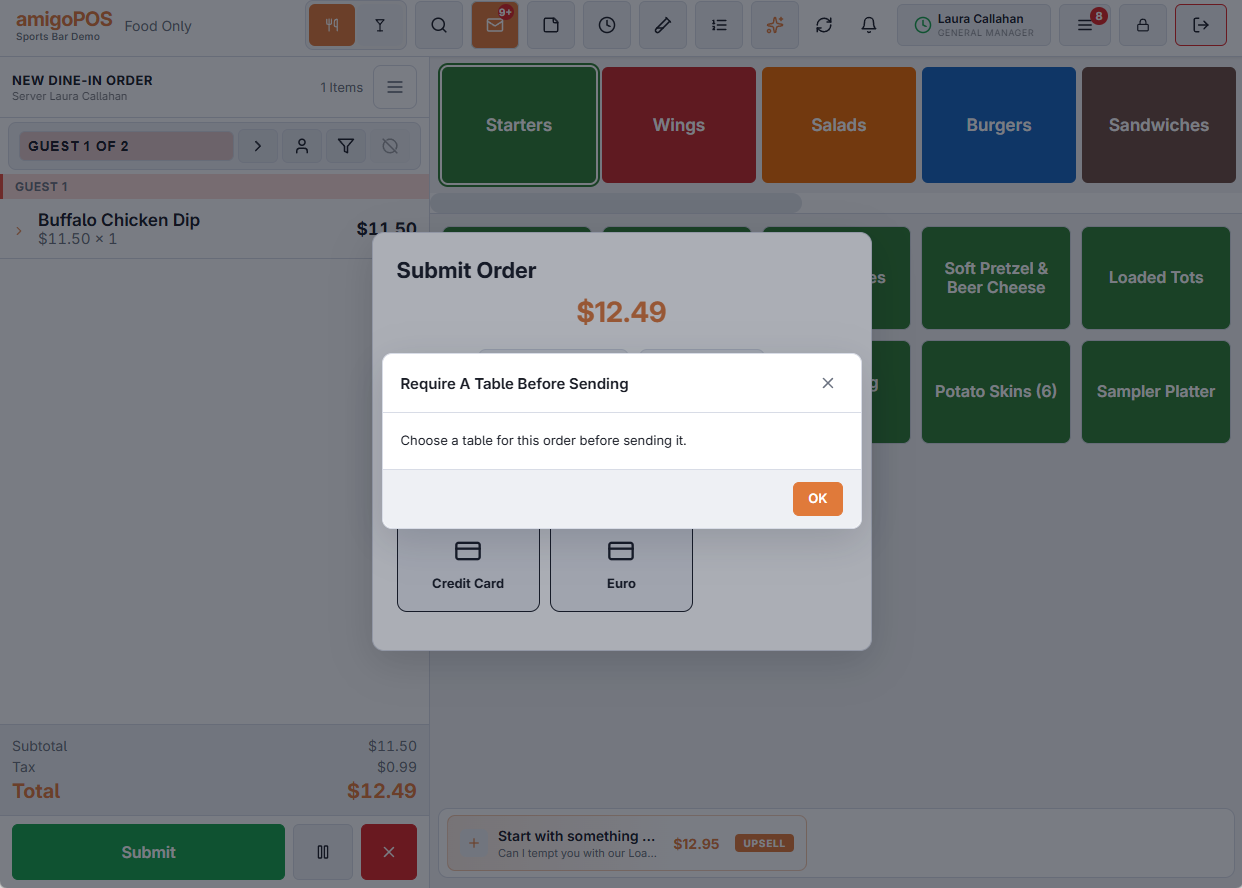
- Block — the message shows and the order doesn’t go ahead (it doesn’t start, or isn’t sent) until it is fixed.
- Warn Only — the message shows, then the order goes ahead.
When The Order Starts
| Step | What it does |
|---|---|
| Require zero balance before new order | Refuses a new order while open orders still owe money. Scope: the same user, the same terminal, or any open ticket; Minimum balance to count ignores pennies. Scope starts at the same user only. When it blocks, the orders list opens so one can be settled. Changing an order’s type never counts that order itself. Can Block or Warn Only. |
| Show seating chart | Opens the floor plan to pick a table. Skipped when the table was picked first from the floor plan. |
| Show customer info | Opens customer lookup — phone, name, address and delivery zone. Skipped when a customer record is already on the order. Offline it asks for a name and phone instead. |
| Prompt for guest count | Shows the guest bar and asks for the number of guests. Put it after Show seating chart to ask once the table is chosen. |
| Prompt for loyalty card | Opens the loyalty card screen to scan, look up or sign up a card. Skipped offline, in training mode and when a card is already on the order. |
| Ask For A Name Or Pager Number | Asks for the guest’s name or a pager number; it prints on the kitchen ticket, label and receipt and shows on the KDS and the orders list. Skipped when the order already has a customer or a name. |
| Enable guest assignment | Shows the guest bar so items can be assigned to guests (seats). |
| Set default menu category | Opens the order on the menu category chosen on the step. With no category chosen the step does nothing. If this and Force beverage selection are both on, the lower one in the list wins. |
| Force beverage selection | Opens the order on the beverage category: the one chosen on the step, or else the store’s Mandatory Beverage Category (Order Entry Screen › Settings). With neither set, it does nothing. Adding it also adds Validate beverage rule below, which is what actually requires the beverage. |
| Delivery Dispatch | Puts the type’s orders on the delivery board and shows the Deliveries button. |
The prompts in this stage open one after another, in the order listed — see Start prompts and their order.
Before The Order Is Sent
| Step | What it does |
|---|---|
| Validate beverage rule | Each guest with items must have a beverage (a bar item, or an item from the beverage category chosen on the step or set as the Mandatory Beverage Category). Removed items don’t count. Can Block or Warn Only. |
| Require A Table Before Sending | The order can’t be sent until it has a table — for when the seating chart was closed without picking one. Can Block or Warn Only. |
| Require A Customer Before Sending | The order can’t be sent until it has a customer or a name. Can Block or Warn Only. |
After The Order Is Sent
| Step | What it does |
|---|---|
| Print prep tickets | Sends the new items to the kitchen printers and displays. Without it nothing reaches the kitchen. |
| Print labels | Prints item labels (takeout and delivery bags). |
| Print guest Wi-Fi slip | Prints the Wi-Fi slip with the food, on the order’s first send only (Printing guest Wi-Fi details). |
| Print receipt on submit | Turns the Receipt option on by default in the Send screen, so a guest check prints when the order is sent. The server can still switch it off for one order. |
| Stay on order entry after submit | After sending (or paying) the screen starts the next order of the same type instead of returning to the orders list, running the type’s start steps again. Typical for bars and counters. |
At Payment
| Step | What it does |
|---|---|
| Print receipt | Prints the receipt when the order is paid. |
| Print coupons | Prints the coupons the order earned. |
| Print Guest Survey Slip | After payment, prints the guest survey QR code on its own slip, and the receipts of this order type leave the survey out. Nothing prints when the survey is off or the check gets no survey. |
| Use exact change for cash | A cash payment opens with the amount due already entered; the first key typed replaces it (Cash payments and change due). |
Back to the editor: Order types and workflow.