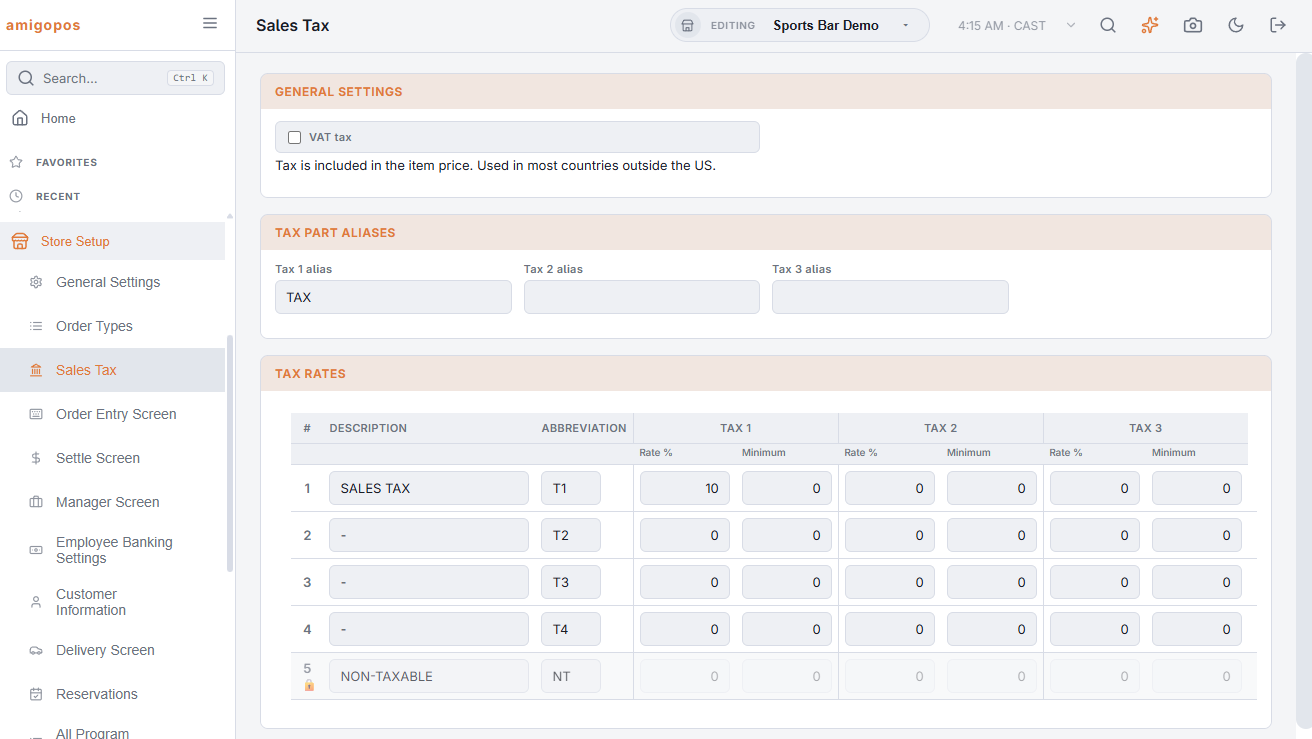
Back Office › Store Setup › Sales Tax holds the store’s tax rates and the store-wide tax behaviors. Items and categories pick a rate by its number; the rate’s values live here, per store. The page shows the store chosen in the Back Office store picker.
There is no Save button: each field saves as you change it or leave it, with a tick (✓) to confirm or a cross (✗) if it failed.
General Settings
- VAT tax — prices include the tax; the tax inside is worked out for the receipt and the reports. The setting for VAT and GST markets (El Salvador, the UAE, Sint Maarten).
- Deduct fixed discounts after tax — appears only while VAT tax is on. On, a fixed-amount discount comes off the order total after tax; off, it comes off the subtotal and tax is worked out on what is left. The example under it shows the effect on a $50 order with a $10 discount, using Rate 1.
Tax part aliases
Tax 1 alias, Tax 2 alias and Tax 3 alias name the three parts a rate can have (State, County, City; or just IVA), up to 20 characters each. One set of names applies to every rate. They head the columns of the Filing your sales tax return, the tax analytics and the End of Day report.
Tax Rates
The table lists the store’s rates by number. Rows cannot be added or removed; every store has the same numbered rates. For each rate:
- Description and Abbreviation — the rate’s name.
- Tax 1, Tax 2, Tax 3, each with Rate % and Minimum. The parts add up: a 6.25% state tax plus a 2% city tax is one rate with two parts, and the register, the receipt and every report keep them apart.
- Rate % is typed as a percent, 8.875 for 8.875%, from 0 to 100.
- Minimum — a part is charged only when the order’s taxable amount at that rate, after discounts, is at least this figure. Leave 0 where there is no threshold.
Rate 5, with the lock, is Non-taxable: its rates and minimums are fixed at 0, though its name can be changed. Assign it to items that carry no tax.
Where else tax is decided
- Items and categories pick the rate; a category sets the default and an item can override it. An item or category marked Takeout Non-taxable carries no tax on an order type with Charge for takeout containers switched on — the way some states exempt food to go.
- Order types (Order types and workflow): Non-taxable exempts every order of the type (wholesale, staff meals, or take-out where the law exempts it); Bar menu tax included treats bar prices as inclusive; the surcharge rate and the delivery zone rate tax those charges.
- Tax-exempt orders: the register’s Tax Exempt function asks for the customer’s certificate or tax id, which the Tax analytics exempt list and the return show. Who may use it is the Tax Exempt Orders permission (Jobs, roles, and permissions).
Chains
Rates are stored per store, but items reference a rate by its number everywhere. Keep Rate 1 meaning the same class of item (standard food, say) in every store and give it each store’s own values; the all-stores return then lines the parts up across locations.