The time clock is where shifts begin and end: clock in under a job, take breaks, clock out — every punch feeding timesheets, labor cost, and (per job) the drawer-claim flow.
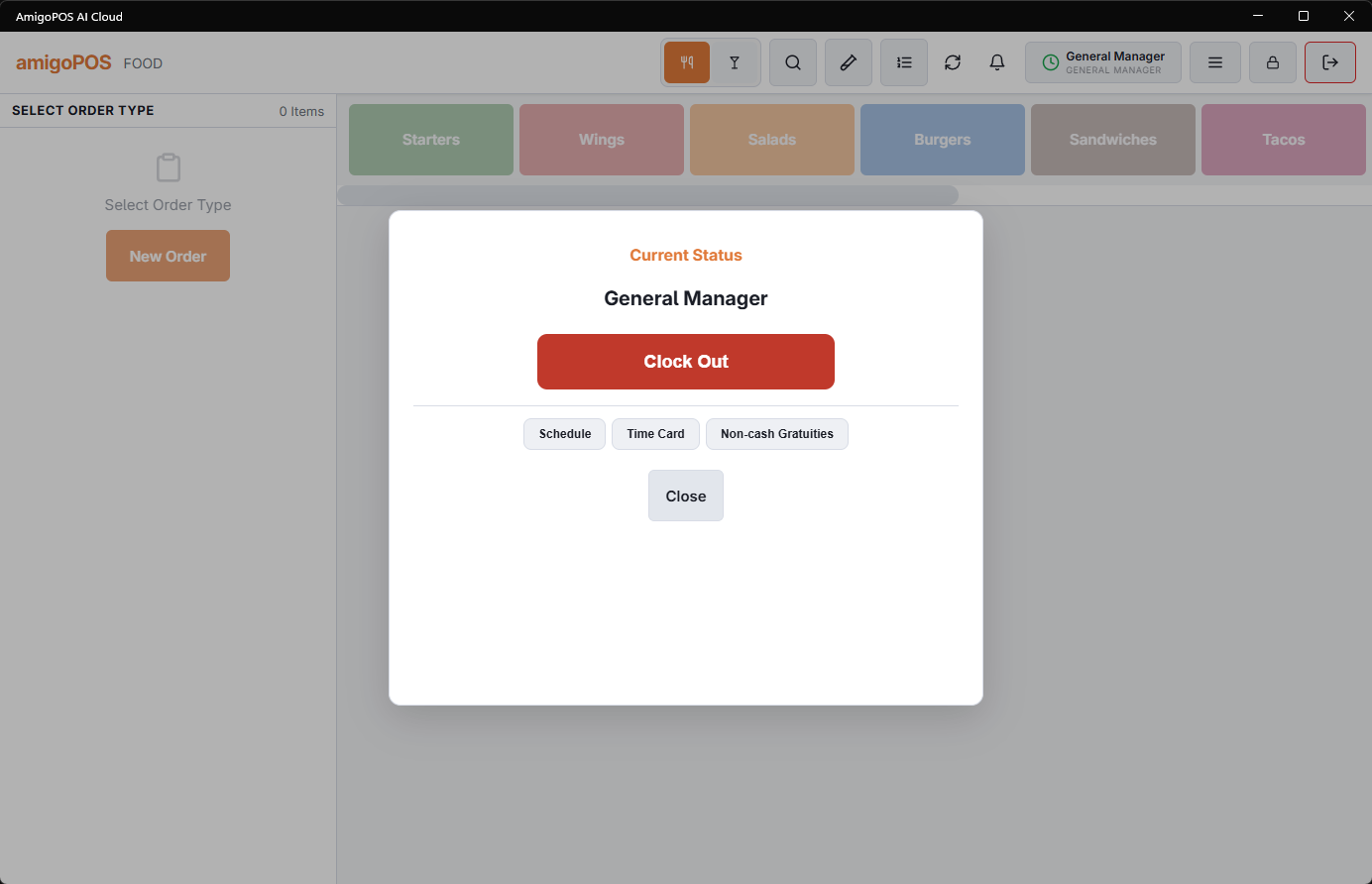
Punching
- Clock in — sign in with your PIN and clock in; with multiple job assignments, pick which job this shift is (the job decides the pay rate and the permissions for the shift). Employees flagged time clock mandatory can’t use the register without an open shift.
- Breaks — punch out to break and back in; break time records separately for labor-rule compliance.
- Clock out — ends the shift. Cash-handling jobs run their closing steps here: the clock-out drawer count, declared gratuities, or the banked employee’s end-shift flow.
Behavior settings
Back Office › Employees › Scheduling › Time Clock holds the store’s time-clock behaviors — prompts, rounding, and enforcement — each described inline and searchable via All program settings. See Time Clock settings.
Notes
- Forgot to clock out? The open shift shows in Timesheets (filter open shifts only) — a manager closes and corrects it there.
- Clocking in under the wrong job is a pay-rate and permissions error — clock out and back in under the right one; fix the stray minutes in Timesheets.
Why breaks matter beyond payroll
Recorded breaks are subtracted from the hours used to share tips, so a store running a tip pool by hours wants breaks punched properly — not because payroll demands it, but because the pool does.
Clocking in from a phone
Where the store has switched on phone access, employees can clock in and out on the staff site. Three things differ from the register:
- Location — if the store set a clock-in geofence, the phone shares its location and the punch is refused outside the radius (“You must be at the store to clock in”).
- No overrides — the same time-clock rules apply, but a punch that needs a manager’s override can’t be made from a phone; the employee is told to use the register.
- Job — employees with several jobs pick the job on the phone before clocking in, exactly as at the register.
Phone punches land in Timesheets like any other. Setup is in Employee phone access (manager setup).
Too many wrong PINs
Five wrong PINs within five minutes pause PIN sign-in on that register — five minutes the first time, longer if it keeps happening. Other registers carry on, and nobody is locked out of their own account. A manager can lift it from Back Office or by signing in with their username and password on that register; see Sign-in lockout.
The pay rate on a punch
Clocking in stamps the punch with the rate of the employee’s assignment for that job, or the job’s default pay rate — the same from the register or the phone. Labor cost and overtime are worked out at clock-out from that rate and the store’s overtime settings. Details in Timesheets.
Forgot to clock in?
If the shift was published, it shows on Timesheets as a No Punch row once it has ended, and a manager adds the punch from there with the scheduled times filled in — see Reviewing and approving punches.
Weekly hours at clock-in
The overtime warning and weekly hours cap at clock-in count every punch since the store’s business week started, including earlier days already closed by end of day, using the store’s own week start day. A punch still open counts only if it started in the last 24 hours. See also Overtime alerts.
Checking your hours at the register
Employees can see their punches for the week, approve them and dispute a wrong one from My Status › My Hours. See My Hours at the register.
During an outage
Clocking in and out still works when the register is offline. The punch is kept on the station and sent when the connection returns. Breaks and the time clock reports wait for the connection. See Clocking in and out while offline.
Drivers: deliveries still out
Clock Out is unavailable while you have deliveries out, or delivered and not banked. The screen says You Still Have Deliveries Out. Bank Them Before Clocking Out. Bank them at the delivery board, or with Back At Store on your phone. There is no manager override.
Breaks on a phone
Employees can start and end breaks on the staff site, under the same rules as the register: Enable Breaks must be on (Back Office › Employees › Scheduling › Time Clock, Breaks), only one break runs at a time, the clock-in location check applies, and Clock Out is refused until the break has ended. Phone breaks are recorded exactly like breaks taken at the register.
A forgotten clock-out, from a manager’s phone
A manager can close someone’s open punch from the staff site — Clock Out under Schedule › Team, at the time the person left — without waiting for Back Office. A running break ends at the same time, the employee is told, and the override log records it. Managers cannot do this for their own punch. See Fixing punches from your phone.