When a register breaks, is lost or is being upgraded, Replace gives its place to a new device: the same station number, the same name, the same role, and the printers that were chosen for that station. An ordinary activation code would give the new device the lowest free station number instead — and with it, another station’s cash drawers.
Replacing
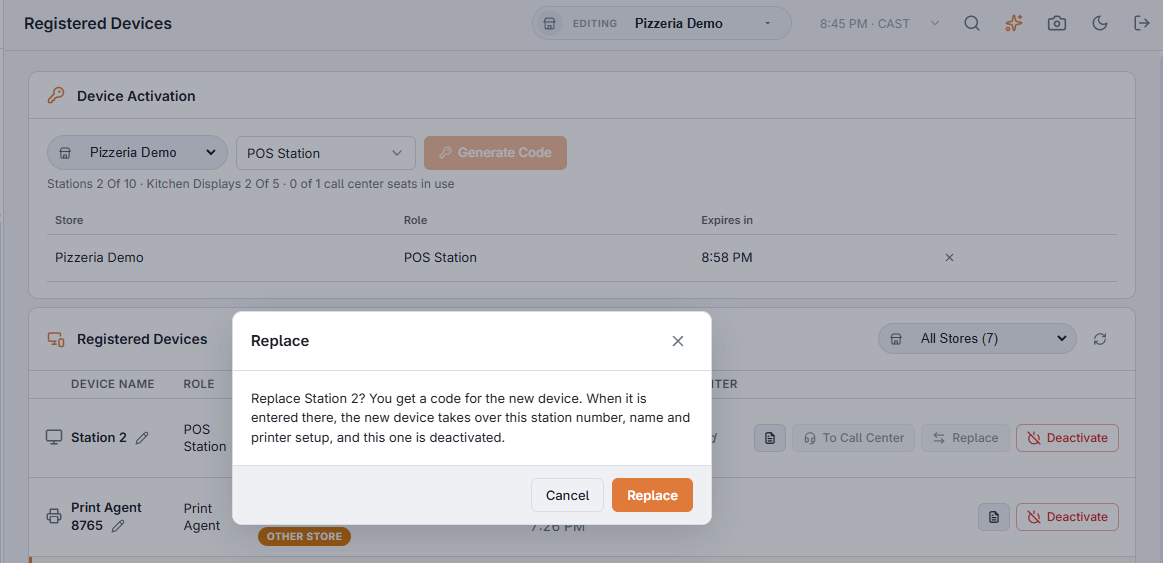
- In Back Office › Hardware & Printing › Registered Devices, press Replace on the register’s row and confirm.
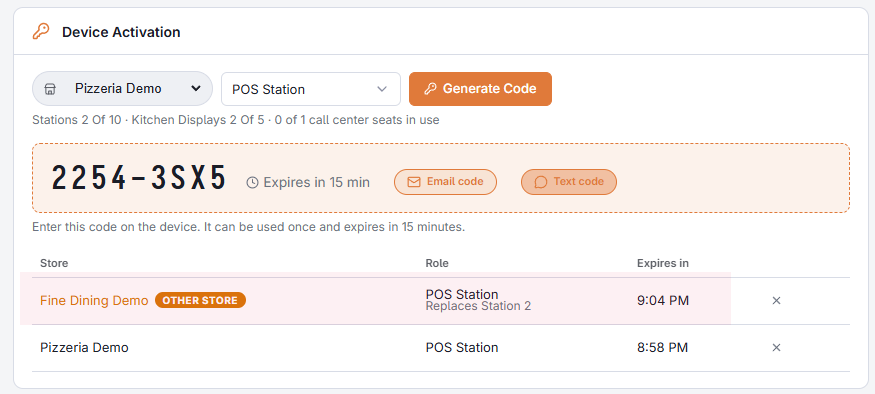
- A code appears in the Device Activation card, as when generating any code. In the list under the card it is marked Replaces Station n.
- Install the app on the new device and type the code. Type a name only if you want a different one.
The moment the code is accepted, the new device takes over and the old one is deactivated. Until then nothing has changed: the old register keeps working and keeps its station number, and a code that is never used simply runs out after 15 minutes.
What moves and what does not
- Moves: the station number, the name, whether it is a POS station or a call center seat, the cash drawers of that station, and the printers chosen for that station in Print routing.
- Does not move: orders and time punches the old device had not sent yet. If it last reported any, the confirmation says how many. When the old device still works, let it finish sending first; see After an outage.
- Set again on the new device: its backup printer for working offline; see Preparing a station for offline mode.
Replace is for registers: POS stations and call center seats. A kitchen display or a print agent is deactivated and then activated again with a new code; see Connecting a KDS display and Activating an agent for the right store.