Back Office › Gift & Loyalty › Digital Gifts issues digital gift cards (e-gifts) by email or text message and lists the gifts sent and waiting to go out. A gift issued here is given by the business: no payment is taken, so it needs the Adjust And Transfer Gift Card Balances permission; without it, pressing Send shows a message saying so and nothing is issued. To sell an e-gift to a paying guest, use the register (Send a digital gift card at the register).
Sending a gift
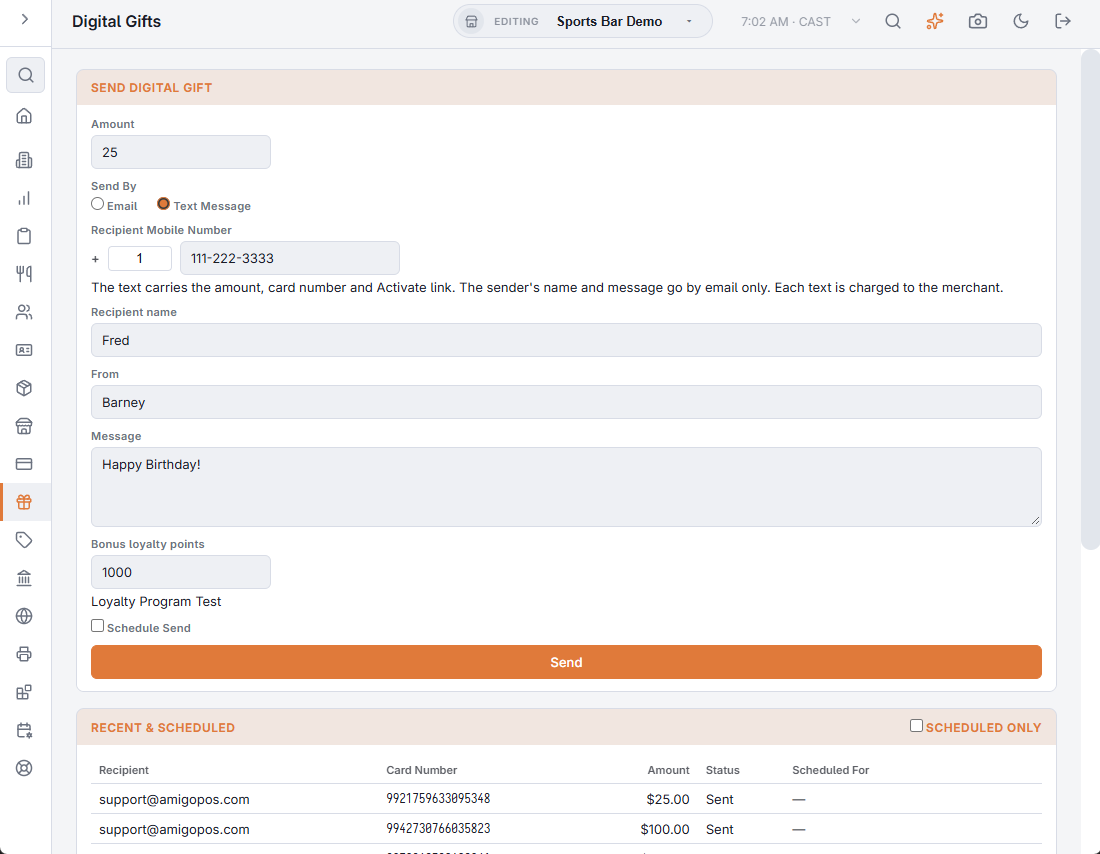
Fill in Send digital gift:
- Amount — the gift card value.
- Send By — Email or Text Message, then the Recipient email or the Recipient Mobile Number (see below).
- Recipient name, From and Message — optional; they appear in the email as typed.
- Bonus loyalty points (points programs) or Bonus (bonus programs) — optional loyalty value put on the same card. The program’s name shows under the box; with no active loyalty program the box is disabled. A gift can carry only points, with no gift value.
- Schedule Send — tick it and choose a date and time in store time to deliver later, for a birthday for example.
Press Send (or Schedule). The card is issued and funded straight away; Gift card sent or Gift card scheduled confirms it. If the email or text could not go out, a message gives the card number and the reason: the card exists either way, so fix the cause and re-send it from the list, or read the number to the guest.
Sending a gift by text
- Choose Send By › Text Message and enter the Recipient Mobile Number: the country code box is filled with the store’s default; type a number starting with + to give the full international number instead.
- The text carries the amount, the business name, the card number and the Activate link. The sender’s name and message go by email only.
- Schedule Send works the same as for email.
- Each text is charged to the store and listed in the SMS log. It needs Send Text Messages and Digital Gift Cards on in SMS settings.
Recent & scheduled
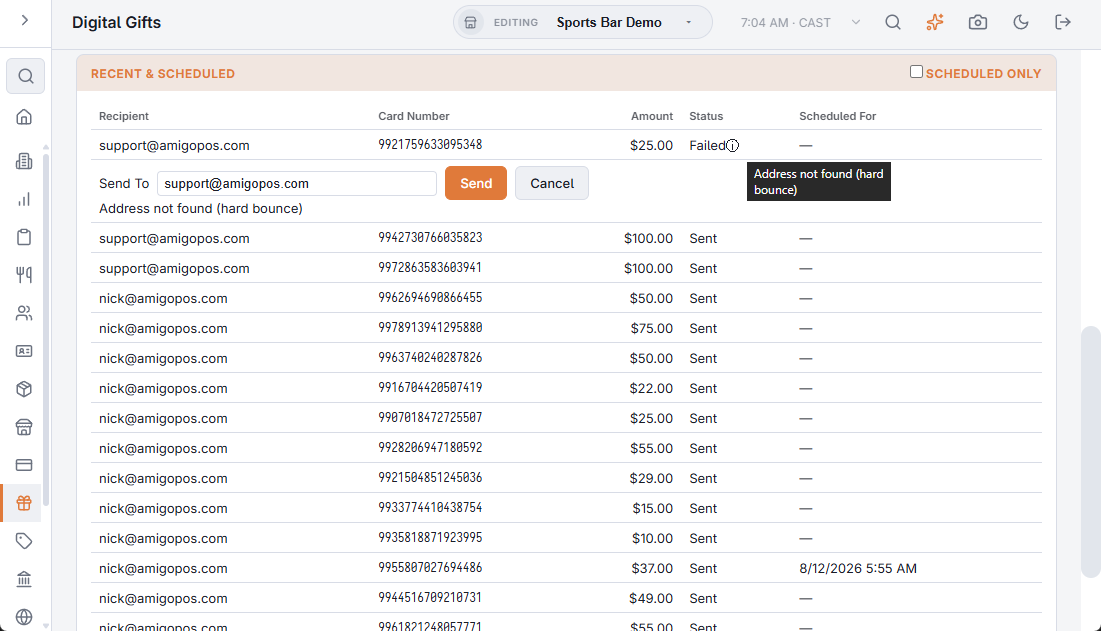
The list shows the latest 100 gifts: the recipient’s email or phone, the card number, the amount, the status and Scheduled For, the time it is set to go out. Tick Scheduled only to see only gifts set for a later time.
- Pending — not sent yet: going out now, or waiting for its time.
- Sent — accepted for delivery. For a text, whether it reached the phone is in the SMS log and message costs.
- Failed — the send didn’t go through and is not retried by itself. Hover the ⓘ for the reason.
- Canceled — a scheduled send that was stopped.
Canceling a scheduled gift
A scheduled gift that hasn’t been sent has Cancel, which stops the email or text from going out.
Sending a failed gift again
- Press Re-Send on the failed row. A row opens under it with Send To filled in with the email address or phone number the gift went to, and the reason it failed.
- Correct the address if that was the problem. For a text, a number typed without + gets the store’s country code, as when issuing.
- Press Send.
The same card number and activation link go out again; no new card is issued. Gift card sent confirms it and the row turns Sent. If it fails again, the reason is shown and the row stays Failed. A corrected address replaces the old one on the delivery.
All cards in one place
Every card, physical or digital, gift or loyalty, is also listed under Gift & Loyalty › Cards › All Cards, with its full history (Finding a card: All Cards).
Issuing under a shared program
Members of a shared card program see an Issue Under selector on the issue form: Our Own E-Gift, or the program. The program e-gift carries the program’s card prefix and is spent at any member. See Program cards at the register.
Gifts bought online
Gifts that guests buy in the online store are in the same list, with the buyer as the sender, and are re-sent or cancelled the same way. Turning the online sale on is in Selling gift cards in your online store.