Back Office › Hardware & Printing › Station Hardware shows the hardware of the register Back Office is open on — its cash drawers and its barcode scanner — and lets you test each one. It is per station: to check another register’s hardware, open Back Office on that register.
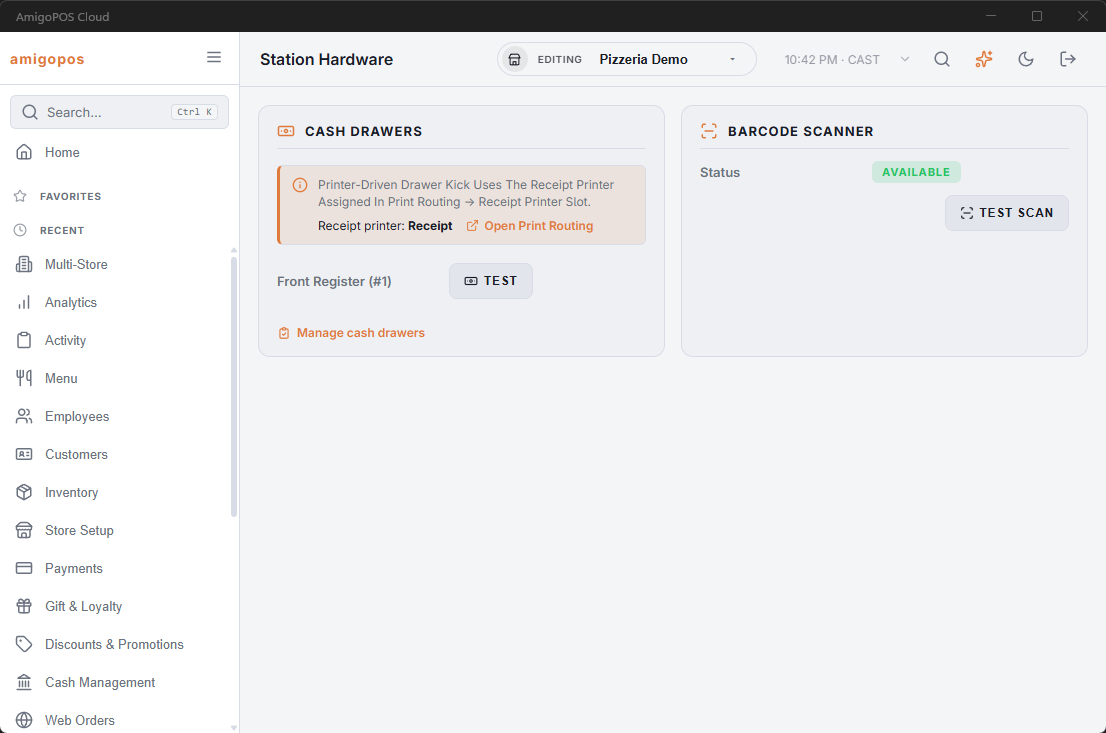
Cash Drawers
Cash drawers plug into the receipt printer, not into the register, and open when that printer sends them a pulse. The card therefore starts by naming the Receipt printer this register prints to — the printer in the Receipt Printer row of Print Routing for this station — with Open Print Routing to change it. See Print routing.
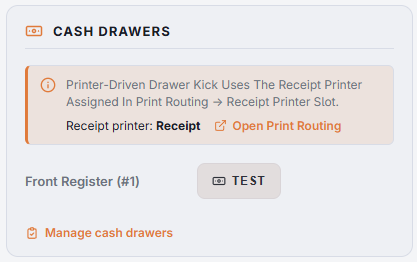
Below it, the enabled cash drawers assigned to this station are listed by name and drawer number (up to two), each with a Test button. Test sends a real drawer pulse through the receipt printer, as a cash sale does. While the station is offline, the pulse goes through the station’s own offline printer instead.
After a Test, a message says Drawer Kick Sent To The Receipt Printer, or The Drawer Kick Could Not Be Sent. Check The Receipt Printer In Print Routing. The first message only means the kick went out to the printer; it does not prove the drawer opened, so watch the drawer itself:
- The drawer opens — everything is wired and set correctly.
- Nothing happens, and receipts print — the printer is fine; check that the drawer cable is in the printer’s drawer port and that the cash drawer setting is on for that printer in the Print Agent, with the right brand. See Printer settings explained.
- Nothing happens, and receipts do not print either — it is a printer or Print Agent problem; see Nothing printed, or it printed in the wrong place.
- The wrong drawer opens — the two drawer records have their drawer numbers swapped.
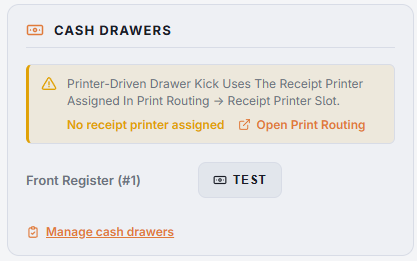
If no receipt printer is routed to this station, the card shows No receipt printer assigned as a warning, and no drawer can open until one is set in Print Routing. If no drawer is assigned to the station, it says No cash drawers are configured for this station.
Manage cash drawers opens Back Office › Cash Management › Cash Drawers, where drawers are created, numbered and assigned to stations. See Creating and editing cash drawers.
Barcode Scanner
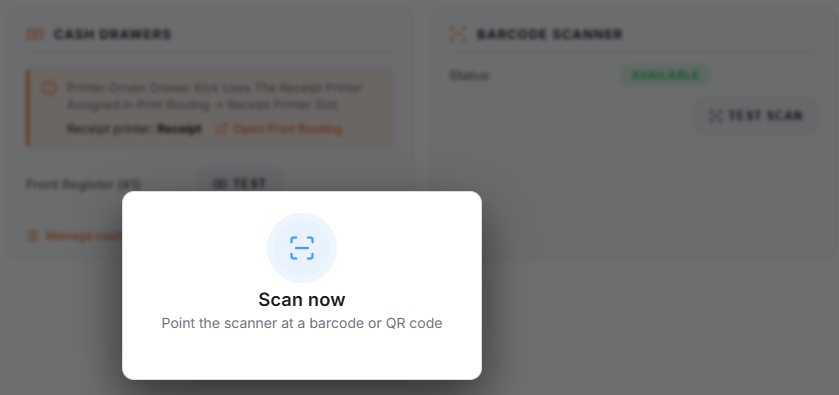
The Status line shows Available or Not available: whether the app has its own scanner support on this device. Test scan opens a window that waits up to 30 seconds for a scan. Scan any barcode and a message shows Scanned: and the value, which proves the scanner works end to end. Closing the window without a scan shows Scan Cancelled. Test scan works even when the Status reads Not available: a USB scanner that types like a keyboard scans straight into the window.
To see what a scanned code would ring up as, use More › Scanner Test at the register. See USB barcode scanner.