Back Office › Cash Management › Cash Drawers is where the store’s cash drawers are set up: one entry per physical till, with the station it sits at, its number on that station’s receipt printer, its default opening float and the cash levels that call for a count or a drop. Six store-wide switches for drawers and the Safe button sit at the top of the list.
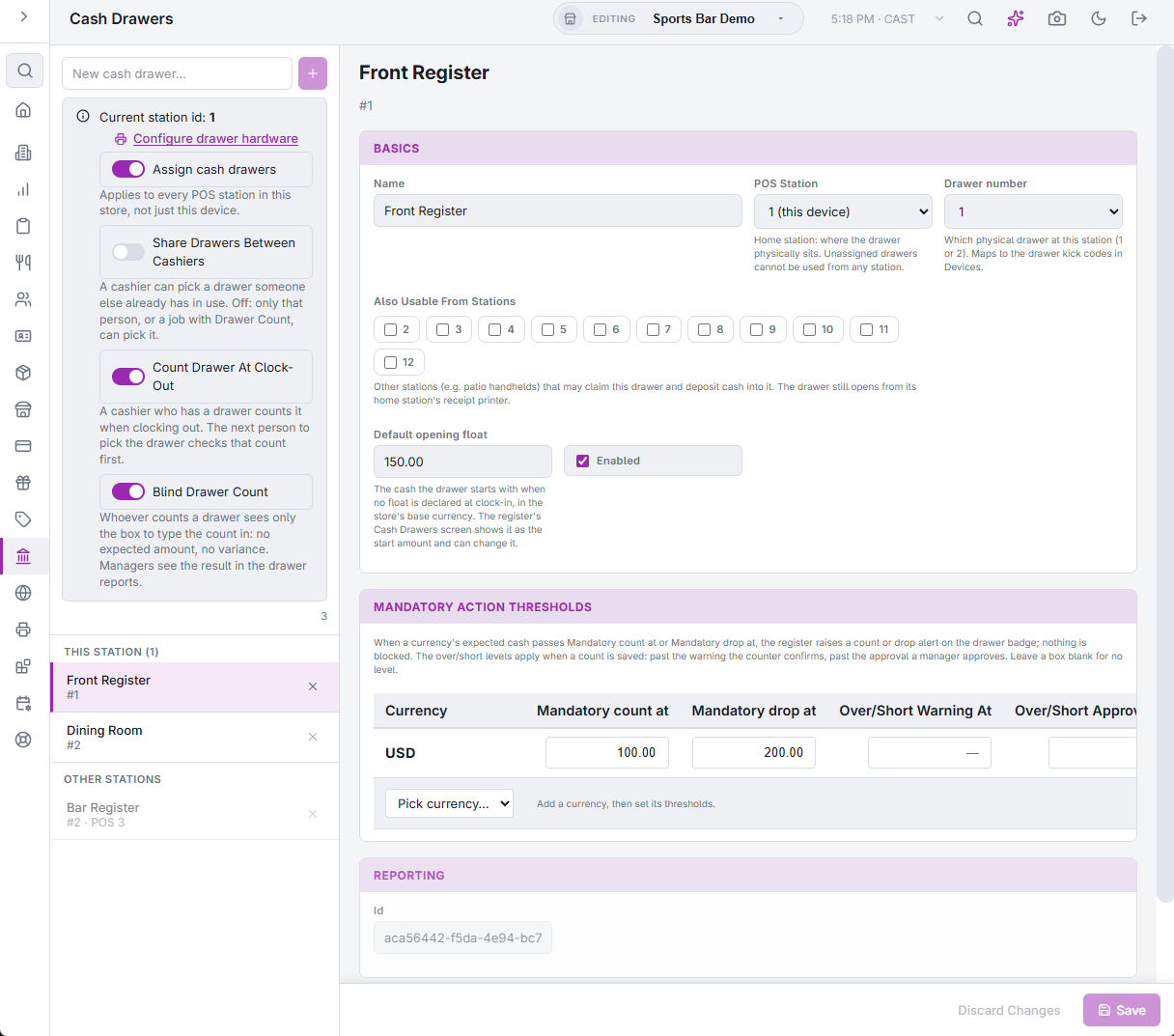
The box at the top of the list
- Current station id — the station number of the device you are on, or Unassigned.
- Configure drawer hardware — opens Hardware & Printing › Station Hardware, where the drawers wired to this station’s receipt printer are tested. See Cash Drawer Quick Setup & Troubleshooting.
- Assign cash drawers — on, a cashier picks a drawer at clock-in, and the cash they take is recorded against that drawer. It applies to every station in the store, not just this device, and is the same setting as on General Settings. See Assigning drawers to users at clock-in.
- Share Drawers Between Cashiers — a cashier can pick a drawer someone else already has in use. Off (the default): only that person, or a job with Drawer Count, can pick it.
- Count Drawer At Clock-Out — a cashier who has a drawer counts it when clocking out, and the next person to pick the drawer checks that count first. Off by default.
- Blind Drawer Count — whoever counts a drawer sees only the box to type the count in: no expected amount, no variance. Managers see the result in the drawer reports. See Drawer states overlay and spot count.
- Enforce Count And Drop Levels — when a drawer reaches its count or drop level, cash payments on it need a manager’s approval until the count or the drop is done. Off (the default): the levels only raise an alert. See Mandatory count and mandatory drop thresholds.
- Print Cash Drop Slip — each cash drop prints a slip on the station’s receipt printer, with Dropped By and Received By lines to sign. On by default. See Cash drops to the safe.
- Safe — the button next to Configure drawer hardware. It lists the cash drops still in the safe and records the bank deposits that take them out. See The Safe and bank deposits.
The switches save as soon as you change them. A register picks up the change the next time it loads its data.
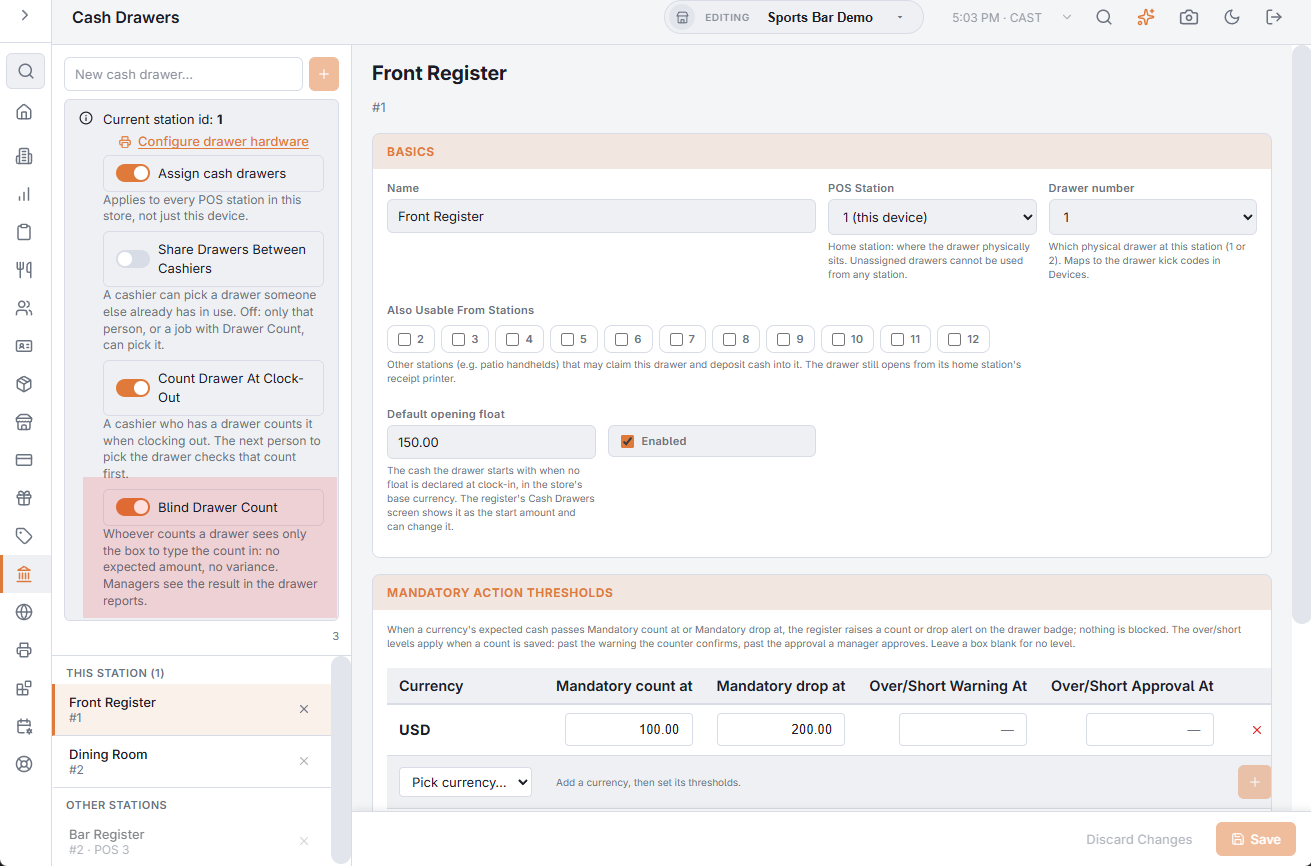
The drawer list
This station lists the drawers whose home is the device you are on. When the store picker has Back Office on another store, no station of that store is this device, so none is marked. Other stations lists the rest, each with its number, its station (or Unassigned) and the stations it is shared with. Disabled drawers and drawers of other stations are greyed.
- To add a drawer, type its name in New cash drawer… and add it. It starts enabled, with no station and a float of 0.
- To remove one, use the delete button on its row and confirm. The drawer leaves the list; its history stays in the reports. A drawer someone is clocked in with can’t be deleted: This drawer could not be deleted. A drawer in use can be deleted once its cashier clocks out. A drawer that still holds cash that has not been reset — opening cash, payments, a paid-in — can’t be deleted either: This Drawer Still Has Cash That Has Not Been Reset. Reset It, Then Delete It.
Basics
- Name — what cashiers see when they pick a drawer, for example Front counter or Bar.
- POS Station — the home station: where the drawer physically sits. The device you are on is marked (this device). A drawer left Unassigned cannot be used from any station.
- Drawer number — which drawer on the home station’s receipt printer: 1, or 2 for a second drawer on a split cable. It can only be set once a station is chosen, and no two drawers on one station can share a number. See Drawer numbers and kick codes.
- Also Usable From Stations — other stations, such as patio handhelds, that may pick this drawer and take cash into it. The drawer still opens from its home station’s receipt printer.
- Default opening float — the cash the drawer starts with when nobody declares a float at clock-in, for example with Assign cash drawers off. The register’s Cash Drawers screen shows and changes it as the start amount; changing it there needs Change Drawer Start Amount or a manager’s approval.
- Enabled — clear it to take a drawer out of use without deleting it.
These fields save with Save. If the drawer number is already used on that station, the save stops with Drawer number already in use on this station.
Mandatory action thresholds
One row per currency the drawer takes. Pick a currency in Pick currency… and add it; only cash payment methods set to count in the drawer are offered. Leave a box empty for no threshold. Each box saves as soon as you leave it, and the row’s delete button removes the currency.
| Column | What happens when the drawer passes it |
|---|---|
| Mandatory count at | Expected cash above this amount raises a Count required alert for the drawer. After a count, the next alert comes when expected cash passes the lowest it has been since that count plus this amount. |
| Mandatory drop at | Expected cash above this amount raises a Drop required alert. |
| Over/Short Warning At | A count that is over or short by more than this asks the counter to confirm. |
| Over/Short Approval At | A count that is over or short by more than this needs a manager’s approval to save. |
The levels raise alerts and ask for confirmation or approval. Cash payments wait for a manager only while Enforce Count And Drop Levels is on. Alerts show on the register’s drawer badge. A saved count clears the drawer’s Count required alerts in the currencies counted; a Drop required alert clears once a drop brings the drawer under the level. See Mandatory count and mandatory drop thresholds.
Reporting
The drawer’s Id, read-only, for support.