Back Office › Activity › Cash Logs holds four lists of cash records written at the register: Drawer Reset Log, Cash Drops, Cash Paid Out and Employee Deposits. Use them to look up a past drawer reset and its report, or to check which drops, paid-outs and deposits were recorded, by whom and on which station and drawer.
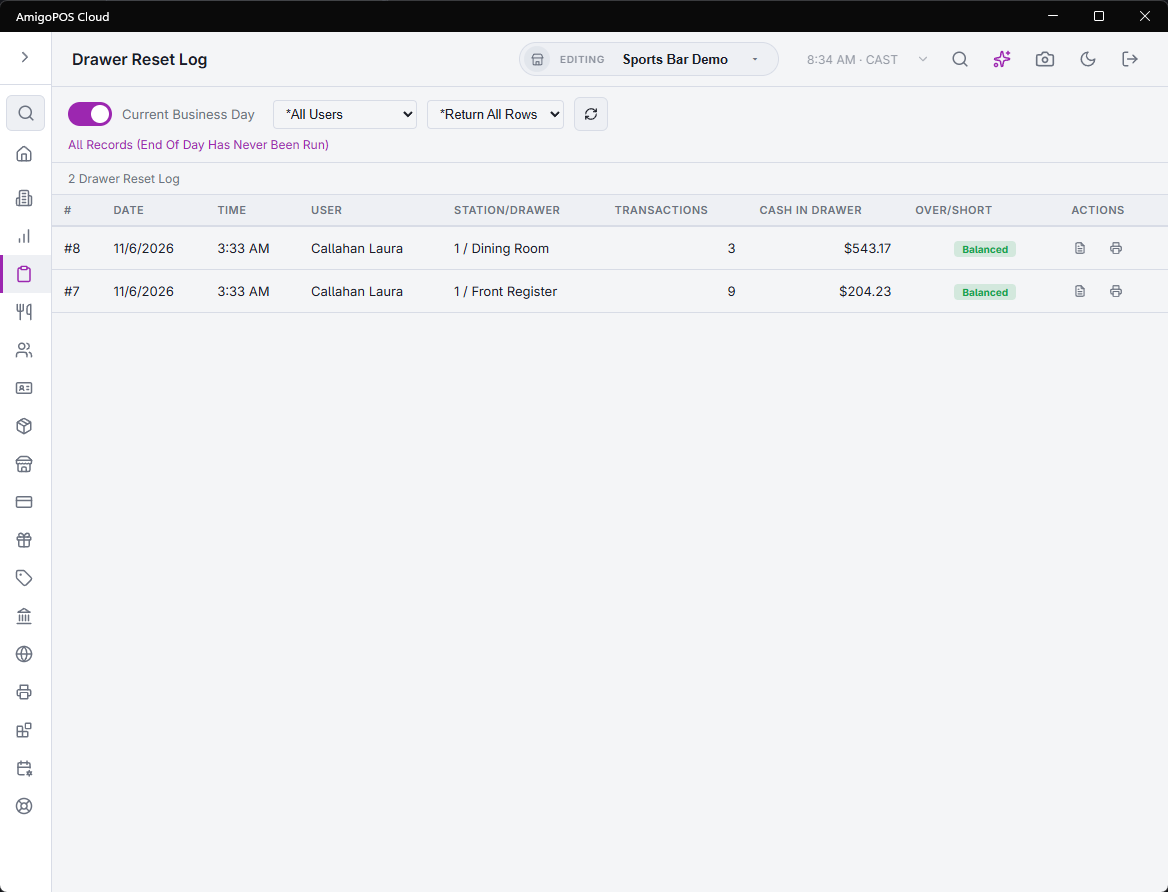
The toolbar
All four pages share the same toolbar. The list loads when the page opens.
- Current Business Day — the switch is on when the page opens. On Drawer Reset Log it lists the resets since the last End of Day. On the other three pages it lists the records that no End of Day has archived yet. The line under the toolbar says when the last End of Day ran.
- Date Range — turn the switch off to pick a start and an end date. The range opens on the last seven days. Each day runs from the store’s business day start time to the same time the next day, so sales after midnight stay on the day they belong to. The line under the toolbar shows the exact start and end.
- All Users — pick an employee to see only their records.
- Include Voids, Exclude Voids, Voids Only — on Cash Drops, Cash Paid Out and Employee Deposits.
- All Employees, Servers, Drivers — on Employee Deposits only.
- Return All Rows or Top 100, 500, 1000 or 2000 — limits how many rows come back. The newest records come first, so Top keeps the newest ones.
- Update Results (the refresh button) — loads the list again with your choices.
On every page, Station/Drawer shows the station number and the cash drawer’s name. A drawer without a name shows its number, such as #2, and — means no drawer is recorded.
Drawer Reset Log
One row for each drawer reset run at the register.
| Column | What it shows |
|---|---|
| # | The reset number. It is also printed at the foot of the reset report. |
| Date, Time | When the reset ran, in store time. |
| User | Who ran the reset. |
| Station/Drawer | The station and the drawer that was reset. |
| Transactions | The number of transactions on the drawer at the reset. |
| Cash in Drawer | The cash the drawer was expected to hold at the reset, in the base currency. |
| Over/Short | The count less the expected cash. Balanced when they match, a + amount when the drawer was over, and a red amount when it was short. |
Each row has two buttons:
- View Report — opens the drawer reset report as it was produced at the reset (see below).
- Print — prints that report on the receipt printer assigned to this station, without opening it.
Cash Drops
One row for each cash drop recorded at the register with the Cash Drops button. See Cash drops to the safe.
| Column | What it shows |
|---|---|
| #, Date, Time | The drop number and when it was recorded. |
| User | Who recorded the drop. |
| Station/Drawer | The station and the drawer the drop was taken from. |
| Drawer Reset | A short reference to the drawer reset that included the drop, or — when no reset has included it yet. |
| Amount | The amount moved to the safe. |
| Status | Voided: deleted from Back Office. Active: still counted against the drawer. Reset: included in a drawer reset. Archived: closed by an End of Day. |
Delete on a row asks Delete Entry #{number}? This Cannot Be Undone. Confirm, and the drop is voided: the row stays in the list, struck through, as Voided, and its Delete button goes. A voided drop no longer counts in the drawer reset report, the drawer’s expected cash, the End of Day or the register’s Cash Drops list. Deleting needs the Void Records, Delete Records or Manager Screen permission. Without one, the page shows The Entry Could Not Be Deleted.
Cash Paid Out
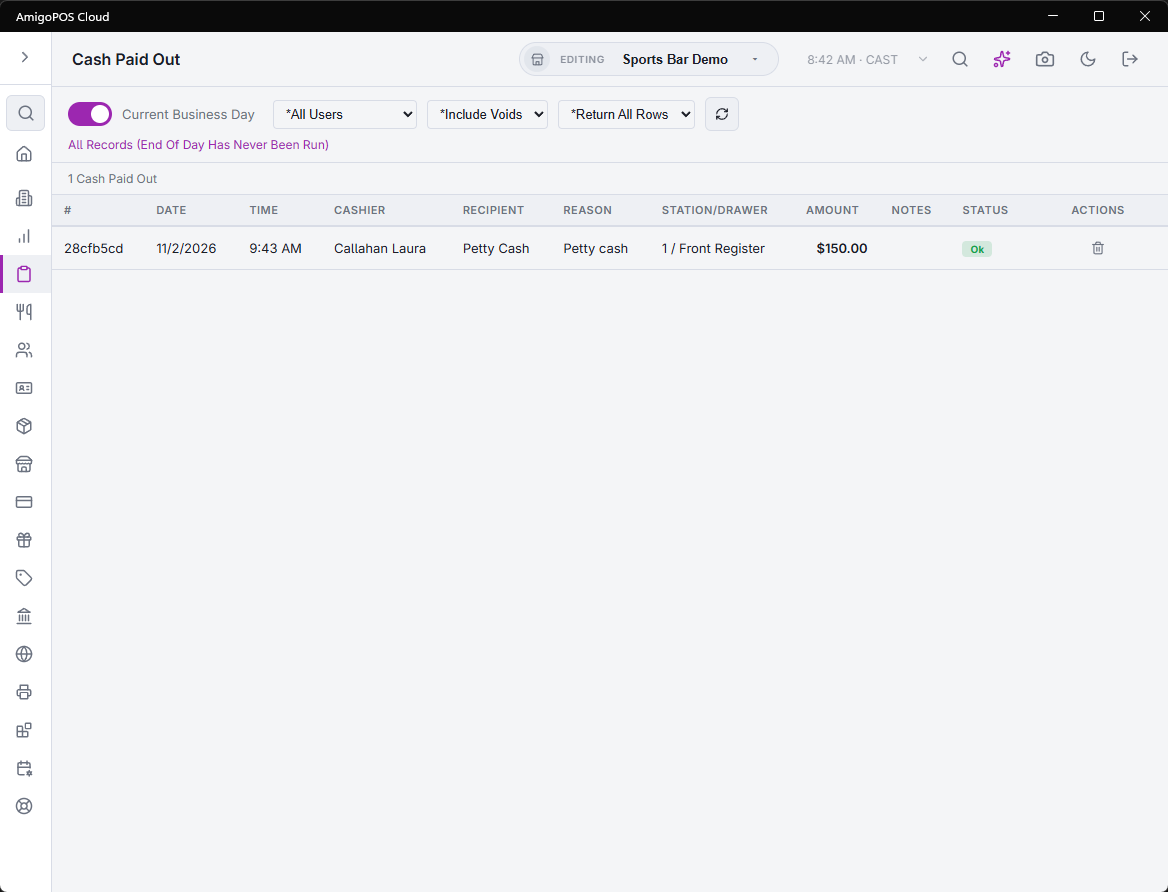
One row for each paid-out taken from a drawer. See Cash paid-out and reasons.
| Column | What it shows |
|---|---|
| #, Date, Time | A short reference for the paid-out and when it was taken, in store time. |
| Cashier | Who took the paid-out. |
| Recipient, Reason | As picked at the register. |
| Station/Drawer | The station and the drawer the cash came from. |
| Amount, Notes | The amount and the note typed with it. |
| Status | Voided, Archived (closed by an End of Day) or Ok. |
With a date range, the list uses the time the paid-out was taken.
Delete on a row asks Delete Entry {amount}? This Cannot Be Undone. Confirm, and the paid-out is voided: the row stays in the list as Voided, its amount goes back into the drawer’s expected cash, and it no longer counts in the drawer reset report or the End of Day. A paid-out that a drawer reset has already included is voided without changing the drawer’s expected cash, because the reset started it over. Choose Exclude Voids to hide voided rows. Deleting needs the Payouts, Manager Screen or Void Records permission. Without one, the page shows The Entry Could Not Be Deleted.
Employee Deposits
One row for each deposit a banked server or driver made in Shift Banking at the register. See Employee banking and deposits.
| Column | What it shows |
|---|---|
| #, Date, Time | A short reference for the deposit and when it was made. |
| User | The employee who made the deposit. |
| Type | Server or Driver. |
| Station/Drawer | The station and the drawer the deposit was taken on. |
| Amount | The cash handed in. |
| End Shift | A tick when the employee’s end shift has applied the deposit. |
| Drawer Reset | A tick when a drawer reset has included the deposit. |
| Status | Voided, Archived (closed by an End of Day) or Ok. |
Delete on a row asks Delete Entry {amount}? This Cannot Be Undone. Confirm, and the deposit is voided, the same as voiding it in Shift Banking: the row stays in the list as Voided, and its amount comes back out of the drawer’s expected cash, unless a drawer reset has already included it. Delete is not offered on a voided deposit or on one an end shift has already applied (a tick under End Shift). Deleting needs the Banking, Manager Screen, Void Records or Delete Records permission. Without one, or if the void is refused, the page shows The Entry Could Not Be Deleted.
Viewing, printing and emailing a reset report
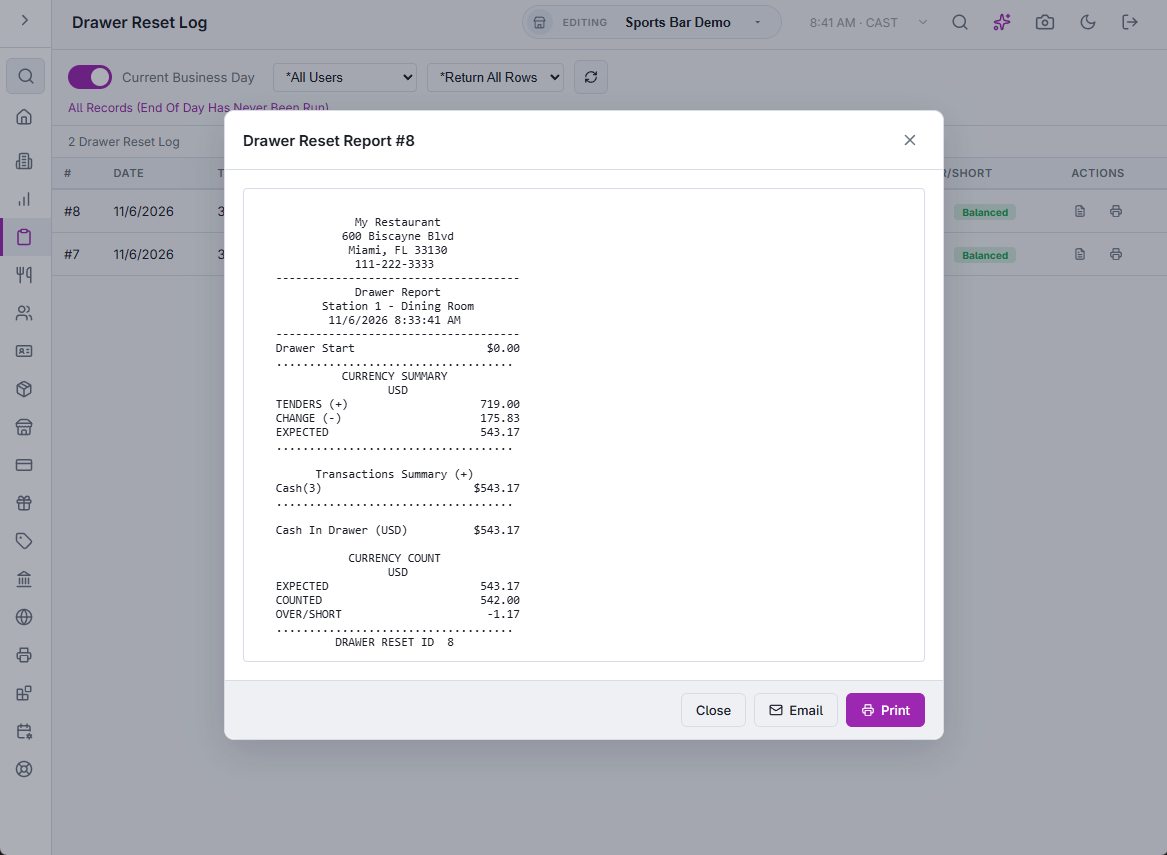
View Report opens the report over the list. Its buttons:
- Print — prints the report on the receipt printer assigned to this station. A message says Print job sent, or No receipt printer is assigned to this station.
- Email — opens a Report email recipients box, filled in with the store’s end-of-day report recipients. Change the addresses if needed, separating them with commas, and press Send. The email contains the text of the report on screen, with no attachment. The page shows Email Sent., or Email Could Not Be Sent — Check The Recipient Addresses when an address is not valid. Cancel closes the box.
- Close — closes the report. Clicking outside it does the same.
The row’s Print button shows the same messages.
Related: Drawer reset at end of shift, End-of-shift and end-of-day logs.