The drawer reset closes a drawer’s ledger: count, record the over or short, start again from zero. It is the cash side’s bookend to the opening float.
Running a reset
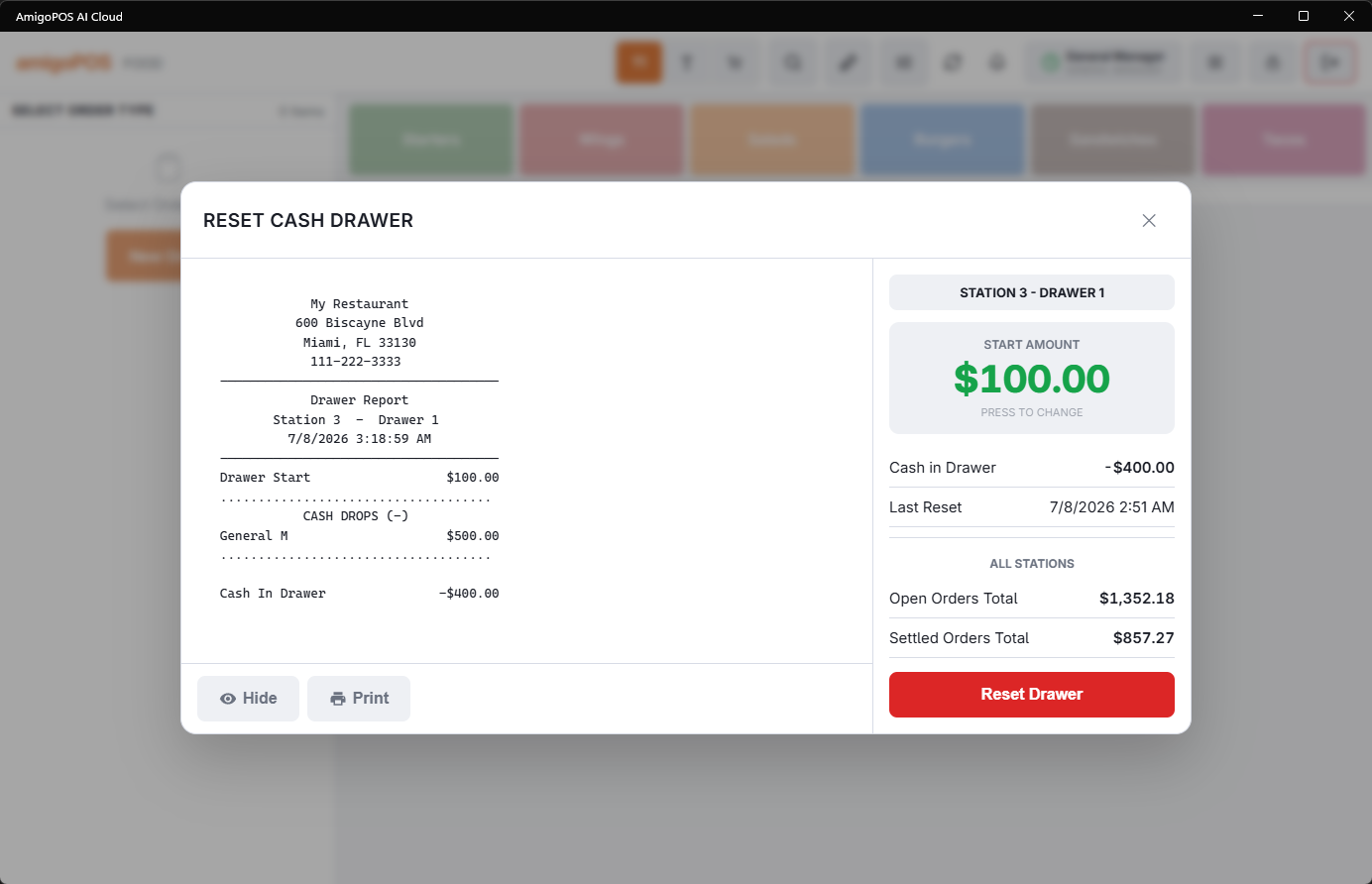
- Open More › Cash Drawers and pick the drawer. The screen shows its cash in drawer (the expected amount in the base currency), start amount, last reset, and the open and settled totals.
- With Show drawer count on, select Count Drawer. The per-currency count screen opens. Every currency listed needs a figure before the count can be saved — type 0 for none: Enter A Count For Every Currency (0 If None). Bills And Coins adds the cash up by denomination. Saving the count runs the reset.
- The reset report prints and is kept in the Drawer Reset Log.
What a reset does
- Closes the opening floats and starts the ledger again from zero in every currency — a spot count right after a reset expects 0.00.
- Records the over or short for good: on the Drawer Reset Log, in the Variance Report, on the End of Day report and in Loss Prevention. The count taken for the reset is set against exactly what the reset closes, so all of them show one figure. A reset without a count records no over or short.
- Closes the employee deposits the drawer took and the deposits an End Shift at this drawer applied. Each drawer closes its own part, so the drawer that took an employee’s deposits and the drawer where their End Shift ran can be reset in either order, before or after the End Shift.
- Happens in one step. If cash is rung on the drawer while the reset is being saved, nothing is written and the reset is worked out again; after three tries the register shows Cash Was Rung On This Drawer During The Reset. Try Again. Two people cannot reset the same drawer at once.
- Leaves the drawer In Use when its cashier is still clocked in.
The reset report
The report opens with a Currency Summary for each currency: float, tenders, Change Given (-), drops, payouts, Paid Ins (+), Employee Deposits (+), Deposits Applied and the expected amount. When the drawer was counted, a Currency Count section follows with expected, counted and over or short per currency; a currency that holds cash but was not counted prints as Not Counted. Headings print in the store’s language and times in store time.
Notes
- Someone with manager functions can reset any drawer without claiming it, but the reset itself needs the Reset Drawer permission. Without it, Manager Override Required asks a manager to approve just before the reset is saved — after the count when Show drawer count is on. The reset is recorded under the name of the person who did it. Cashiers may clock out first: the hand-off counts cover the gap, and a drawer can span several shifts between resets.
- Reset before End of Day for the day’s cash reporting to be complete; the pre-EOD summary flags drawers that are waiting.
- Changing the start amount in the prompt after the reset needs Change Drawer Start Amount, or a manager’s approval; Skip leaves the amount as it is.
- What happens to the start amount after a reset, and the default float, are covered in Accepting Foreign Currency and Creating and editing cash drawers.
- Cash taken out of the drawer at a reset does not go into the Safe screen. Record a cash drop first for cash that is going to the safe. See The Safe and bank deposits.
What the reset report includes
Back Office › Store Setup › Manager Screen › Drawer Reset, section Drawer Report, decides which optional sections print on the reset report:
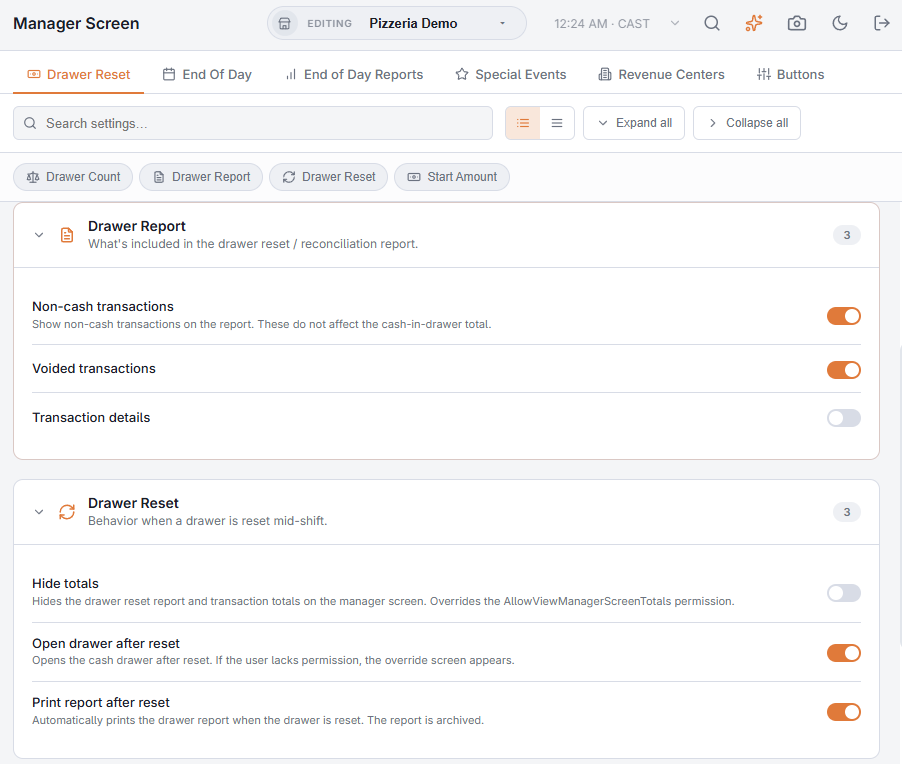
- Non-cash transactions — card and other tenders taken on the drawer. They don’t change the cash in drawer.
- Voided transactions — payments voided on the drawer, with a total.
- Transaction details — every payment line: time, cashier, order and tender. Useful when investigating a variance; long on a busy day.
The currency summary, deposits, drops, payouts and the cash in drawer always print. Employee deposits print under Server Deposits (+) or Driver Deposits (+) on the drawer that took them, and under Deposits Applied on the drawer where End Shift applied them. Paid-ins print in a Paid Ins section of their own. Payouts in the base currency are listed under Cash Payouts (-), the section that adds up with the cash in drawer. Payouts in another currency get their own section, such as Cash Payouts EUR (-). A payout with no reason or recipient, such as a gift card cash-out, is listed with its note in place of the reason. Voided drops and payouts are left out.
When the drawer’s own station cannot do it
Cash Drawers on a station offers the drawers of that station. If the station a drawer belongs to is broken, switched off or has been replaced, reset the drawer from another station with Reset Here, on End Of Day or on the Pre-EOD Summary: it opens Cash Drawers on that one drawer. The reset needs Reset Drawer there too. See Running end of day.
Blind count at reset
With Blind Drawer Count on, the Count Drawer step of a reset shows only the boxes to type the count in, like every other count screen. On the reset screen, someone whose job lacks the Drawer Count permission sees no Cash in Drawer line, no drawer report and no Show or Print button for it; with the permission, everything shows as before. The report printed after the reset still carries the expected and counted amounts. See Drawer states overlay and spot count.
Settings for the reset
Whether the drawer is counted first, whether totals are hidden, whether the drawer opens and the report prints after the reset, and whether the start amount is asked for are set under Back Office › Store Setup › Manager Screen › Drawer Reset. See Manager screen and buttons.