Back Office › Discounts & Promotions › Guest Offers is where you run guest offers, the emails you send to guests who asked for them, such as a welcome back after a long absence, a birthday gift, an offer for your quiet hours. It all starts with the list of guests who said yes. This topic covers how guests join the list, how they leave it, and how you can prove they agreed.
Who is on the list
A guest is on the list when their customer record has an email and accepts offers. Guests with the Do Not Contact flag are never emailed, and a guest with two customer records under the same email gets one email, not two. The list is shared by all the stores of your business.
Guests join the list in these ways:
- After the guest survey — an optional sign-up card on the survey’s thank-you page (see below).
- Online — the offers box at web checkout and in the guest’s web account.
- Your Join Our List page — the store’s own sign-up page, with a printable poster and table cards (Guest offers: Join Our List page, poster and table cards).
- By staff — when a guest asks, tick Send Special Offers And News By Email on their record in Back Office › Customers › Customers (Customers list, types, and merge). It is recorded as Staff in the Consent Record.
- A friend’s invite — see Invite a friend.
The sign-up after the survey
Go to Back Office › Discounts & Promotions › Guest Offers, open Settings and find Email Sign-Up.
- Offer Email Sign-Up After The Survey — shows the sign-up card on the survey’s thank-you page. Off by default; the guest survey must be on.
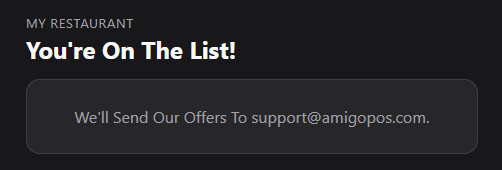
- Confirm By Email (Double Opt-In) — on by default and recommended. The guest gets an email with a link and joins the list only after clicking it, which keeps typos and other people’s addresses off your list.
- Ask For The Birthday — asks for the day and month (never the year). Optional for the guest.
- Sign-Up Line — your own line above the form; blank uses the built-in line in the guest’s language.
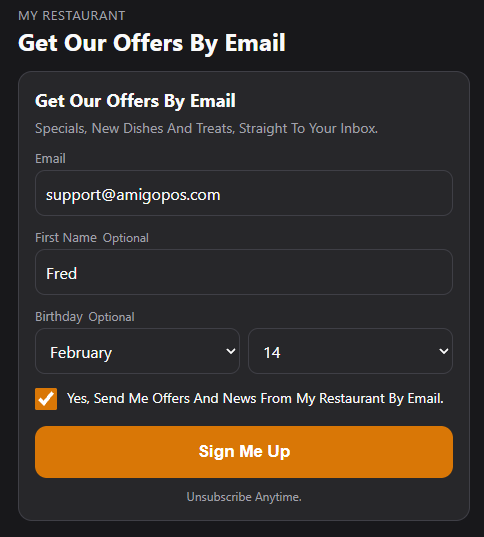
The guest types their email, optionally their first name and birthday, ticks the box agreeing to receive offers and presses Sign Me Up. The email is kept apart from their survey answers and is never linked to them.
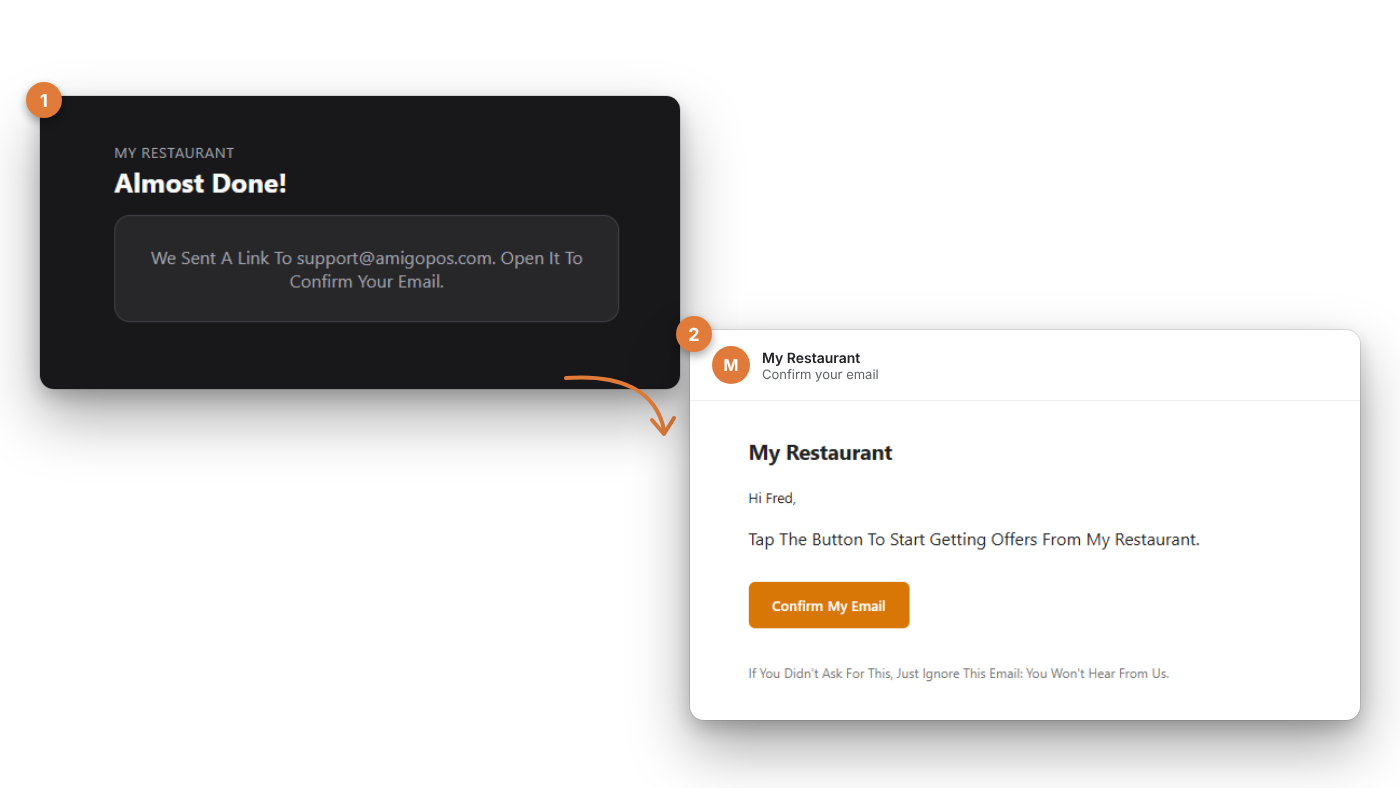
Unsubscribing
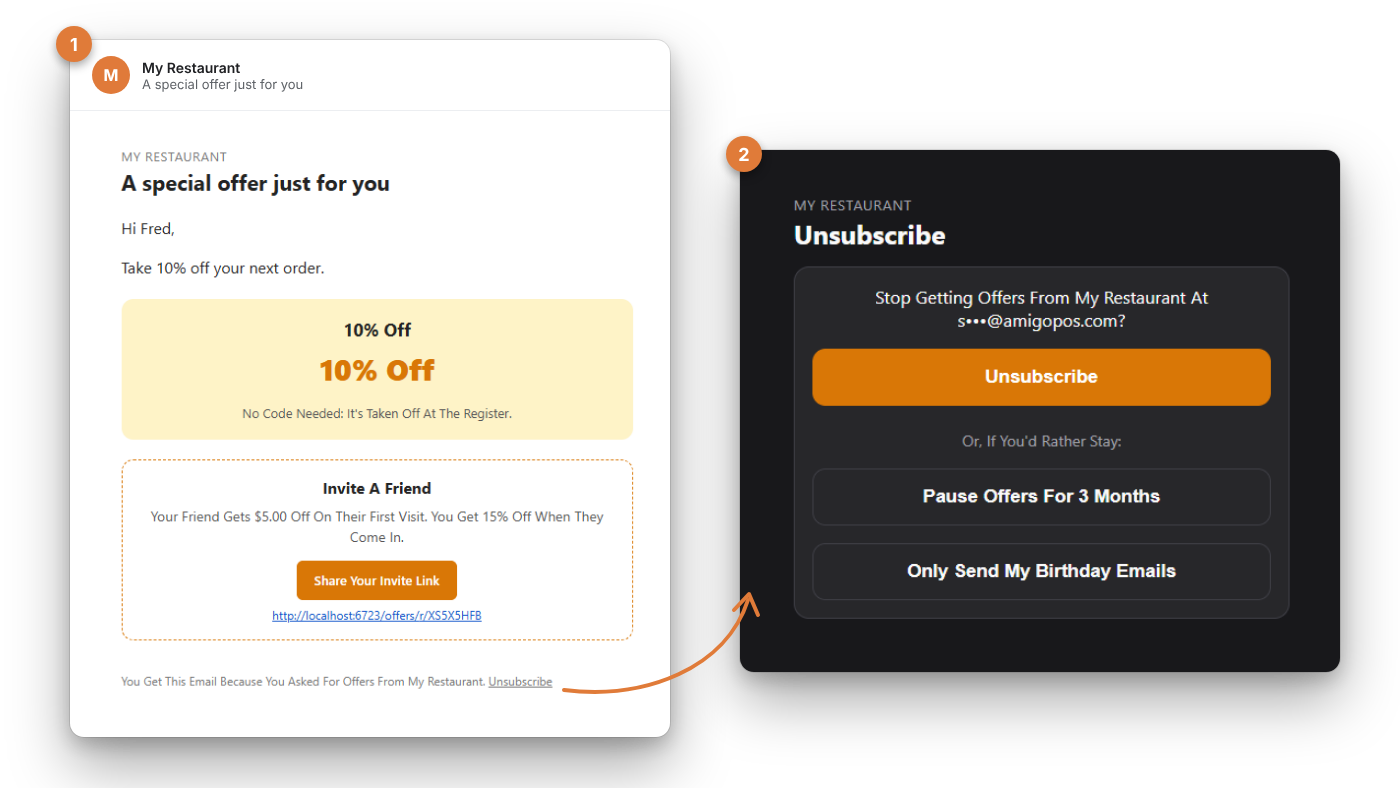
Every offer email ends with an Unsubscribe link. It opens a page that asks first (mail programs open links on their own, so only a person pressing the button unsubscribes). Unsubscribing turns offers off for every customer record of your business with that email. Staff can also untick Send Special Offers And News By Email on the customer’s record when a guest asks in person.
The Audience tab
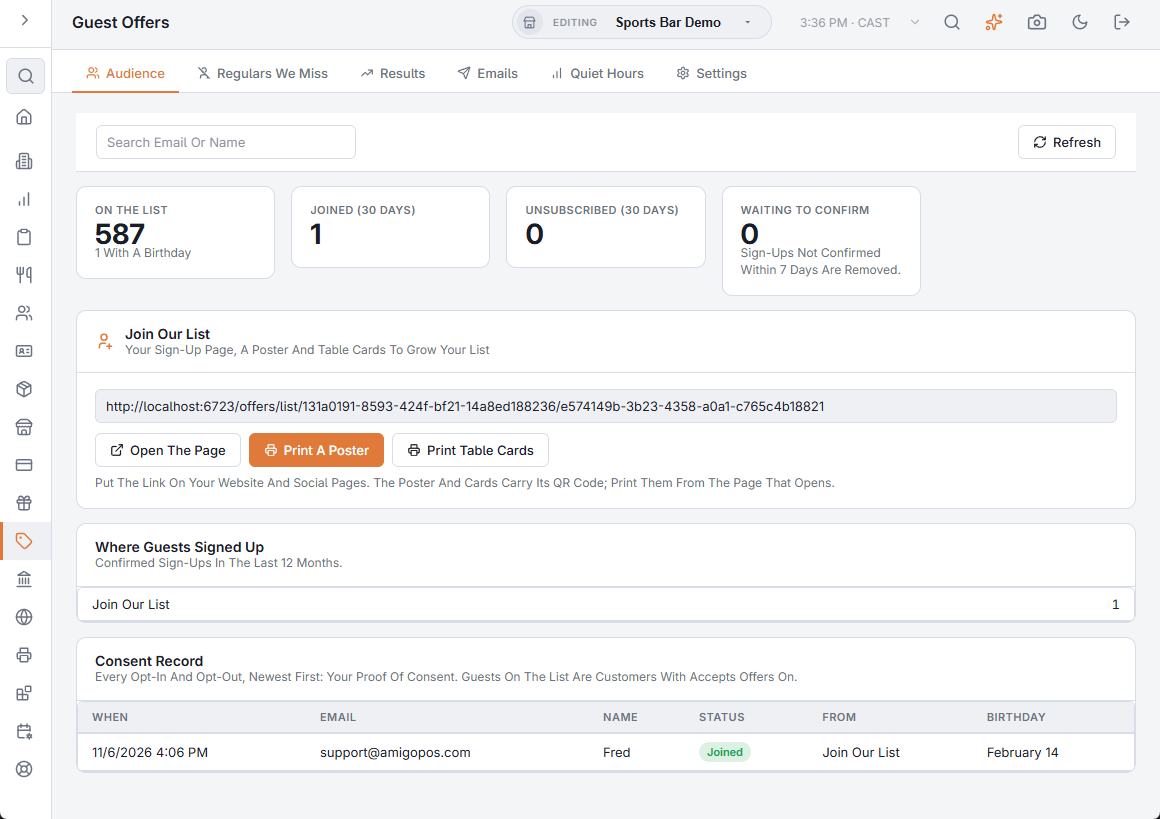
- On The List — guests who take offers by email (one per address), and how many gave a birthday.
- Joined (30 Days) and Unsubscribed (30 Days).
- Waiting To Confirm — sign-ups whose confirmation link hasn’t been clicked yet.
- Where Guests Signed Up — confirmed sign-ups of the last 12 months by source, such as Guest Survey, Web Sign-Up, Web Profile, Join Our List, Staff and Friend’s Invite.
- Join Our List — the link to your sign-up page, with Open The Page, Print A Poster and Print Table Cards, while Join Our List Page And Poster is on in Settings.
- Consent Record — the newest 200 opt-ins and opt-outs, with date, email, name, status, where it came from and the birthday. Search Email Or Name finds older ones. This is your proof that each guest agreed.
Next: Win-back and birthday emails · Filling your quiet hours
Unsubscribes, bounces and spam complaints
Guests can also unsubscribe with one tap from their mail app, and guests whose email bounces or who mark an offer as spam are taken off the list automatically (shown as Email Bounced or Marked As Spam in the Consent Record). See Guest offers: how your emails are delivered.
More ways to grow your list
Your store has its own sign-up page with a printable poster and table cards (Guest offers: Join Our List page, poster and table cards), and guests can also ask for offers by WhatsApp (Guest offers by WhatsApp).