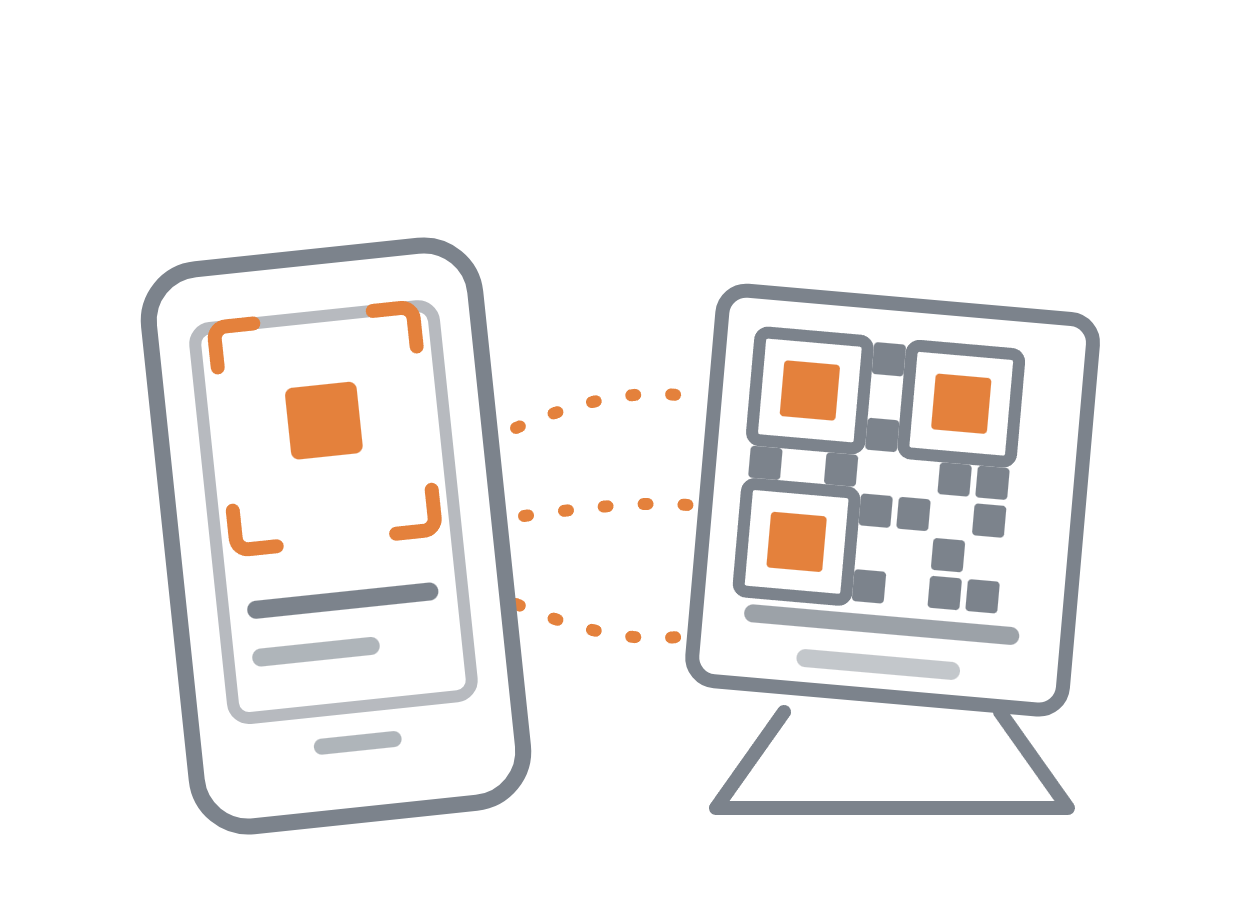
QR table ordering puts a small printed QR code on each dine-in table. A guest scans it with their phone camera, your online ordering menu opens in the browser — no app, no sign-in — and what they order goes to that table at the POS. It is set up at Back Office › Web Orders › QR Table Ordering.
Why use it
- Faster rounds. Guests order the next drink or extra side themselves instead of waiting to catch a server’s eye.
- Fewer keying errors. The guest chooses their own modifiers; nothing is repeated down the line.
- Servers cover more tables. Order taking moves to the guest, so staff focus on running food and looking after people.
- No new hardware. The guest’s own phone is the terminal. You print table cards, nothing more.
How an order travels
- The guest scans the code on their table. The code holds only a link — a long random web address unique to that table.
- Their browser opens your online ordering site and remembers which table they are at for the next four hours.
- They browse the same menu, categories and modifiers your online ordering site already shows.
- At the cart they send the order to the table — or, when the table pays online, pay for it by card first. There is no pickup or delivery step.
- The order arrives at the POS on that table. Depending on the settings, it goes straight to the kitchen or waits for a server to approve it.
- Kitchen tickets and labels print for the new items only. Earlier rounds are never reprinted.
Order handling
- Send to kitchen immediately — the order is sent the moment the guest taps send. Fastest for bars, taprooms, food halls and casual counters.
- Hold for server approval — the order waits until a server accepts or declines it at the POS. Slower, but nothing reaches the line unseen. Best for table service, alcohol, and rooms where you want a person in the loop.
You can change it at any time in Back Office; it applies from the next order, and the printed codes never need reprinting.
Paying
The Payment setting decides when the guest pays:
- Pay At The Table (POS) — order now, pay later. Every round goes on the table’s check, and the server settles it at the POS at the end of the meal. To let the guest pay that check from their phone too, print it with the QR pay at table code.
- Pay Online Before Sending To Kitchen — the guest pays by card on the phone, and the order reaches the kitchen only once the payment goes through. Each paid order is its own check. An order left unpaid is cancelled after the time you set.
What you need before switching it on
- A published online ordering site with a public
https://address. The guest’s phone reaches it over the internet, not your local network. - A seating chart with named tables. Codes are made per table from the seating chart, and the table names on the guest’s screen come from it. Walls, plants and other decorations get no code.
- A dine-in order type for QR orders, so taxes, kitchen routing and reports behave as dine-in should.
- Stripe card payments, if guests are to pay online.
- Guest Wi-Fi or a decent mobile signal in the dining room.
Nothing else about your service changes. Servers can still ring items in at the POS for the same table at the same time; QR rounds join the same open check.
Next steps
- Set it up — see Setting up QR table ordering.
- Make and print the table codes — see Generating and printing table QR codes.
- Walk your staff through what guests see and what happens at the POS — see What the guest sees and QR orders at the POS and in the kitchen.