Back Office › Employees › Scheduling › Payroll brings the time clock, tip declarations and the tip pool together for a pay period, and produces the file your payroll service imports. The page appears for jobs with the Back Office Reports permission.
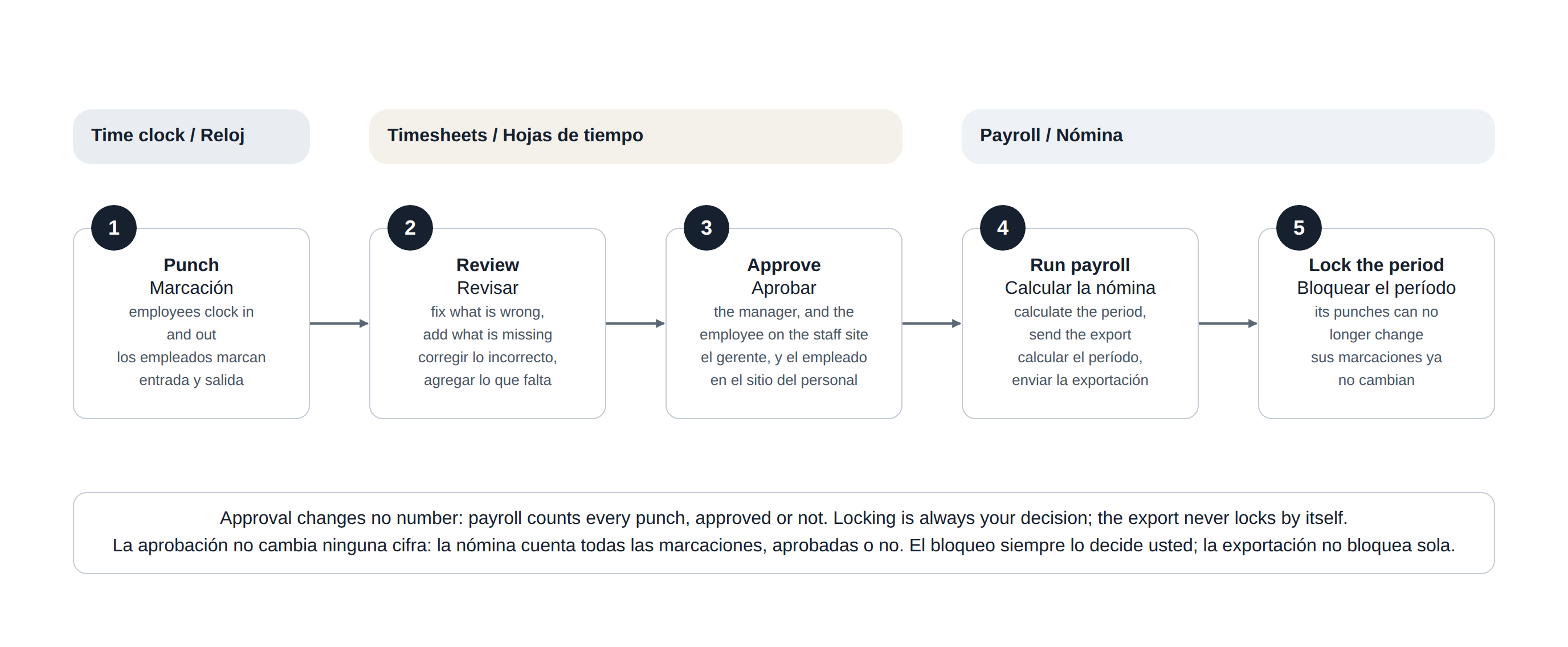
In one picture: how a week’s punches reach payroll, and when the period is locked.
Running a period
Set From and To, or use Last Week or Last Two Weeks (full weeks ending before the current one) or Last Month (the previous calendar month), and press Calculate. Each employee gets one line:
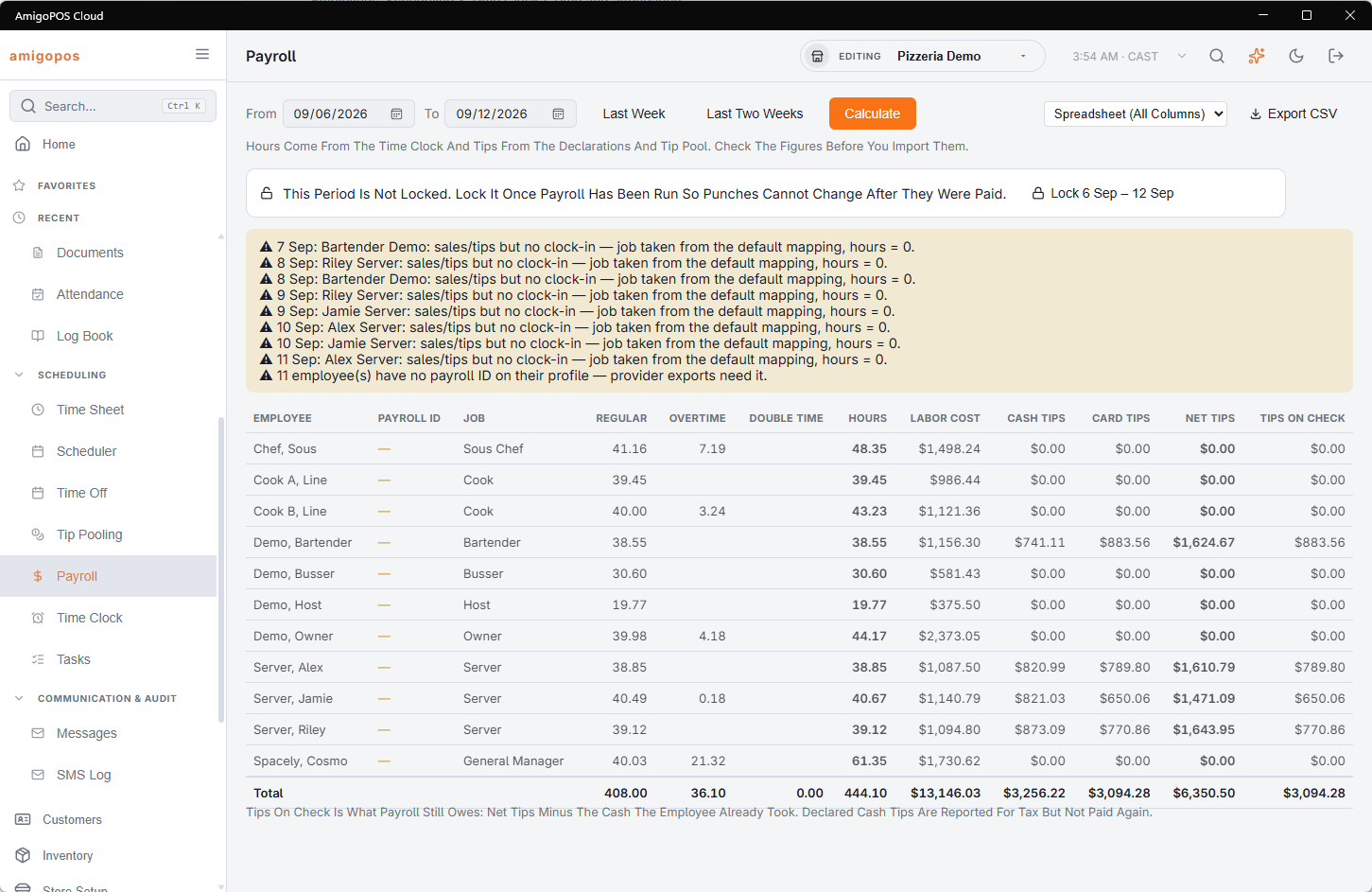
| Column | Shows |
|---|---|
| Employee | Click the name to see the employee’s punches for the period on the Time Sheet; its Payroll button brings you back here, calculated. |
| Payroll ID and Job | The employee’s number in your payroll service, from their profile, and the job they worked most in the period. |
| Regular, Overtime, Double Time | From time clock punches, with breaks deducted when the store deducts them, split the way the time clock allocates overtime. |
| Holiday | Only when the period contains a paid holiday; see Paid holidays. |
| Hours | The total. n Open beside it counts punches without a clock-out, which are not counted — close them on the Time Sheet. |
| Registered and Variance | Only when an employee has registered hours on their profile; see Registered hours and the hours variance. |
| Labor Cost | Hours at the pay rates on the punches. |
| Cash Tips | Declared at clock-out. |
| Card Tips | Gratuities on the tickets the employee owns. |
| Net Tips | Tips after the tip pool: collected, minus what they contributed, plus what they received. |
| Tips On Check | What payroll still owes them in tips: net tips minus the cash tips they already took home. Declared cash tips are reported for tax but not paid again. |
A totals row closes the table. Warnings are listed above it — punches still open, punches longer than 12 hours or overlapping another punch of the same employee, tip pool problems, and employees without a payroll ID, who are also highlighted.
Exporting
Choose a format and press Export CSV:
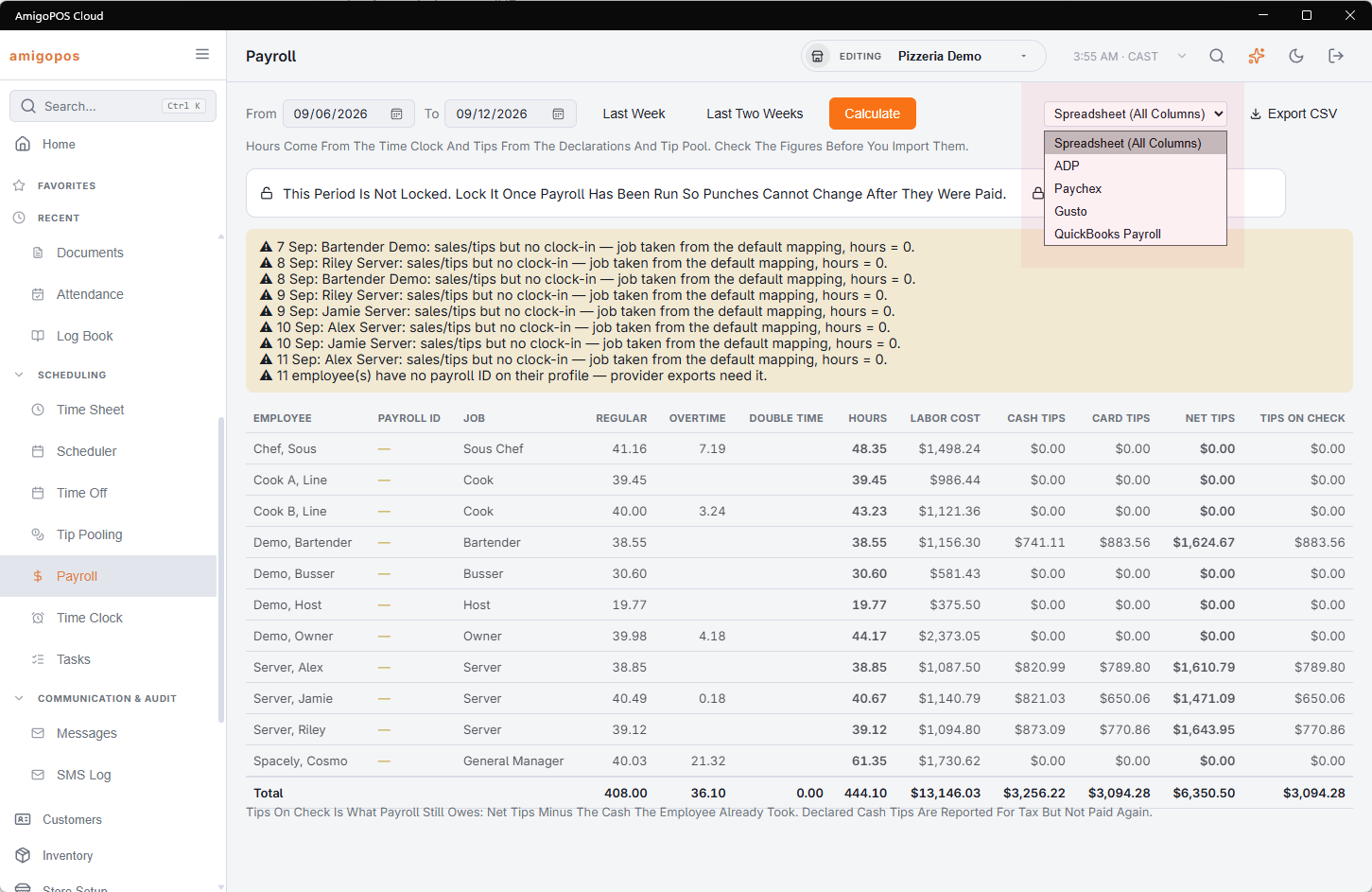
- Spreadsheet (All Columns) — every column above plus pay rate, holiday premium, contributed, received, sales and shifts, for a spreadsheet or a bookkeeper.
- ADP, Paychex, Gusto — in each service’s import layout, matched on the employee’s Payroll ID (their employee number in that service). Employees without one are left out of the file.
- QuickBooks Payroll — matched on the employee’s name, so it needs no payroll ID.
Locking the period
Under the toolbar, a panel shows whether the dates on screen are locked. Once the export has gone to your payroll service, Lock {from} – {to} closes the period: its finished punches can no longer be edited or deleted, so the time sheet cannot drift away from what was paid. Unlock… asks for a reason and needs the Edit Employees permission, and every lock and unlock is kept in Lock History under the panel. See Locking a pay period.
Unapproved punches
When finished punches in the dates on screen have not been approved on the Time Sheet, the lock panel says how many. Lock still works — approval changes no figure on this page — but it is the moment to check that the week was reviewed. See Reviewing and approving punches.
Posting the payroll to Xero
When the store’s Xero integration is enabled and connected, the lock panel also has Post Journal To Xero, available once the period is locked. It posts one journal for the period: wages by job, tips paid through payroll, and the wages payable total. Once it is posted, the row reads Payroll Journal Posted To Xero with the date, and Open This Journal In Xero opens it in Xero. Post Again after a correction replaces the previous journal. See Payroll Journal.
Holidays
Holidays in the toolbar opens the store’s paid-holiday calendar. Hours punched on a holiday show in their own Holiday column, paid at the holiday multiplier, and reach every export format; see Paid holidays.